---
sidebar_label: "Action Menu"
---
import { TypeList } from "docs-ui"
export const metadata = {
title: `Action Menu - Admin Components`,
}
# {metadata.title}
In this guide, you'll learn how to add an action menu to your Medusa Admin customizations.
The Medusa Admin often provides additional actions in a dropdown shown when users click a three-dot icon.
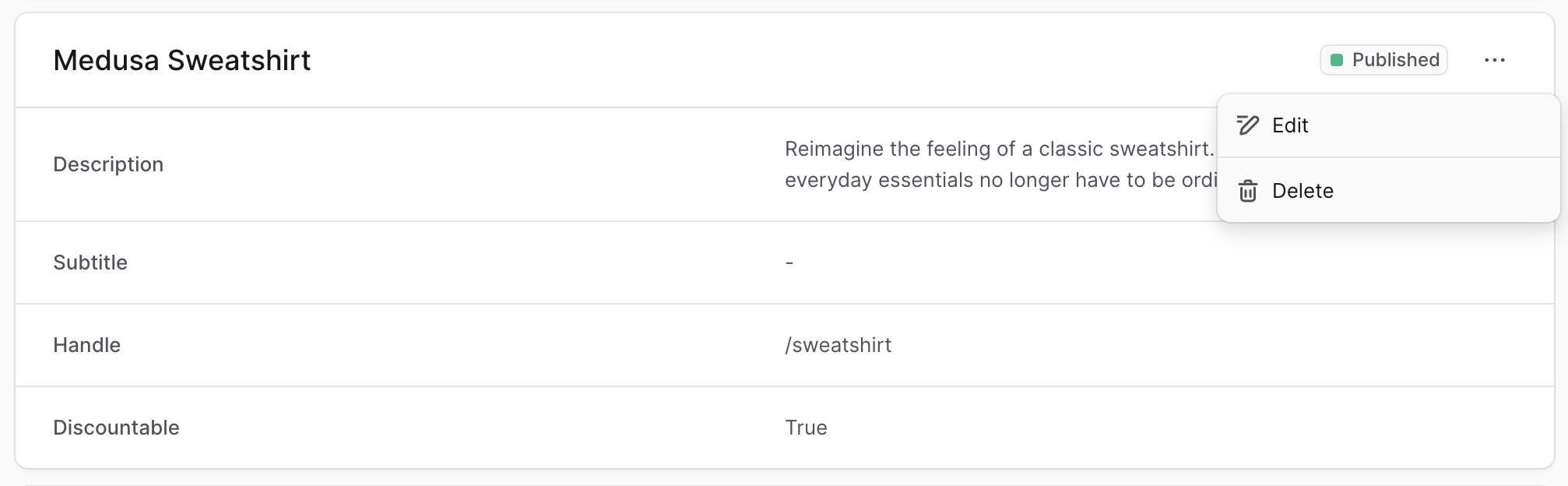
To create a component that shows this menu in your customizations, create the file `src/admin/components/action-menu.tsx` with the following content:
```tsx title="src/admin/components/action-menu.tsx"
import {
DropdownMenu,
IconButton,
clx,
} from "@medusajs/ui"
import { EllipsisHorizontal } from "@medusajs/icons"
import { Link } from "react-router-dom"
export type Action = {
icon: React.ReactNode
label: string
disabled?: boolean
} & (
| {
to: string
onClick?: never
}
| {
onClick: () => void
to?: never
}
)
export type ActionGroup = {
actions: Action[]
}
export type ActionMenuProps = {
groups: ActionGroup[]
}
export const ActionMenu = ({ groups }: ActionMenuProps) => {
return (
{groups.map((group, index) => {
if (!group.actions.length) {
return null
}
const isLast = index === groups.length - 1
return (
{group.actions.map((action, index) => {
if (action.onClick) {
return (
{
e.stopPropagation()
action.onClick()
}}
className={clx(
"[&_svg]:text-ui-fg-subtle flex items-center gap-x-2",
{
"[&_svg]:text-ui-fg-disabled": action.disabled,
}
)}
>
{action.icon}
{action.label}
)
}
return (
)
})}
{!isLast && }
)
})}
)
}
```
The `ActionMenu` component shows a three-dots icon (or `EllipsisHorizontal`) from the [Medusa Icons package](!ui!/icons/overview) in a button.
When the button is clicked, a dropdown menu is shown with the actions passed in the props.
The component accepts the following props:
void`",
optional: true,
description: "The function to execute when the action is clicked. This is required if `to` isn't provided."
}
]
}
]
}
]}
/>
---
## Example
Use the `ActionMenu` component in any widget or UI route.
For example, create the widget `src/admin/widgets/product-widget.tsx` with the following content:
```tsx title="src/admin/widgets/product-widget.tsx"
import { defineWidgetConfig } from "@medusajs/admin-sdk"
import { Pencil } from "@medusajs/icons"
import { Container } from "../components/container"
import { ActionMenu } from "../components/action-menu"
const ProductWidget = () => {
return (
,
label: "Edit",
onClick: () => {
alert("You clicked the edit action!")
},
},
],
},
]} />
)
}
export const config = defineWidgetConfig({
zone: "product.details.before",
})
export default ProductWidget
```
This widget also uses a [Container](../container/page.mdx) custom component.
### Use in Header
You can also use the action menu in the [Header](../header/page.mdx) component as part of its actions.
For example:
```tsx title="src/admin/widgets/product-widget.tsx"
import { defineWidgetConfig } from "@medusajs/admin-sdk"
import { Pencil } from "@medusajs/icons"
import { Container } from "../components/container"
import { Header } from "../components/header"
const ProductWidget = () => {
return (
,
label: "Edit",
onClick: () => {
alert("You clicked the edit action!")
},
},
],
},
],
},
},
]}
/>
)
}
export const config = defineWidgetConfig({
zone: "product.details.before",
})
export default ProductWidget
```