---
sidebar_position: 2
sidebar_label: "Manage Order Payments"
tags:
- user guide
- order
- payment
---
import {
EllipsisHorizontal,
} from "@medusajs/icons"
import { Table } from "docs-ui"
export const metadata = {
title: `Manage Order Payments in Medusa Admin`,
}
# {metadata.title}
In this guide, you’ll learn how to manage an order’s payment, including capturing and refunding the payment.
## Overview
When a customer places an order, their payment is authorized by the payment provider they've chosen. You can manage an order's payment by capturing it, refunding it, or handling outstanding amounts.
### Order Payment Statuses
At the top of the order details page, you can see the payment status of the order. The payment status can be one of the following:
Status
Description
Authorized
The default status when an order is placed, unless the payment provider is configured to automatically capture the payment.
Partially Authorized
Part of the payment is authorized, which happens if an order has changed. For example, if an order was edited and new payment is required.
Captured
The payment has been captured and processed with the payment provider.
Partially Captured
A part of the payment has been captured. This happens when an order's payment was previously captured, but a change to the status, such as an exchange, requires additional payment.
Refunded
The payment has been refunded to the customer.
Partially Refunded
A part of the payment has been refunded.
---
## Capture Payment
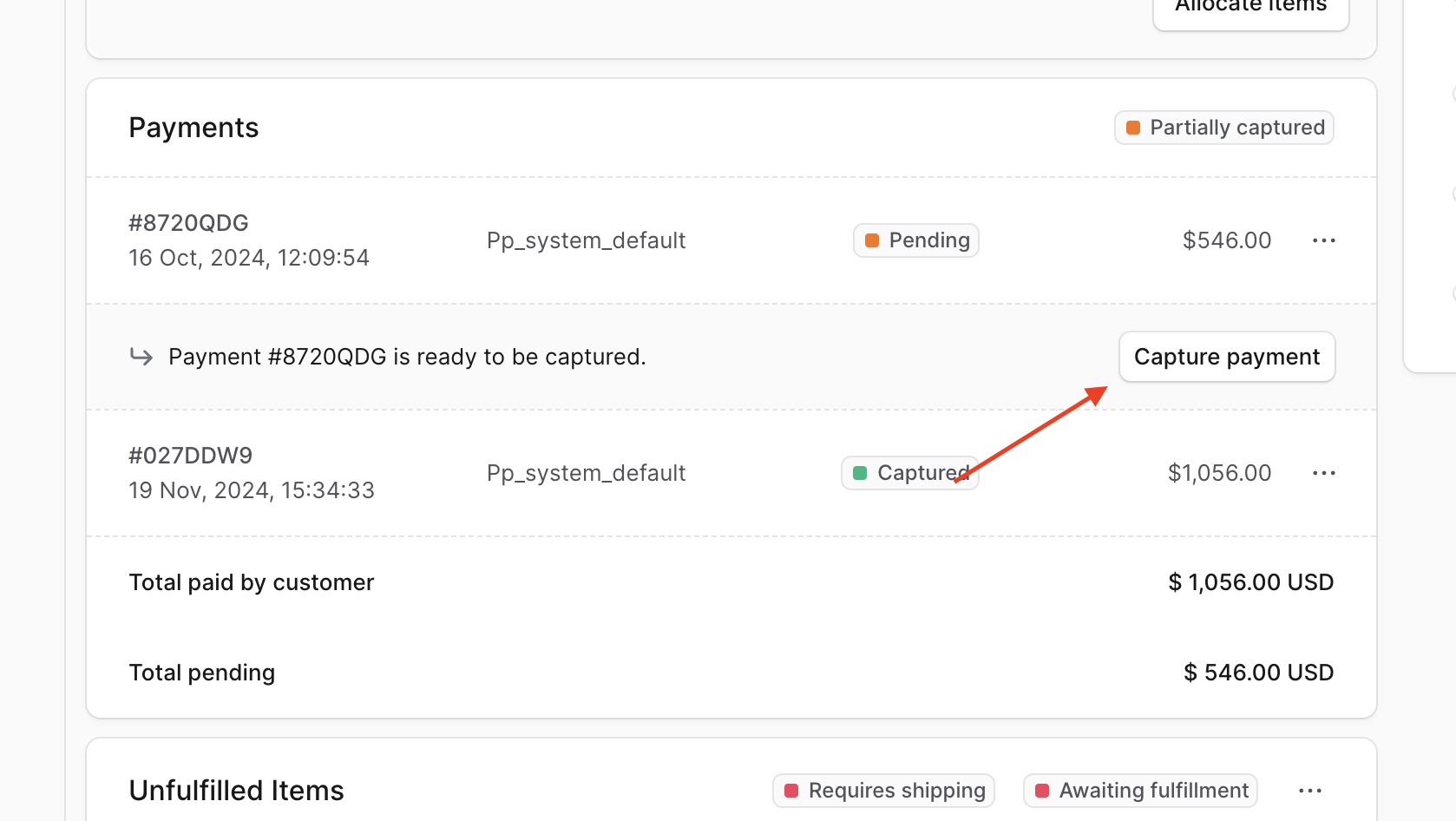
Unless the payment provider that the customer chose is configured to automatically capture an order's payment, you need to manually capture the payment.
Capturing an order's payment triggers its processing with the chosen payment provider, such as Stripe.
If you're unsure whether your payment provider is configured to automatically capture payments, please contact your technical team.
To capture an order’s payment:
1. Open the order's details page.
2. Scroll to the Payments section.
3. Click on the Capture Payment button.
4. Confirm capturing the payment by clicking the "Confirm" button in the pop-up.
---
## Handling Outstanding Amounts
After making changes to an order, such as [editing its items](../edit/page.mdx) or [creating an exchange](../exchanges/page.mdx), there may be outstanding amounts (to be captured from the customer or returned) that are in the Summary section.
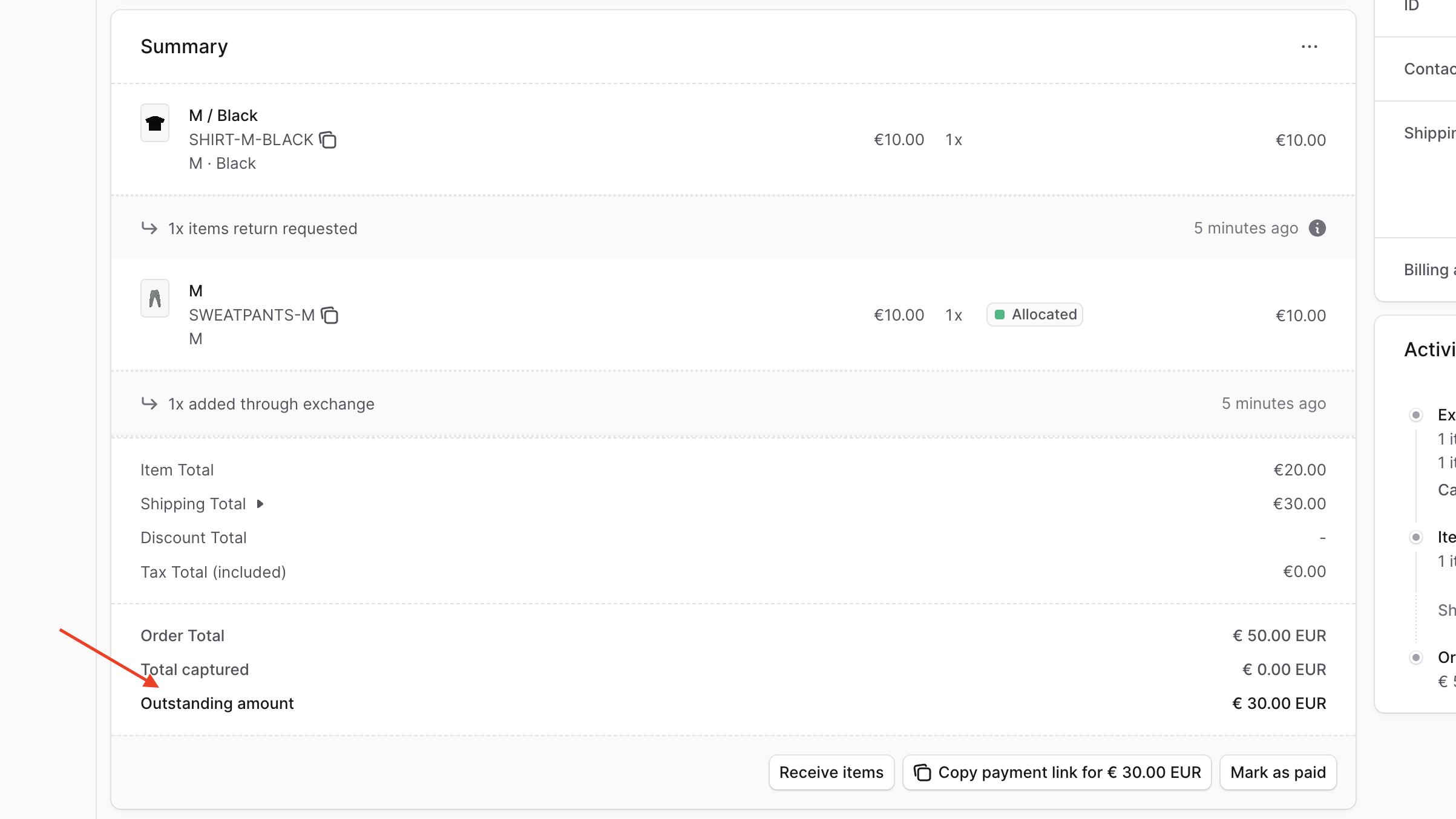
If the outstanding amount is negative, it means you owe the customer a [refund](#refund-payment).
Otherwise, a positive outstanding amount means there are additional payments required from the customer. You can handle it by either:
1. [Mark the order as paid manually](#mark-outstanding-amount-as-paid);
2. Or [copy a payment link](#copy-payment-link-for-additional-payment).
## Refund Payment
If you've made changes to an order, such as return or exchange items, you can refund a previously-captured payment if there's an outstanding amount.
Refunding the payment triggers its processing with the chosen payment provider, such as Stripe.
Refunding payments is irreversible.
To refund an order’s outstanding amount:
1. Open the order's details page.
2. Scroll to the Payment section.
3. Click on the icon at the right of the payment to refund.
4. Choose "Refund" from the dropdown.
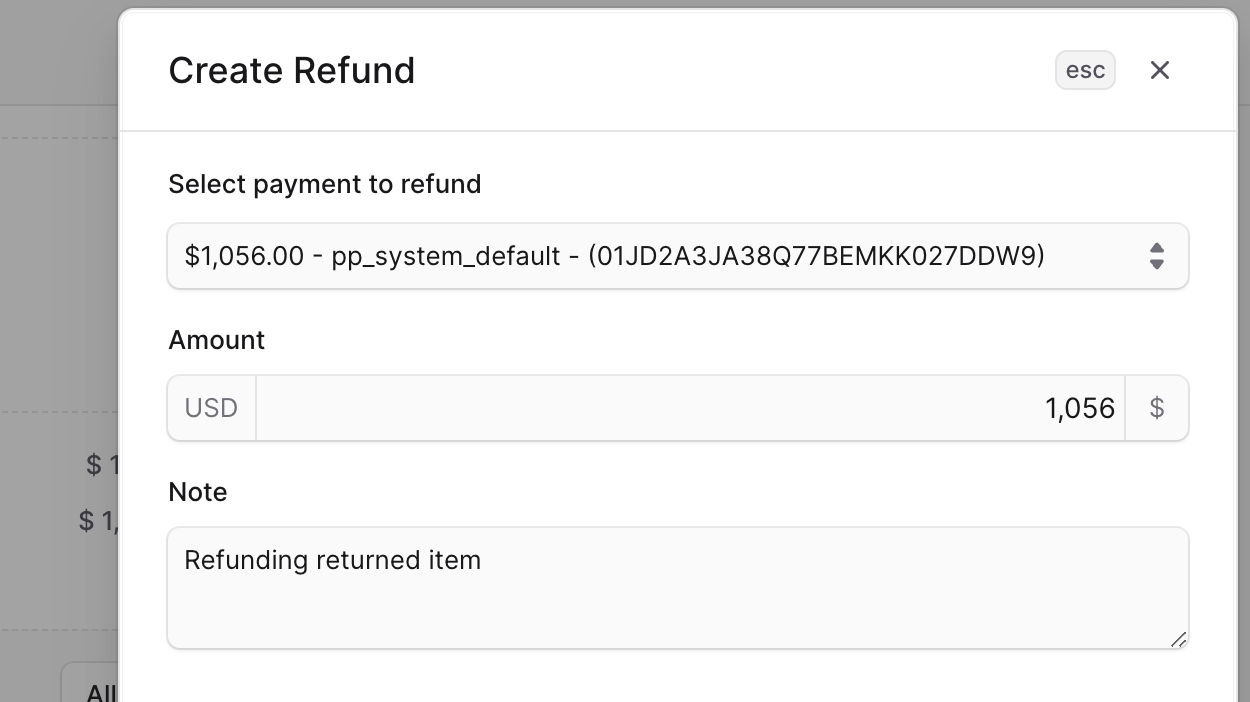
5. In the side window that opens, fill out the following fields:
- **Select payment to refund**: Choose the payment to refund an amount from.
- **Amount**: Enter the amount to refund.
- **Note**: A note that the customer can see in the notification they receive.
6. Once you’re done, click on the Save button.
Once the payment is refunded, the customer will receive a notification about the refund and you can view the refund as part of the order's activity.
### Mark Outstanding Amount as Paid
By marking a positive outstanding amount as paid, you're capturing the payment without processing it through the associated payment provider. Instead, you handle capturing the payment outside of Medusa.
To mark a positive outstanding amount as paid:
1. Open the order's details page.
2. In the Summary section, click on the "Mark as paid" button.
3. Confirm marking the payment as paid by clicking the "Confirm" button in the pop-up.
### Copy Payment Link for Additional Payment
Another way you can handle a positive outstanding amount is by sharing a payment link with the customer to authorize the payment. The payment link is a link in the storefront that the customer can use to pay for the additional amount.
To copy a payment link for the additional payment:
1. Open the order's details page.
2. In the Summary section, click on the "Copy payment link" button.
The link is then copied and you can share it with the customer to authorize the payment. Once authorized, you can then [capture the payment](../payments/page.mdx#capture-payment).
If the payment link doesn't start with a domain or has a domain that doesn't match your storefront, refer your technical team to [this guide](!docs!/learn/configurations/medusa-config#storefronturl) to set up the storefront domain.