 baaee11114
* docs: updates for storefront in cloud

* comment-out pnpm

* fix broken link

* npm prerequisites

* Update www/apps/cloud/app/storefront/page.mdx

Co-authored-by: Stevche Radevski <sradevski@live.com>

* remove global cdn

---------

Co-authored-by: Stevche Radevski <sradevski@live.com>
136 lines
6.3 KiB
Plaintext
136 lines
6.3 KiB
Plaintext
import { InlineIcon } from "docs-ui"
|
|
import { EllipsisHorizontal } from "@medusajs/icons"
|
|
|
|
export const metadata = {
|
|
title: `Manage Environment Variables`,
|
|
}
|
|
|
|
# {metadata.title}
|
|
|
|
In this guide, you'll learn how to manage environment variables of long-lived and preview environments in Cloud.
|
|
|
|
Environment variables are key-value pairs of sensitive information, such as API keys and credentials. Instead of hardcoding these variables in your codebase, you should store them as environment variables.
|
|
|
|
You can manage an environment's variables in its "Settings" tab. You can manage environment variables for the environment's Medusa backend and storefront (if applicable).
|
|
|
|
## Restricted Environment Variable Names
|
|
|
|
The following environment variable names are reserved by Cloud and you can't use them in your environment:
|
|
|
|
- `NODE_ENV`
|
|
- `EXECUTION_CONTEXT`
|
|
- `DATABASE_URL`
|
|
- `REDIS_URL`
|
|
- `MEDUSA_WORKER_MODE`
|
|
- `PORT`
|
|
- `K_SERVICE`
|
|
- `K_CONFIGURATION`
|
|
- `K_REVISION`
|
|
- `K_CONTAINER_NAME`
|
|
- `K_INTERNAL_POD_NAME`
|
|
- `K_INTERNAL_POD_NAMESPACE`
|
|
- `K_LOCAL_ADDR`
|
|
- `K_PROTOCOL`
|
|
- `SESSION_STORE`
|
|
- `DYNAMO_DB_SESSIONS_TABLE`
|
|
- `DYNAMO_DB_SESSIONS_HASH_KEY`
|
|
- `DYNAMO_DB_SESSIONS_PREFIX`
|
|
- `AWS_ACCESS_KEY_ID`
|
|
- `AWS_SECRET_ACCESS_KEY`
|
|
- `AWS_REGION`
|
|
- `MEDUSA_CLOUD_API_KEY`
|
|
- `MEDUSA_CLOUD_ENVIRONMENT_HANDLE`
|
|
- `MEDUSA_CLOUD_EMAILS_ENDPOINT`
|
|
|
|
---
|
|
|
|
## Add Environment Variables on Cloud
|
|
|
|
To add environment variables to an environment:
|
|
|
|
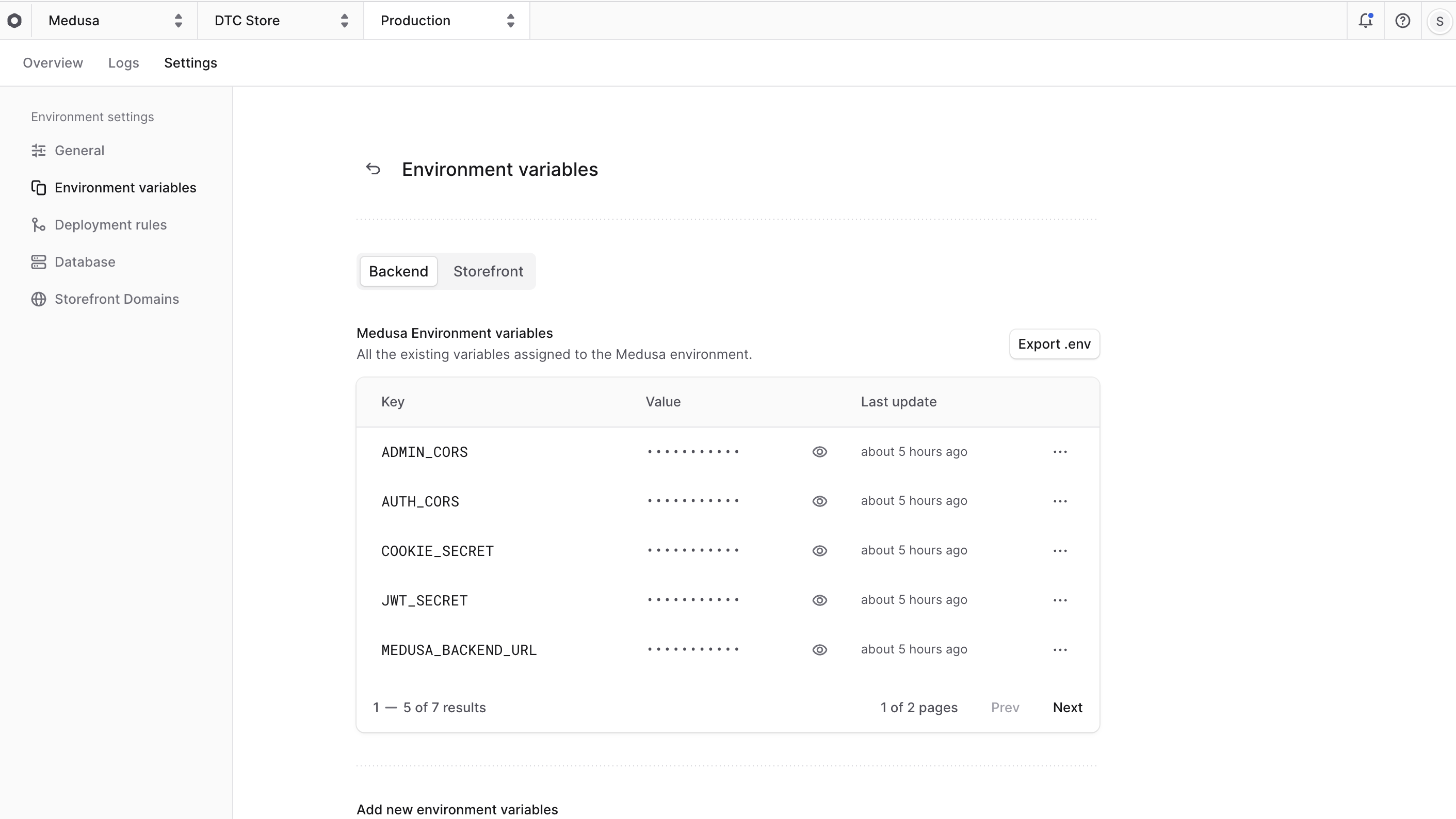
1. In the [environment's dashboard](../long-lived/page.mdx#open-environment-dashboard), click on the "Settings" tab.
|
|
2. Choose the "Environment Variables" tab from the sidebar.
|
|
3. If you deployed both the Medusa backend and storefront in the environment, use the toggle at the top to switch between managing the backend and storefront environment variables.
|
|
4. In the "Add new environment variables" section, you can add environment variables either for the backend or storefront. There are different ways you can add environment variables:
|
|
- **Manually**:
|
|
- Enter the key and value of the environment variable in the respective fields.
|
|
- Click the "Add another" button to add another variable.
|
|
- **Paste `.env` format**:
|
|
- If you copied environment variables in a `.env` file format, you can paste them directly into the "Key" field. The environment variables will be pre-filled for you.
|
|
- **Import `.env` file**:
|
|
- If you have a `.env` file that defines your environment variables, click the "Import .env" button to upload the file. The environment variables will be automatically extracted and added to the list.
|
|
5. Once you're done, click the "Save" button to save the environment variables.
|
|
|
|
<Note title="Important">
|
|
|
|
After adding the environment variables, you must [redeploy the environment](../long-lived/page.mdx#redeploy-environment) for the changes to take effect.
|
|
|
|
</Note>
|
|
|
|
|
|
|
|
---
|
|
|
|
## Edit Environment Variables on Cloud
|
|
|
|
To edit an environment variable:
|
|
|
|
1. In the [environment's dashboard](../long-lived/page.mdx#open-environment-dashboard), click on the "Settings" tab.
|
|
2. Choose the "Environment Variables" tab from the sidebar.
|
|
3. If you deployed both the Medusa backend and storefront in the environment, use the toggle at the top to switch between managing the backend and storefront environment variables.
|
|
4. In the "Environment variables" section, find the variable you want to edit.
|
|
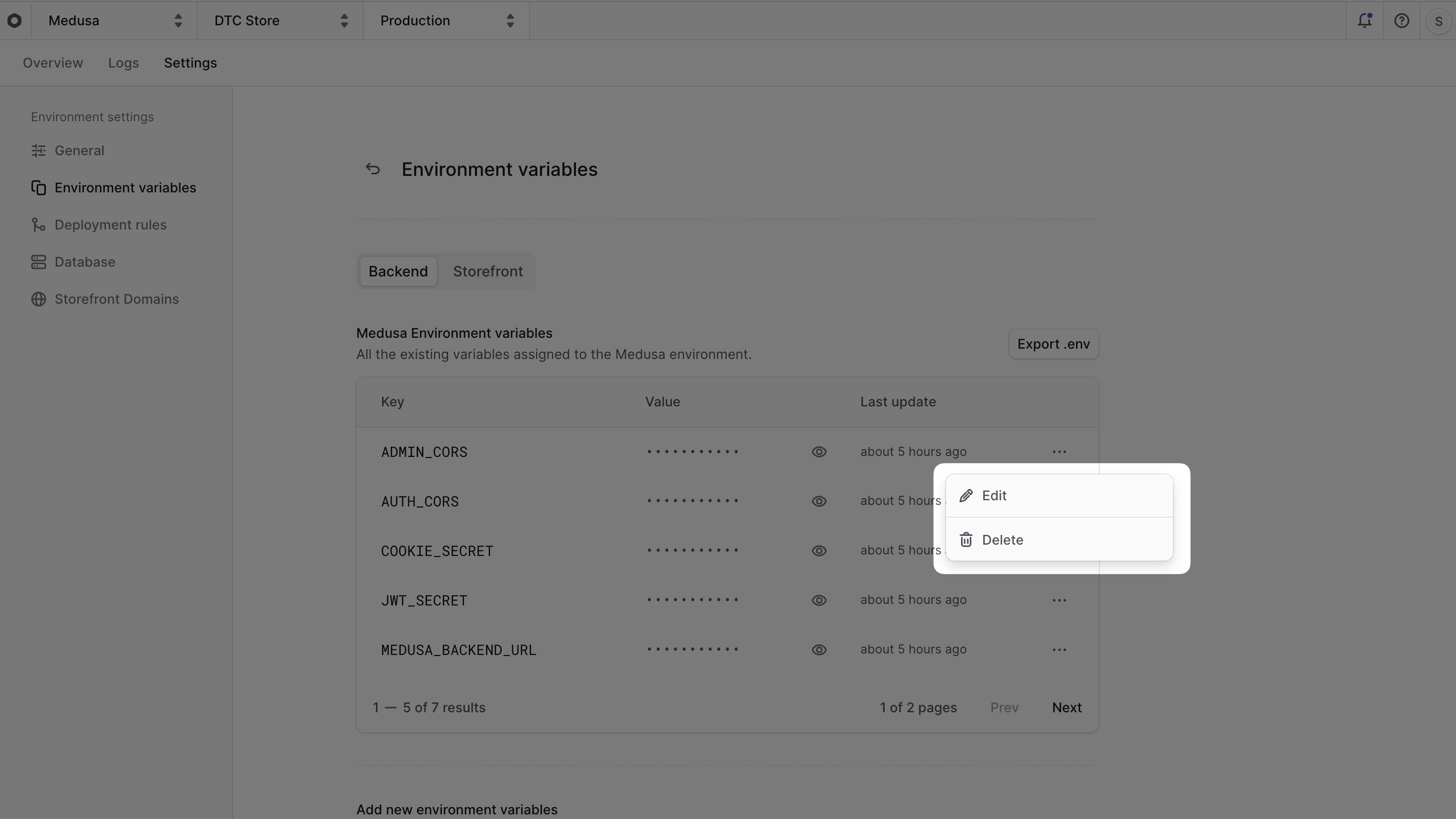
5. Click the <InlineIcon Icon={EllipsisHorizontal} alt="three-dots" /> icon at the variable's right side.
|
|
6. Choose "Edit" from the dropdown menu.
|
|
|
|
|
|
|
|
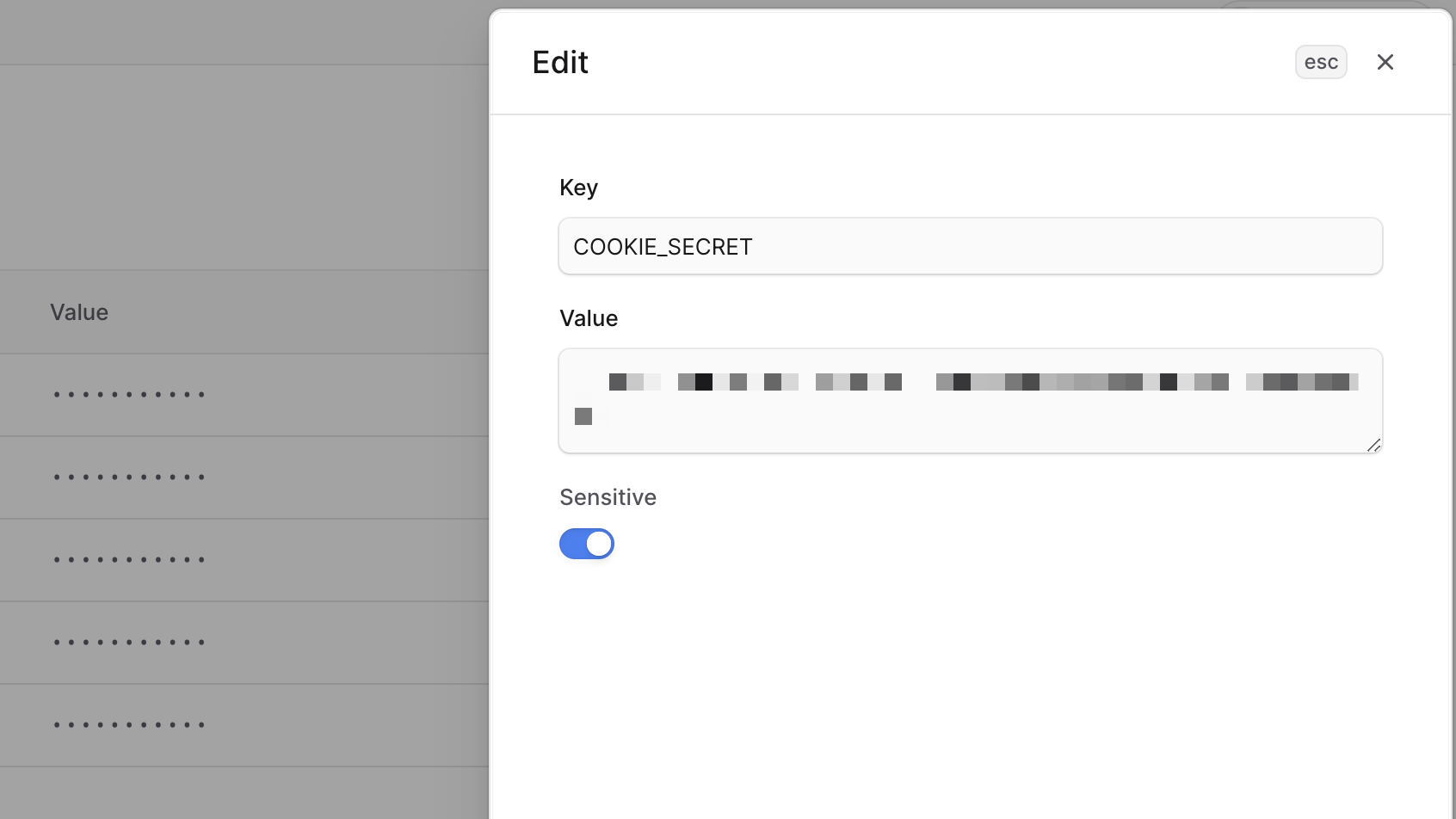
7. In the side window that opens, you can edit the variable's key, value, and whether it's sensitive.
|
|
8. Once you're done, click the "Save" button.
|
|
|
|
<Note title="Important">
|
|
|
|
After editing the environment variable, you must [redeploy the environment](../long-lived/page.mdx#redeploy-environment) for the changes to take effect.
|
|
|
|
</Note>
|
|
|
|
|
|
|
|
---
|
|
|
|
## Delete Environment Variables on Cloud
|
|
|
|
To delete an environment variable:
|
|
|
|
1. In the [environment's dashboard](../long-lived/page.mdx#open-environment-dashboard), click on the "Settings" tab.
|
|
2. Choose the "Environment Variables" tab from the sidebar.
|
|
3. If you deployed both the Medusa backend and storefront in the environment, use the toggle at the top to switch between managing the backend and storefront environment variables.
|
|
4. In the "Environment variables" section, find the variable you want to delete.
|
|
5. Click the <InlineIcon Icon={EllipsisHorizontal} alt="three-dots" /> icon at the variable's right side.
|
|
6. Choose "Delete" from the dropdown menu.
|
|
|
|
<Note title="Important">
|
|
|
|
After deleting the environment variable, you must [redeploy the environment](../long-lived/page.mdx#redeploy-environment) for the changes to take effect.
|
|
|
|
</Note>
|
|
|
|

|
|
|
|
---
|
|
|
|
## Export Environment Variables on Cloud
|
|
|
|
You can export an environment's variables as a `.env` file. This is useful for debugging issues that require you to have the same environment variables.
|
|
|
|
To export an environment's variables:
|
|
|
|
1. In the [environment's dashboard](../long-lived/page.mdx#open-environment-dashboard), click on the "Settings" tab.
|
|
2. Choose the "Environment Variables" tab from the sidebar.
|
|
3. If you deployed both the Medusa backend and storefront in the environment, use the toggle at the top to switch between managing the backend and storefront environment variables.
|
|
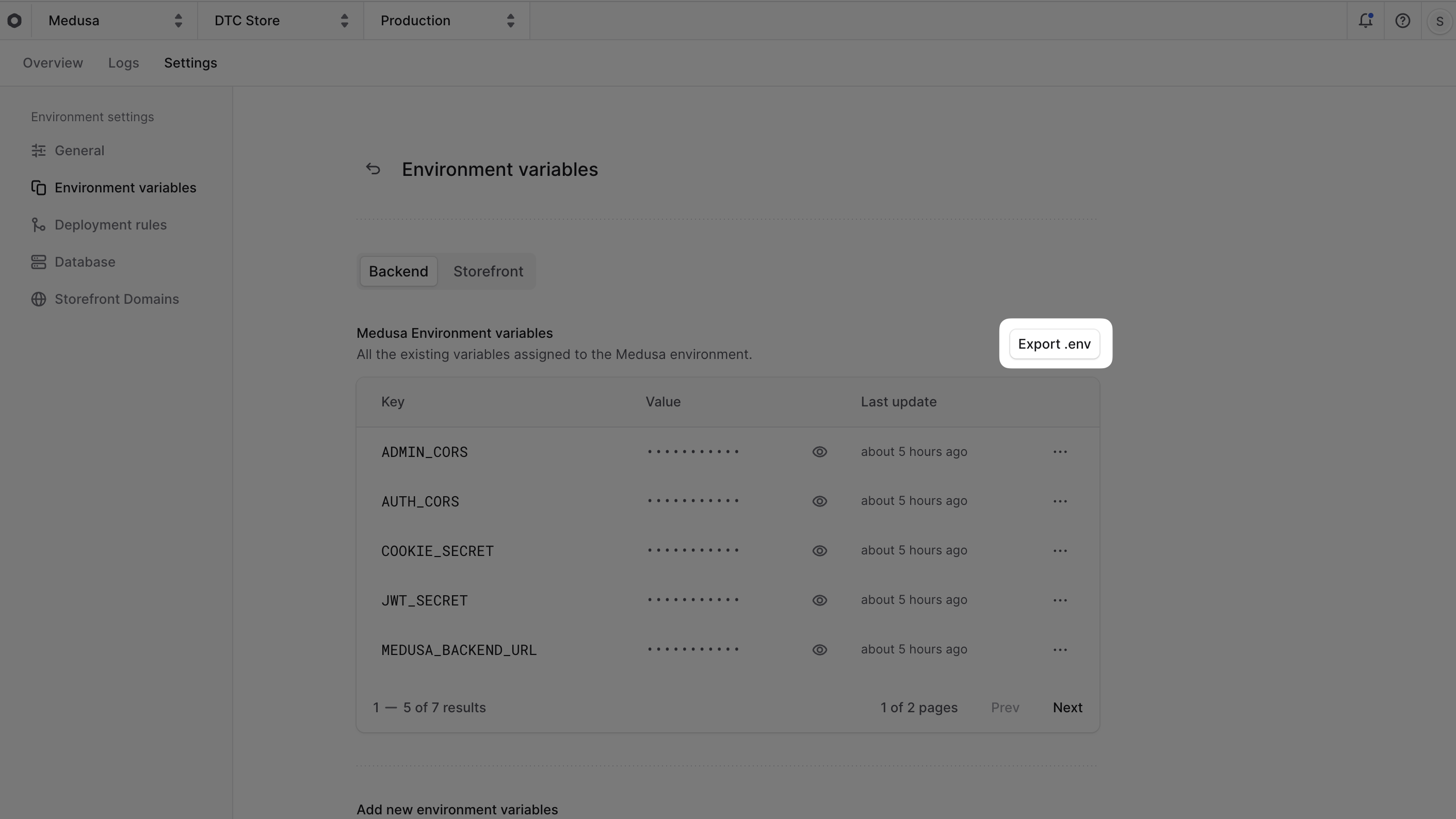
4. In the "Environment variables" section, click on the "Export .env" button at the top right of the section.
|
|
|
|
A file download will start with the name `env.txt`, which contains the environment variables in `.env` format.
|
|
|
|
You can rename the file to `.env` and use it in your local development.
|
|
|
|
 |