
97 lines
5.1 KiB
Plaintext
97 lines
5.1 KiB
Plaintext
import { BellAlert, SidebarLeft } from "@medusajs/icons"
|
||
|
||
export const metadata = {
|
||
title: `Medusa Admin User Guide`,
|
||
}
|
||
|
||
# {metadata.title}
|
||
|
||
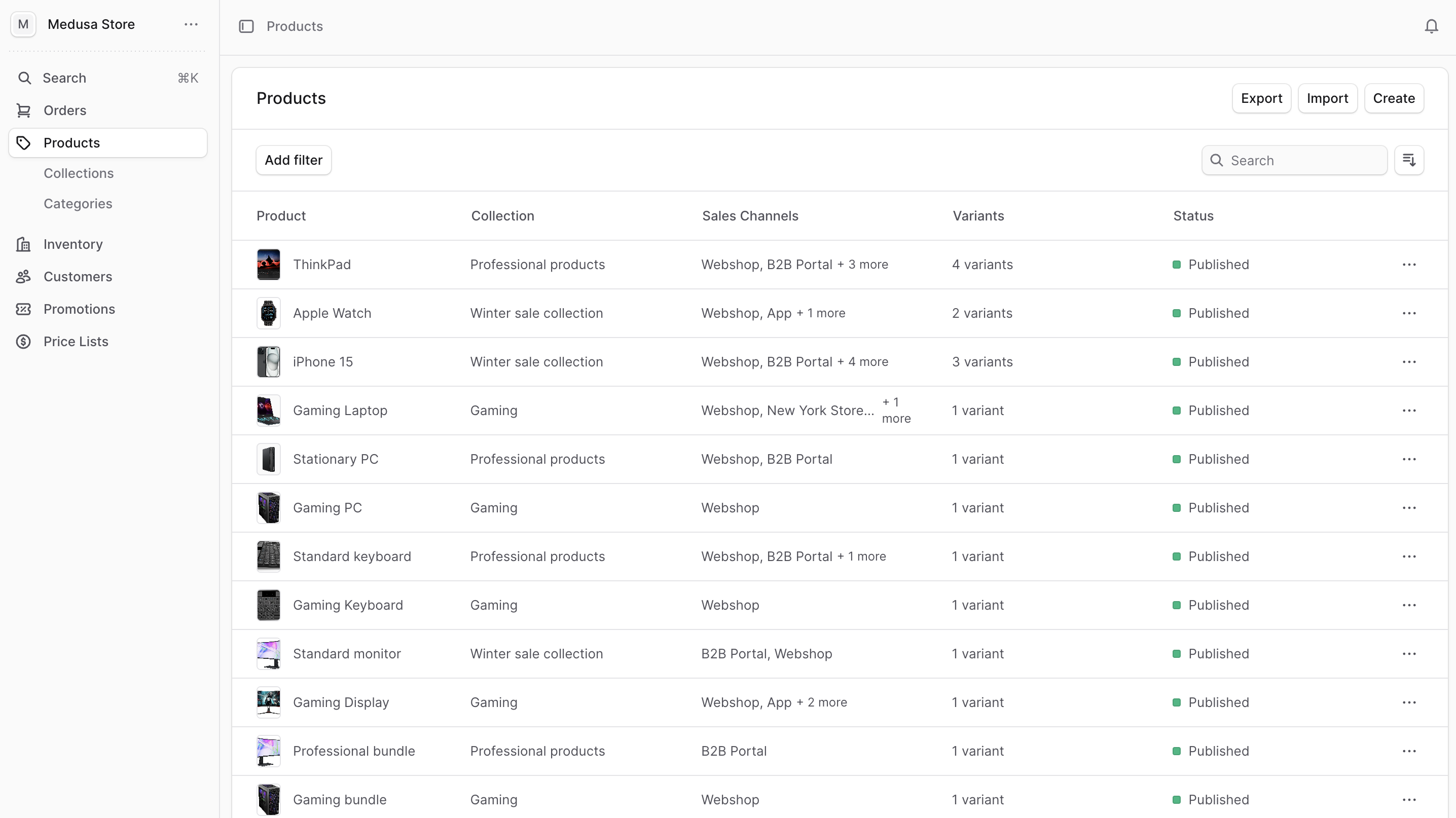
Welcome to the Medusa Admin user guide. This guide is intended to help admin users and merchants learn how to use the Medusa Admin to perform commerce operations and manage their store.
|
||
|
||
|
||
|
||
## Who is this guide for?
|
||
|
||
This guide is for Medusa Admin users looking to master the Medusa Admin and manage their store effectively. You don't need any technical knowledge to follow this guide.
|
||
|
||
You can also follow this guide if you're exploring Medusa and its operational features.
|
||
|
||
<Note>
|
||
|
||
For technical users, learn how to build and customize Medusa in the [Get Started](!docs!/learn) section of the documentation.
|
||
|
||
</Note>
|
||
|
||
## Access the Medusa Admin
|
||
|
||
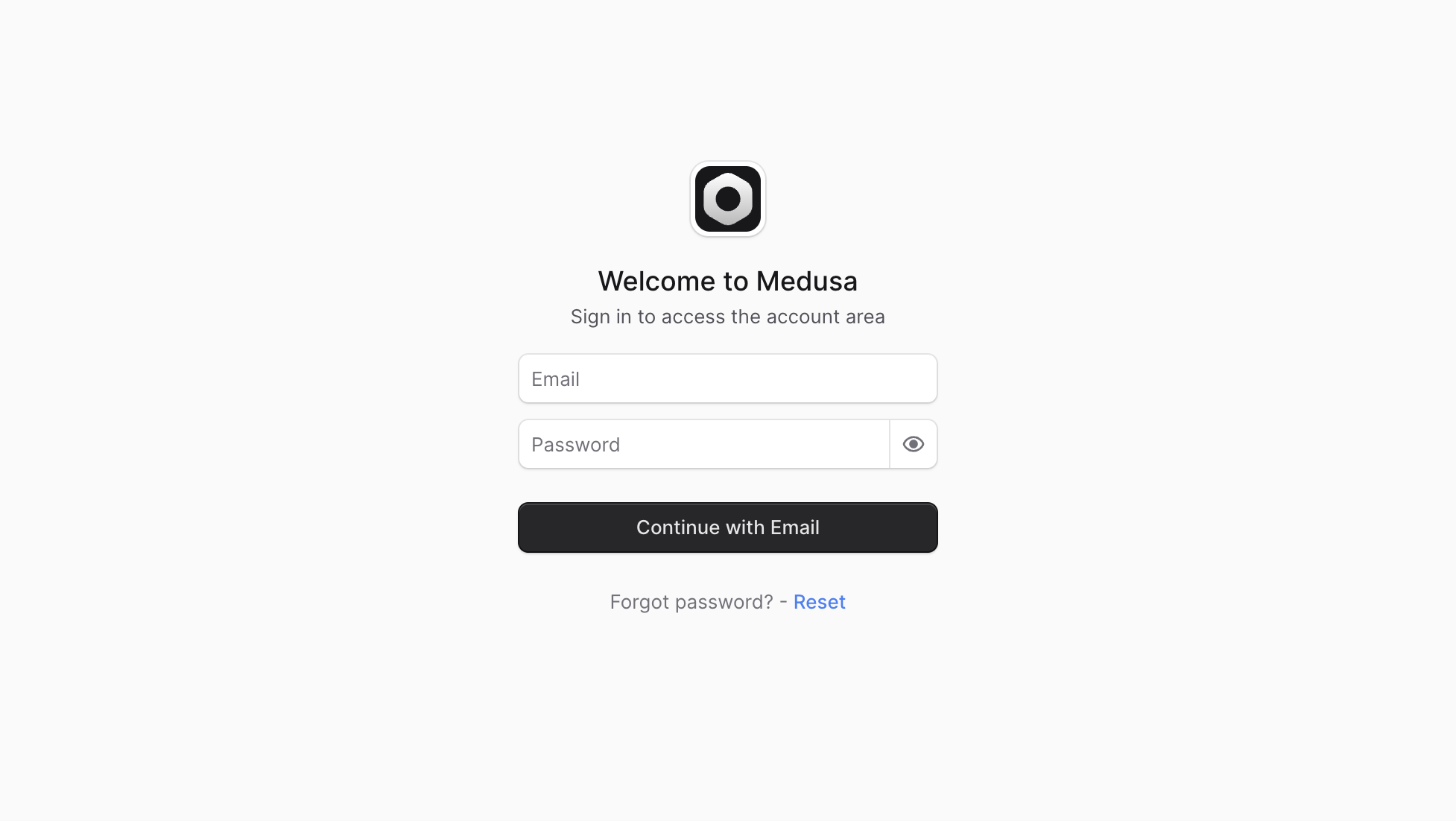
To access the Medusa Admin dashboard of your ecommerce store, open the URL of your local (`localhost:9000/app`) or deployed website. You’ll be asked to log in.
|
||
|
||
|
||
|
||
You must use your user’s email and password to log in. If you’re unsure what your email and password are, please contact the technical team that deployed your Medusa application.
|
||
|
||
<Note title="Technical Tip">
|
||
|
||
Refer to the [Medusa CLI](!resources!/medusa-cli#user) reference to learn how to create a user.
|
||
|
||
</Note>
|
||
|
||
## Tour of Medusa Admin
|
||
|
||
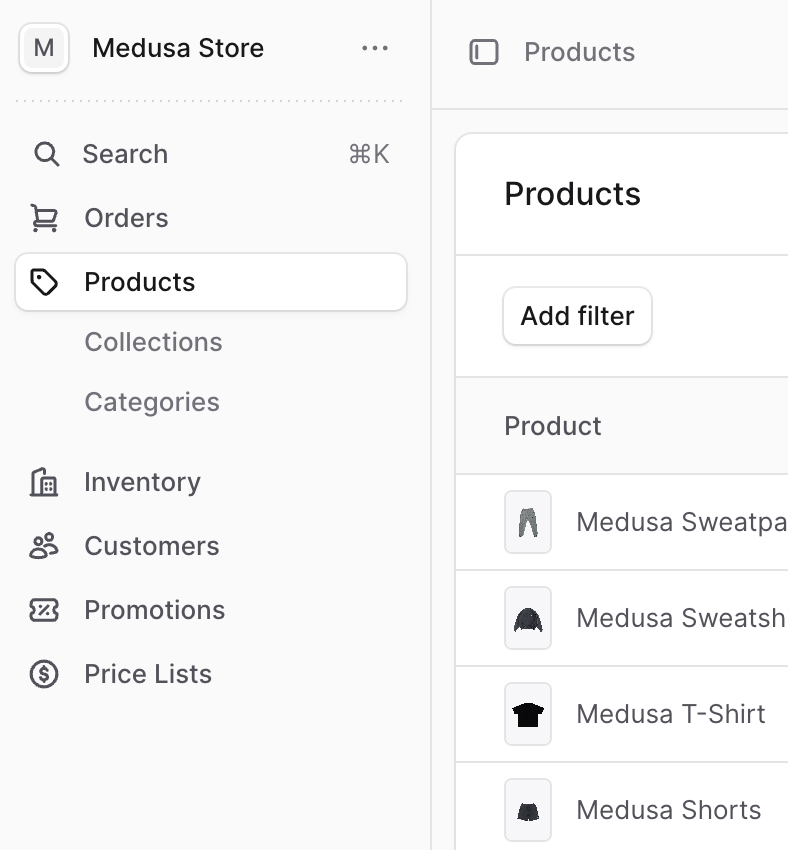
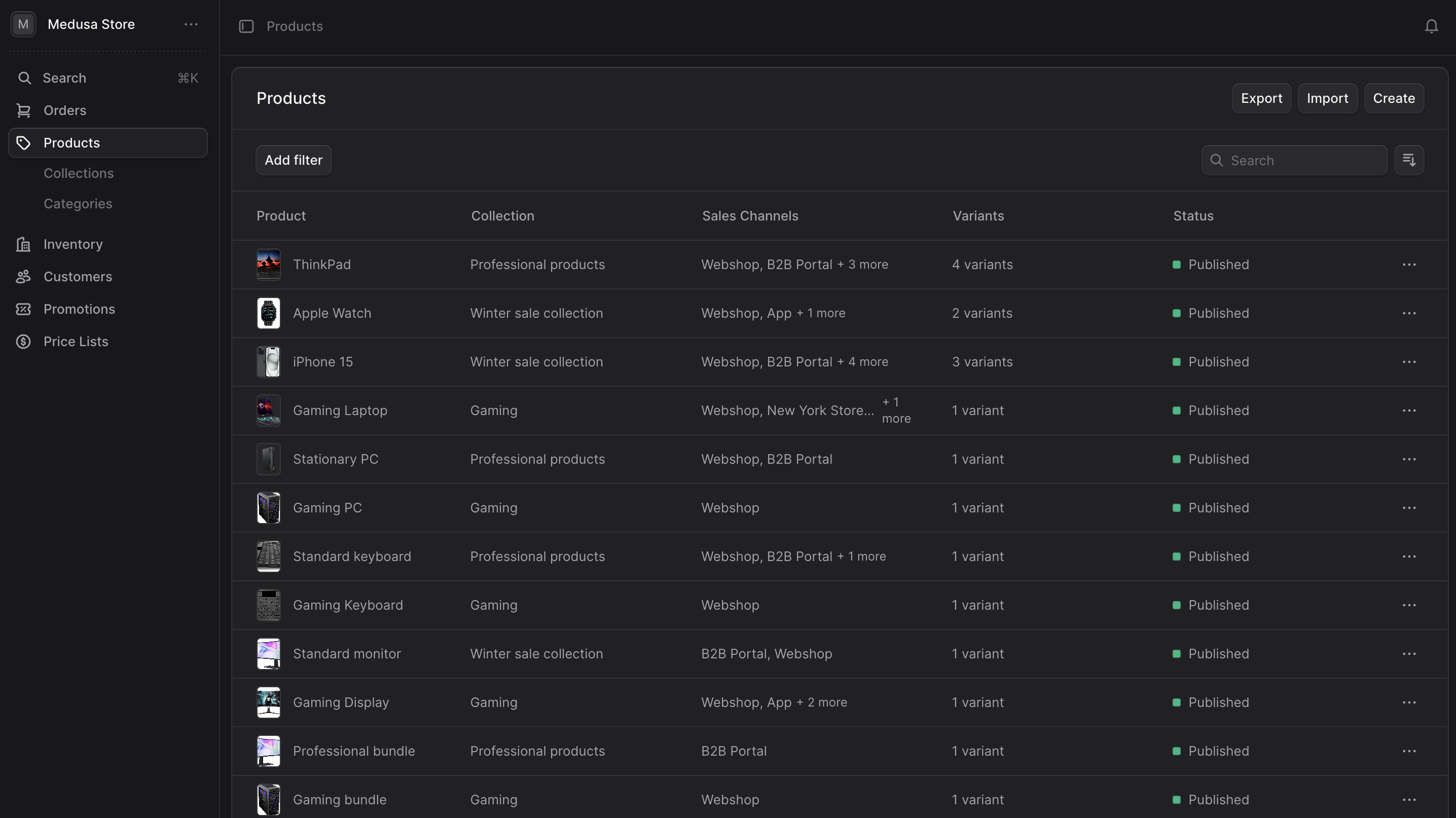
After you log into your Medusa Admin, you'll see a navigation sidebar with a search bar at the top, a <InlineIcon Icon={BellAlert} alt="bell" /> notifications icon in the header, and the main content area in the center.
|
||
|
||
### Sidebar Menu
|
||
|
||
The sidebar menu includes the main navigation of your Medusa Admin. You can use it to navigate between different domains, such as the Products or Orders pages.
|
||
|
||
|
||
|
||
You can hide the sidebar by clicking the <InlineIcon Icon={SidebarLeft} alt="sidebar" /> icon at the top next to the sidebar. Clicking it again will show the sidebar.
|
||
|
||
### Sidebar Shortcuts
|
||
|
||
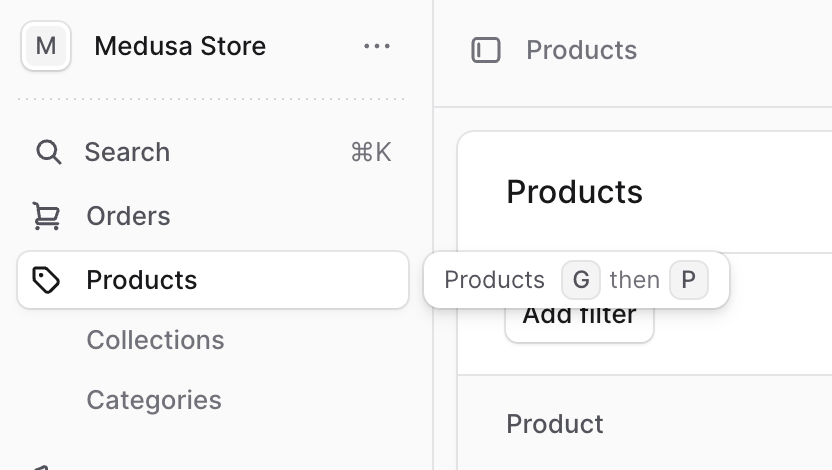
Sidebar items have shortcuts. For example, the Products page has a <Kbd>G</Kbd> then <Kbd>P</Kbd> shortcut. To view the shortcut of an item, hover your mouse over it for a few seconds and a tooltip will appear with the shortcut.
|
||
|
||
|
||
|
||
You can also find all shortcuts by clicking on your profile item at the bottom of the sidebar and selecting "Shortcuts".
|
||
|
||
### Settings and Quick Actions
|
||
|
||
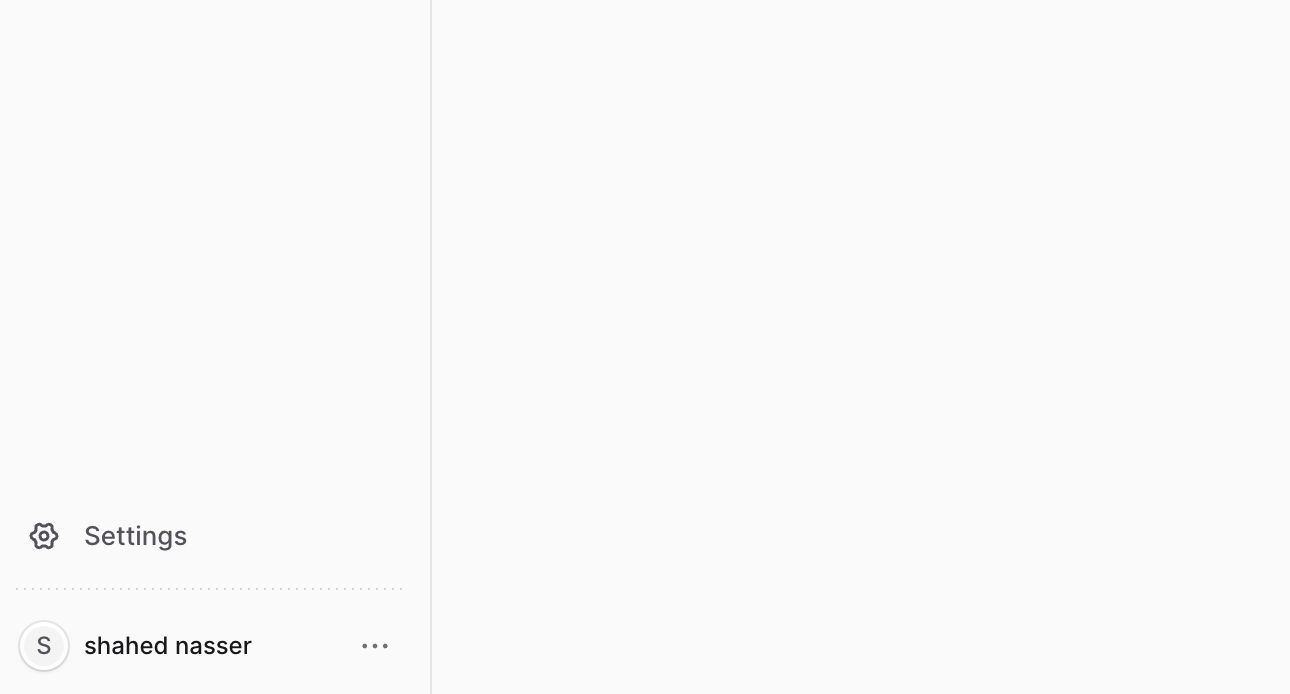
At the bottom of the sidebar, you'll find a Settings item, which takes you to additional settings for your store such as Region and Sales Channel management. You'll also find your avatar and name.
|
||
|
||
|
||
|
||
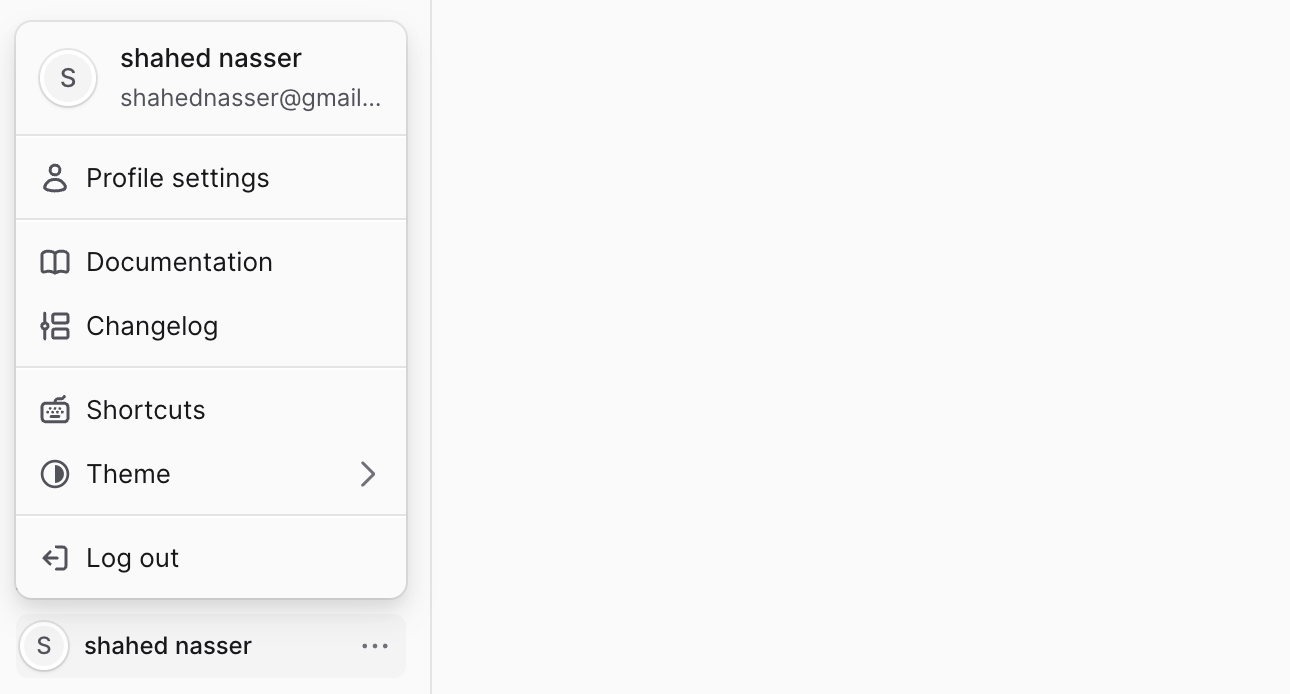
By clicking on your avatar and name, you'll see quick actions such as accessing profile settings, viewing shortcuts, or changing the admin theme.
|
||
|
||
|
||
|
||
### Search Bar
|
||
|
||
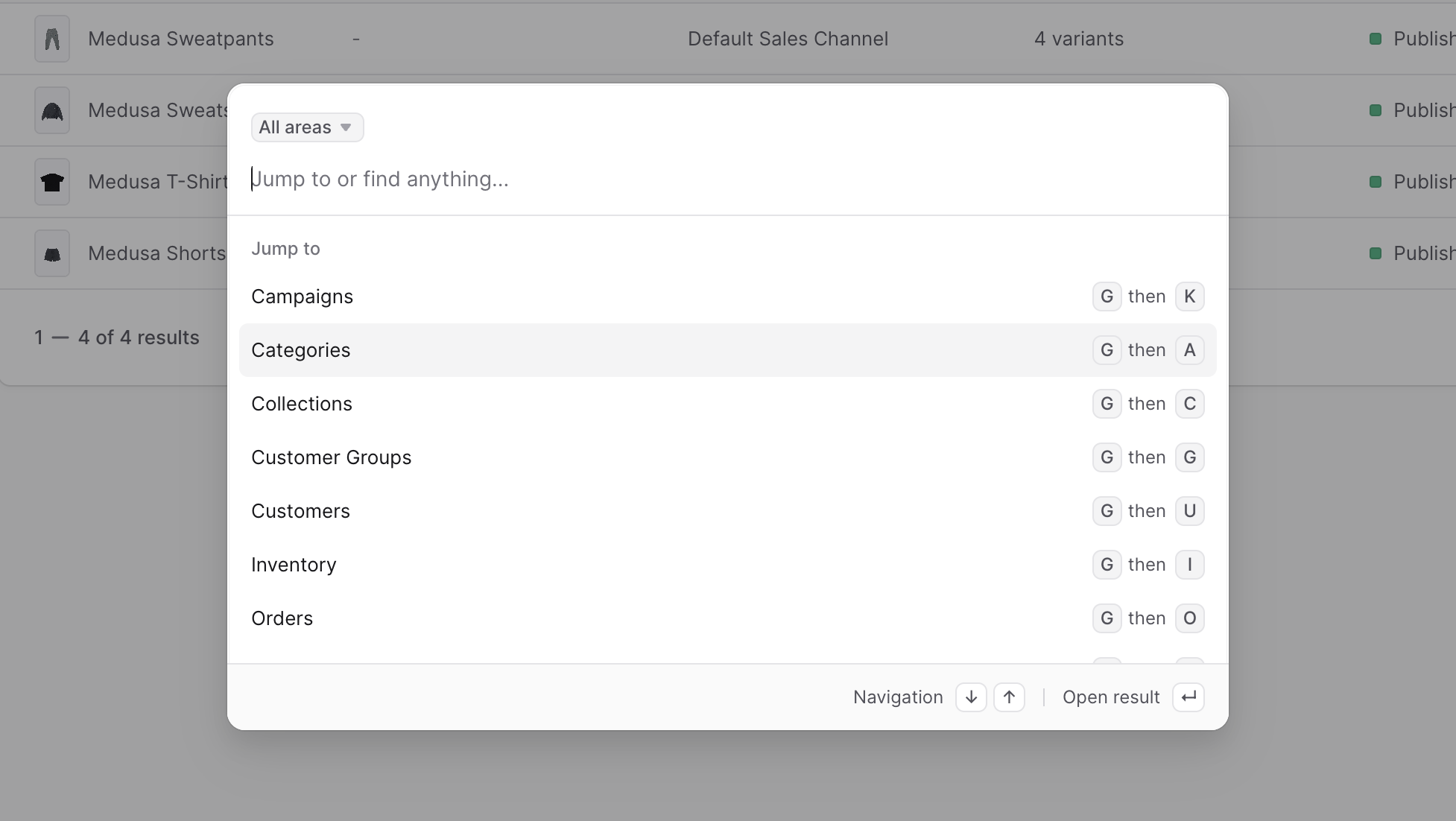
At the top of the sidebar, you'll find a search item that opens the search window. You can also open the search window using these keyboard shortcuts:
|
||
|
||
- Windows and Linux: <Kbd>CTRL</Kbd> + <Kbd>K</Kbd>
|
||
- Mac OS: <Kbd>⌘</Kbd> + <Kbd>K</Kbd>
|
||
|
||
|
||
|
||
You can select a result with your mouse, or use the up and down arrow keys on your keyboard to navigate between the results, then choose a result by pressing the <Kbd>Enter</Kbd> key.
|
||
|
||
### Check Notifications
|
||
|
||
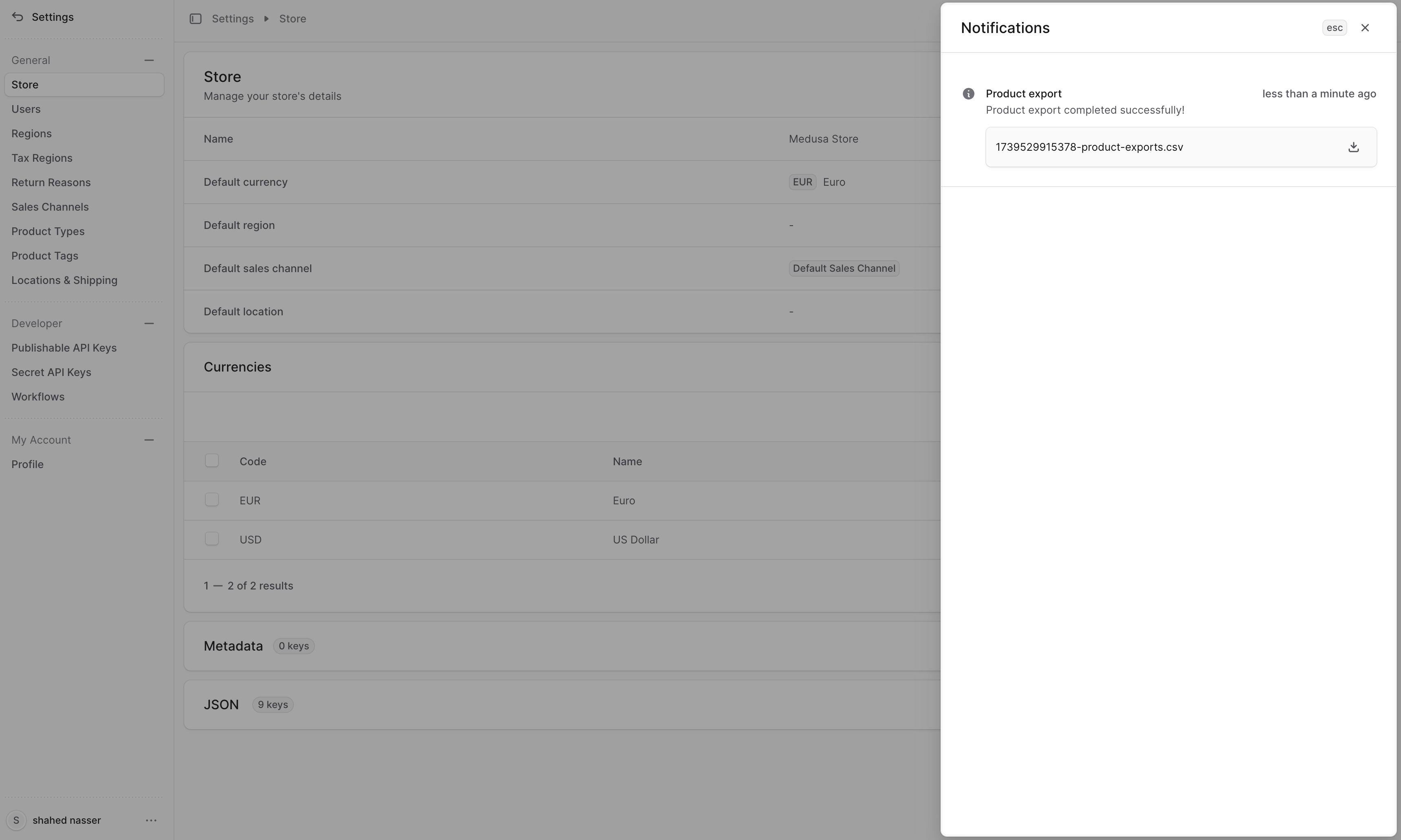
At the top end of the header, you'll find a <InlineIcon Icon={BellAlert} alt="Bell" /> icon. Clicking this icon opens a side window to view any notifications you might have. Use this to view notifications such as completed product exports.
|
||
|
||
|
||
|
||
### Change Language
|
||
|
||
The Medusa Admin supports multiple languages, with English being the default. Check out available languages in the [Languages](./tips/languages/page.mdx) guide.
|
||
|
||
Learn how to change the language in the [Profile Settings](./settings/profile/page.mdx#change-admin-language) guide.
|
||
|
||
### Change Admin Theme
|
||
|
||
The Medusa Admin comes with light and dark themes. You can change the theme by clicking the profile item at the bottom of the sidebar → Theme → Light, Dark, or System, which defaults to your Operating System or Browser theme.
|
||
|
||
|