 ed715813a5
* docs: docs for next release

* changes to opentelemetry dependencies

* document plugin env variables

* document admin changes

* fix vale error

* add version notes

* document campaign budget updates

* document campaign changes in user guide

* document chages in cluster mode cli

* documented once promotion allocation

* document multiple API keys support
148 lines
4.9 KiB
Plaintext
148 lines
4.9 KiB
Plaintext
---
|
|
sidebar_label: "Manage Secret API Keys"
|
|
tags:
|
|
- user guide
|
|
- api key
|
|
products:
|
|
- api key
|
|
---
|
|
|
|
import { Table } from "docs-ui"
|
|
import { EllipsisHorizontal } from "@medusajs/icons"
|
|
|
|
export const metadata = {
|
|
title: `Manage Secret API Keys in Medusa Admin`,
|
|
}
|
|
|
|
# {metadata.title}
|
|
|
|
In this guide, you'll learn how to create and manage secret API keys in the Medusa Admin.
|
|
|
|
<Note>
|
|
|
|
This guide is mainly useful for developers and technical teams building customizations for a Medusa application.
|
|
|
|
</Note>
|
|
|
|
## What is a Secret API Key?
|
|
|
|
A secret API key is an authentication token that allows you to access Medusa's Admin APIs. You can pass it in request headers to send requests as an authenticated admin user. So, it's important to not expose the secret API key in client-side code or public repositories.
|
|
|
|
To learn how to pass the secret API key in request headers, refer to the [API Reference](!api!/admin#2-api-token).
|
|
|
|
---
|
|
|
|
## View Secret API Keys
|
|
|
|
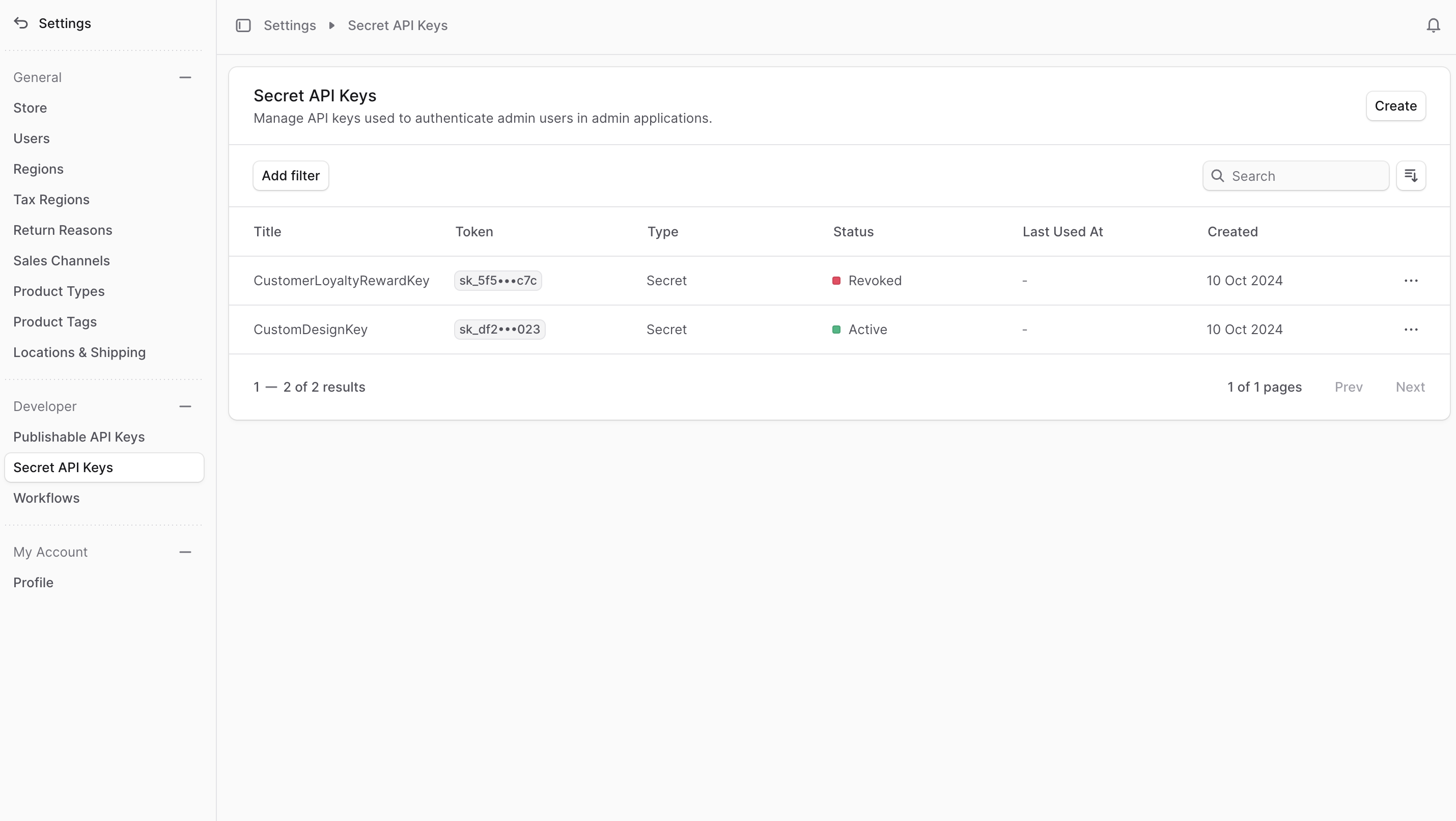
To view the secret API keys of the currently logged-in user in the Medusa Admin, go to Settings -> Secret API Keys.
|
|
|
|
Here, you can see a list of all the secret API keys for the logged-in user. You can also search, filter, and sort the API keys to find the one you are looking for.
|
|
|
|
|
|
|
|
---
|
|
|
|
## Create Secret API Key
|
|
|
|
When you create a secret API key, you create it for the currently logged-in user.
|
|
|
|
<Note>
|
|
|
|
Prior to [Medusa v2.11.0], users could only have one active secret API key at a time. To create a new secret API key, you had to [revoke](#revoke-secret-api-key) the existing key first. If you can't create multiple secret API keys, request your technical team to [upgrade your Medusa application](!docs!/learn/update).
|
|
|
|
</Note>
|
|
|
|
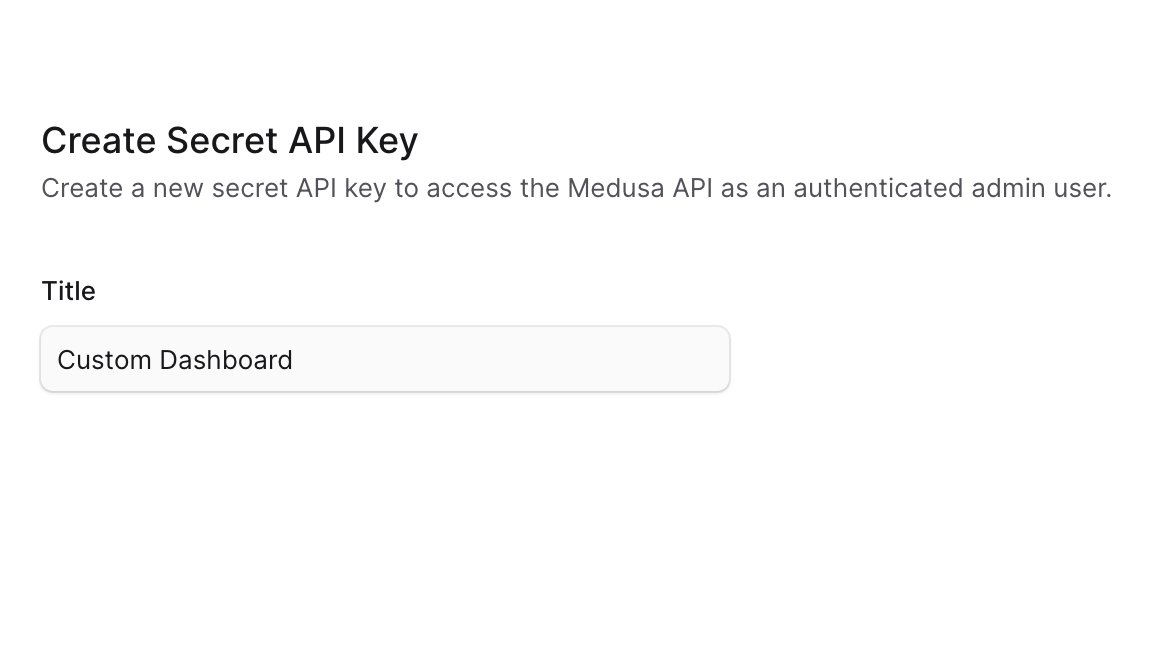
To create a new secret API key for the currently logged-in user:
|
|
|
|
1. Go to Settings -> Secret API Keys.
|
|
2. Click the Create button in the main section's header.
|
|
3. In the form that opens, enter the secret API key's title.
|
|
4. Once you're done, click the Save button.
|
|
5. You'll get a pop-up with the secret API key. Copy it and store it securely before closing the pop-up, as you won't be able to see it again.
|
|
|
|
|
|
|
|
---
|
|
|
|
## View Secret API Key Details
|
|
|
|
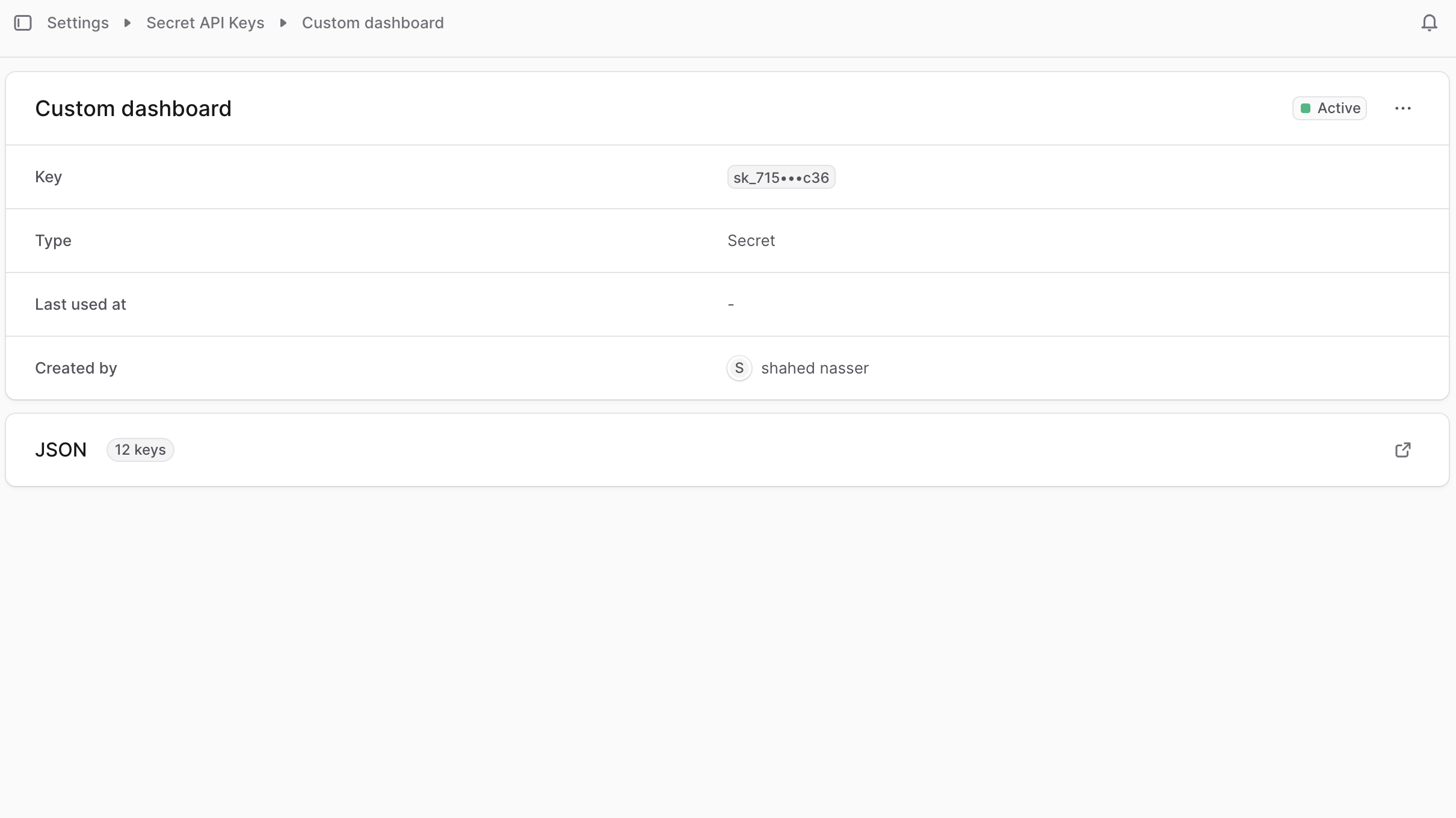
To view the details of a secret API key:
|
|
|
|
1. Go to Settings -> Secret API Keys.
|
|
2. Click on a secret API key from the list.
|
|
|
|
This opens the secret API key's details page where you can also manage the API key.
|
|
|
|
|
|
|
|
### Secret API Key Status
|
|
|
|
You can see the status of the secret API key in the header of the first section in the details page. A secret API key's status can be:
|
|
|
|
<Table>
|
|
<Table.Header>
|
|
<Table.Row>
|
|
<Table.HeaderCell>Status</Table.HeaderCell>
|
|
<Table.HeaderCell>Description</Table.HeaderCell>
|
|
</Table.Row>
|
|
</Table.Header>
|
|
<Table.Body>
|
|
<Table.Row>
|
|
<Table.Cell>Active</Table.Cell>
|
|
<Table.Cell>The API key is active and can be used in requests.</Table.Cell>
|
|
</Table.Row>
|
|
<Table.Row>
|
|
<Table.Cell>Revoked</Table.Cell>
|
|
<Table.Cell>The API key has been revoked and can't be used in requests.</Table.Cell>
|
|
</Table.Row>
|
|
</Table.Body>
|
|
</Table>
|
|
|
|
---
|
|
|
|
## Edit Secret API Key
|
|
|
|
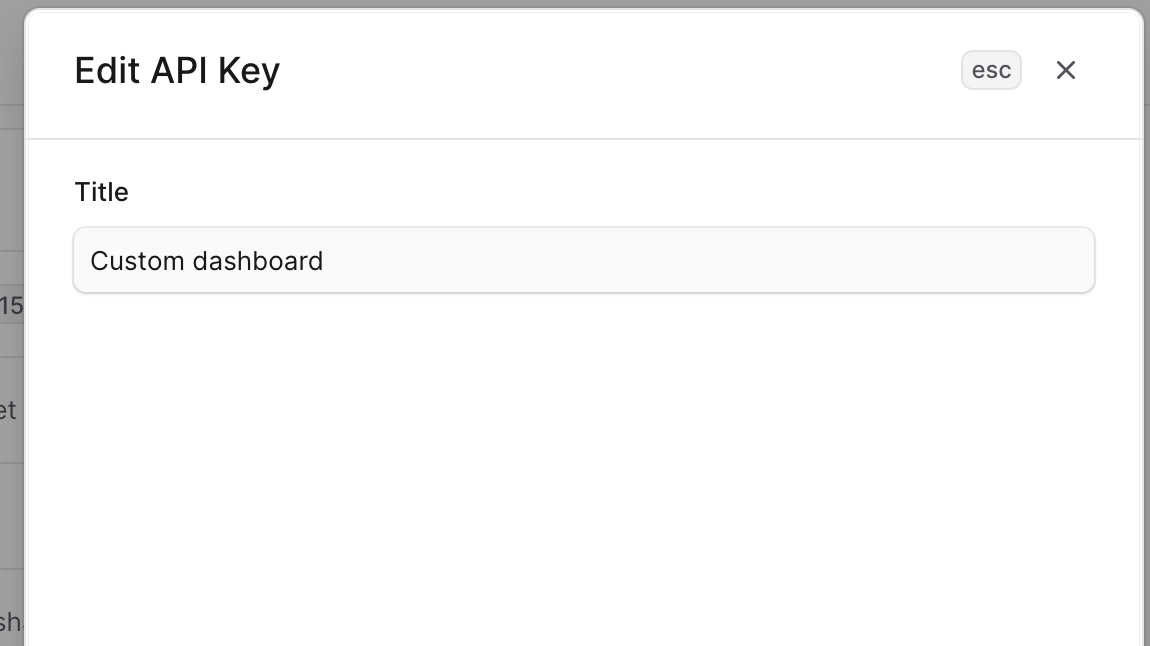
To edit a secret API key:
|
|
|
|
1. Go to the secret API key's details page.
|
|
2. Click the <InlineIcon Icon={EllipsisHorizontal} alt="three-dots" /> in the first section's header.
|
|
3. Choose "Edit" from the dropdown.
|
|
4. In the side window that opens, you can edit the secret API key's title.
|
|
5. Once you're done, click the Save button.
|
|
|
|
|
|
|
|
---
|
|
|
|
## Revoke Secret API Key
|
|
|
|
<Note type="warning">
|
|
|
|
Revoking a secret API key is irreversible. You can't use the key in requests after revoking it or reactivate it.
|
|
|
|
</Note>
|
|
|
|
To revoke a secret API key:
|
|
|
|
1. Go to the secret API key's details page.
|
|
2. Click the <InlineIcon Icon={EllipsisHorizontal} alt="three-dots" /> in the first section's header.
|
|
3. Choose "Revoke API key" from the dropdown.
|
|
4. Confirm revoking the API key by clicking the "Revoke API key" button in the pop-up.
|
|
|
|
---
|
|
|
|
## Delete Secret API Key
|
|
|
|
<Note type="warning">
|
|
|
|
Deleting a secret API key is irreversible.
|
|
|
|
</Note>
|
|
|
|
You can only delete a secret API key after [revoking it](#revoke-secret-api-key). To delete a secret API key:
|
|
|
|
1. Go to the secret API key's details page.
|
|
2. Click the <InlineIcon Icon={EllipsisHorizontal} alt="three-dots" /> in the first section's header.
|
|
3. Choose "Delete" from the dropdown.
|
|
4. Confirm deleting the API key by clicking the Delete button in the pop-up.
|