
 Shahed NasserandGitHub
ed715813a5
Shahed NasserandGitHub
ed715813a5
* docs: docs for next release

* changes to opentelemetry dependencies

* document plugin env variables

* document admin changes

* fix vale error

* add version notes

* document campaign budget updates

* document campaign changes in user guide

* document chages in cluster mode cli

* documented once promotion allocation

* document multiple API keys support
89 lines
3.1 KiB
Plaintext
89 lines
3.1 KiB
Plaintext
---
|
||
sidebar_position: 5
|
||
sidebar_label: "Manage Refund Reasons"
|
||
tags:
|
||
- user guide
|
||
- order
|
||
products:
|
||
- order
|
||
---
|
||
|
||
import { EllipsisHorizontal } from "@medusajs/icons"
|
||
|
||
export const metadata = {
|
||
title: `Manage Refund Reasons in Medusa Admin`,
|
||
}
|
||
|
||
# {metadata.title}
|
||
|
||
In this guide, you’ll learn what refund reasons are and how to manage them.
|
||
|
||
<Note>
|
||
|
||
Refund reason management is available from [Medusa Admin v2.11.0](https://github.com/medusajs/medusa/releases/tag/v2.11.0). If you don't see the Refund Reasons option in your Medusa Admin, request your technical team to [upgrade your Medusa application](!docs!/learn/update).
|
||
|
||
</Note>
|
||
|
||
## What's a Refund Reason?
|
||
|
||
A refund reason is a predefined reason for refunding an order. It helps you categorize and track refunds in your store.
|
||
|
||
When [processing a refund](../../orders/payments/page.mdx#refund-payment), you can select a reason from the list of refund reasons you have set up.
|
||
|
||
---
|
||
|
||
## View Refund Reasons
|
||
|
||
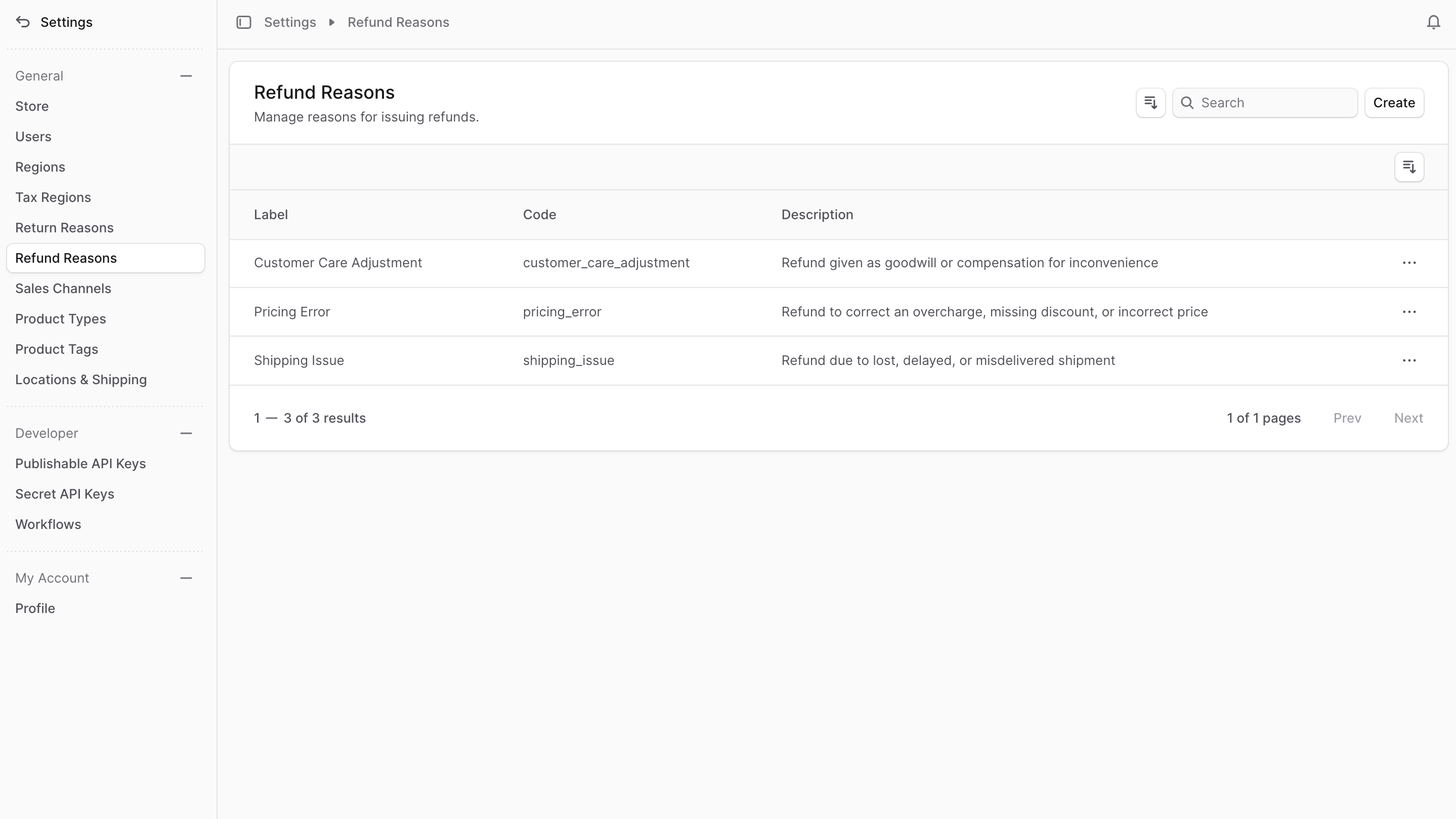
To view refund reasons in your store, go to Settings → Refund Reasons. Here, you can see a list of all the refund reasons you have set up in your store. You can also search, filter, and sort the refund reasons to find the one you are looking for.
|
||
|
||
Medusa adds some default refund reasons to your store. You can use or [delete](#delete-a-refund-reason) them.
|
||
|
||
|
||
|
||
---
|
||
|
||
## Create Refund Reason
|
||
|
||
To create a refund reason:
|
||
|
||
1. Go to Settings → Refund Reasons.
|
||
2. Click the Create button in the main section's header.
|
||
3. In the form that opens:
|
||
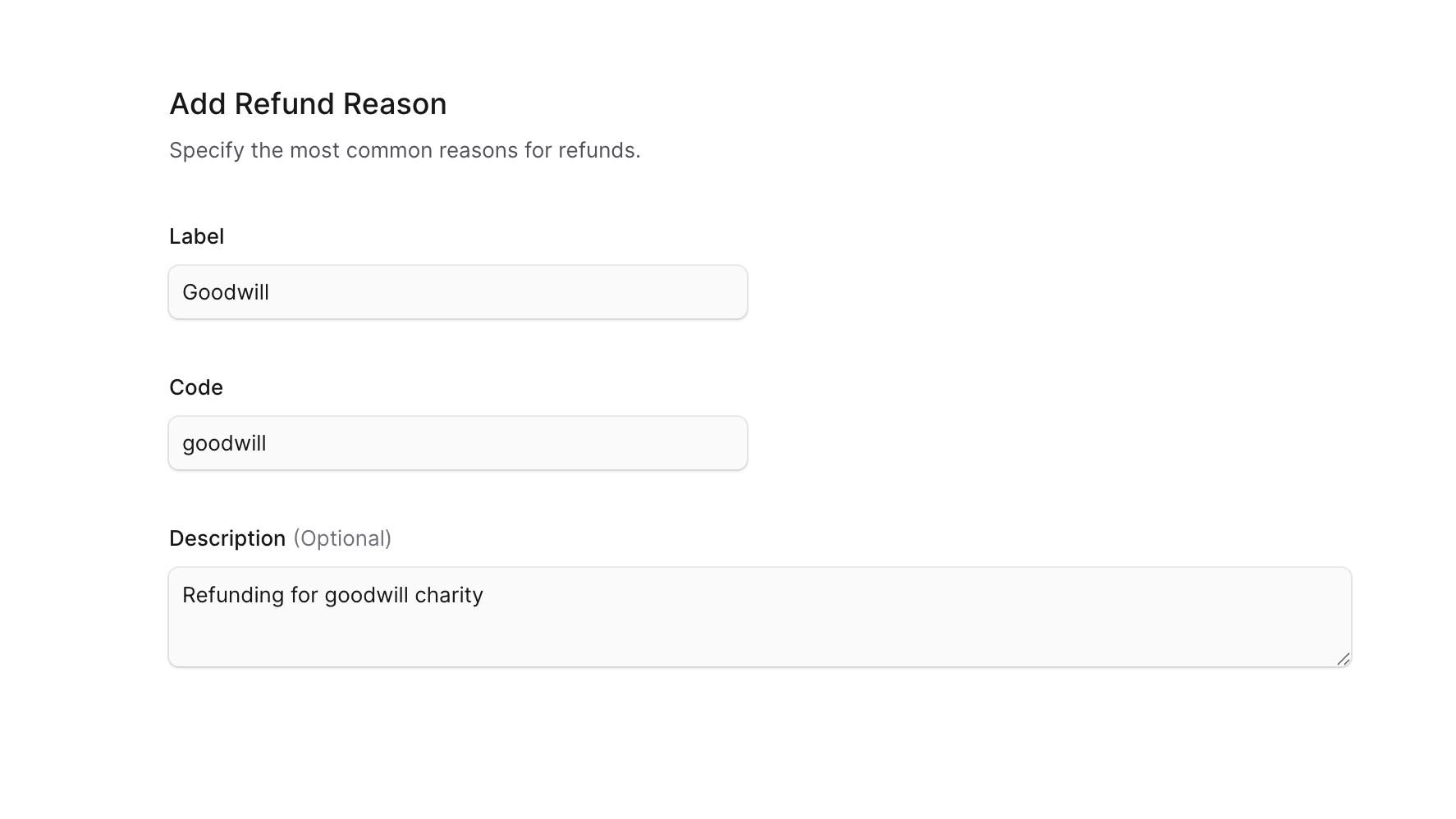
- **Label**: Enter what is shown to customers or admin users.
|
||
- **Code**: Enter a unique identifier for the reason that's used internally. It's recommended to use only lowercase letters and underscores (`_`). For example, `pricing_error`.
|
||
- **Description**: Enter an optional description for the refund reason.
|
||
4. Once done, click the Save button.
|
||
|
||
|
||
|
||
---
|
||
|
||
## Edit a Refund Reason
|
||
|
||
To edit a refund reason:
|
||
|
||
1. Go to Settings → Refund Reasons.
|
||
2. Find the refund reason to edit and click the <InlineIcon Icon={EllipsisHorizontal} alt="three-dots" /> icon in its row.
|
||
3. Choose Edit from the dropdown.
|
||
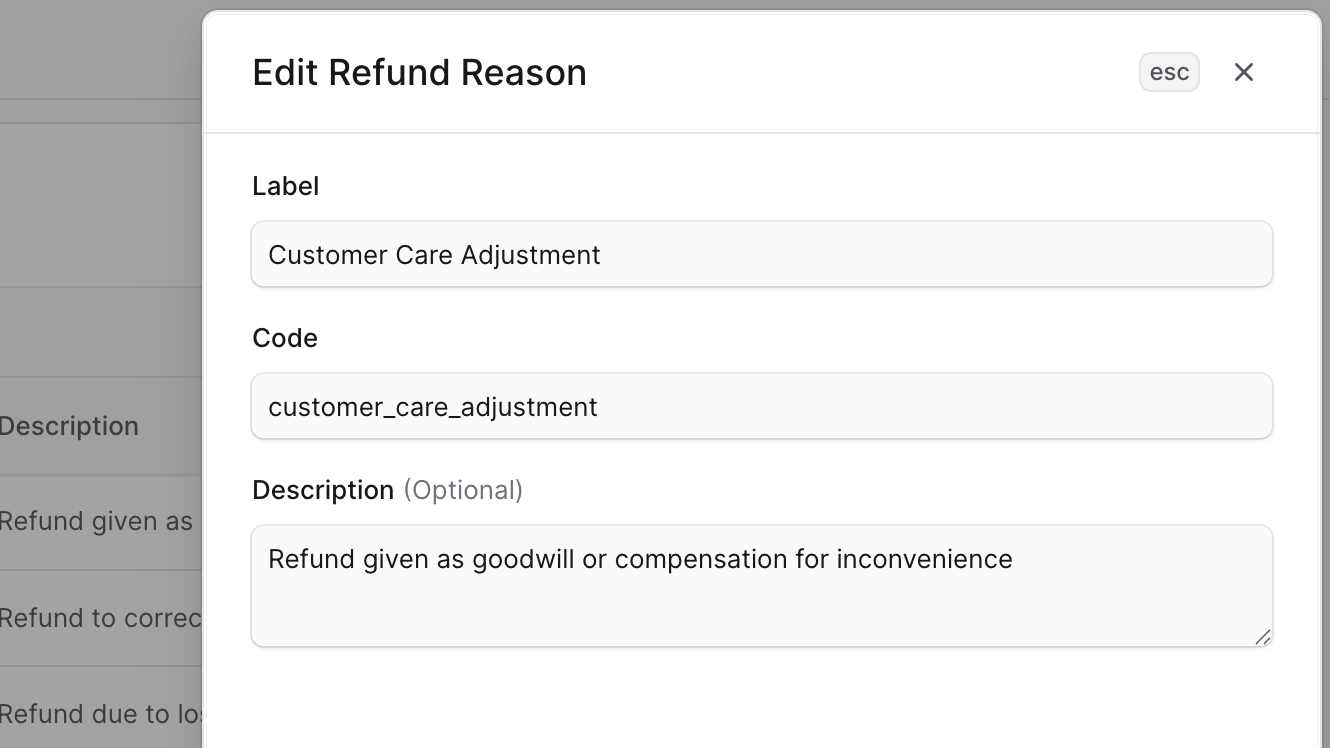
4. In the side window that opens, you can edit the refund reason's code, label, and description.
|
||
5. Once you're done, click the Save button.
|
||
|
||
|
||
|
||
---
|
||
|
||
## Delete a Refund Reason
|
||
|
||
<Note type="warning">
|
||
|
||
Deleting a refund reason is irreversible.
|
||
|
||
</Note>
|
||
|
||
To delete a refund reason:
|
||
|
||
1. Go to Settings → Refund Reasons.
|
||
2. Find the refund reason to delete and click the <InlineIcon Icon={EllipsisHorizontal} alt="three-dots" /> icon in its row.
|
||
3. Choose Delete from the dropdown.
|
||
4. Confirm deleting the refund reason by clicking the Delete button in the pop-up.
|