
91 lines
4.1 KiB
Plaintext
91 lines
4.1 KiB
Plaintext
---
|
||
sidebar_position: 2
|
||
sidebar_label: "Manage Translations"
|
||
tags:
|
||
- user guide
|
||
- translation
|
||
products:
|
||
- translation
|
||
---
|
||
|
||
import { EllipsisHorizontal, ArrowUpRightOnBox, EllipsisVertical } from "@medusajs/icons"
|
||
|
||
export const metadata = {
|
||
title: `Manage Translations in Medusa Admin`,
|
||
}
|
||
|
||
# {metadata.title}
|
||
|
||
In this guide, you’ll learn how to manage translations of resources like products in the Medusa Admin.
|
||
|
||
<Note>
|
||
|
||
Translations are available from [Medusa v2.12.3](https://github.com/medusajs/medusa/releases/tag/v2.12.3). If you don't see the locale settings in your Medusa Admin, request your technical team to [upgrade your Medusa application](!docs!/learn/update).
|
||
|
||
</Note>
|
||
|
||
## Translations Overview
|
||
|
||
Medusa allows you to translate various resources in your store, such as product titles and descriptions, into multiple locales (languages) supported by your store.
|
||
|
||
<Note title="Tip">
|
||
|
||
You can set supported locales for your store in the [Store](../store/page.mdx#manage-store-locales) settings page.
|
||
|
||
</Note>
|
||
|
||
Then, in the storefront, customers can view content in their preferred language based on the available locales.
|
||
|
||
### View and Manage Translations
|
||
|
||
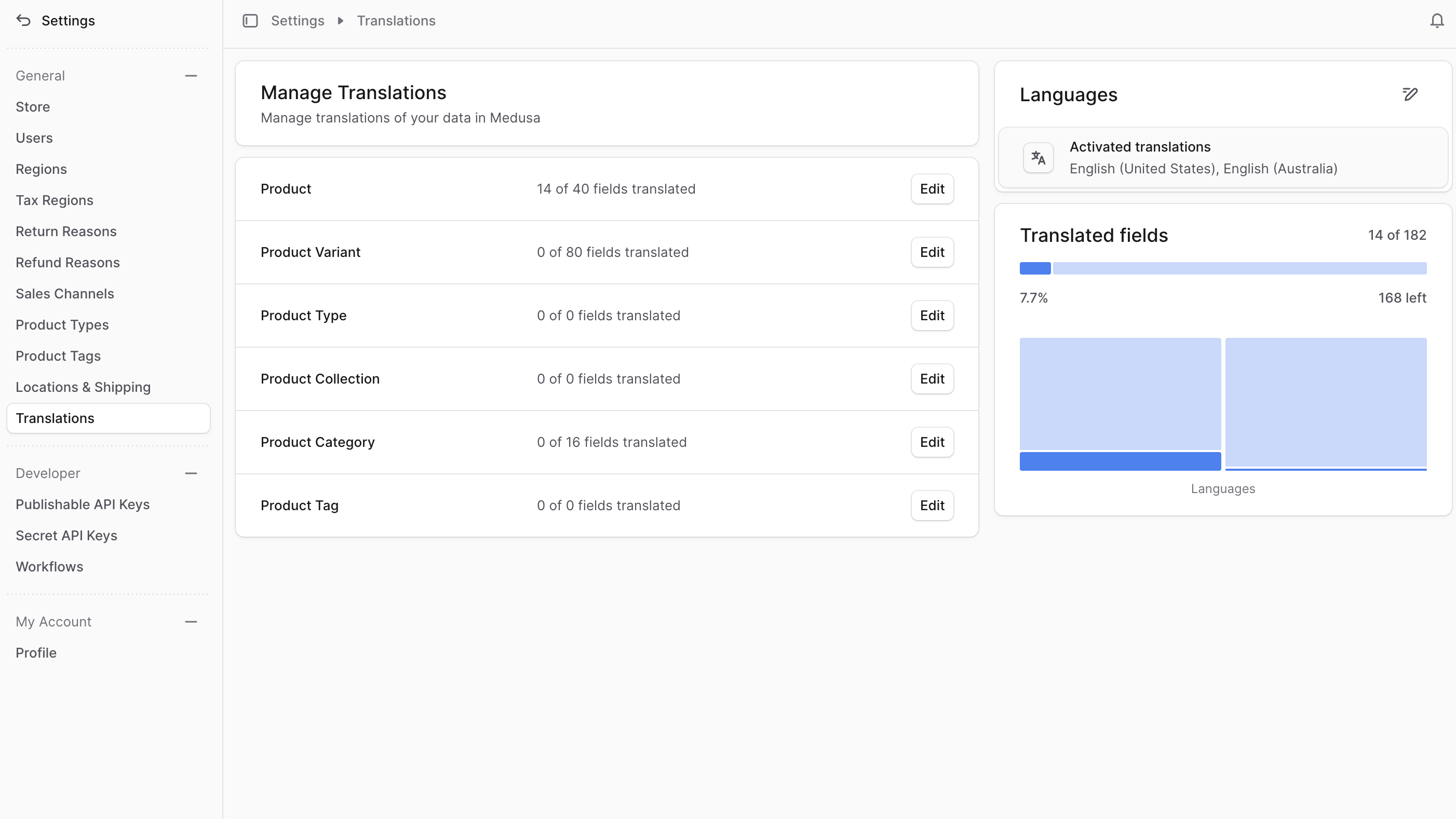
You can view and manage translations in the Medusa Admin dashboard by going to Settings → Translations. This page allows you to manage translations of core and custom resources in bulk.
|
||
|
||
Alternatively, you can manage translations for individual resources directly from their respective pages (for example, from a product's detail page).
|
||
|
||
|
||
|
||
### Translate Custom Resources
|
||
|
||
Medusa's translation feature supports translating custom resources defined in your application. For example, if you have a blog feature, you can translate blog posts into multiple languages.
|
||
|
||
To translate custom resources, your technical team needs to configure the Translation Module as explained in the [Translation for Custom Models](!resources!/commerce-modules/translation/custom-data-models) guide.
|
||
|
||
---
|
||
|
||
## Manage Translations in Bulk
|
||
|
||
In the Translations settings page, you can view and manage translations in bulk for various core and custom resources in your store, including products and variants.
|
||
|
||
<Note>
|
||
|
||
Refer to the [Translation Module](!resources!/commerce-modules/translation#supported-module-translations) guide for a list of core resources that support translations out-of-the-box.
|
||
|
||
</Note>
|
||
|
||
For example, to manage product translations in bulk:
|
||
|
||
1. Go to Settings → Translations.
|
||
2. Click on the Edit button in the "Products" row.
|
||
3. This will open a [bulk editor](../../tips/bulk-editor/page.mdx) where you can view and edit translations for product titles, descriptions, subtitles, and more in each [locale supported in your store](../store/page.mdx#manage-store-locales).
|
||
- You can switch between locales using the Locales dropdown at the top of the bulk editor.
|
||
- You can click the "Save Changes" button at any time to save your progress without closing the bulk editor.
|
||
4. Once you're done editing, click the "Save and close" button to apply the changes.
|
||
|
||
Customers will then see the translated content in the storefront based on their selected locale.
|
||
|
||
---
|
||
|
||
## View Translation Statistics
|
||
|
||
Each resource row in the Translations settings page displays how many fields have been translated out of the total translatable fields for that resource.
|
||
|
||
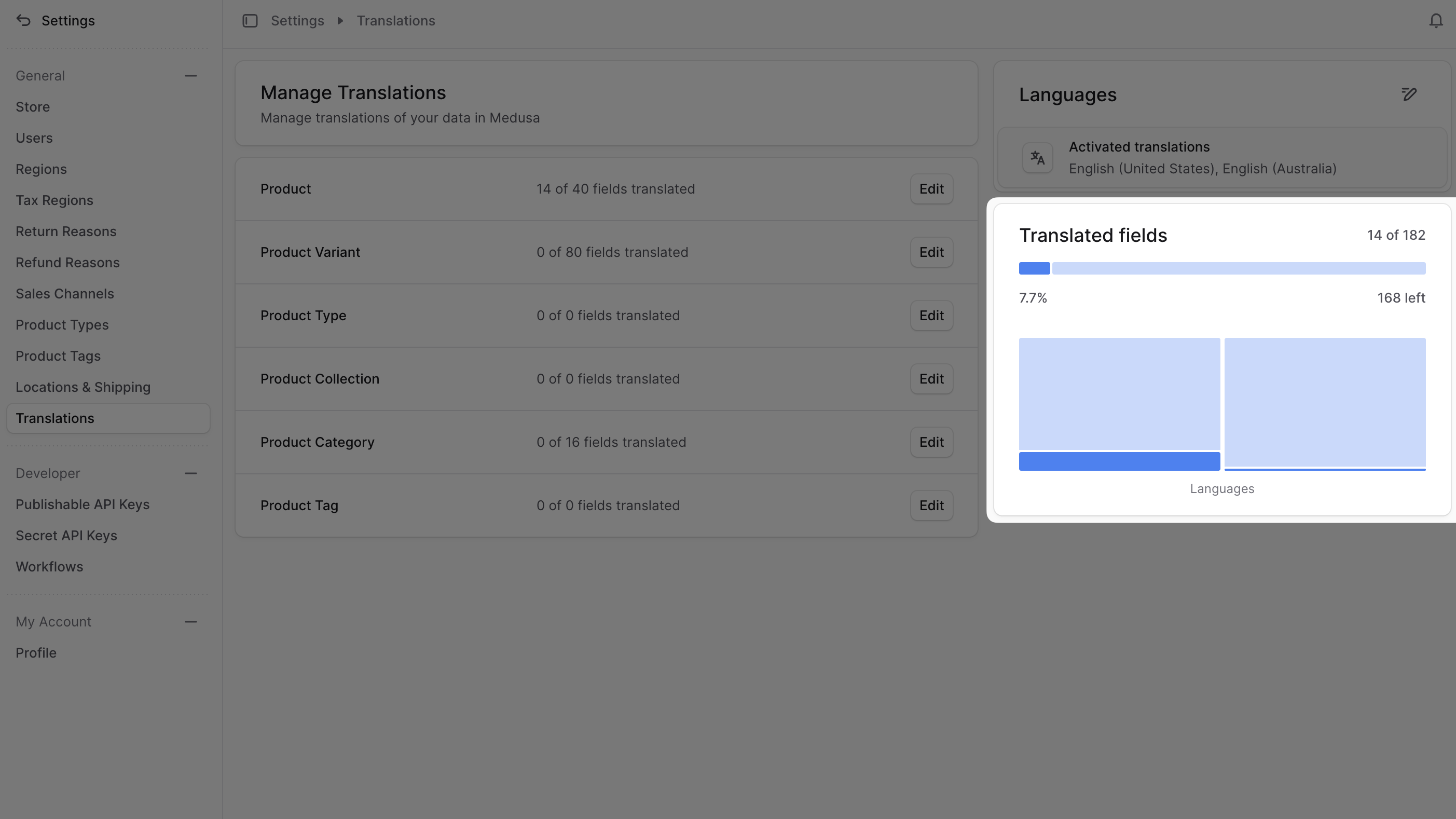
The "Translated fields" section also shows a general progress bar of how many fields have been translated across all resources and locales in your store. You can use this summary to track your overall translation progress.
|
||
|
||
|
||
|
||
There are two charts in this section:
|
||
|
||
1. A progress bar showing the overall translation progress across all resources and locales.
|
||
2. A bar chart showing the number of translated fields per locale.
|
||
|
||
These charts help you visualize your translation efforts and identify which locales may need more attention. |