
102 lines
4.7 KiB
Plaintext
102 lines
4.7 KiB
Plaintext
export const metadata = {
|
|
title: `Database`,
|
|
}
|
|
|
|
# {metadata.title}
|
|
|
|
In this guide, you'll learn about the managed database service that Medusa provides as part of your project environments.
|
|
|
|
## Managed Database Service
|
|
|
|
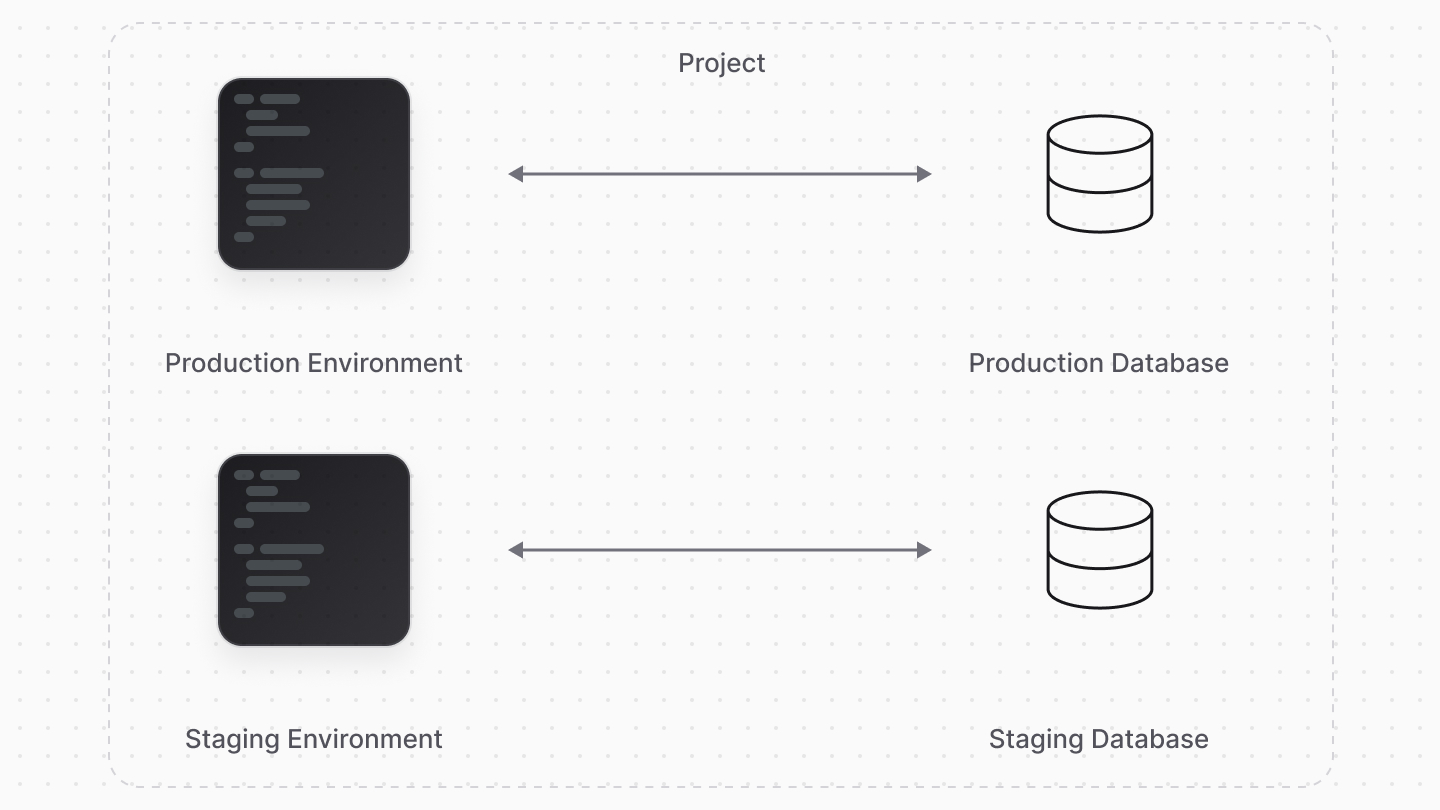
Medusa provisions and manages databases for each of your environments.
|
|
|
|
Each project environment has a dedicated PostgreSQL database. These databases are entirely isolated from one another.
|
|
|
|
This isolation allows you to safely make or test changes in environments without affecting one another, especially the production environment and its data.
|
|
|
|
|
|
|
|
---
|
|
|
|
## Database Configurations
|
|
|
|
Medusa automatically configures the database for your environments. So, you don't need to worry about setting up the database, configuring it with your Medusa application, or monitoring performance and availability on your end.
|
|
|
|
---
|
|
|
|
## Database Backups
|
|
|
|
Medusa provides automatic backups for your environment databases. These backups are retained for 14 days and allow you to restore your database to a previous state, if needed.
|
|
|
|
If you need to restore a database backup, you can contact support to request a point-in-time recovery. This is useful if you accidentally delete data or need to revert changes made to the database.
|
|
|
|
---
|
|
|
|
## Connect to the Database
|
|
|
|
In some cases, you may need to access the database directly, such as to export or import data.
|
|
|
|
Medusa gives you read access to your database, which is useful when you need to export data, perform analytics, or troubleshoot issues.
|
|
|
|
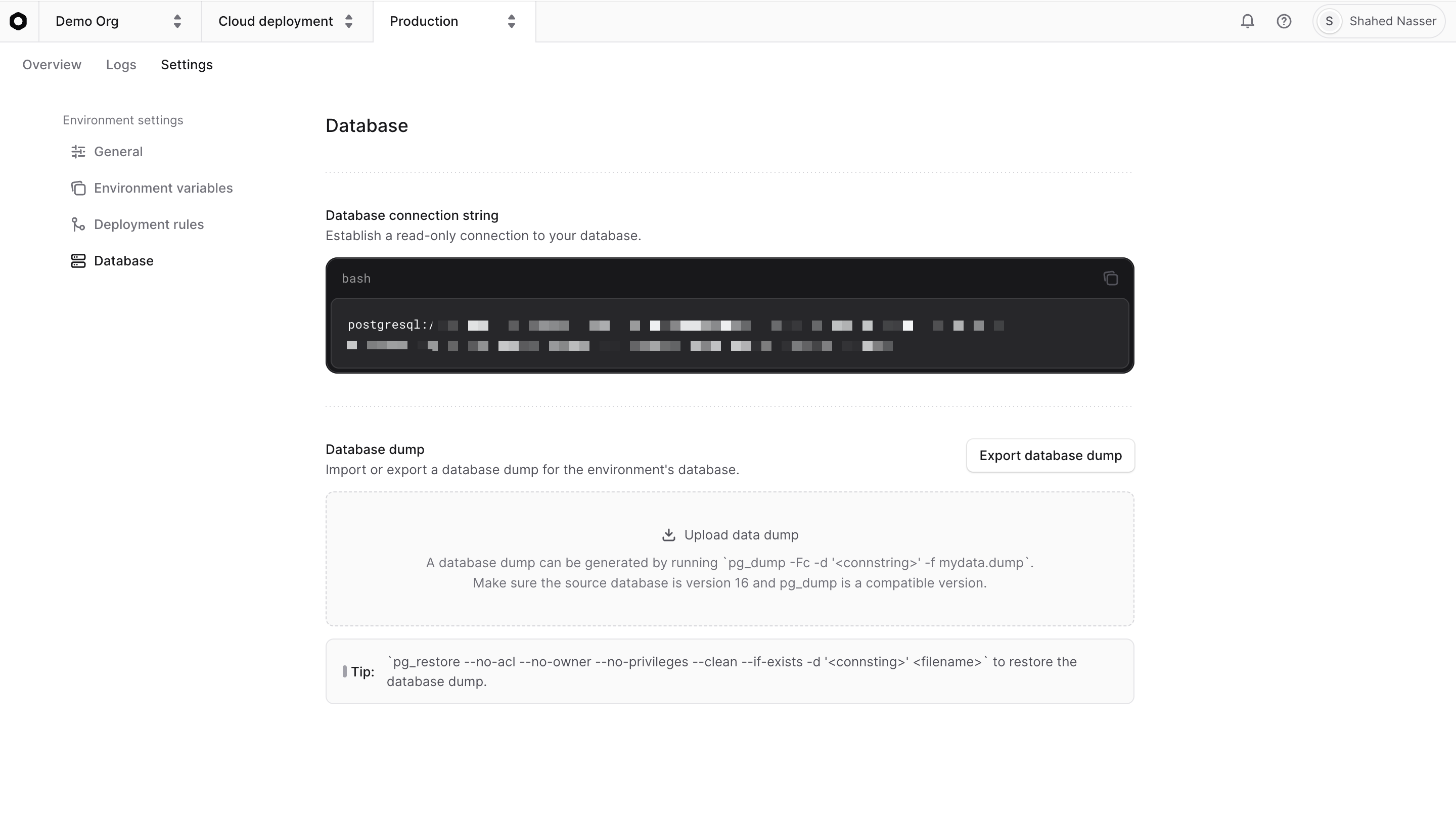
To get the read-only connection string for an environment's database:
|
|
|
|
1. From the [organization's dashboard](../organizations/page.mdx), click on the environment's project.
|
|
2. In the project's dashboard, click on the name of the environment. For example, "Production".
|
|
3. In the environment's dashboard, click on the "Settings" tab.
|
|
4. Choose the "Database" tab from the sidebar.
|
|
5. Copy the read-only connection string in the code block.
|
|
|
|
|
|
|
|
Then, you can connect to your database using a PostgreSQL client. For example, using the `psql` command-line tool:
|
|
|
|
```bash
|
|
psql "postgresql://..."
|
|
```
|
|
|
|
After connecting to the database, you can run SQL queries to interact with your data.
|
|
|
|
---
|
|
|
|
## Import/Export Database Dumps
|
|
|
|
Medusa allows you to export and import database dumps for any environment. This is useful for seeding the database with initial data, migrating from other hosting platforms, or debugging issues locally.
|
|
|
|
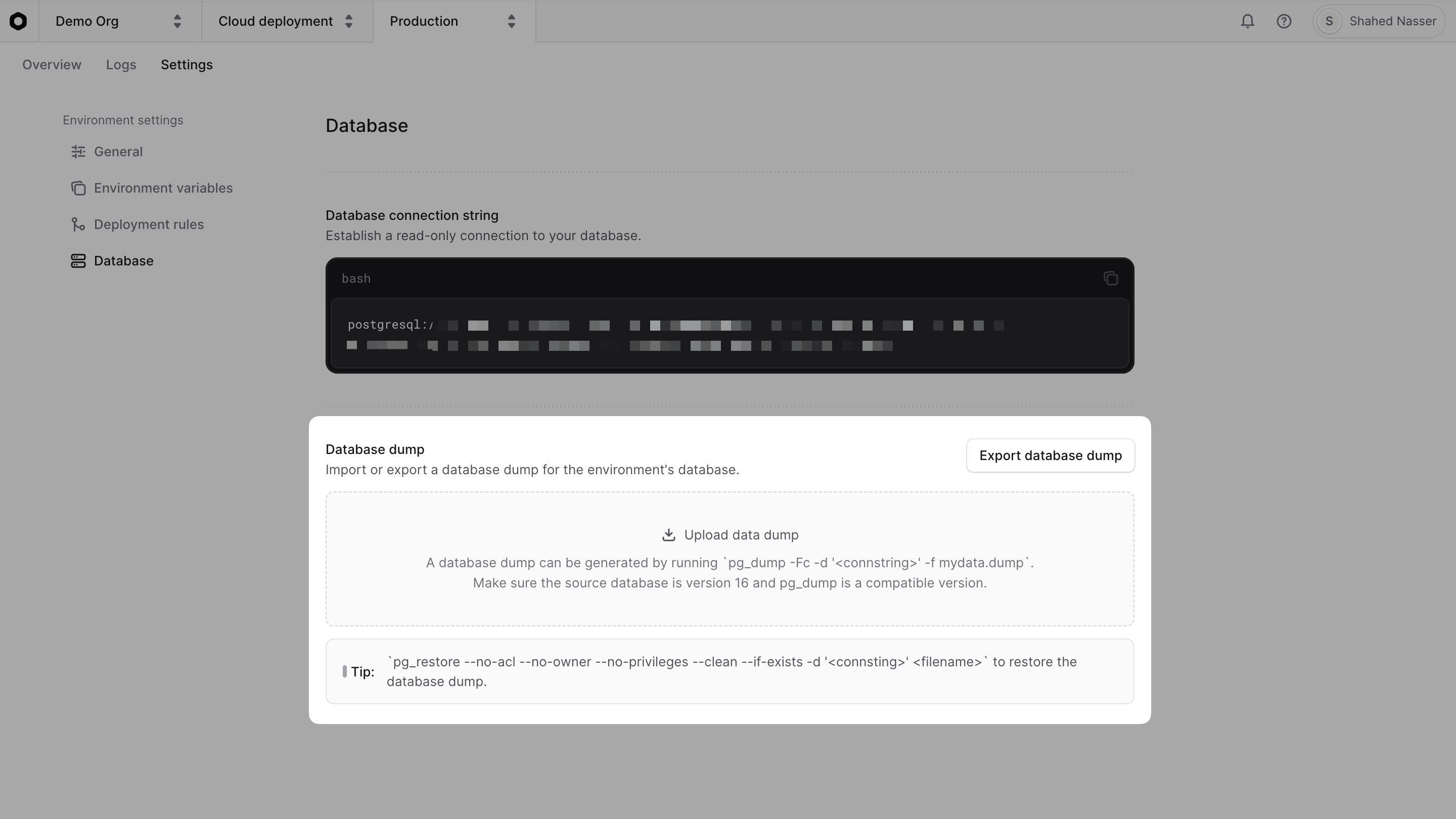
To import or export a database dump for an environment:
|
|
|
|
1. From the [organization's dashboard](../organizations/page.mdx), click on the environment's project.
|
|
2. In the project's dashboard, click on the name of the environment. For example, "Production".
|
|
3. In the environment's dashboard, click on the "Settings" tab.
|
|
4. Choose the "Database" tab from the sidebar and find the "Database dump" section.
|
|
|
|
|
|
|
|
In this section, you can either:
|
|
|
|
- **Import**: Upload a database dump file to import data into the environment's database. You can generate a database dump using `pg_dump`. For example:
|
|
|
|
```bash
|
|
pg_dump -Fc -d postgres://postgres:secret@localhost:5432/mydatabase -f mydata.dump
|
|
```
|
|
|
|
<Note>
|
|
|
|
Make sure you're generating the database dump from PostgreSQL v16 and that [pg_dump](https://www.postgresql.org/docs/16/app-pgdump.html) is compatible with that version.
|
|
|
|
</Note>
|
|
|
|
- **Export**: Download the current database as a dump file. You'll then receive a notification once the export is ready for download. Then, you can restore the database dump locally using `pg_restore`. For example:
|
|
|
|
```bash
|
|
pg_restore --no-acl --no-owner --no-privileges --clean --if-exists -d 'postgres://postgres:secret@localhost:5432/mydatabase' mydata.dump
|
|
```
|
|
|
|
---
|
|
|
|
## Change Preview Environment Database
|
|
|
|
By default, when Medusa creates a [preview environment](../environments/preview/page.mdx), it replicates the Production database. This allows you to test changes in a safe environment that mirrors production, without affecting the live data.
|
|
|
|
Cloud also allows you to configure which environment's database to replicate the preview database from. For example, you can replicate the Staging environment's database instead of Production.
|
|
|
|
Learn more in the [Preview Environments](../environments/preview/page.mdx#manage-shared-previews-settings) guide. |