 2348a168e3
* docs: updates to billing and usage guides

* address comments

* fix build error

* add note on billing questions

* Update www/apps/cloud/app/billing/page.mdx

Co-authored-by: Oli Juhl <59018053+olivermrbl@users.noreply.github.com>

---------

Co-authored-by: Oli Juhl <59018053+olivermrbl@users.noreply.github.com>
95 lines
5.1 KiB
Plaintext
95 lines
5.1 KiB
Plaintext
import { InlineIcon } from "docs-ui"
|
|
import { EllipsisHorizontal, ArrowDownTray, ChevronUpDown } from "@medusajs/icons"
|
|
|
|
export const metadata = {
|
|
title: `Manage Billing Details`,
|
|
}
|
|
|
|
# {metadata.title}
|
|
|
|
In this guide, you'll learn how to manage your organization's billing details in Cloud.
|
|
|
|
## Edit Billing Email
|
|
|
|
To edit the email used for billing:
|
|
|
|
1. Make sure you're viewing the [correct organization's dashboard in Cloud](../../organizations/page.mdx#switch-organization).
|
|
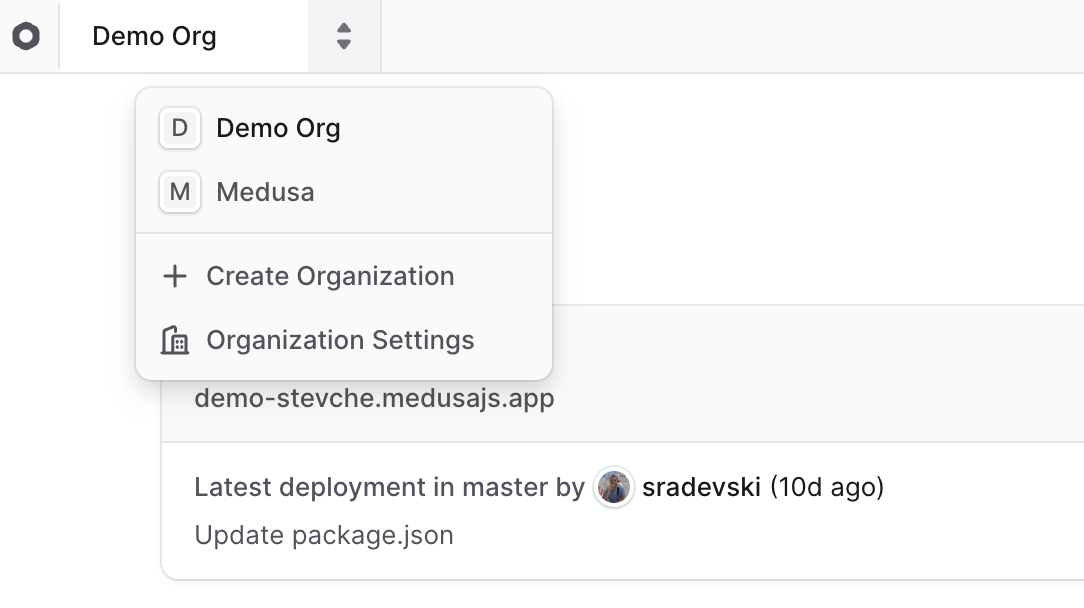
2. Click on the <InlineIcon Icon={ChevronUpDown} alt="switch organization" /> icon in the [organization switcher](../../organizations/page.mdx#switch-organization) at the top left of the Cloud dashboard.
|
|
3. Choose "Organization Settings" from the dropdown.
|
|
|
|
|
|
|
|
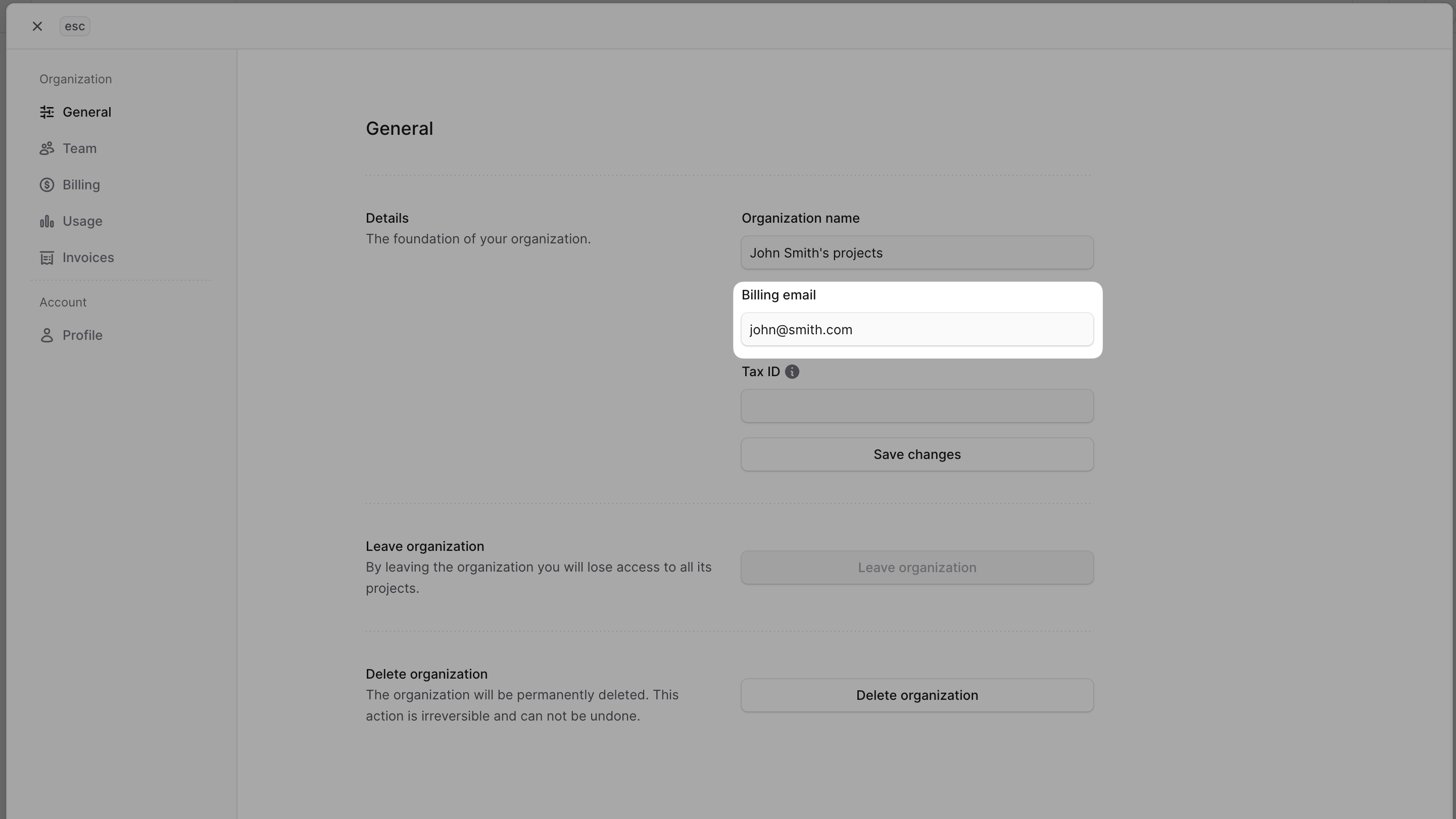
4. In the Details section of the General settings, change the "Billing email" field.
|
|
5. Once you're done, click the "Save changes" button.
|
|
|
|
|
|
|
|
---
|
|
|
|
## Edit Tax ID
|
|
|
|
To edit the Tax, VAT, EIN, GST, or other tax identification numbers for your organization:
|
|
|
|
1. Make sure you're viewing the [correct organization's dashboard in Cloud](../../organizations/page.mdx#switch-organization).
|
|
2. Click on the <InlineIcon Icon={ChevronUpDown} alt="switch organization" /> icon in the [organization switcher](../../organizations/page.mdx#switch-organization) at the top left of the Cloud dashboard.
|
|
3. Choose "Organization Settings" from the dropdown.
|
|
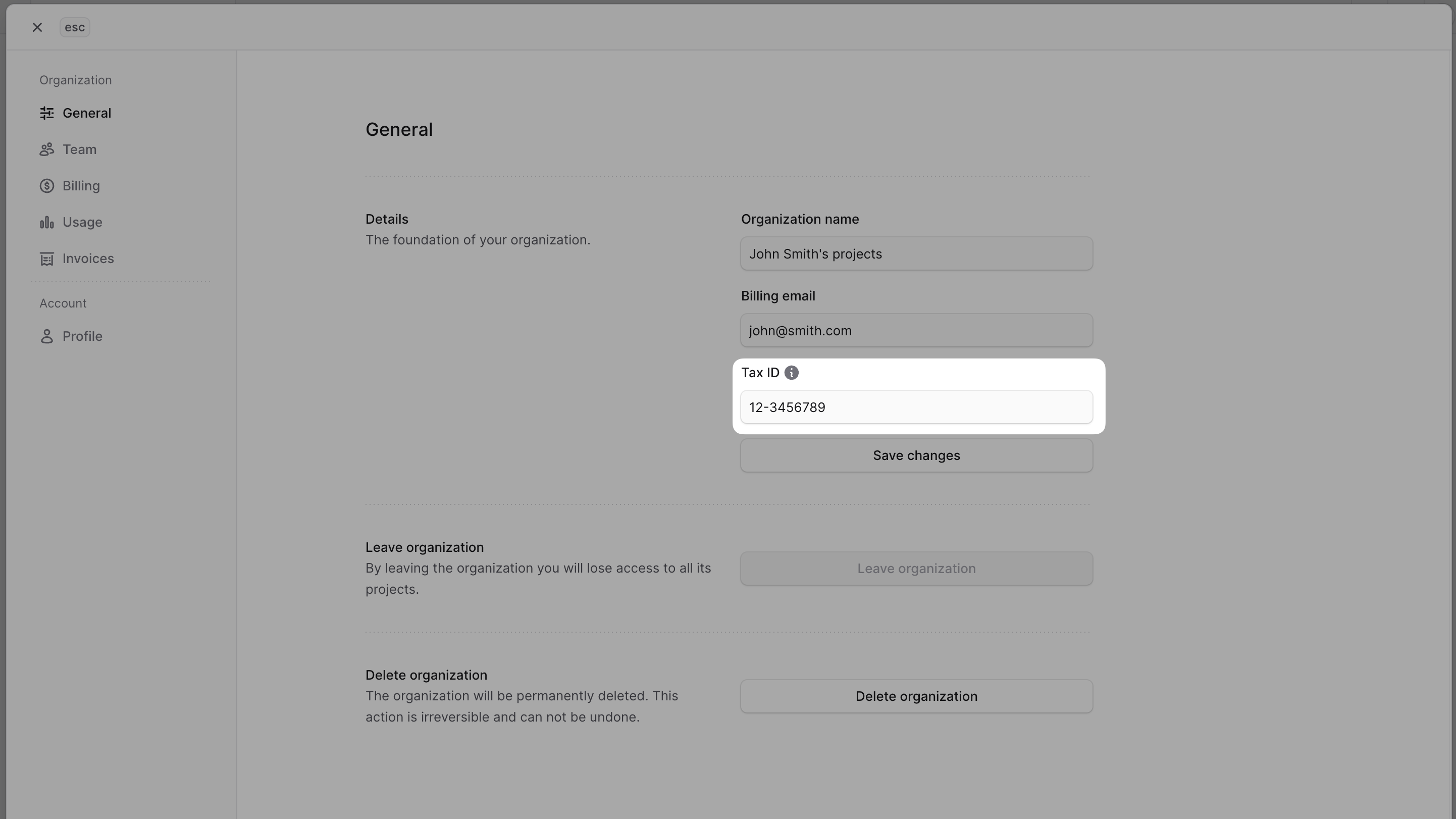
4. In the Details section of the General settings, change the "Tax ID" field.
|
|
5. Once you're done, click the "Save changes" button.
|
|
|
|
|
|
|
|
---
|
|
|
|
## Edit Billing Information
|
|
|
|
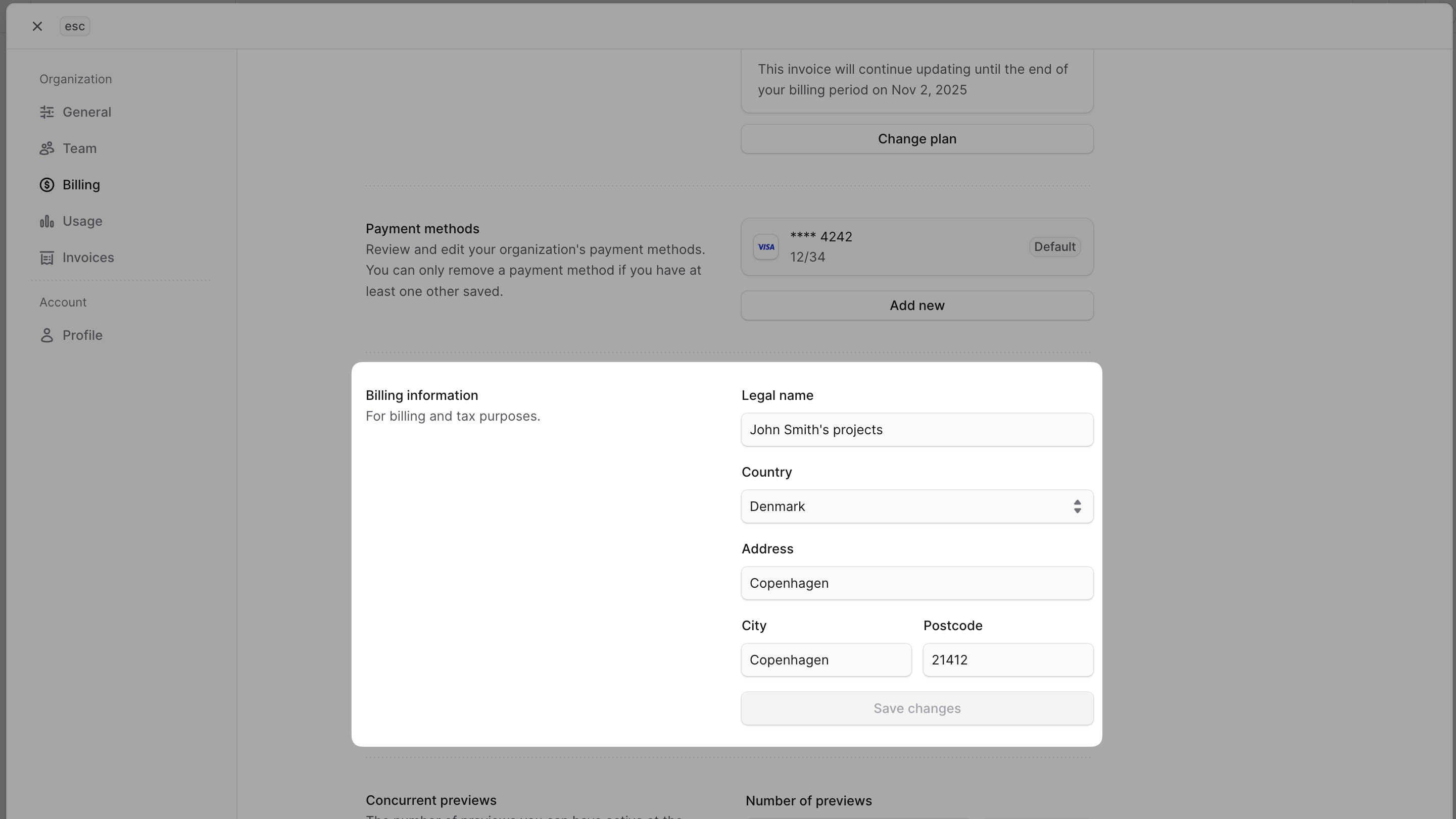
Billing information is used in your organization's invoices. You can edit the billing information to make sure the invoices include the correct details.
|
|
|
|
To edit the billing information:
|
|
|
|
1. Make sure you're viewing the [correct organization's dashboard in Cloud](../../organizations/page.mdx#switch-organization).
|
|
2. Click on the <InlineIcon Icon={ChevronUpDown} alt="switch organization" /> icon in the [organization switcher](../../organizations/page.mdx#switch-organization) at the top left of the Cloud dashboard.
|
|
3. Choose "Organization Settings" from the dropdown.
|
|
4. Change to the "Billing" settings from the sidebar.
|
|
5. In the "Billing information" section, you can edit the legal name, country, address line, city, and post code.
|
|
6. Once you're done, click the "Save changes" button.
|
|
|
|
The new billing information will be used in your organization's next invoice.
|
|
|
|
|
|
|
|
---
|
|
|
|
## Manage Payment Methods
|
|
|
|
You can manage the payment methods used for the monthly Cloud payment subscriptions for your organization.
|
|
|
|
### Add Payment Method to Organization
|
|
|
|
To add a payment method that can be used for Cloud payments in an organization:
|
|
|
|
1. Make sure you're viewing the [correct organization's dashboard in Cloud](../../organizations/page.mdx#switch-organization).
|
|
2. Click on the <InlineIcon Icon={ChevronUpDown} alt="switch organization" /> icon in the [organization switcher](../../organizations/page.mdx#switch-organization) at the top left of the Cloud dashboard.
|
|
3. Choose "Organization Settings" from the dropdown.
|
|
4. Change to the "Billing" settings from the sidebar.
|
|
5. In the "Payment methods" section, click the "Add new" button.
|
|
6. This will open a form where you can add credit card details.
|
|
7. Once you're done, click the "Save" button.
|
|
|
|
### Set Payment Method as Default
|
|
|
|
When Cloud captures the subscription payment for your organization, it first uses the default payment method in your organization. If payment fails, Cloud tries to use other payment methods in the organization, if available.
|
|
|
|
When you have multiple payment methods added to your organization, you can change the default payment method.
|
|
|
|
To change the default payment method:
|
|
|
|
1. Make sure you're viewing the [correct organization's dashboard in Cloud](../../organizations/page.mdx#switch-organization).
|
|
2. Click on the <InlineIcon Icon={ChevronUpDown} alt="switch organization" /> icon in the [organization switcher](../../organizations/page.mdx#switch-organization) at the top left of the Cloud dashboard.
|
|
3. Choose "Organization Settings" from the dropdown.
|
|
4. Change to the "Billing" settings from the sidebar.
|
|
5. In the "Payment methods" section, find the payment method you want to set as default.
|
|
6. Click the <InlineIcon Icon={EllipsisHorizontal} alt="three-dots" /> icon next to the payment method.
|
|
7. Choose "Set as default" from the dropdown.
|
|
|
|
The next time Cloud captures the subscription payment for your organization, it will use this payment method first.
|