 2363a5324e
* docs: general fixes across docs

* added deploy button to railway

* fix eslint errors

* fixes
245 lines
9.5 KiB
Plaintext
245 lines
9.5 KiB
Plaintext
---
|
||
description: 'Learn how to integrate the S3 plugin with the Medusa backend. Learn how to configure and use S3 to store images related to the Medusa backend.'
|
||
addHowToData: true
|
||
---
|
||
|
||
import Troubleshooting from '@site/src/components/Troubleshooting'
|
||
import AclErrorSection from '../../troubleshooting/s3-acl-error.md'
|
||
|
||
# S3
|
||
|
||
In this document, you’ll learn how to install the [S3 plugin](https://github.com/medusajs/medusa/tree/master/packages/medusa-file-s3) on your Medusa backend and use it for storage.
|
||
|
||
## Overview
|
||
|
||
To upload and manage file assets in Medusa, you need a file service plugin responsible for hosting the files. Without a file service plugin, you will face issues while working with Medusa, such as when uploading images for products.
|
||
|
||
Medusa provides three different options to handle your file storage. This document focuses on using [S3](https://aws.amazon.com/s3/) to store images and files uploaded to the Medusa backend.
|
||
|
||
---
|
||
|
||
## Prerequisites
|
||
|
||
### Medusa Backend
|
||
|
||
A Medusa backend is required to be set up before following along with this document. You can follow the [quickstart guide](../../development/backend/install.mdx) to get started in minutes.
|
||
|
||
### Required Accounts
|
||
|
||
You need to [create an AWS account](https://console.aws.amazon.com/console/home?nc2=h_ct&src=header-signin) to follow along with this documentation.
|
||
|
||
---
|
||
|
||
## Create S3 Bucket
|
||
|
||
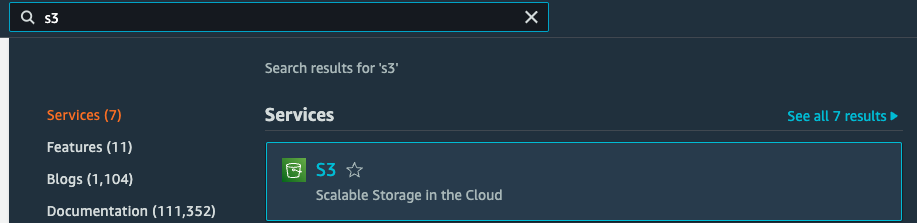
On your AWS Console, search for S3 in the search box at the top. Then, choose the first result you see which should be S3 under the Services category.
|
||
|
||
|
||
|
||
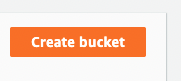
Then, on the new page that opens, click on Create Bucket button at the top right of the Buckets table.
|
||
|
||
|
||
|
||
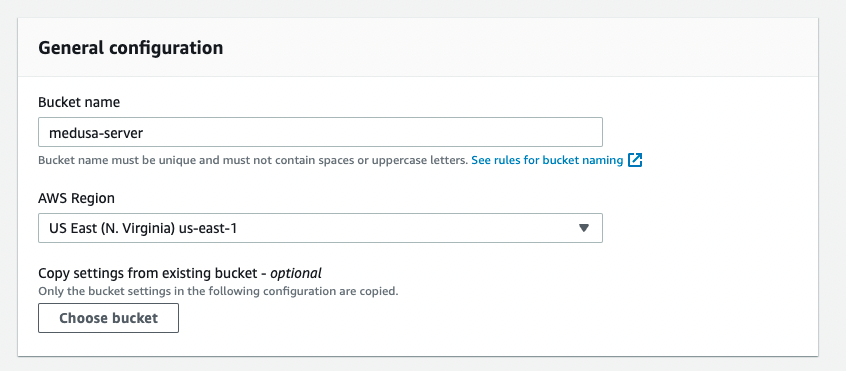
The Create Bucket form will open. In the General Configuration section enter a name for the bucket and choose a region for the bucket. Both of the values of these fields are important as you’ll use them throughout the documentation.
|
||
|
||
|
||
|
||
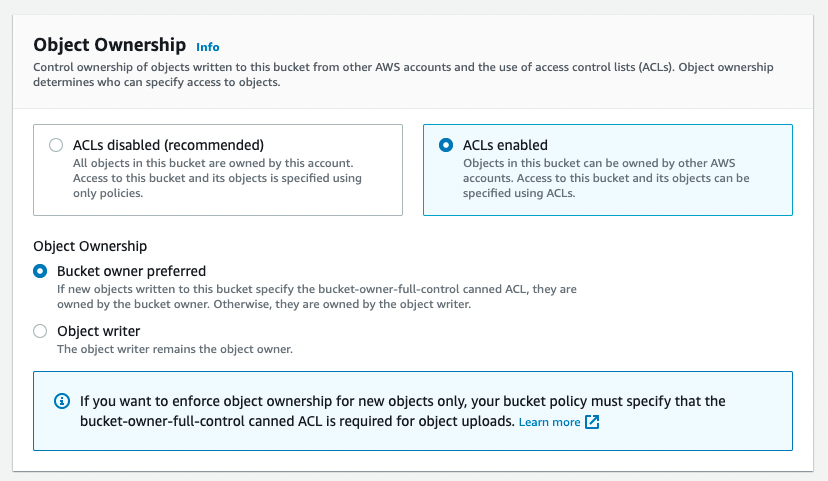
Next, in the Object Ownership section, choose ACLs enabled. Then, two radio buttons will show below it. Choose Bucket owner preferred.
|
||
|
||
|
||
|
||
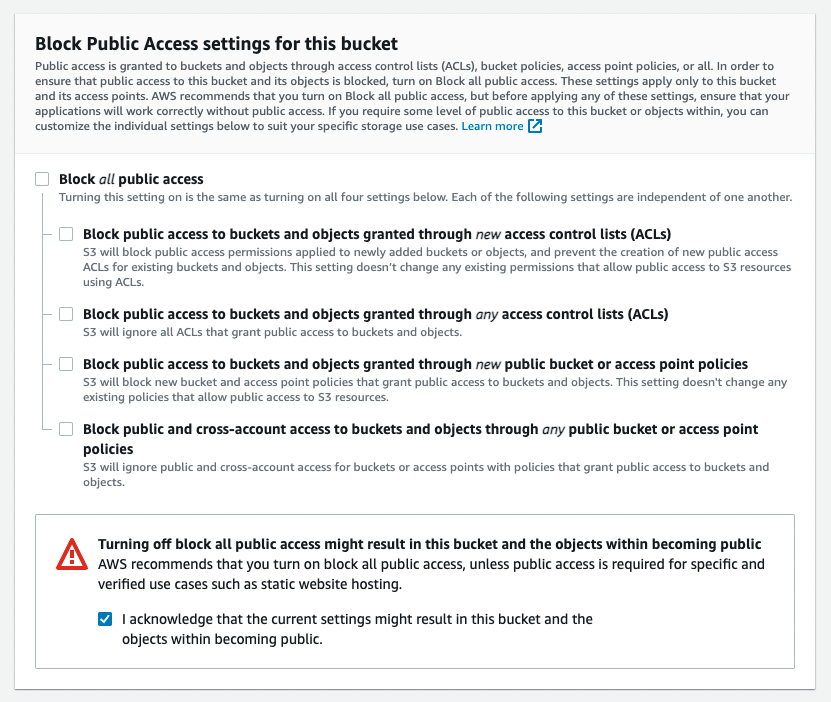
Then, in the “Block Public Access settings for this bucket” section, uncheck the “Block all public access” checkbox. This shows a warning message at the bottom of the section with another checkbox. Check the checkbox to ensure you understand that objects in the bucket are publicly accessible.
|
||
|
||
|
||
|
||
You can leave the rest of the fields in the form as is and scroll down to the end of the page. Then, click on the Create Bucket button.
|
||
|
||
---
|
||
|
||
## Manage Bucket Policies
|
||
|
||
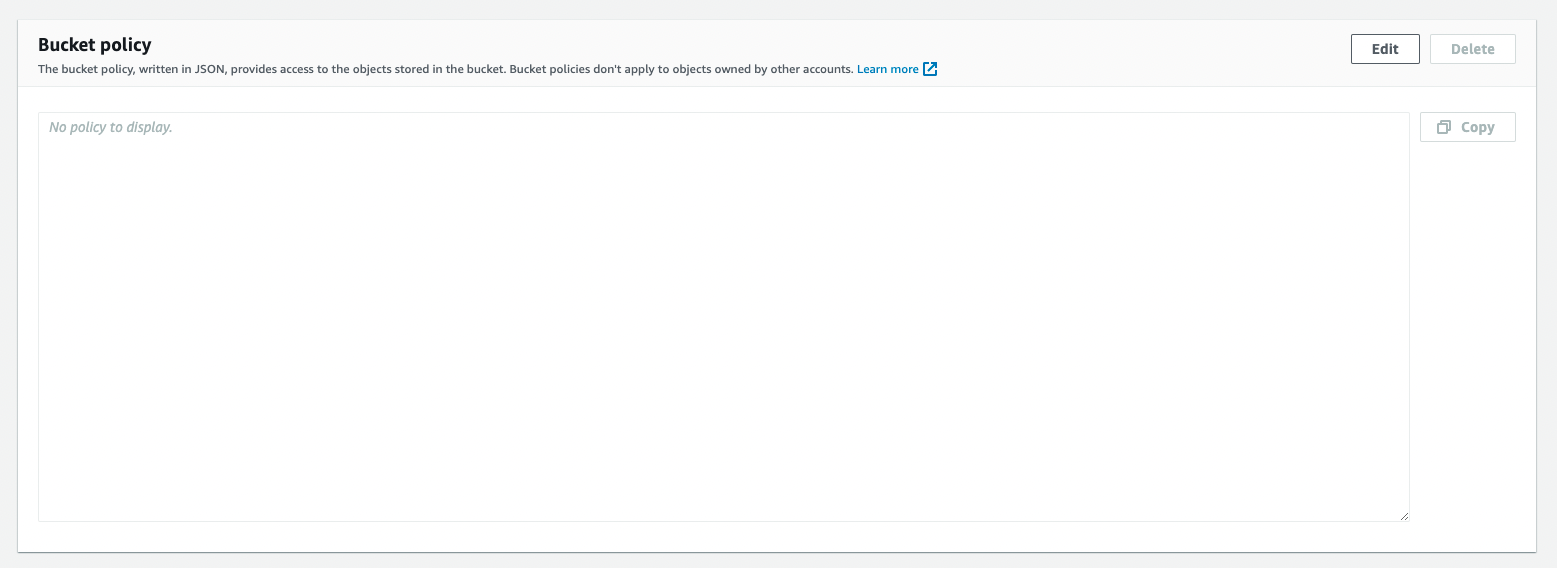
On the page of the bucket you just created, click on the Permissions tab. Then, scroll down until you find the Bucket policy section. Click on Edit in that section.
|
||
|
||
|
||
|
||
In the Edit Bucket Policy page, enter the following in the field:
|
||
|
||
```json
|
||
{
|
||
"Version": "2012-10-17",
|
||
"Id": "Policy1397632521960",
|
||
"Statement": [
|
||
{
|
||
"Sid": "Stmt1397633323327",
|
||
"Effect": "Allow",
|
||
"Principal": {
|
||
"AWS": "*"
|
||
},
|
||
"Action": "s3:GetObject",
|
||
"Resource": "arn:aws:s3:::<YOUR_BUCKET_NAME>/*"
|
||
}
|
||
]
|
||
}
|
||
```
|
||
|
||
Make sure to replace `<YOUR_BUCKET_NAME>` with the name of the bucket you created.
|
||
|
||
Once you’re done, scroll down and click on the Save changes button.
|
||
|
||
### User Permissions
|
||
|
||
Your user must have the `AmazonS3FullAccess` policy attached to it. You can refer to [this guide](https://docs.aws.amazon.com/apigateway/latest/developerguide/api-gateway-create-and-attach-iam-policy.html) to learn how to add a policy if necessary.
|
||
|
||
### Obtain Access Keys
|
||
|
||
You must obtain access keys for your user as you’ll use them to integrate the S3 plugin in Medusa with your bucket. To obtain the Access Key ID and the Secret Access Key, check out [this guide](https://docs.aws.amazon.com/general/latest/gr/aws-sec-cred-types.html#access-keys-and-secret-access-keys).
|
||
|
||
---
|
||
|
||
## Install the S3 Plugin
|
||
|
||
In the directory of your Medusa backend, run the following command to install the S3 Plugin:
|
||
|
||
```bash npm2yarn
|
||
npm install medusa-file-s3
|
||
```
|
||
|
||
Then, add the following environment variables:
|
||
|
||
```bash
|
||
S3_URL=<YOUR_BUCKET_URL>
|
||
S3_BUCKET=<YOUR_BUCKET_NAME>
|
||
S3_REGION=<YOUR_BUCKET_REGION>
|
||
S3_ACCESS_KEY_ID=<YOUR_ACCESS_KEY_ID>
|
||
S3_SECRET_ACCESS_KEY=<YOUR_SECRET_ACCESS_KEY>
|
||
```
|
||
|
||
Where:
|
||
|
||
1. `<YOUR_BUCKET_URL>` is the URL to your bucket. It’s in the form `https://<BUCKET_NAME>.s3.<REGION>.amazonaws.com`, where `<BUCKET_NAME>` is the name of the bucket and the `<REGION>` is the region the bucket is created in. If you’re not sure which region, on your bucket’s page on S3 click on Properties. You can then find the region under AWS Region. Make sure to only copy the code (for example, `us-east-1`).
|
||
2. `<YOUR_BUCKET_NAME>` is the name of the bucket you created.
|
||
3. `<YOUR_BUCKET_REGION>` is the region code of your bucket. For example, `us-east-1`.
|
||
4. `<YOUR_ACCESS_KEY_ID>` is the Access Key ID that you created for your user.
|
||
5. `<YOUR_SECRET_ACCESS_KEY>` is the Secret Access Key that you created for your user.
|
||
|
||
Finally, in `medusa-config.js`, add to the `plugins` array the following new item:
|
||
|
||
```jsx title=medusa-config.js
|
||
const plugins = [
|
||
// ...
|
||
{
|
||
resolve: `medusa-file-s3`,
|
||
options: {
|
||
s3_url: process.env.S3_URL,
|
||
bucket: process.env.S3_BUCKET,
|
||
region: process.env.S3_REGION,
|
||
access_key_id: process.env.S3_ACCESS_KEY_ID,
|
||
secret_access_key: process.env.S3_SECRET_ACCESS_KEY,
|
||
},
|
||
},
|
||
]
|
||
```
|
||
|
||
|
||
:::caution
|
||
|
||
If you have multiple storage plugins configured, the last plugin declared in the `medusa-config.js` file will be used.
|
||
|
||
:::
|
||
|
||
### Add AWS Configurations
|
||
|
||
You can pass additional AWS configurations, such as `customUserAgent`, in the plugin's options under the property `aws_config_object`. This property is an object that accepts [AWS Configurations](https://docs.aws.amazon.com/AWSJavaScriptSDK/latest/AWS/Config.html) as its properties.
|
||
|
||
For example:
|
||
|
||
```jsx title=medusa-config.js
|
||
const plugins = [
|
||
// ...
|
||
{
|
||
resolve: `medusa-file-s3`,
|
||
options: {
|
||
s3_url: process.env.S3_URL,
|
||
bucket: process.env.S3_BUCKET,
|
||
aws_config_object: {
|
||
customUserAgent: process.env.S3_CUSTOM_AGENT,
|
||
},
|
||
},
|
||
},
|
||
]
|
||
```
|
||
|
||
Make sure to define `S3_CUSTOM_AGENT` in your environment variables first.
|
||
|
||
---
|
||
|
||
## Test the S3 Plugin
|
||
|
||
Run your Medusa backend with the following command:
|
||
|
||
```bash npm2yarn
|
||
npx medusa develop
|
||
```
|
||
|
||
Then, you can either test the plugin using the [REST APIs](/api/store) or using the [Medusa Admin](../../admin/quickstart.mdx).
|
||
|
||
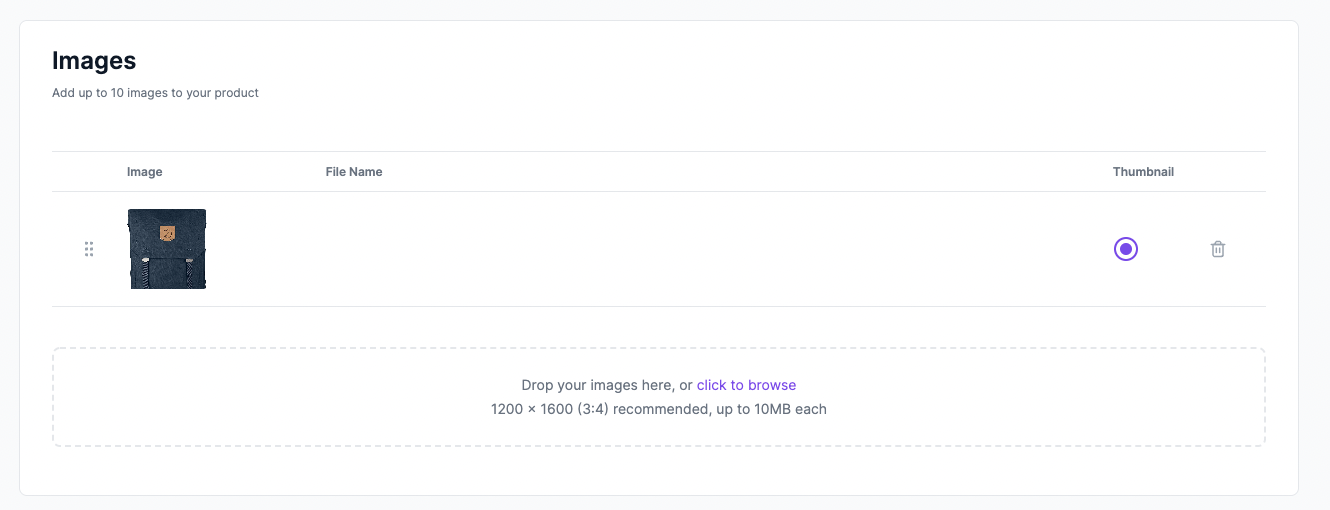
On the Medusa Admin, create a new product and, in the Images section, upload an image then click Save. If the integration was successful, the product image will be uploaded successfully.
|
||
|
||
|
||
|
||
You can also check that the image was uploaded on the S3 bucket’s page.
|
||
|
||

|
||
|
||
---
|
||
|
||
## Next.js Starter Template Configuration
|
||
|
||
If you’re using a [Next.js Starter Template](../../starters/nextjs-medusa-starter.mdx), you need to add an additional configuration that adds the S3 bucket domain name into the configured images’ domain names. This is because all URLs of product images will be from the S3 bucket.
|
||
|
||
If this configuration is not added, you’ll receive the error ["next/image Un-configured Host”](https://nextjs.org/docs/messages/next-image-unconfigured-host).
|
||
|
||
In `next.config.js` add the following option in the exported object:
|
||
|
||
```jsx title=next.config.js
|
||
const { withStoreConfig } = require("./store-config")
|
||
|
||
// ...
|
||
|
||
module.exports = withStoreConfig({
|
||
// ...
|
||
images: {
|
||
domains: [
|
||
// ...
|
||
"<BUCKET_NAME>.s3.<REGION>.amazonaws.com",
|
||
],
|
||
},
|
||
})
|
||
```
|
||
|
||
Where:
|
||
|
||
- `<BUCKET_NAME>` is the name of the S3 bucket you’re using
|
||
- `<REGION>` is the region of the S3 bucket (for example, `eu-west-1`). If your S3 URL doesn't use region in it, you may omit it to be instead `<BUCKET_NAME>.s3.amazonaws.com`.
|
||
|
||
---
|
||
|
||
## Troubleshooting
|
||
|
||
<Troubleshooting
|
||
sections={[
|
||
{
|
||
title: 'Error: AccessControlListNotSupported: The bucket does not allow ACLs',
|
||
content: <AclErrorSection />
|
||
}
|
||
]}
|
||
/>
|
||
|
||
---
|
||
|
||
## See Also
|
||
|
||
- Check out [more plugins](../overview.mdx) you can add to your store
|
||
- [Deploy the Medusa backend](../../deployments/server/index.mdx)
|
||
- Install the [Next.js Starter Template](../../starters/nextjs-medusa-starter.mdx)
|