
200 lines
6.4 KiB
Plaintext
200 lines
6.4 KiB
Plaintext
import { CardList } from "docs-ui"
|
|
|
|
export const metadata = {
|
|
title: `Analytics Module`,
|
|
}
|
|
|
|
# {metadata.title}
|
|
|
|
In this document, you'll learn about the Analytics Module and its providers.
|
|
|
|
<Note>
|
|
|
|
The Analytics Module is available starting [Medusa v2.8.3](https://github.com/medusajs/medusa/releases/tag/v2.8.3).
|
|
|
|
</Note>
|
|
|
|
## What is the Analytics Module?
|
|
|
|
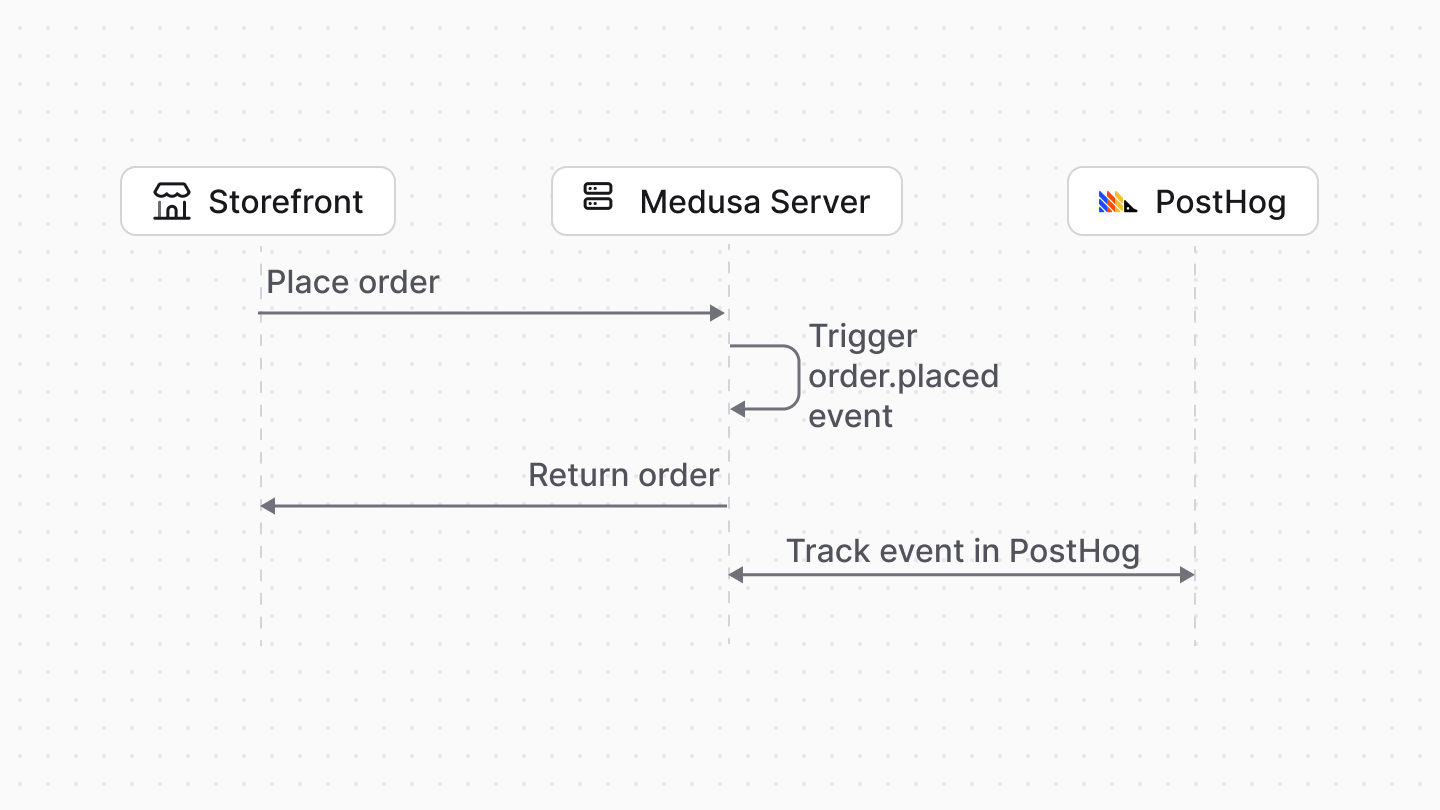
The Analytics Module exposes functionalities to track and analyze user interactions and system events with third-party services. For example, you can track cart updates or completed orders.
|
|
|
|
In your Medusa application, you can use the Analytics Module to send data to third-party analytics services like PostHog or Segment, enabling you to gain insights into user behavior and system performance.
|
|
|
|
|
|
|
|
---
|
|
|
|
## How to Use the Analytics Module?
|
|
|
|
### Configure Analytics Module Provider
|
|
|
|
To use the Analytics Module, you need to configure it along with an Analytics Module Provider.
|
|
|
|
An Analytics Module Provider implements the underlying logic of sending analytics data. It integrates with a third-party analytics service to send the data collected through the Analytics Module.
|
|
|
|
Medusa provides two Analytics Module Providers: Local and PostHog module providers.
|
|
|
|
You can also [create a custom Analytics Module Provider](/references/analytics/provider) that integrates with a third-party service, like Segment.
|
|
|
|
<CardList
|
|
items={[
|
|
{
|
|
title: "Local",
|
|
href: "/infrastructure-modules/analytics/local",
|
|
badge: {
|
|
variant: "neutral",
|
|
children: "For Development"
|
|
}
|
|
},
|
|
{
|
|
title: "PostHog",
|
|
href: "/infrastructure-modules/analytics/posthog",
|
|
badge: {
|
|
variant: "green",
|
|
children: "For Production"
|
|
}
|
|
}
|
|
]}
|
|
/>
|
|
|
|
<Card
|
|
title="Segment"
|
|
href="/integrations/guides/segment"
|
|
className="my-1"
|
|
badge={{
|
|
variant: "blue",
|
|
children: "Tutorial"
|
|
}}
|
|
/>
|
|
|
|
To configure the Analytics Module and its provider, add it to the list of modules in your `medusa-config.ts` file. For example:
|
|
|
|
```ts title="medusa-config.ts"
|
|
module.exports = defineConfig({
|
|
// ...
|
|
modules: [
|
|
{
|
|
resolve: "@medusajs/medusa/analytics",
|
|
options: {
|
|
providers: [
|
|
{
|
|
resolve: "@medusajs/medusa/analytics-local",
|
|
id: "local",
|
|
},
|
|
],
|
|
},
|
|
},
|
|
],
|
|
})
|
|
```
|
|
|
|
Refer to the documentation of each provider for specific configuration options.
|
|
|
|
### Track Events
|
|
|
|
To track an event, you can use the Analytics Module as part of the [workflows](!docs!/learn/fundamentals/workflows) you build for your custom features. A workflow is a special function composed of a series of steps that guarantees data consistency and reliable roll-back mechanism.
|
|
|
|
In a step of your workflow, you can resolve the Analytics Module's service and use its methods to track events or identify users.
|
|
|
|
For example, create a workflow at `src/workflows/track-order-placed.ts` with the following content:
|
|
|
|
export const workflowHighlights = [
|
|
["14", "resolve", "Resolve the Analytics Module's service"],
|
|
["16", "track", "Track the event in the installed Analytics Module Provider"]
|
|
]
|
|
|
|
```ts title="src/workflows/track-order-placed.ts" highlights={workflowHighlights}
|
|
import { createWorkflow } from "@medusajs/framework/workflows-sdk"
|
|
import { createStep } from "@medusajs/framework/workflows-sdk"
|
|
import { useQueryGraphStep } from "@medusajs/medusa/core-flows"
|
|
import { Modules } from "@medusajs/framework/utils"
|
|
import { OrderDTO } from "@medusajs/framework/types"
|
|
|
|
type StepInput = {
|
|
order: OrderDTO
|
|
}
|
|
|
|
const trackOrderPlacedStep = createStep(
|
|
"track-order-placed-step",
|
|
async ({ order }: StepInput, { container }) => {
|
|
const analyticsModuleService = container.resolve(Modules.ANALYTICS)
|
|
|
|
await analyticsModuleService.track({
|
|
event: "order_placed",
|
|
actor_id: order.customer_id,
|
|
properties: {
|
|
order_id: order.id,
|
|
total: order.total,
|
|
items: order.items?.map((item) => ({
|
|
variant_id: item.variant_id,
|
|
product_id: item.product_id,
|
|
quantity: item.quantity,
|
|
})),
|
|
customer_id: order.customer_id,
|
|
},
|
|
})
|
|
}
|
|
)
|
|
|
|
type WorkflowInput = {
|
|
order_id: string
|
|
}
|
|
|
|
export const trackOrderPlacedWorkflow = createWorkflow(
|
|
"track-order-placed-workflow",
|
|
({ order_id }: WorkflowInput) => {
|
|
const { data: orders } = useQueryGraphStep({
|
|
entity: "order",
|
|
fields: [
|
|
"*",
|
|
"customer.*",
|
|
"items.*",
|
|
],
|
|
filters: {
|
|
id: order_id,
|
|
},
|
|
})
|
|
trackOrderCreatedStep({
|
|
order: orders[0],
|
|
} as unknown as StepInput)
|
|
}
|
|
)
|
|
```
|
|
|
|
This workflow retrieves the order details using the `useQueryGraphStep` and then tracks the order placement event using the `trackOrderPlacedStep`.
|
|
|
|
In the step, you resolve the service of the Analytics Module from the [Medusa container](!docs!/learn/fundamentals/medusa-container) and use its `track` method to track the event. This method will use the underlying provider configured in `medusa-config.ts` to track the event.
|
|
|
|
### Execute Analytics Workflow
|
|
|
|
After that, you can execute this workflow in a subscriber that runs when a product is created.
|
|
|
|
create a subscriber at `src/subscribers/order-placed.ts` with the following content:
|
|
|
|
```ts title="src/subscribers/order-placed.ts"
|
|
import type {
|
|
SubscriberArgs,
|
|
SubscriberConfig,
|
|
} from "@medusajs/framework"
|
|
import { trackOrderPlacedWorkflow } from "../workflows/track-order-placed"
|
|
|
|
export default async function orderPlacedHandler({
|
|
event: { data },
|
|
container,
|
|
}: SubscriberArgs<{ id: string }>) {
|
|
await trackOrderPlacedWorkflow(container).run({
|
|
input: {
|
|
order_id: data.id,
|
|
},
|
|
})
|
|
}
|
|
|
|
export const config: SubscriberConfig = {
|
|
event: "order.placed",
|
|
}
|
|
```
|
|
|
|
This subscriber listens to the `order.placed` event and executes the `trackOrderPlacedWorkflow` workflow, passing the order ID as input.
|
|
|
|
You'll now track the order placement event whenever an order is placed in your Medusa application. You can test this out by placing an order and checking the provider you integrated with (for example, PostHog) for the tracked event.
|