
1370 lines
57 KiB
Plaintext
1370 lines
57 KiB
Plaintext
---
|
||
sidebar_label: "Integrate Mailchimp"
|
||
tags:
|
||
- server
|
||
- tutorial
|
||
- notification
|
||
products:
|
||
- product
|
||
---
|
||
|
||
import { Card, Prerequisites, Details, WorkflowDiagram } from "docs-ui"
|
||
import { Github, PlaySolid } from "@medusajs/icons"
|
||
|
||
export const metadata = {
|
||
title: `Add Newsletter Subscriptions with Mailchimp in Medusa`,
|
||
}
|
||
|
||
# {metadata.title}
|
||
|
||
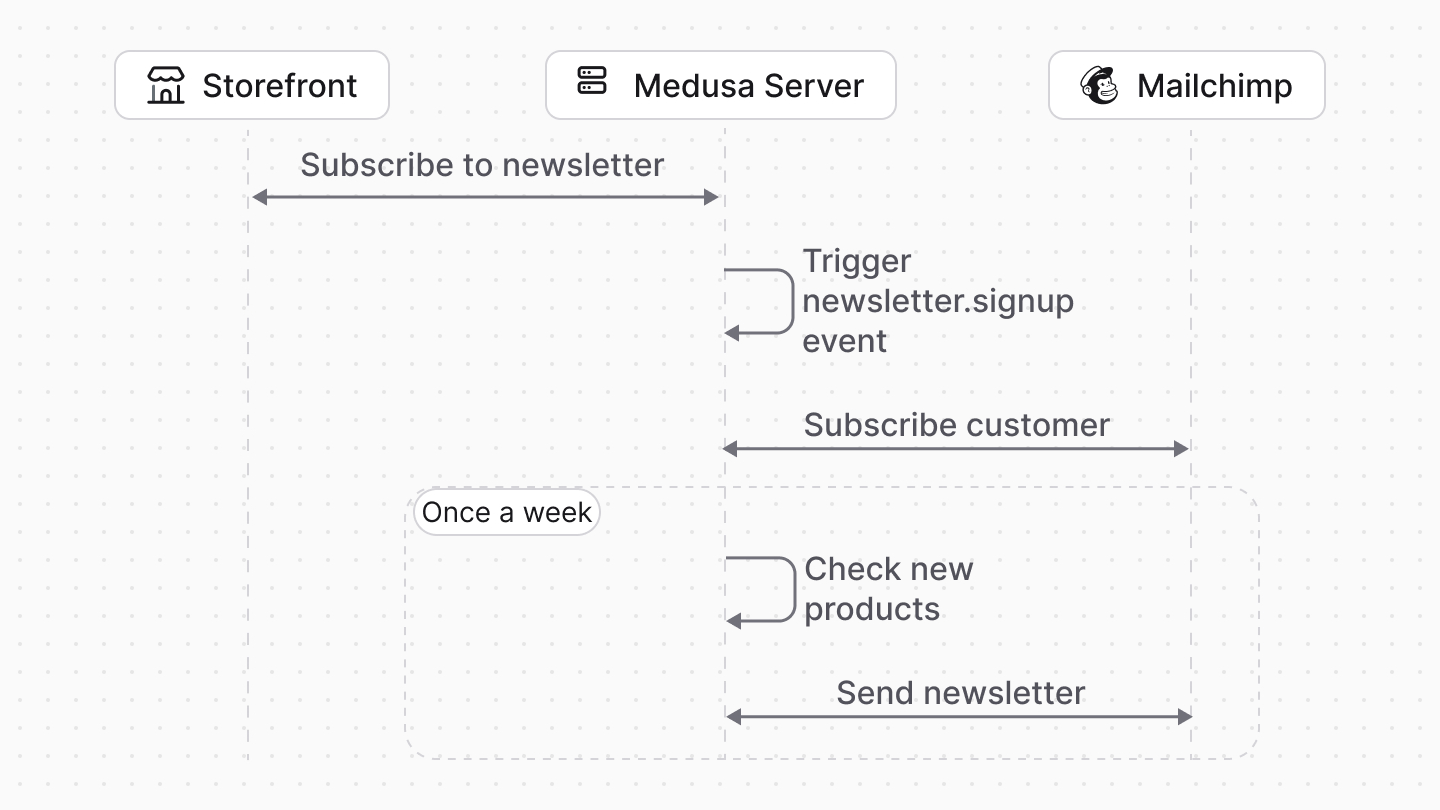
In this tutorial, you'll learn how to integrate Mailchimp with Medusa to manage newsletter subscribers and automate newsletters.
|
||
|
||
When you install a Medusa application, you get a fully-fledged commerce platform with a Framework for customization. Medusa's architecture facilitates integrating third-party services to customize Medusa's infrastructure for your business needs.
|
||
|
||
Medusa's [Notification Module](../../../infrastructure-modules/notification/page.mdx) allows you to customize Medusa's infrastructure to send notifications using the third-party provider that fits your business needs, such as [Mailchimp](https://mailchimp.com/).
|
||
|
||
In this tutorial, you'll integrate Mailchimp with Medusa to allow customers to subscribe to your newsletter and automate sending newsletters.
|
||
|
||
## Summary
|
||
|
||
By following this tutorial, you'll learn how to:
|
||
|
||
- Install and set up Medusa.
|
||
- Integrate Mailchimp with Medusa.
|
||
- Allow customers to subscribe to your store's newsletter.
|
||
- Automate sending newsletters about new products to subscribed customers.
|
||
|
||
You can follow this tutorial whether you're new to Medusa or an advanced Medusa developer.
|
||
|
||
|
||
|
||
<Card
|
||
title="Example Repository"
|
||
text="Find the full code of the guide in this repository."
|
||
href="https://github.com/medusajs/examples/tree/main/mailchimp-integration"
|
||
icon={Github}
|
||
/>
|
||
|
||
---
|
||
|
||
## Step 1: Install a Medusa Application
|
||
|
||
<Prerequisites items={[
|
||
{
|
||
text: "Node.js v20+",
|
||
link: "https://nodejs.org/en/download"
|
||
},
|
||
{
|
||
text: "Git CLI tool",
|
||
link: "https://git-scm.com/downloads"
|
||
},
|
||
{
|
||
text: "PostgreSQL",
|
||
link: "https://www.postgresql.org/download/"
|
||
}
|
||
]} />
|
||
|
||
Start by installing the Medusa application on your machine with the following command:
|
||
|
||
```bash
|
||
npx create-medusa-app@latest
|
||
```
|
||
|
||
First, you'll be asked for the project's name. Then, when prompted about installing the [Next.js Starter Storefront](../../../nextjs-starter/page.mdx), choose "Yes."
|
||
|
||
Afterwards, the installation process will start, which will install the Medusa application in a directory with your project's name and the Next.js Starter Storefront in a separate directory named `{project-name}-storefront`.
|
||
|
||
<Note title="Why is the storefront installed separately?">
|
||
|
||
The Medusa application is composed of a headless Node.js server and an admin dashboard. The storefront is installed or custom-built separately and connects to the Medusa application through its REST endpoints, called [API routes](!docs!/learn/fundamentals/api-routes). Learn more in [Medusa's Architecture documentation](!docs!/learn/introduction/architecture).
|
||
|
||
</Note>
|
||
|
||
Once the installation finishes successfully, the Medusa Admin dashboard will open with a form to create a new user. Enter the user's credentials and submit the form. Afterwards, you can log in with the new user and explore the dashboard.
|
||
|
||
<Note title="Ran into Errors?">
|
||
|
||
Check out the [troubleshooting guides](../../../troubleshooting/create-medusa-app-errors/page.mdx) for help.
|
||
|
||
</Note>
|
||
|
||
---
|
||
|
||
## Step 2: Create Mailchimp Module Provider
|
||
|
||
To integrate third-party services into Medusa, you create a custom [module](!docs!/learn/fundamentals/modules). A module is a reusable package with functionalities related to a single feature or domain.
|
||
|
||
Medusa's [Notification Module](../../../infrastructure-modules/notification/page.mdx) provides an interface to send notifications in your Medusa application. It delegates the actual sending of notifications to the underlying provider, such as Mailchimp.
|
||
|
||
In this step, you'll integrate Mailchimp as a Notification Module Provider. Later, you'll use it to handle newsletter subscriptions and send newsletters.
|
||
|
||
<Note>
|
||
|
||
Refer to the [Modules](!docs!/learn/fundamentals/modules) documentation to learn more about modules in Medusa.
|
||
|
||
</Note>
|
||
|
||
### a. Install Mailchimp Marketing API SDK
|
||
|
||
To interact with Mailchimp's APIs, you'll use their official Node.js SDK.
|
||
|
||
Run the following command to install the SDK with its types package in your Medusa application:
|
||
|
||
```bash npm2yarn
|
||
npm install @mailchimp/mailchimp_marketing
|
||
npm install @types/mailchimp__mailchimp_marketing --save-dev
|
||
```
|
||
|
||
### b. Create Module Directory
|
||
|
||
A module is created under the `src/modules` directory of your Medusa application. So, create the directory `src/modules/mailchimp`.
|
||
|
||
### c. Create Mailchimp Module's Service
|
||
|
||
A module has a service that contains its logic. For Notification Module Providers, the service implements the logic to send notifications with a third-party service.
|
||
|
||
To create the service of the Mailchimp Notification Module Provider, create the file `src/modules/mailchimp/service.ts` with the following content:
|
||
|
||
export const serviceHighlights = [
|
||
["6", "Options", "The options required for Mailchimp integration."],
|
||
["22", "identifier", "The unique identifier for the module provider."],
|
||
]
|
||
|
||
```ts title="src/modules/mailchimp/service.ts" highlights={serviceHighlights}
|
||
import {
|
||
AbstractNotificationProviderService,
|
||
} from "@medusajs/framework/utils"
|
||
import mailchimpMarketingApi from "@mailchimp/mailchimp_marketing"
|
||
|
||
type Options = {
|
||
apiKey: string
|
||
server: string
|
||
listId: string
|
||
templates?: {
|
||
new_products?: {
|
||
subject_line?: string
|
||
storefront_url?: string
|
||
}
|
||
}
|
||
}
|
||
|
||
type InjectedDependencies = {
|
||
}
|
||
|
||
class MailchimpNotificationProviderService extends AbstractNotificationProviderService {
|
||
static identifier = "mailchimp"
|
||
protected options: Options
|
||
protected mailchimp: typeof mailchimpMarketingApi
|
||
|
||
constructor(container: InjectedDependencies, options: Options) {
|
||
super()
|
||
this.options = options
|
||
this.mailchimp = mailchimpMarketingApi
|
||
this.mailchimp.setConfig({
|
||
apiKey: options.apiKey,
|
||
server: options.server,
|
||
})
|
||
}
|
||
}
|
||
|
||
export default MailchimpNotificationProviderService
|
||
```
|
||
|
||
A Notification Module Provider's service must extend the `AbstractNotificationProviderService` class. You'll implement its methods in the next sections.
|
||
|
||
The service must also have an `identifier` static property, which is a unique identifier for the module. This identifier is used when registering the module in the Medusa application.
|
||
|
||
The service's constructor receives two parameters:
|
||
|
||
- `container`: The [module's container](!docs!/learn/fundamentals/modules/container) that contains Framework resources available to the module. You don't need to use it for this tutorial.
|
||
- `options`: Options that are passed to the module provider when it's registered in Medusa's configurations. You define the following options:
|
||
- `apiKey`: The Mailchimp API key.
|
||
- `server`: The Mailchimp server prefix. For example, `us10`.
|
||
- `listId`: The ID of the Mailchimp audience list where subscribed customers will be added.
|
||
- `templates`: Optional template configurations for newsletters.
|
||
|
||
<Note title="Tip">
|
||
|
||
You'll learn how to set these options in the [Add Module Provider to Medusa's Configurations](#g-add-module-provider-to-medusas-configurations) section.
|
||
|
||
</Note>
|
||
|
||
In the constructor, you set the `options` property and initialize the Mailchimp SDK with your API key and server.
|
||
|
||
In the next sections, you'll implement the methods of the `MailchimpNotificationProviderService` class.
|
||
|
||
### d. Implement validateOptions Method
|
||
|
||
The `validateOptions` method is used to validate the options passed to the module provider. If the method throws an error, the Medusa application won't start.
|
||
|
||
Add the `validateOptions` method to the `MailchimpNotificationProviderService` class:
|
||
|
||
```ts title="src/modules/mailchimp/service.ts"
|
||
// other imports...
|
||
import {
|
||
MedusaError,
|
||
} from "@medusajs/framework/utils"
|
||
|
||
class MailchimpNotificationProviderService extends AbstractNotificationProviderService {
|
||
// ...
|
||
static validateOptions(options: Record<any, any>): void | never {
|
||
if (!options.apiKey) {
|
||
throw new MedusaError(
|
||
MedusaError.Types.INVALID_ARGUMENT,
|
||
"API key is required"
|
||
)
|
||
}
|
||
if (!options.server) {
|
||
throw new MedusaError(
|
||
MedusaError.Types.INVALID_ARGUMENT,
|
||
"Server is required"
|
||
)
|
||
}
|
||
if (!options.listId) {
|
||
throw new MedusaError(
|
||
MedusaError.Types.INVALID_ARGUMENT,
|
||
"List ID is required"
|
||
)
|
||
}
|
||
}
|
||
}
|
||
```
|
||
|
||
The `validateOptions` method receives the options passed to the module provider as a parameter.
|
||
|
||
In the method, you throw an error if the required options are not set.
|
||
|
||
### e. Implement send Method
|
||
|
||
When the Medusa application needs to send a notification through a channel (such as `email`), it calls the `send` method of the channel's module provider.
|
||
|
||
The `send` method can be used to send different types of notifications based on the template specified. So, you'll implement the helper methods that handle the different notification templates, then use them in the `send` method.
|
||
|
||
#### sendNewsletterSignup Method
|
||
|
||
The `sendNewsletterSignup` method adds an email to the Mailchimp audience list. You'll use this method when a customer subscribes to the newsletter.
|
||
|
||
Add the `sendNewsletterSignup` method to the `MailchimpNotificationProviderService` class:
|
||
|
||
```ts title="src/modules/mailchimp/service.ts"
|
||
// other imports...
|
||
import {
|
||
ProviderSendNotificationResultsDTO,
|
||
ProviderSendNotificationDTO,
|
||
} from "@medusajs/framework/types"
|
||
|
||
class MailchimpNotificationProviderService extends AbstractNotificationProviderService {
|
||
// ...
|
||
async sendNewsletterSignup(
|
||
notification: ProviderSendNotificationDTO
|
||
): Promise<ProviderSendNotificationResultsDTO> {
|
||
const { to, data } = notification
|
||
|
||
try {
|
||
const response = await this.mailchimp.lists.addListMember(
|
||
this.options.listId, {
|
||
email_address: to,
|
||
status: "subscribed",
|
||
merge_fields: {
|
||
FNAME: data?.first_name,
|
||
LNAME: data?.last_name,
|
||
},
|
||
}
|
||
)
|
||
|
||
return {
|
||
id: "id" in response ? response.id : "",
|
||
}
|
||
} catch (error) {
|
||
throw new MedusaError(
|
||
MedusaError.Types.UNEXPECTED_STATE,
|
||
`Failed to send newsletter signup: ${error.response.text}`
|
||
)
|
||
}
|
||
}
|
||
}
|
||
```
|
||
|
||
This method receives the same parameter as the `send` method, which is an object containing the notification details including:
|
||
|
||
- `to`: The email address to add to the Mailchimp audience list.
|
||
- `data`: An object containing additional data, such as the user's first and last name.
|
||
|
||
<Note>
|
||
|
||
Learn about other properties in the object in the [Create Notification Module Provider](/references/notification-provider-module#send) guide.
|
||
|
||
</Note>
|
||
|
||
In the method, you use the `mailchimp.lists.addListMember` method to subscribe an email address to the Mailchimp audience list. You pass the `listId` from the module's options and the email address along with optional first and last names.
|
||
|
||
If the subscription is successful, the method returns an object with the `id` of the subscribed email. If it fails, it throws a `MedusaError` with the error message from Mailchimp.
|
||
|
||
You don't do any email sending in this method because later, in the [Send Welcome Emails from Mailchimp](#optional-step-send-welcome-emails-from-mailchimp) section, you'll create an automation flow in Mailchimp that automatically sends a welcome email to new subscribers.
|
||
|
||
#### getNewProductsHtmlContent Method
|
||
|
||
The `getNewProductsHtmlContent` method will generate the HTML content for the "New Products" newsletter. You'll then use this method when sending the new products newsletter.
|
||
|
||
Add the `getNewProductsHtmlContent` method to the `MailchimpNotificationProviderService` class:
|
||
|
||
```ts title="src/modules/mailchimp/service.ts"
|
||
class MailchimpNotificationProviderService extends AbstractNotificationProviderService {
|
||
// ...
|
||
private async getNewProductsHtmlContent(data: any): Promise<string> {
|
||
return `
|
||
<!DOCTYPE html>
|
||
<html xmlns:mc="http://schemas.mailchimp.com/2006/hcm">
|
||
<head>
|
||
<meta charset="UTF-8">
|
||
<title>${this.options.templates?.new_products?.subject_line}</title>
|
||
<style>
|
||
body {
|
||
font-family: Arial, sans-serif;
|
||
background-color: #f4f4f4;
|
||
margin: 0;
|
||
padding: 0;
|
||
}
|
||
.container {
|
||
max-width: 600px;
|
||
background: #ffffff;
|
||
margin: 0 auto;
|
||
padding: 20px;
|
||
}
|
||
.product {
|
||
border-bottom: 1px solid #ddd;
|
||
padding: 20px 0;
|
||
display: flex;
|
||
}
|
||
.product img {
|
||
max-width: 120px;
|
||
margin-right: 20px;
|
||
}
|
||
.product-info {
|
||
flex: 1;
|
||
}
|
||
.product-info h4 {
|
||
margin: 0 0 10px;
|
||
font-size: 18px;
|
||
}
|
||
.product-info p {
|
||
margin: 0 0 5px;
|
||
color: #555;
|
||
}
|
||
.cta-button {
|
||
display: inline-block;
|
||
margin-top: 10px;
|
||
background-color: #007BFF;
|
||
color: #ffffff;
|
||
text-decoration: none;
|
||
padding: 10px 15px;
|
||
border-radius: 4px;
|
||
font-size: 14px;
|
||
}
|
||
</style>
|
||
</head>
|
||
<body>
|
||
<div class="container">
|
||
<h2 style="text-align:center;">Check out our latest products</h2>
|
||
|
||
<!-- Repeatable product block -->
|
||
<table role="presentation" width="100%" cellspacing="0" cellpadding="0" border="0" mc:repeatable="product_block" mc:variant="Product Item">
|
||
<tbody>
|
||
${data.products.map((product: any) => `
|
||
<tr>
|
||
<td class="product">
|
||
<img mc:edit="product_image" src="${product.thumbnail}" alt="Product Image">
|
||
<div class="product-info">
|
||
<h4 mc:edit="product_title">${product.title}</h4>
|
||
<p mc:edit="product_description">${product.description}</p>
|
||
<a mc:edit="product_link" href="${this.options.templates?.new_products?.storefront_url}/products/${product.handle}" class="cta-button">View Product</a>
|
||
</div>
|
||
</td>
|
||
</tr>
|
||
`).join("")}
|
||
</tbody>
|
||
</table>
|
||
|
||
</div>
|
||
</body>
|
||
</html>
|
||
`
|
||
}
|
||
}
|
||
```
|
||
|
||
This method receives the product data as a parameter and returns a string containing the HTML content for the newsletter. You show the products in a responsive layout with images, titles, descriptions, and a button to view the product.
|
||
|
||
Notice that the HTML template uses the `template.new_products.storefront_url` module option to generate the product links. This allows you to customize the storefront URL in the module's options.
|
||
|
||
<Note title="Tip">
|
||
|
||
Feel free to modify the HTML template to match your design preferences or add more product details. You can also define a template in Mailchimp and use its ID in the next method instead of generating the HTML content dynamically.
|
||
|
||
</Note>
|
||
|
||
#### sendNewProducts Method
|
||
|
||
The last helper method you'll add is `sendNewProducts`. This method will create and send a campaign in Mailchimp that showcases new products.
|
||
|
||
Add the `sendNewProducts` method to the `MailchimpNotificationProviderService` class:
|
||
|
||
export const sendNewProductsHighlights = [
|
||
["9", "list", "Retrieve the list settings."],
|
||
["19", "campaign", "Create a new campaign with the list ID and settings."],
|
||
["33", "setContent", "Set the campaign content using the `getNewProductsHtmlContent` method."],
|
||
["38", "send", "Send the campaign to the subscribers."],
|
||
]
|
||
|
||
```ts title="src/modules/mailchimp/service.ts" highlights={sendNewProductsHighlights}
|
||
class MailchimpNotificationProviderService extends AbstractNotificationProviderService {
|
||
// ...
|
||
async sendNewProducts(
|
||
notification: ProviderSendNotificationDTO
|
||
): Promise<ProviderSendNotificationResultsDTO> {
|
||
const { data } = notification
|
||
|
||
try {
|
||
const list = await fetch(
|
||
`https://${this.options.server}.api.mailchimp.com/3.0/lists/${this.options.listId}`,
|
||
{
|
||
headers: {
|
||
Authorization: `Bearer ${this.options.apiKey}`,
|
||
},
|
||
}
|
||
).then((res) => res.json()) as mailchimpMarketingApi.lists.List
|
||
|
||
// create a campaign
|
||
const campaign = await this.mailchimp.campaigns.create({
|
||
type: "regular",
|
||
recipients: {
|
||
list_id: this.options.listId,
|
||
},
|
||
settings: {
|
||
subject_line:
|
||
this.options.templates?.new_products?.subject_line || "New Products",
|
||
from_name: list.campaign_defaults.from_name,
|
||
reply_to: list.campaign_defaults.from_email,
|
||
},
|
||
}) as mailchimpMarketingApi.campaigns.Campaigns
|
||
|
||
// set content
|
||
await this.mailchimp.campaigns.setContent(campaign.id, {
|
||
html: await this.getNewProductsHtmlContent(data),
|
||
})
|
||
|
||
// send campaign
|
||
await this.mailchimp.campaigns.send(campaign.id)
|
||
|
||
return {
|
||
id: campaign.id,
|
||
}
|
||
} catch (error) {
|
||
throw new MedusaError(
|
||
MedusaError.Types.UNEXPECTED_STATE,
|
||
`Failed to send new products newsletter: ${
|
||
error.response?.text || error
|
||
}`
|
||
)
|
||
}
|
||
}
|
||
}
|
||
```
|
||
|
||
This method receives the same parameter as the `send` method, which is an object containing the notification details.
|
||
|
||
<Note>
|
||
|
||
Learn about the object's properties in the [Create Notification Module Provider](/references/notification-provider-module#send) guide.
|
||
|
||
</Note>
|
||
|
||
In the method, you:
|
||
|
||
1. Fetch the Mailchimp list details to get default sender information. You use the `fetch` API because the Mailchimp SDK does not provide a method to fetch list details.
|
||
2. Create a new campaign in Mailchimp using the `mailchimp.campaigns.create` method. You specify the list ID to ensure the subscribers of that list receive the campaign. You also set the subject line and sender information using the list's default settings.
|
||
3. Set the campaign content using the HTML returned by the `getNewProductsHtmlContent` method.
|
||
4. Send the campaign using the `mailchimp.campaigns.send` method.
|
||
5. Return the campaign ID if successful.
|
||
|
||
You also throw a `MedusaError` if the method fails at any point, providing the error message from Mailchimp.
|
||
|
||
#### Implement send Method
|
||
|
||
You can now implement the required `send` method of the `MailchimpNotificationProviderService` class that sends a notification based on the template provided.
|
||
|
||
Add the `send` method to the `MailchimpNotificationProviderService` class:
|
||
|
||
```ts title="src/modules/mailchimp/service.ts"
|
||
class MailchimpNotificationProviderService extends AbstractNotificationProviderService {
|
||
// ...
|
||
async send(
|
||
notification: ProviderSendNotificationDTO
|
||
): Promise<ProviderSendNotificationResultsDTO> {
|
||
const { template } = notification
|
||
|
||
switch (template) {
|
||
case "newsletter-signup":
|
||
return this.sendNewsletterSignup(notification)
|
||
case "new-products":
|
||
return this.sendNewProducts(notification)
|
||
default:
|
||
throw new MedusaError(
|
||
MedusaError.Types.INVALID_ARGUMENT,
|
||
"Invalid template"
|
||
)
|
||
}
|
||
}
|
||
}
|
||
```
|
||
|
||
This method receives an object of notification details, including the `template` property that specifies which template to use for sending the notification.
|
||
|
||
<Note>
|
||
|
||
Learn about other properties in the object in the [Create Notification Module Provider](/references/notification-provider-module#send) guide.
|
||
|
||
</Note>
|
||
|
||
In the method, you perform an action based on the `template` value:
|
||
|
||
- If the template is `newsletter-signup`, you call the `sendNewsletterSignup` method to add a new subscriber to the Mailchimp audience list.
|
||
- If the template is `new-products`, you call the `sendNewProducts` method to create and send a campaign showcasing new products.
|
||
- If the template is not recognized, you throw a `MedusaError` indicating that the template is invalid.
|
||
|
||
### f. Export Module Definition
|
||
|
||
You've now finished implementing the necessary methods for the Mailchimp Notification Module Provider.
|
||
|
||
The final piece to a module is its definition, which you export in an `index.ts` file at the module's root directory. This definition tells Medusa the module's details, including its service.
|
||
|
||
To create the module's definition, create the file `src/modules/mailchimp/index.ts` with the following content:
|
||
|
||
```ts title="src/modules/mailchimp/index.ts"
|
||
import MailchimpNotificationProviderService from "./service"
|
||
import {
|
||
ModuleProvider,
|
||
Modules,
|
||
} from "@medusajs/framework/utils"
|
||
|
||
export default ModuleProvider(Modules.NOTIFICATION, {
|
||
services: [MailchimpNotificationProviderService],
|
||
})
|
||
```
|
||
|
||
You use `ModuleProvider` from the Modules SDK to create the module provider's definition. It accepts two parameters:
|
||
|
||
1. The name of the module that this provider belongs to, which is `Modules.NOTIFICATION` in this case.
|
||
2. An object with a required property `services` indicating the Module Provider's services.
|
||
|
||
### g. Add Module Provider to Medusa's Configurations
|
||
|
||
Once you finish building the module, add it to Medusa's configurations to start using it.
|
||
|
||
In `medusa-config.ts`, add a `modules` property to the configurations:
|
||
|
||
export const configurationsHighlight = [
|
||
["13", "apiKey", "Mailchimp API key."],
|
||
["14", "server", "Mailchimp server prefix."],
|
||
["15", "listId", "Mailchimp audience list ID."],
|
||
["16", "templates", "Optional template settings for newsletters."],
|
||
]
|
||
|
||
```ts title="medusa-config.ts" highlights={configurationsHighlight}
|
||
module.exports = defineConfig({
|
||
// ...
|
||
modules: [
|
||
{
|
||
resolve: "@medusajs/medusa/notification",
|
||
options: {
|
||
providers: [
|
||
{
|
||
resolve: "./src/modules/mailchimp",
|
||
id: "mailchimp",
|
||
options: {
|
||
channels: ["email"],
|
||
apiKey: process.env.MAILCHIMP_API_KEY!,
|
||
server: process.env.MAILCHIMP_SERVER!,
|
||
listId: process.env.MAILCHIMP_LIST_ID!,
|
||
templates: {
|
||
new_products: {
|
||
subject_line: process.env.MAILCHIMP_NEW_PRODUCTS_SUBJECT_LINE!,
|
||
storefront_url: process.env.MAILCHIMP_NEW_PRODUCTS_STOREFRONT_URL!,
|
||
},
|
||
},
|
||
},
|
||
},
|
||
],
|
||
},
|
||
},
|
||
],
|
||
})
|
||
```
|
||
|
||
To pass a Module Provider to the Notification Module, you add the `modules` property to the Medusa configuration and pass the Notification Module in its value.
|
||
|
||
The Notification Module accepts a `providers` option, which is an array of Notification Module Providers to register.
|
||
|
||
To register the Mailchimp Notification Module Provider, you add an object to the `providers` array with the following properties:
|
||
|
||
- `resolve`: The NPM package or path to the module provider. In this case, it's the path to the `src/modules/mailchimp` directory.
|
||
- `id`: The ID of the module provider. The Notification Module Provider is then registered with the ID `np_{identifier}_{id}`, where:
|
||
- `{identifier}`: The identifier static property defined in the Module Provider's service, which is `mailchimp` in this case.
|
||
- `{id}`: The ID set in this configuration, which is also `mailchimp` in this case.
|
||
- `options`: The options to pass to the module provider. These are the options you defined in the `Options` type of the module provider's service.
|
||
- You must also set a `channels` option that indicates the channels this provider is used to send notifications.
|
||
|
||
### h. Set Environment Variables
|
||
|
||
Next, you'll set the options you passed to the Mailchimp Notification Module Provider as environment variables.
|
||
|
||
#### Retrieve Mailchimp API Key
|
||
|
||
To retrieve your Mailchimp API key:
|
||
|
||
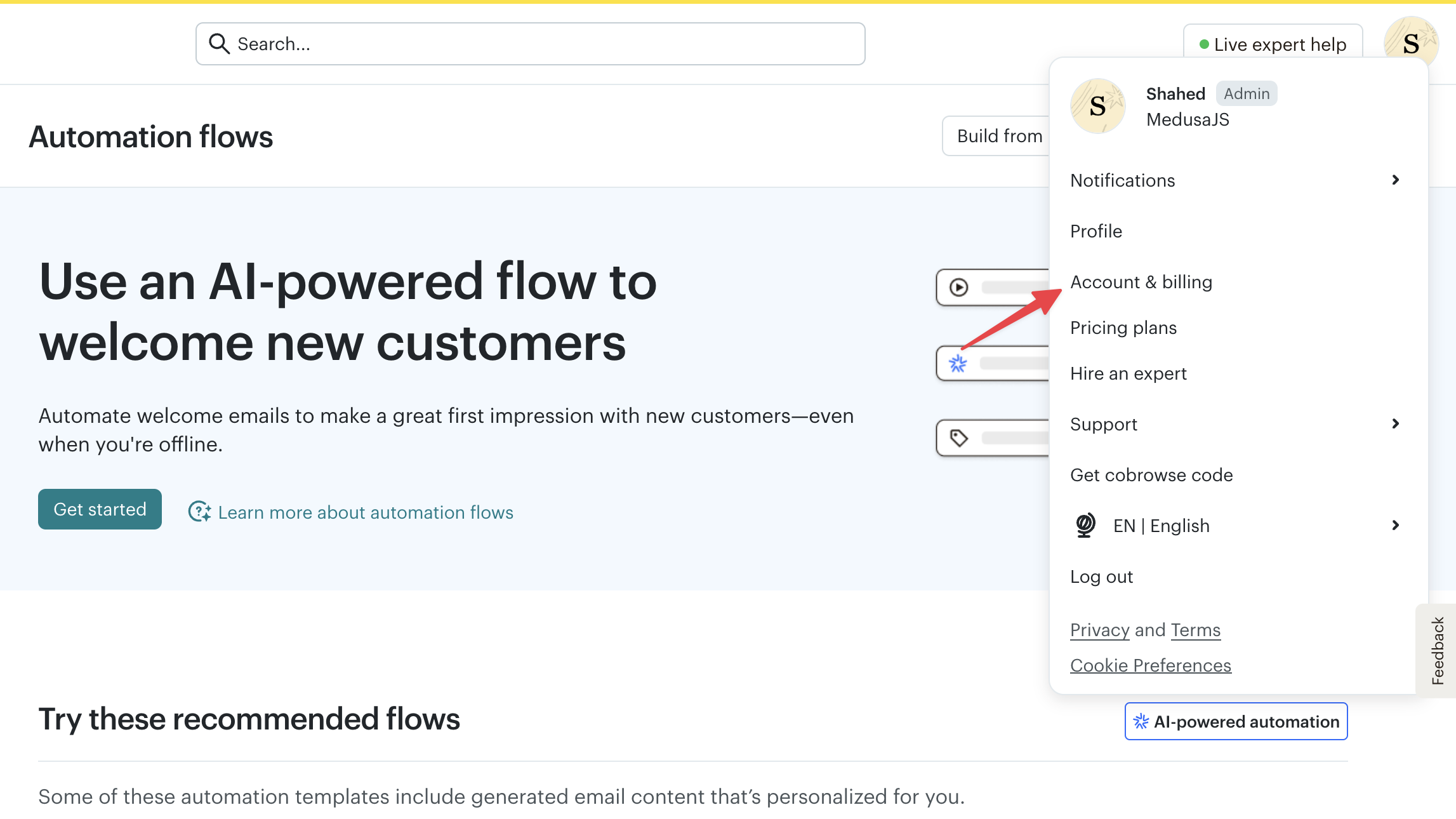
1. On the Mailchimp dashboard, click on your profile icon at the top right.
|
||
2. Choose "Account & billing" from the dropdown.
|
||
|
||
|
||
|
||
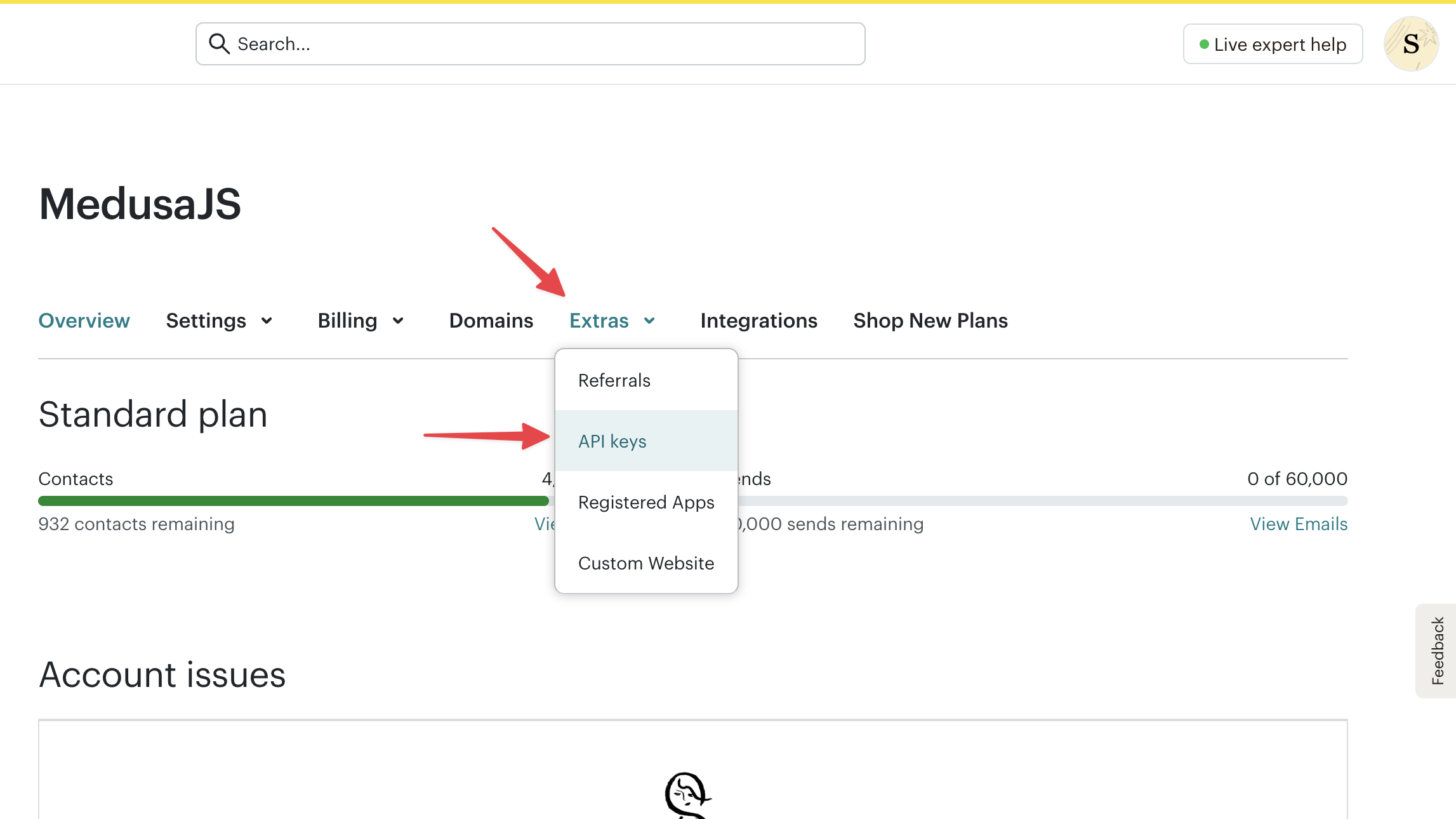
3. Click on the "Extras" tab and select "API keys" from the dropdown.
|
||
|
||
|
||
|
||
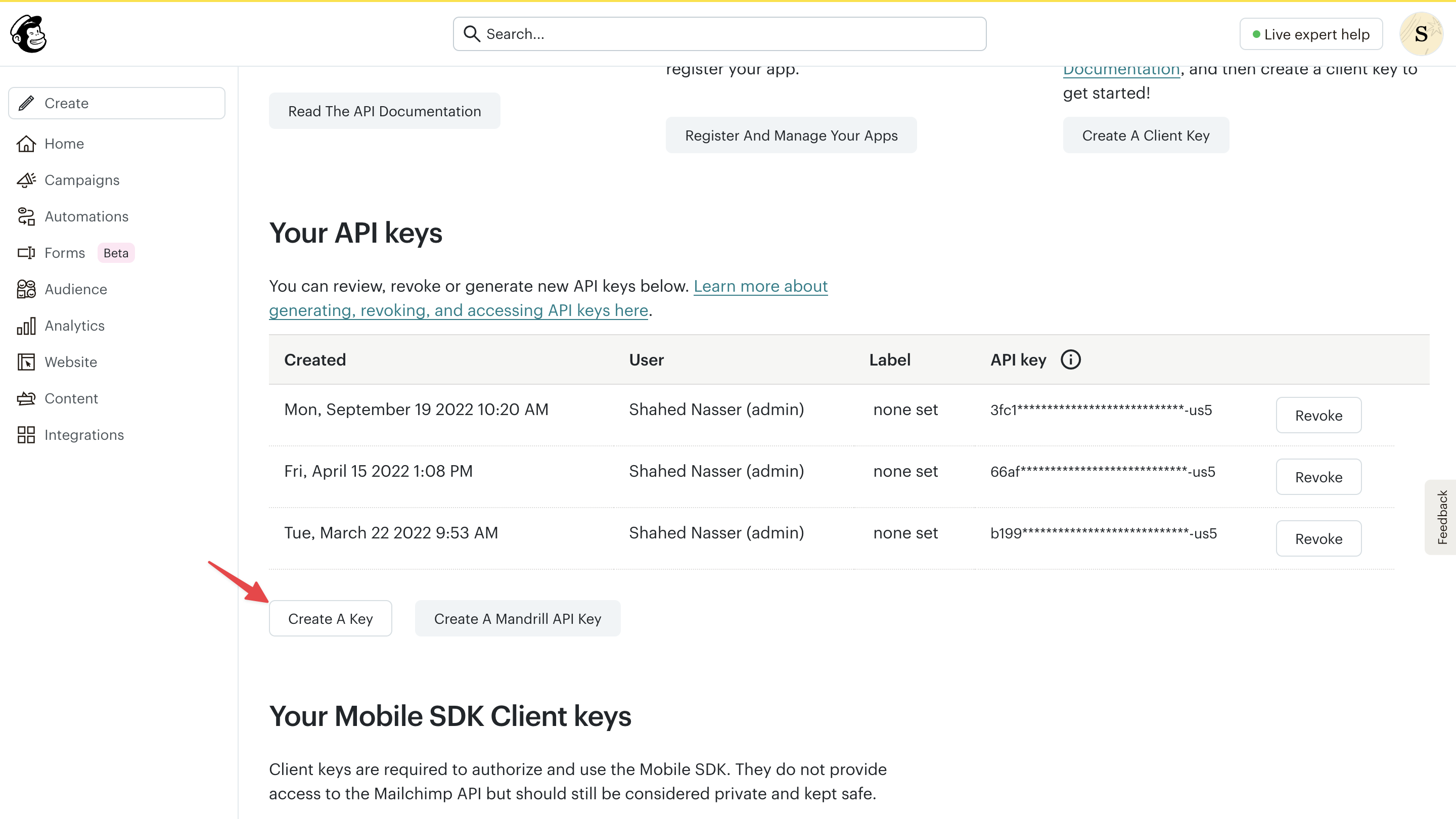
4. Scroll down to the "Your API keys" section and click on the "Create A Key" button.
|
||
|
||
|
||
|
||
5. In the API key form, enter a name for the API key.
|
||
6. Click the "Generate Key" button to create the API key.
|
||
|
||
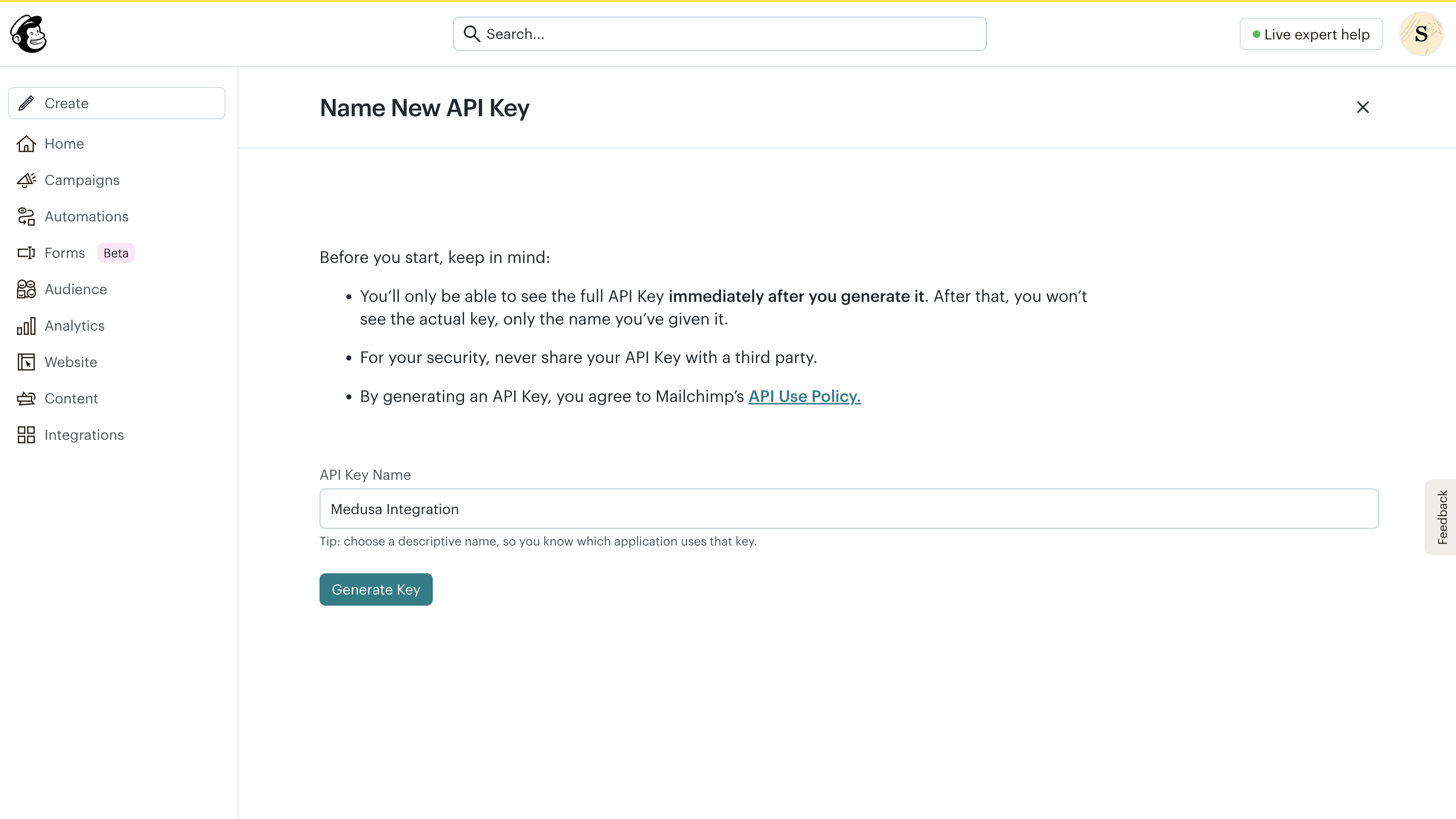
|
||
|
||
Copy the generated API key and add it to the `.env` file in your Medusa application:
|
||
|
||
```shell
|
||
MAILCHIMP_API_KEY=123...
|
||
```
|
||
|
||
#### Retrieve Mailchimp Server Prefix
|
||
|
||
You can retrieve your Mailchimp server prefix from the URL of your Mailchimp dashboard. It should be in the format `https://<server-prefix>.admin.mailchimp.com/`. So, the server prefix will be something like `us5`, for example.
|
||
|
||
Then, add the server prefix to the `.env` file in your Medusa application:
|
||
|
||
```shell
|
||
MAILCHIMP_SERVER=us5
|
||
```
|
||
|
||
#### Create Mailchimp Audience List
|
||
|
||
Next, you'll create a Mailchimp audience list to store your subscribers:
|
||
|
||
1. On the Mailchimp dashboard, click on "Audience" in the left sidebar.
|
||
2. Click on the dropdown next to the "Contacts" header and choose "Manage Audiences".
|
||
|
||
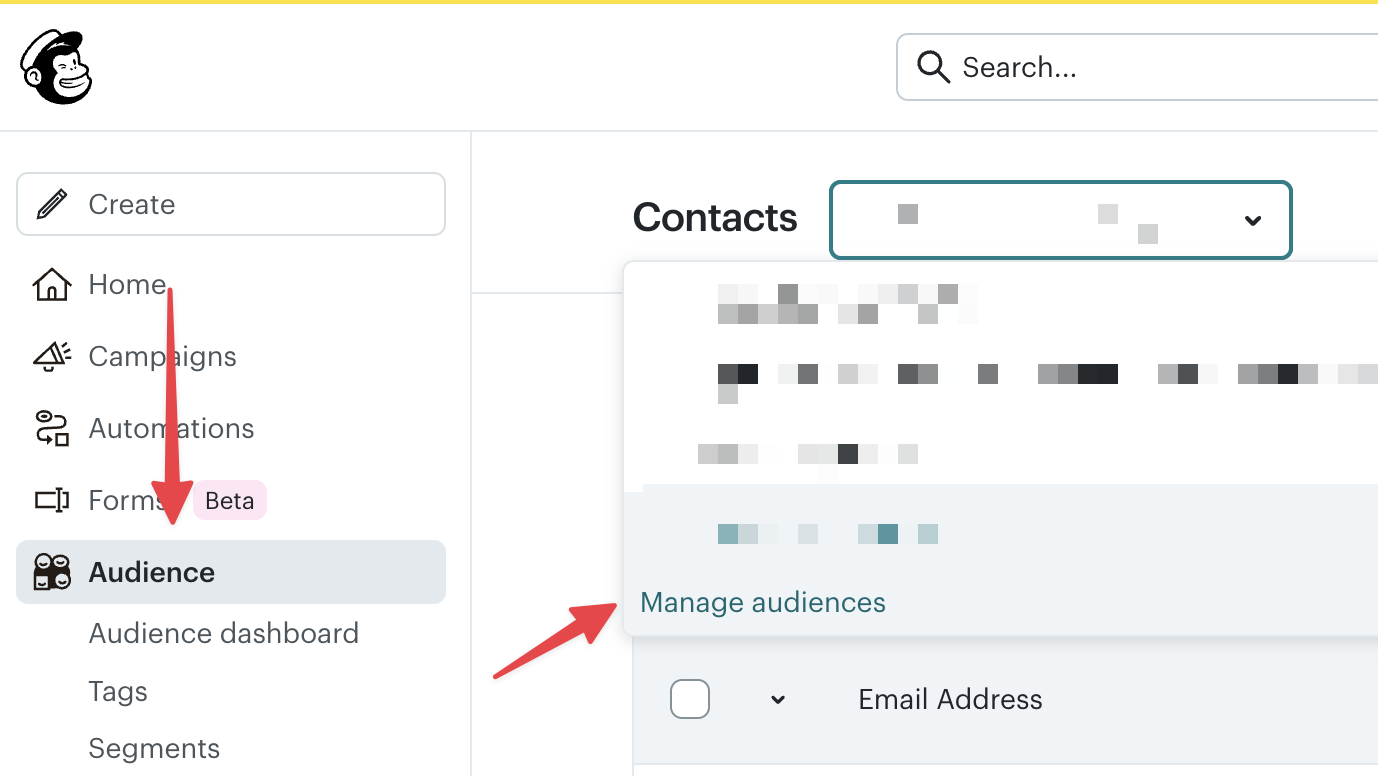
|
||
|
||
3. Click on the "Create Audience" button at the top right.
|
||
|
||
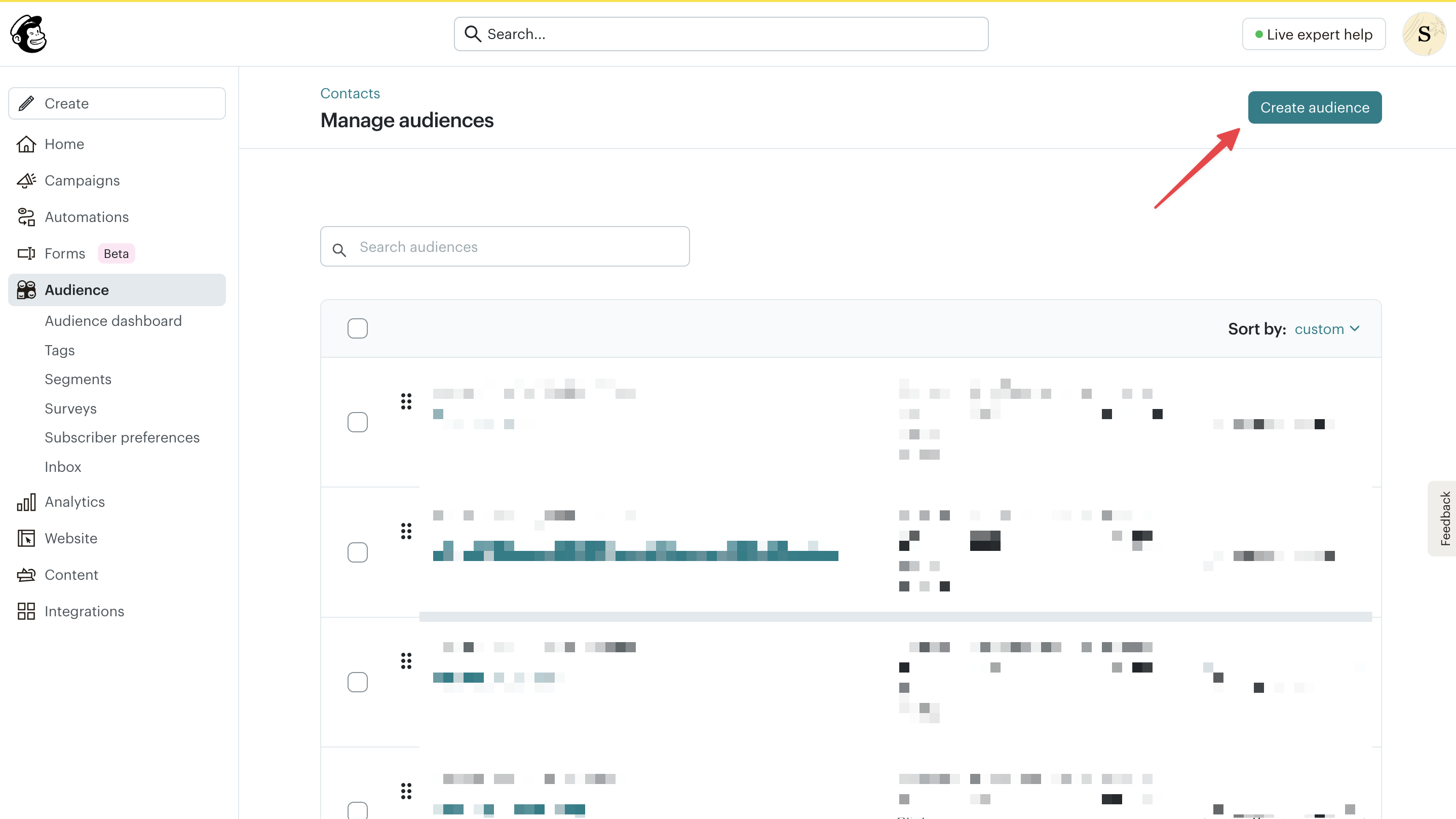
|
||
|
||
4. Enter the audience details, such as the audience name, default from email address, and default from name. These defaults are used in the created campaigns.
|
||
|
||
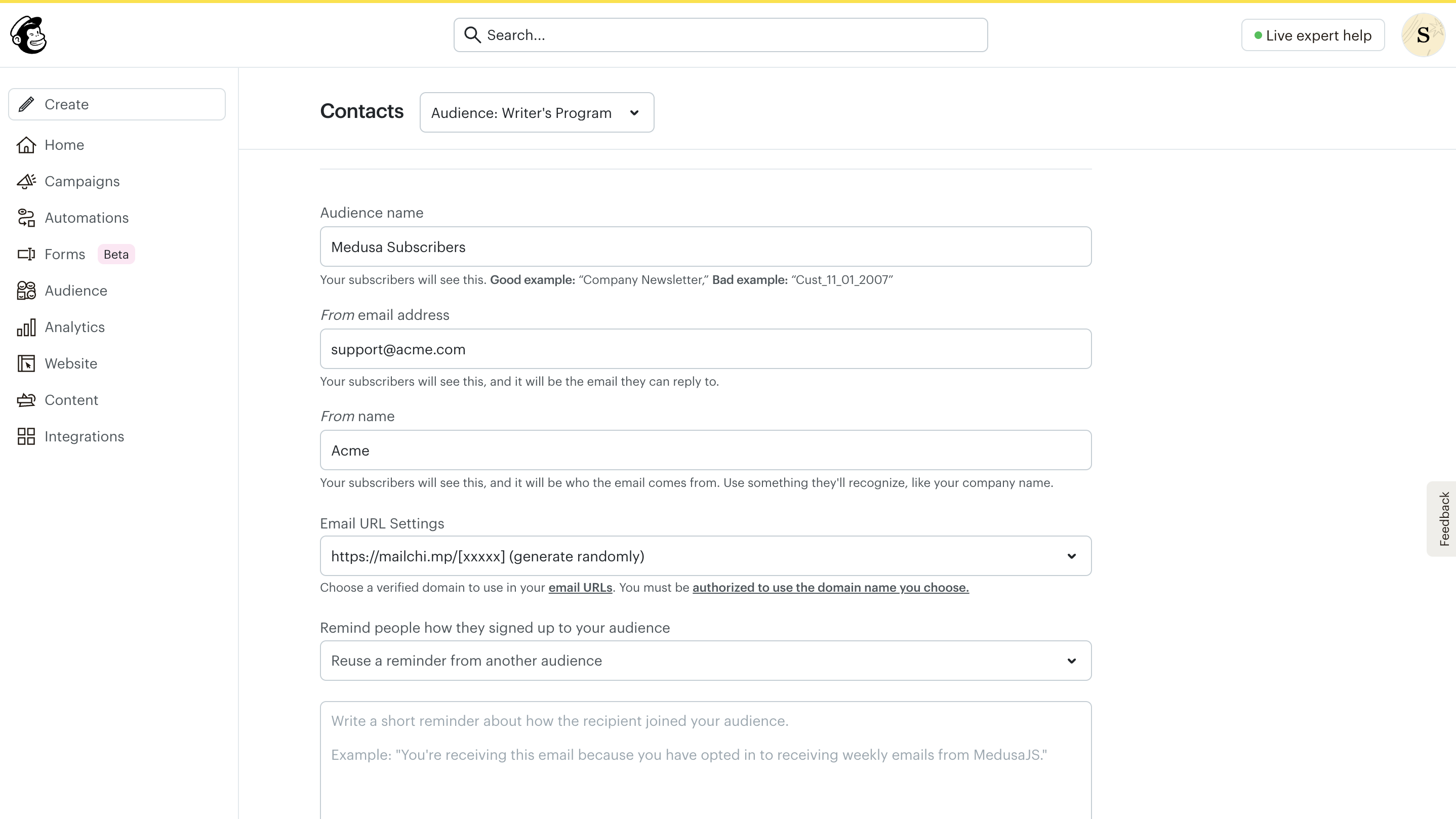
|
||
|
||
5. Once you're done, click the "Save" button to create the audience. This will open the Audience's contacts page.
|
||
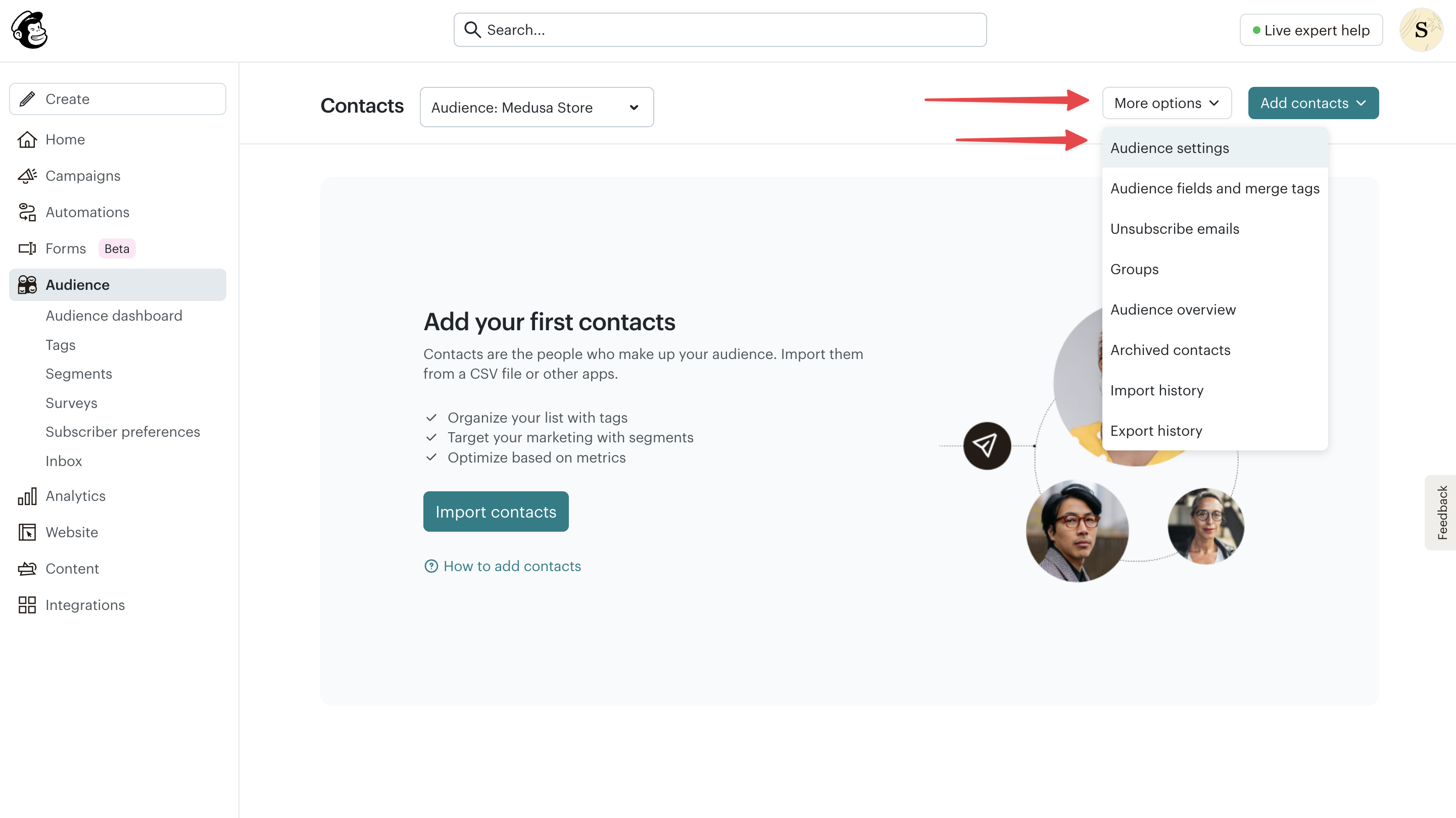
6. Click on the "More options" button and select "Audience settings" from the dropdown.
|
||
|
||
|
||
|
||
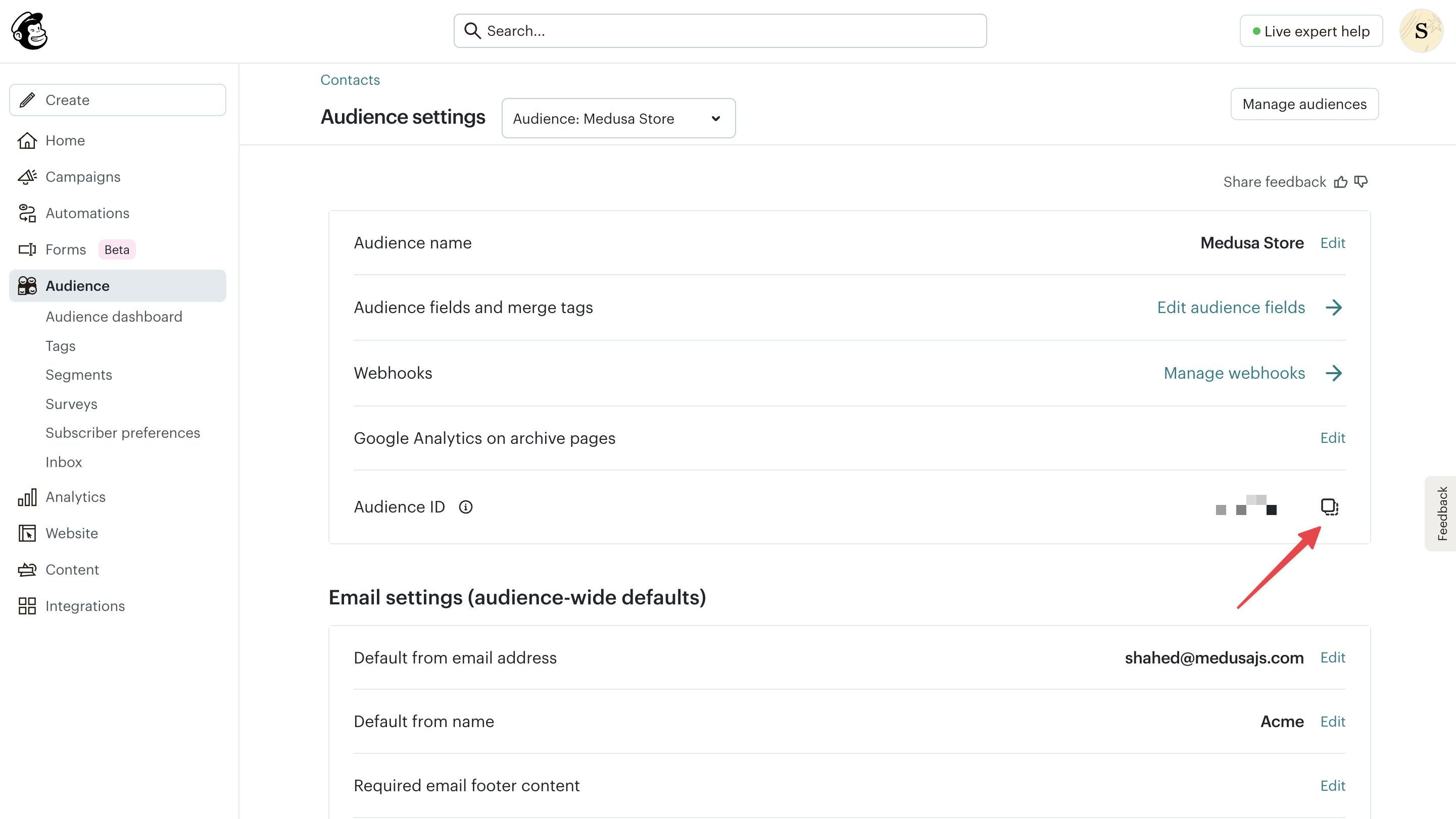
7. In the Audience settings page, copy the value of "Audience ID" from the first section.
|
||
|
||
|
||
|
||
Add the copied ID to the `.env` file in your Medusa application as the list ID:
|
||
|
||
```shell
|
||
MAILCHIMP_LIST_ID=123...
|
||
```
|
||
|
||
#### Set Mailchimp Templates Options
|
||
|
||
Finally, you can optionally set the Mailchimp templates options in the `.env` file. These options are used when sending newsletters about new products.
|
||
|
||
```shell
|
||
MAILCHIMP_NEW_PRODUCTS_SUBJECT_LINE="Check out our new products!"
|
||
MAILCHIMP_NEW_PRODUCTS_STOREFRONT_URL=https://localhost:8000
|
||
```
|
||
|
||
Where:
|
||
|
||
- `MAILCHIMP_NEW_PRODUCTS_SUBJECT_LINE`: The subject line for the new products newsletter.
|
||
- `MAILCHIMP_NEW_PRODUCTS_STOREFRONT_URL`: The URL of your storefront where users can view the new products. In development, the Next.js Starter Storefront runs on `http://localhost:8000`, so you can set it to that URL.
|
||
|
||
The Mailchimp integration is now ready. You'll test it out as you implement the subscription features in the next steps.
|
||
|
||
---
|
||
|
||
## Optional Step: Send Welcome Emails from Mailchimp
|
||
|
||
In the Mailchimp Notification Module Provider, you handle the `newsletter-signup` notification template by subscribing an email address to the Mailchimp audience list. However, you typically should also send a welcome email to the subscribed customer.
|
||
|
||
To do that, you can create an automation flow in Mailchimp that automatically sends emails whenever a new subscriber is added to the audience list.
|
||
|
||
To do that:
|
||
|
||
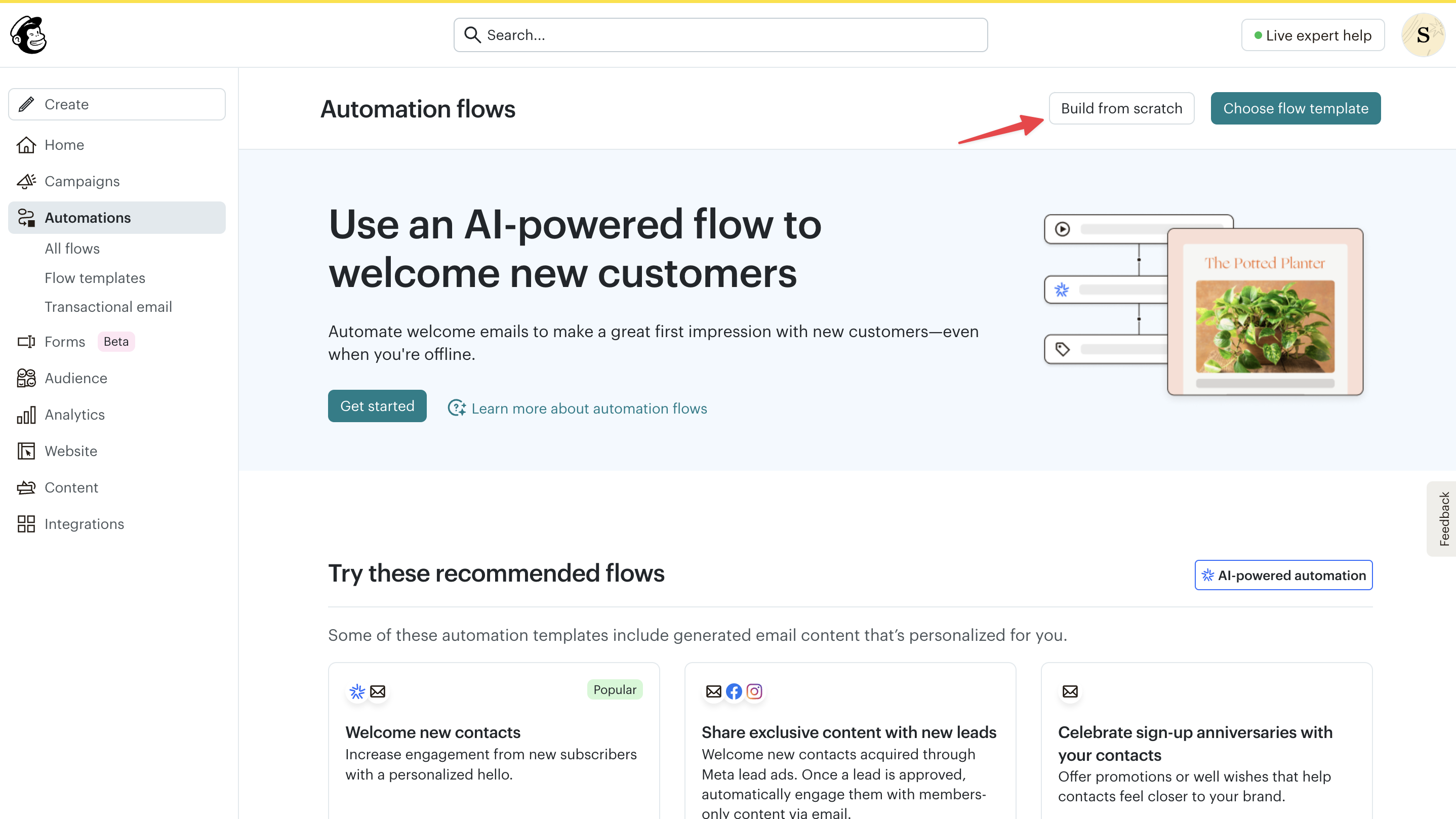
1. On the Mailchimp dashboard, click on "Automations" in the sidebar.
|
||
2. Click on the "Build from scratch" button to create a new automation flow.
|
||
|
||
|
||
|
||
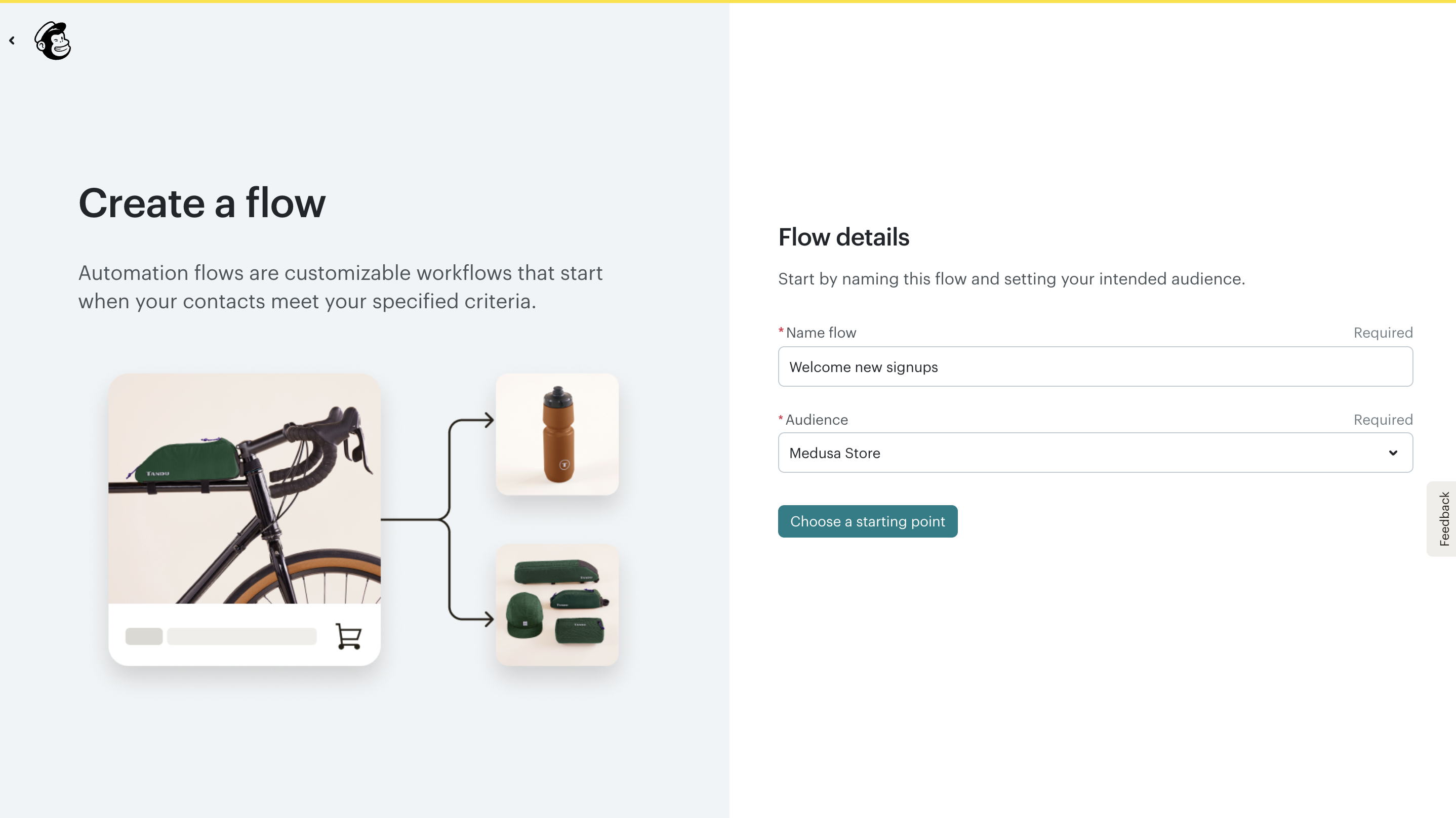
3. In the flow creation form, enter a name for the automation flow and choose the Audience you created earlier.
|
||
4. Click the "Choose a starting point" button to select a template for the automation flow.
|
||
|
||
|
||
|
||
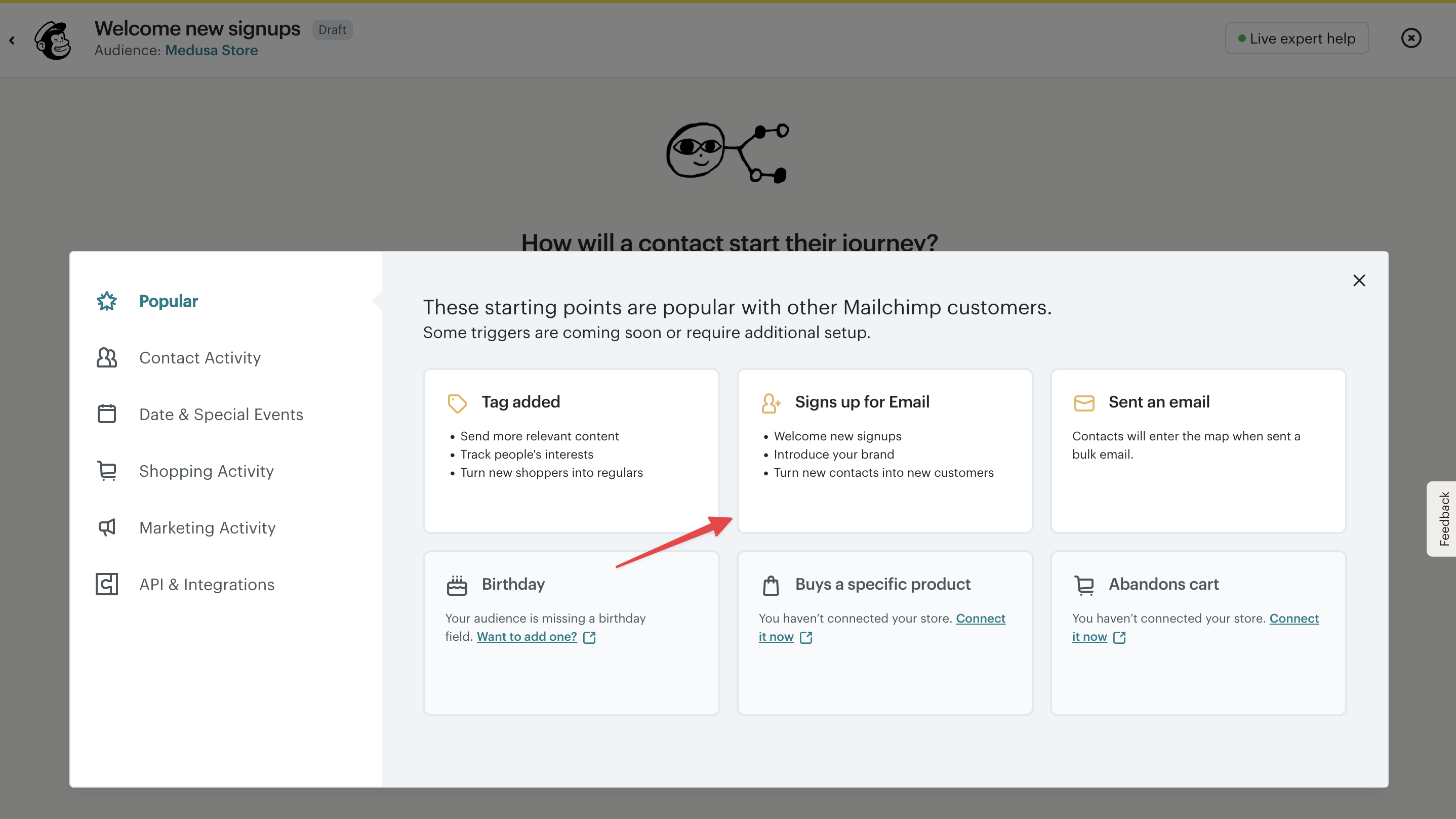
5. A pop-up will open in the flow editor to choose a template to start from. Choose the "Signs up for Email" template.
|
||
|
||
|
||
|
||
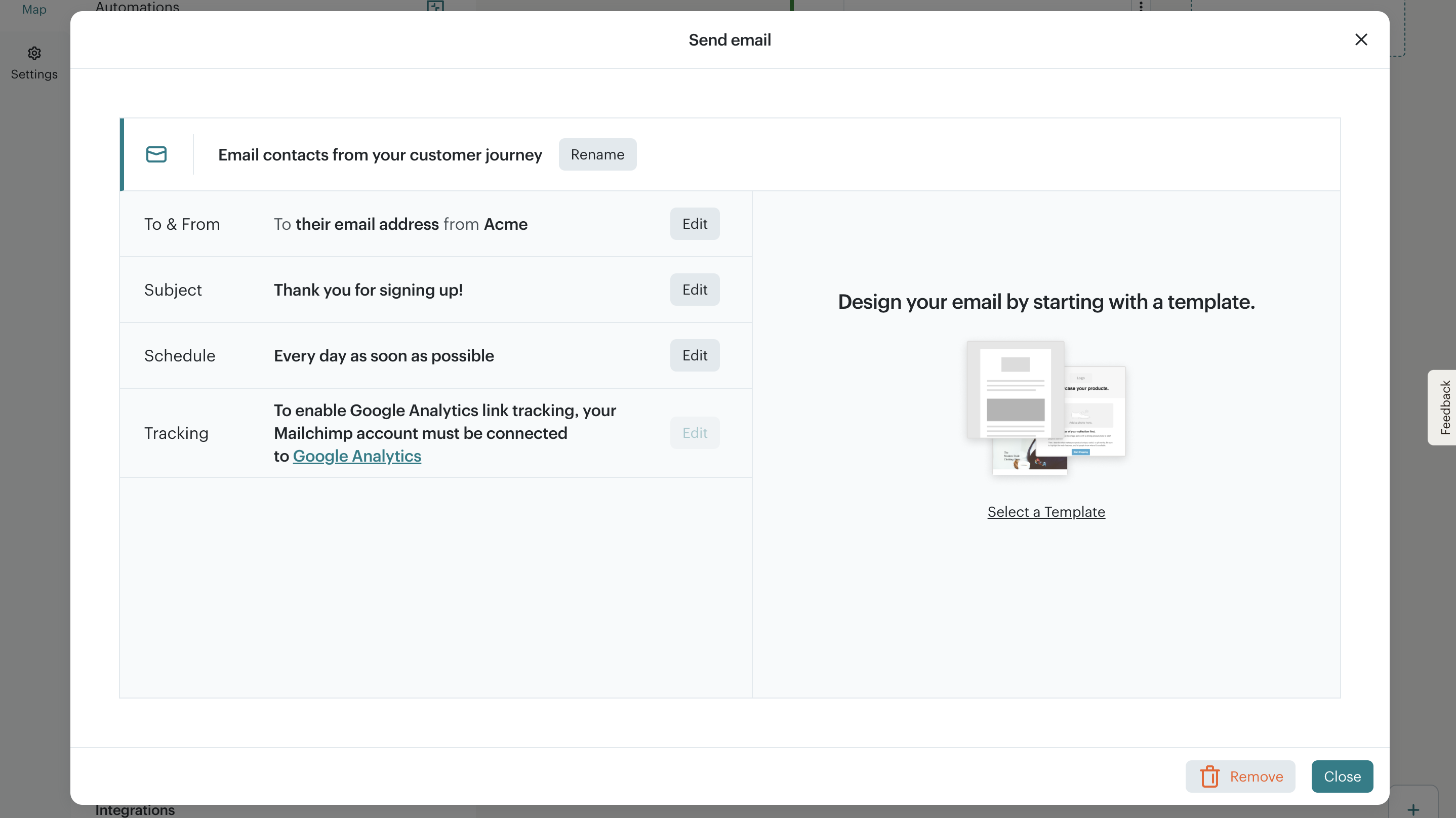
6. In the flow editor, drag the "Send Email" action to the flow canvas. This will open a pop-up to configure the email.
|
||
7. In the email configuration pop-up, you can enter the email subject, from name, and from email address.
|
||
|
||
|
||
|
||
8. To set the email content, click the "Select a template" link in the email configuration pop-up. You can then choose an existing template or paste your own HTML content.
|
||
|
||
<Details summaryContent="Example HTML Content" className="mb-1">
|
||
|
||
```html
|
||
<!DOCTYPE html>
|
||
<html xmlns:mc="http://schemas.mailchimp.com/2006/hcm">
|
||
<head>
|
||
<meta charset="UTF-8">
|
||
<title>Thanks for signing up!</title>
|
||
<style type="text/css">
|
||
body {
|
||
background-color: #f5f5f5;
|
||
font-family: Arial, sans-serif;
|
||
margin: 0;
|
||
padding: 0;
|
||
}
|
||
.email-container {
|
||
max-width: 600px;
|
||
margin: 40px auto;
|
||
background-color: #ffffff;
|
||
padding: 30px;
|
||
border-radius: 8px;
|
||
box-shadow: 0 0 5px rgba(0,0,0,0.1);
|
||
}
|
||
h1 {
|
||
color: #333;
|
||
font-size: 24px;
|
||
margin-bottom: 20px;
|
||
}
|
||
p {
|
||
color: #555;
|
||
line-height: 1.6;
|
||
}
|
||
.cta-button {
|
||
display: inline-block;
|
||
margin-top: 20px;
|
||
padding: 12px 24px;
|
||
background-color: #007BFF;
|
||
color: #ffffff;
|
||
text-decoration: none;
|
||
border-radius: 5px;
|
||
font-weight: bold;
|
||
}
|
||
.footer {
|
||
text-align: center;
|
||
font-size: 12px;
|
||
color: #999;
|
||
margin-top: 30px;
|
||
}
|
||
</style>
|
||
</head>
|
||
<body>
|
||
<div class="email-container">
|
||
<h1 mc:edit="welcome_heading">Thank you for signing up to the Medusa newsletter 🎉</h1>
|
||
<p mc:edit="welcome_text">
|
||
Hi there,<br><br>
|
||
Thanks for signing up! Get ready for exciting product updates and special offers sent right to your inbox.
|
||
</p>
|
||
|
||
<a href="http://localhost:8000" class="cta-button" mc:edit="cta_button">Start Exploring</a>
|
||
|
||
<div class="footer" mc:edit="footer_text">
|
||
You’re receiving this email because you signed up for updates from Medusa.<br>
|
||
Want to unsubscribe? <a href="*|UNSUB|*">Click here</a>.
|
||
</div>
|
||
</div>
|
||
</body>
|
||
</html>
|
||
```
|
||
|
||
</Details>
|
||
|
||
9. Once you're done, close the email configuration pop-up. The changes will be saved automatically.
|
||
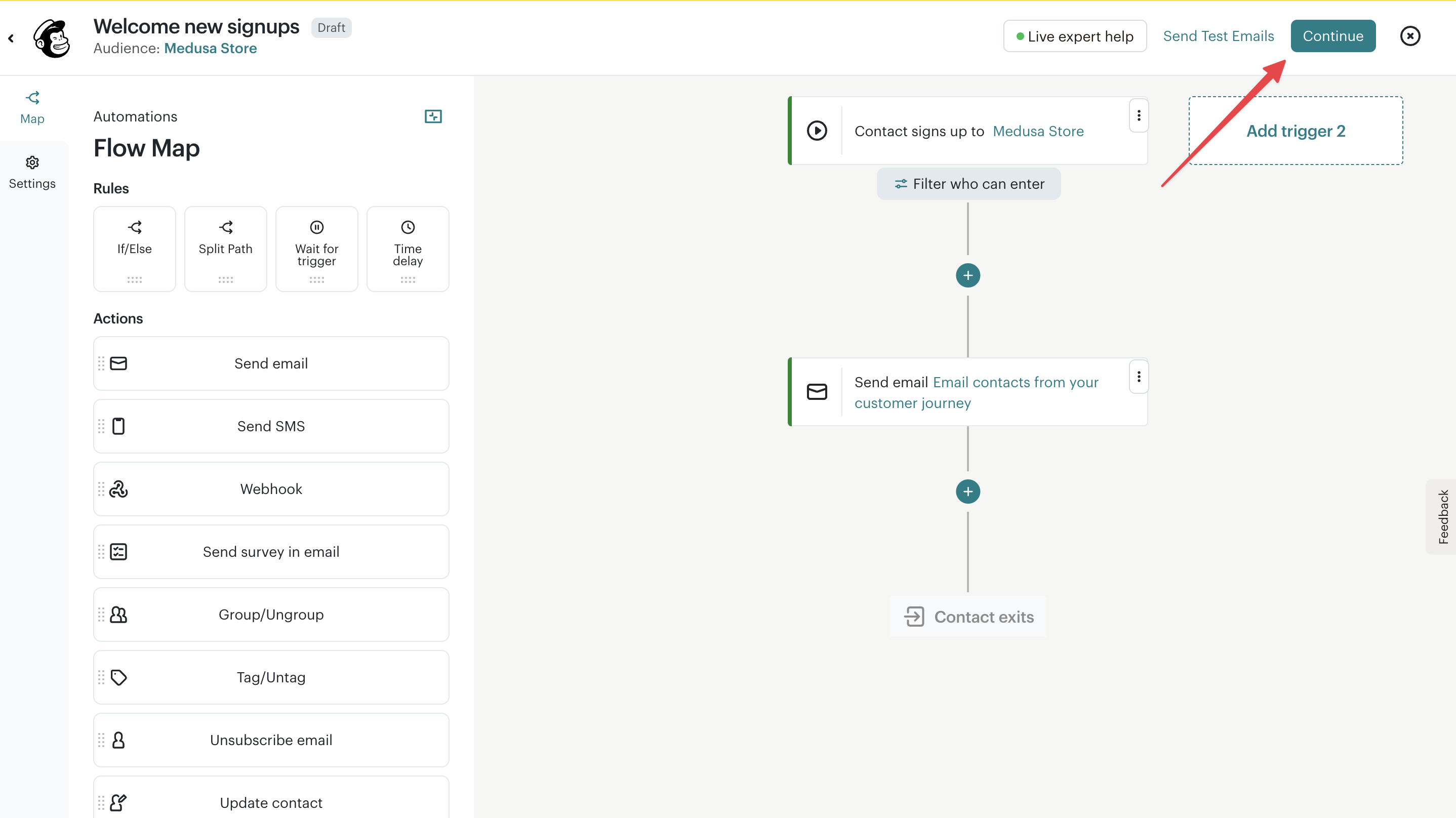
10. In the flow editor, click the "Continue" button at the top right.
|
||
|
||
|
||
|
||
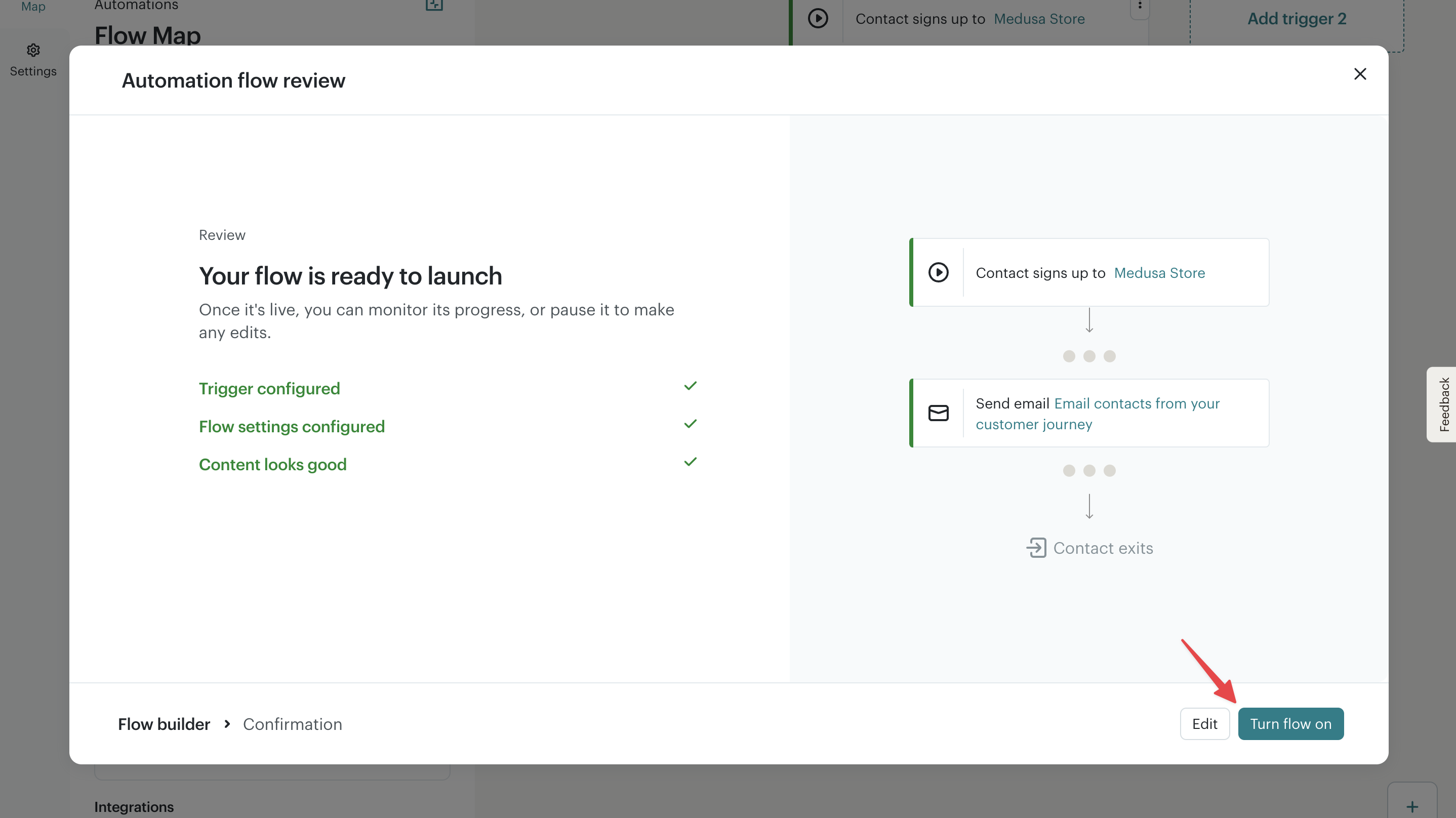
11. In the review pop-up, click the "Turn flow on" button to activate the automation flow.
|
||
|
||
|
||
|
||
Whenever a customer subscribes to the newsletter, Mailchimp will automatically send them a welcome email using the automation flow you created.
|
||
|
||
---
|
||
|
||
## Step 3: Create Newsletter Subscription API Route
|
||
|
||
Now that you've integrated Mailchimp with Medusa, you need to allow customers to subscribe to the newsletter.
|
||
|
||
In this step, you will:
|
||
|
||
- Create an [API route](!docs!/learn/fundamentals/api-routes) to subscribe customers. An API Route is an endpoint that exposes commerce features to external applications and clients, such as storefronts.
|
||
- In the API route, you'll emit an event indicating that the customer is signing up for the newsletter.
|
||
- Create a [subscriber](!docs!/learn/fundamentals/events-and-subscribers) that listens to the event emitted by the API route. The subscriber will use Mailchimp to subscribe the customer to the newsletter audience list.
|
||
|
||
### a. Create the API Route
|
||
|
||
An API route is created in a `route.ts` file under a sub-directory of the `src/api` directory. The path of the API route is the file's path relative to `src/api`.
|
||
|
||
So, to create an API route at the path `/store/newsletter`, create the file `src/api/store/newsletter/route.ts` with the following content:
|
||
|
||
export const apiRouteHighlights = [
|
||
["4", "newsletterSignupSchema", "Zod schema to validate the request body."],
|
||
["10", "POST", "POST route handler function for the API route."],
|
||
["14", "eventModuleService", "Resolve the Event Module service from the Medusa container."],
|
||
["16", "emit", "Emit the newsletter.signup event with the request body data."],
|
||
]
|
||
|
||
```ts title="src/api/store/newsletter/route.ts" highlights={apiRouteHighlights}
|
||
import { MedusaRequest, MedusaResponse } from "@medusajs/framework/http"
|
||
import { z } from "zod"
|
||
|
||
export const newsletterSignupSchema = z.object({
|
||
email: z.string().email(),
|
||
first_name: z.string().optional(),
|
||
last_name: z.string().optional(),
|
||
})
|
||
|
||
export async function POST(
|
||
req: MedusaRequest<z.infer<typeof newsletterSignupSchema>>,
|
||
res: MedusaResponse
|
||
) {
|
||
const eventModuleService = req.scope.resolve("event_bus")
|
||
|
||
await eventModuleService.emit({
|
||
name: "newsletter.signup",
|
||
data: {
|
||
email: req.validatedBody.email,
|
||
first_name: req.validatedBody.first_name,
|
||
last_name: req.validatedBody.last_name,
|
||
},
|
||
})
|
||
|
||
res.json({
|
||
success: true,
|
||
})
|
||
}
|
||
```
|
||
|
||
You first export a [Zod](https://zod.dev/) schema object that you'll use to validate incoming request bodies. You expect the request body to have an `email` field, and optionally allow passing `first_name` and `last_name` fields.
|
||
|
||
Then, you export a `POST` route handler function. This will expose a `POST` API route at `/store/newsletter`. The route handler function accepts two parameters:
|
||
|
||
1. A request object with details and context on the request, such as body parameters.
|
||
2. A response object to manipulate and send the response.
|
||
|
||
In the route handler, you use the [Medusa container](!docs!/learn/fundamentals/medusa-container) to resolve the [Event Module](../../../infrastructure-modules/event/page.mdx)'s service.
|
||
|
||
Then, you emit the `newsletter.signup` event, passing as the event payload the email, first name, and last name from the request body.
|
||
|
||
Finally, you send a JSON response indicating that the request was successful.
|
||
|
||
### b. Add Validation Middleware
|
||
|
||
To validate that requests sent to the `/store/newsletter` API route have the required body parameters, you'll add a validation [middleware](!docs!/learn/fundamentals/api-routes/middlewares). A middleware is a function that is executed before an API route's handler when a request is made to the route.
|
||
|
||
To apply the validation middleware on the `/store/newsletter` API route, create the file `src/api/middlewares.ts` with the following content:
|
||
|
||
```ts title="src/api/middlewares.ts"
|
||
import {
|
||
defineMiddlewares,
|
||
validateAndTransformBody,
|
||
} from "@medusajs/framework/http"
|
||
import { newsletterSignupSchema } from "./store/newsletter/route"
|
||
|
||
export default defineMiddlewares({
|
||
routes: [
|
||
{
|
||
matcher: "/store/newsletter",
|
||
methods: ["POST"],
|
||
middlewares: [
|
||
validateAndTransformBody(newsletterSignupSchema),
|
||
],
|
||
},
|
||
],
|
||
})
|
||
```
|
||
|
||
You define middlewares using the `defineMiddlewares` function from the Medusa Framework. It accepts an object having a `routes` property, whose value is an array of middleware route objects. Each middleware route object has the following properties:
|
||
|
||
- `matcher`: The path of the route the middleware applies to.
|
||
- `methods`: The HTTP methods the middleware applies to, which is in this case `POST`.
|
||
- `middlewares`: An array of middleware functions to apply to the route. You apply the `validateAndTransformBody` middleware which ensures that a request's body has the parameters required by a route. You pass it the schema you defined earlier in the API route's file.
|
||
|
||
### c. Create Subscriber
|
||
|
||
Finally, you'll create a subscriber that listens to the `newsletter.signup` event emitted by the API route. The subscriber will create a notification with the `newsletter-signup` template. Under the hoode, the Mailchimp Notification Module Provider will handle the notification and subscribe the customer to the newsletter audience list.
|
||
|
||
Create the file `src/subscribers/newsletter-signup.ts` with the following content:
|
||
|
||
```ts title="src/subscribers/newsletter-signup.ts"
|
||
import { SubscriberArgs, type SubscriberConfig } from "@medusajs/framework"
|
||
|
||
export default async function orderPlacedHandler({
|
||
event: { data },
|
||
container,
|
||
}: SubscriberArgs<{ email: string, first_name: string, last_name: string }>) {
|
||
const notificationModuleService = container.resolve("notification")
|
||
|
||
await notificationModuleService.createNotifications({
|
||
channel: "email",
|
||
to: data.email,
|
||
template: "newsletter-signup",
|
||
data: {
|
||
first_name: data.first_name,
|
||
last_name: data.last_name,
|
||
},
|
||
})
|
||
}
|
||
|
||
export const config: SubscriberConfig = {
|
||
event: `newsletter.signup`,
|
||
}
|
||
```
|
||
|
||
A subscriber file must export:
|
||
|
||
1. An asynchronous function, which is the subscriber that is executed when the event is emitted.
|
||
2. A configuration object that holds the name of the event the subscriber listens to, which is `newsletter.signup` in this case.
|
||
|
||
The subscriber function receives an object as a parameter that has a `container` property, which is the Medusa container. The Medusa container holds Framework and commerce tools that you can resolve and use in your customizations.
|
||
|
||
In the subscriber function, you resolve the [Notification Module](../../../infrastructure-modules/notification/page.mdx)'s service from the Medusa container. Then, you call the `createNotifications` method to create a notification with the following properties:
|
||
|
||
- `channel`: The channel to send the notification through, which is `email` in this case. Since the [Mailchimp Notification Module Provider is registered with the email channel](#g-add-module-provider-to-medusas-configurations), it will process the notification.
|
||
- `to`: The email address to subscribe to the newsletter.
|
||
- `template`: The template to use for the notification, which is `newsletter-signup`.
|
||
- `data`: An object containing additional data to pass to the notification, such as the user's first and last names.
|
||
|
||
Now you have an API route that allows customers to subscribe to the newsletter. You'll test it when you customize the storefront in the next step.
|
||
|
||
---
|
||
|
||
## Step 4: Add Newsletter Subscription Form in the Storefront
|
||
|
||
In this step, you'll customize the [Next.js Starter Storefront](../../../nextjs-starter/page.mdx) that you installed as part of the first step. You'll add a newsletter subscription form in the storefront's footer that allows customers to subscribe to the newsletter.
|
||
|
||
<Note title="Reminder" forceMultiline>
|
||
|
||
The Next.js Starter Storefront was installed in a separate directory from Medusa. The directory's name is `{your-project}-storefront`.
|
||
|
||
So, if your Medusa application's directory is `medusa-newsletter`, you can find the storefront by going back to the parent directory and changing to the `medusa-newsletter-storefront` directory:
|
||
|
||
```bash
|
||
cd ../medusa-newsletter-storefront # change based on your project name
|
||
```
|
||
|
||
</Note>
|
||
|
||
### a. Add Subscribe to Newsletter Function
|
||
|
||
You'll start by adding a server function that sends a request to the `/store/newsletter` API route you created in the previous step to subscribe a customer to the newsletter.
|
||
|
||
Create the file `src/lib/data/newsletter.ts` with the following content:
|
||
|
||
```ts title="src/lib/data/newsletter.ts" badgeLabel="Storefront" badgeColor="blue"
|
||
"use server"
|
||
|
||
import { sdk } from "@lib/config"
|
||
|
||
export const subscribeToNewsletter = async (email: string) => {
|
||
const response = await sdk.client.fetch(`/store/newsletter`, {
|
||
method: "POST",
|
||
body: {
|
||
email,
|
||
},
|
||
})
|
||
|
||
return response
|
||
}
|
||
```
|
||
|
||
You use the [JS SDK](../../../js-sdk/page.mdx), which is already configured in the Next.js Starter Storefront, to send a `POST` request to the `/store/newsletter` API route. You pass the email address in the request body.
|
||
|
||
### b. Create Newsletter Subscription Form
|
||
|
||
Next, you'll create a newsletter subscription form component that allows customers to enter their email address and subscribe to the newsletter.
|
||
|
||
Create the file `src/modules/layout/components/newsletter-form/index.tsx` with the following content:
|
||
|
||
```tsx title="src/modules/layout/components/newsletter-form/index.tsx" badgeLabel="Storefront" badgeColor="blue"
|
||
"use client"
|
||
|
||
import { subscribeToNewsletter } from "@lib/data/newsletter"
|
||
import { SubmitButton } from "@modules/checkout/components/submit-button"
|
||
import Input from "@modules/common/components/input"
|
||
import { useState } from "react"
|
||
import { toast } from "@medusajs/ui"
|
||
|
||
const NewsletterForm = () => {
|
||
const [email, setEmail] = useState("")
|
||
const [loading, setLoading] = useState(false)
|
||
|
||
const handleSubmit = async (e: React.FormEvent<HTMLFormElement>) => {
|
||
e.preventDefault()
|
||
setLoading(true)
|
||
try {
|
||
await subscribeToNewsletter(email)
|
||
} catch (error) {
|
||
console.error(error)
|
||
// ignore, don't show error to user
|
||
}
|
||
toast.success("Thanks for subscribing!")
|
||
setEmail("")
|
||
setLoading(false)
|
||
}
|
||
|
||
return (
|
||
<div className="flex flex-col lg:flex-row items-center justify-between gap-8">
|
||
<div className="flex-1 max-w-md">
|
||
<h3 className="txt-compact-large-plus mb-2 text-ui-fg-base">Subscribe to our newsletter</h3>
|
||
<p className="text-base-regular text-ui-fg-subtle">
|
||
Receive updates on our latest products and exclusive offers.
|
||
</p>
|
||
</div>
|
||
<div className="flex-1 max-w-md w-full">
|
||
<form onSubmit={handleSubmit} className="flex gap-x-2">
|
||
<div className="flex-1">
|
||
<Input
|
||
label="Email"
|
||
name="email"
|
||
type="email"
|
||
autoComplete="off"
|
||
required
|
||
data-testid="newsletter-email-input"
|
||
value={email}
|
||
onChange={(e) => setEmail(e.target.value)}
|
||
disabled={loading}
|
||
/>
|
||
</div>
|
||
<div className="flex items-end">
|
||
<SubmitButton data-testid="newsletter-submit-button">
|
||
Subscribe
|
||
</SubmitButton>
|
||
</div>
|
||
</form>
|
||
</div>
|
||
</div>
|
||
)
|
||
}
|
||
|
||
export default NewsletterForm
|
||
```
|
||
|
||
You create a `NewsletterForm` component that renders a form with an email input and a submit button.
|
||
|
||
Once the customer enters their email and submits the form, you use the `subscribeToNewsletter` function you created to subscribe the customer to the newsletter.
|
||
|
||
You also show a toast notification to the customer indicating that they successfully subscribed to the newsletter.
|
||
|
||
The `toast` function is imported from [Medusa UI](!ui!), which requires adding `Toaster` component in the application's tree. So, import the `Toaster` component in the file `src/app/[countryCode]/(main)/layout.tsx`:
|
||
|
||
```tsx title="src/app/[countryCode]/(main)/layout.tsx" badgeLabel="Storefront" badgeColor="blue"
|
||
import { Toaster } from "@medusajs/ui"
|
||
```
|
||
|
||
Then, in the `PageLayout` component's return statement, add the `Toaster` component after the `Footer` component:
|
||
|
||
```tsx title="src/app/[countryCode]/(main)/layout.tsx" badgeLabel="Storefront" badgeColor="blue"
|
||
return (
|
||
<>
|
||
{/* ... */}
|
||
<Footer />
|
||
<Toaster />
|
||
</>
|
||
)
|
||
```
|
||
|
||
### c. Add Newsletter Form to the Footer
|
||
|
||
Finally, you'll add the `NewsletterForm` component to the storefront's footer.
|
||
|
||
In the file `src/modules/layout/components/footer/index.tsx`, import the `NewsletterForm` component:
|
||
|
||
```tsx title="src/modules/layout/components/footer/index.tsx" badgeLabel="Storefront" badgeColor="blue"
|
||
import NewsletterForm from "@modules/layout/components/newsletter-form"
|
||
```
|
||
|
||
Then, in the `Footer` component's return statement, add the following before the `div` wrapping the copyright text:
|
||
|
||
```tsx title="src/modules/layout/components/footer/index.tsx" badgeLabel="Storefront" badgeColor="blue"
|
||
<div className="border-t border-ui-border-base py-16">
|
||
<NewsletterForm />
|
||
</div>
|
||
```
|
||
|
||
This will show the newsletter subscription form in the footer of the storefront, before the copyright text.
|
||
|
||
### Test out the Newsletter Subscription Form
|
||
|
||
You'll now test out the newsletter subscription functionality.
|
||
|
||
First, run the following command in the Medusa application's directory to start the Medusa server:
|
||
|
||
```bash npm2yarn badgeLabel="Medusa Application" badgeColor="green"
|
||
npm run dev
|
||
```
|
||
|
||
Then, in a separate terminal, run the following command in the Next.js Starter Storefront's directory to start the Next.js server:
|
||
|
||
```bash npm2yarn
|
||
npm run dev
|
||
```
|
||
|
||
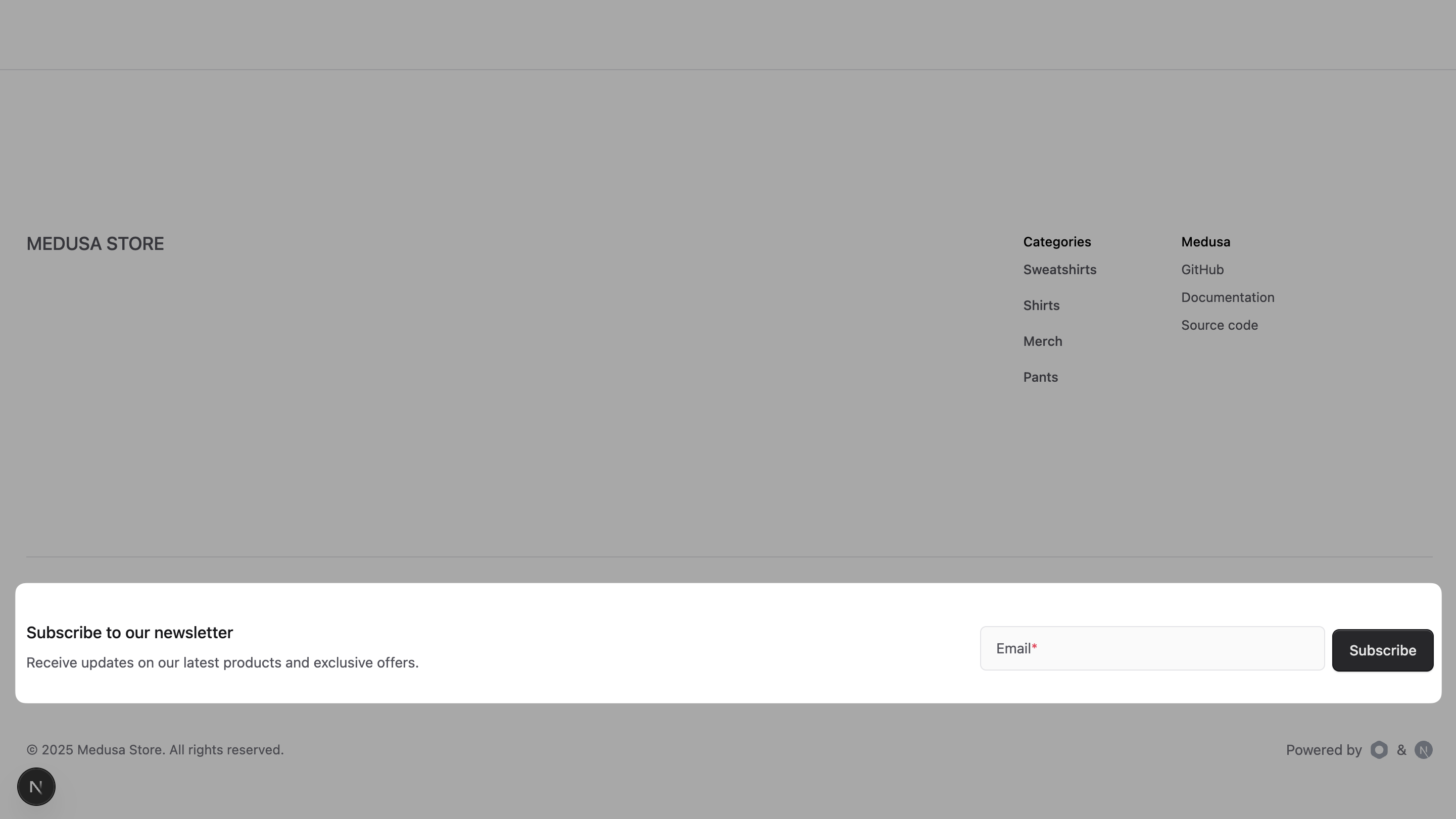
Next, open your browser at `http://localhost:8000` to view the storefront. If you scroll down to the footer, you should see the newsletter subscription form.
|
||
|
||
|
||
|
||
Enter an email address in the form and click the "Subscribe" button. You'll see a success toast message indicating that you successfully subscribed to the newsletter.
|
||
|
||
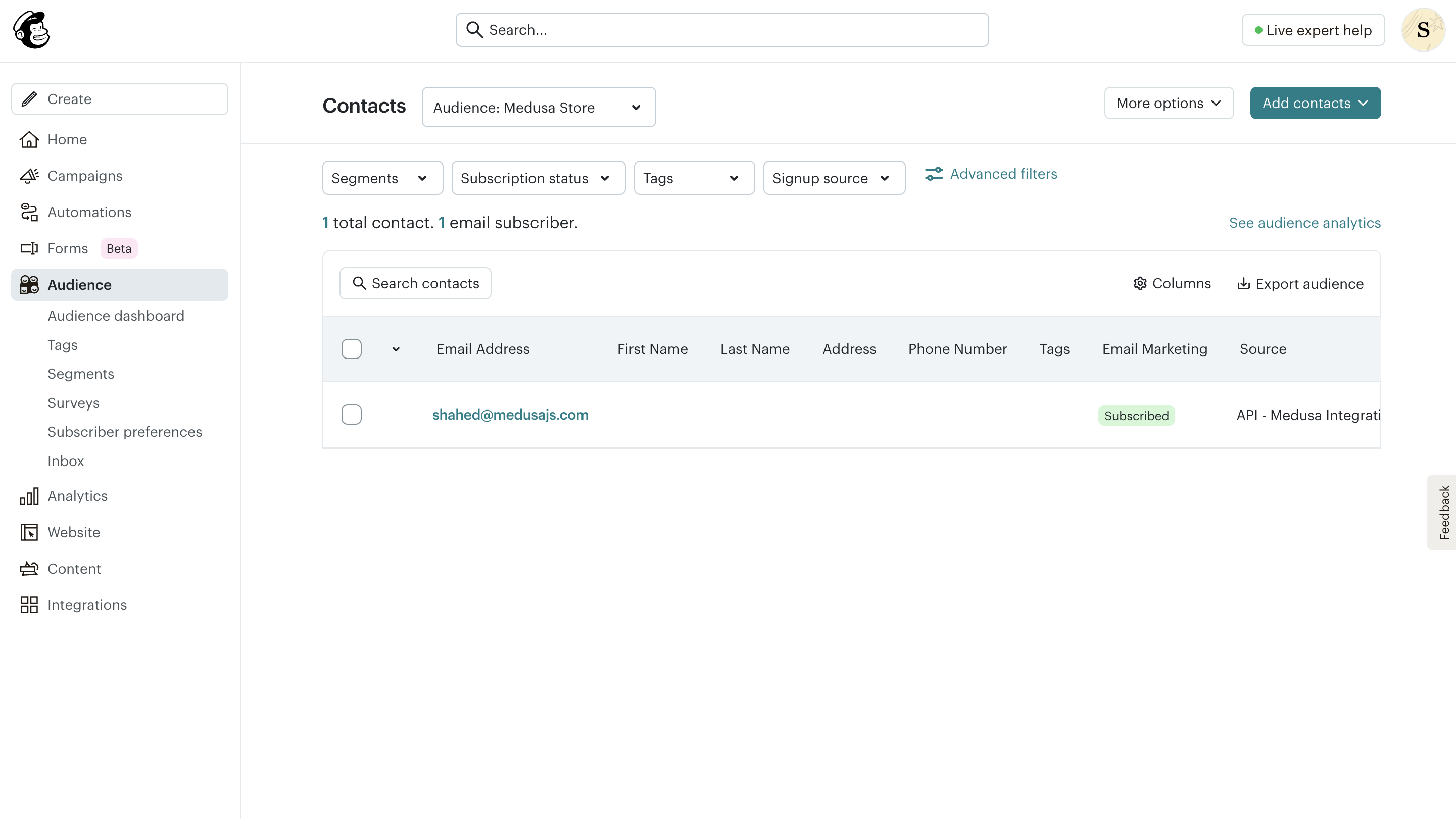
You can verify that the subscription was successful in your Mailchimp dashboard by going to the "Audience" page. You'll see the email address you entered in the newsletter subscription form listed in your audience.
|
||
|
||
|
||
|
||
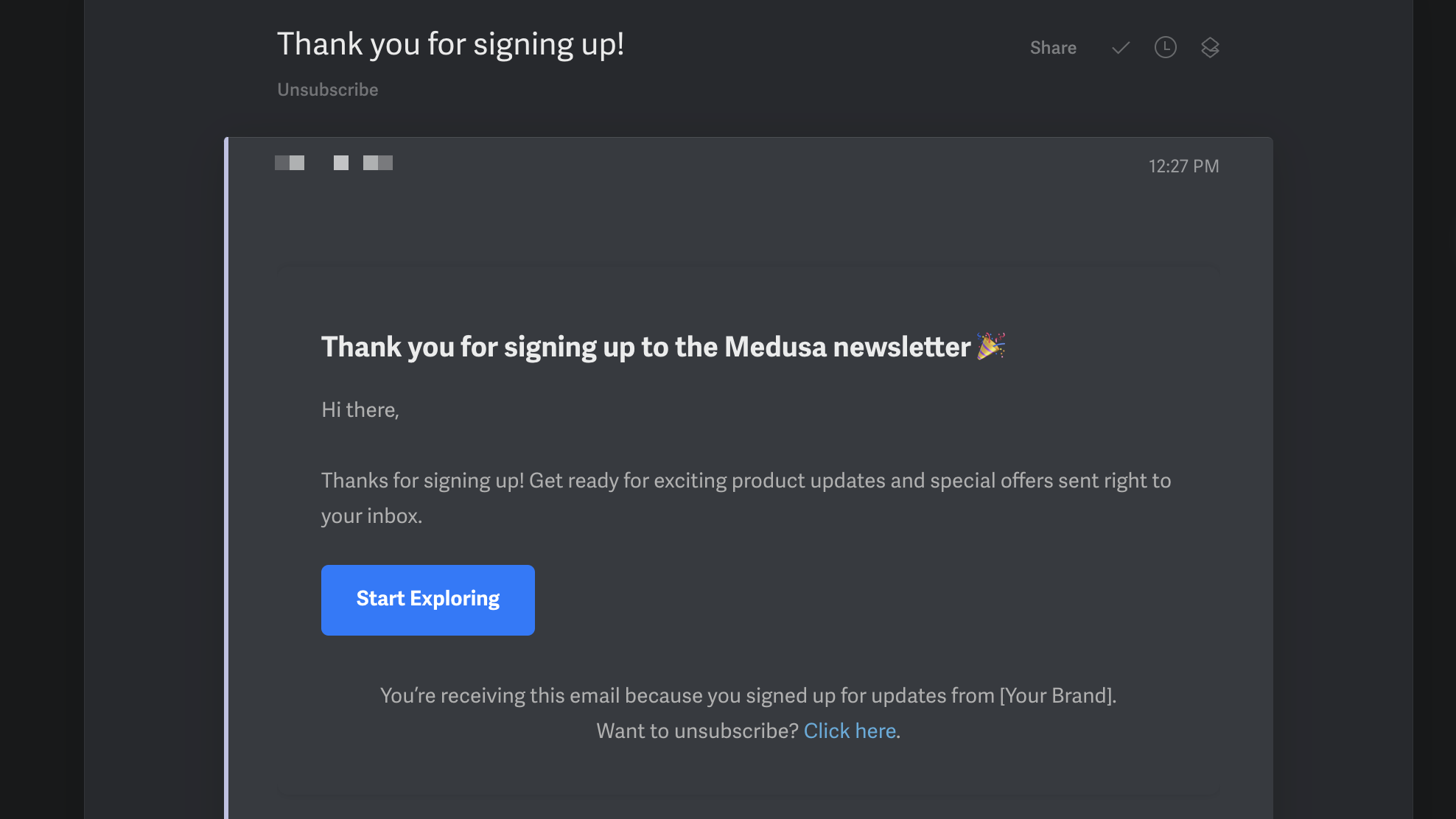
If you set up the welcome email automation flow in Mailchimp, you'll receive a welcome email.
|
||
|
||
|
||
|
||
---
|
||
|
||
## Step 5: Create Automated Product Newsletter
|
||
|
||
Next, you'll schedule sending a newsletter for new products once a week. Customers subscribed to the newsletter will receive an email with the latest products added to your Medusa store.
|
||
|
||
To automate the newsletter, you will:
|
||
|
||
1. Create a workflow that retrieves the latest products and sends a notification with the product data.
|
||
2. Create a scheduled job that runs the workflow automatically once a week.
|
||
|
||
### a. Create the Workflow
|
||
|
||
A [workflow](!docs!/learn/fundamentals/workflows) is a series of actions, called steps, that complete a task with rollback and retry mechanisms. In Medusa, you build commerce features in workflows, then execute them in other customizations, such as subscribers, scheduled jobs, and API routes.
|
||
|
||
You'll create a workflow that retrieves the latest products added to your Medusa store, then creates a notification with the product data useful to send the newsletter.
|
||
|
||
Create the file `src/workflows/send-newsletter.ts` with the following content:
|
||
|
||
export const workflowHighlights = [
|
||
["14", "useQueryGraphStep", "Retrieve the products created in the last 7 days."],
|
||
["31", "when", "Check whether there are new products."],
|
||
["33", "sendNotificationsStep", "Create a notification with the new products data."],
|
||
]
|
||
|
||
```ts title="src/workflows/send-newsletter.ts" highlights={workflowHighlights}
|
||
import {
|
||
createWorkflow,
|
||
when,
|
||
WorkflowResponse,
|
||
} from "@medusajs/framework/workflows-sdk"
|
||
import {
|
||
sendNotificationsStep,
|
||
useQueryGraphStep,
|
||
} from "@medusajs/medusa/core-flows"
|
||
|
||
export const sendNewProductsNewsletter = createWorkflow(
|
||
"send-new-products-newsletter",
|
||
(input) => {
|
||
const { data: products } = useQueryGraphStep({
|
||
entity: "product",
|
||
fields: [
|
||
"title",
|
||
"handle",
|
||
"thumbnail",
|
||
"description",
|
||
],
|
||
filters: {
|
||
created_at: {
|
||
// Get products created in the last 7 days
|
||
// 7 days * 24 hours * 60 minutes * 60 seconds * 1000 milliseconds
|
||
$gte: new Date(Date.now() - 7 * 24 * 60 * 60 * 1000),
|
||
},
|
||
},
|
||
})
|
||
|
||
when({ products }, ({ products }) => products.length > 0)
|
||
.then(() => {
|
||
sendNotificationsStep([
|
||
{
|
||
to: "audience", // will be filled in by provider
|
||
channel: "email",
|
||
template: "new-products",
|
||
data: {
|
||
products,
|
||
},
|
||
},
|
||
])
|
||
})
|
||
|
||
return new WorkflowResponse(void 0)
|
||
}
|
||
)
|
||
```
|
||
|
||
You create a workflow using `createWorkflow` from the Workflows SDK. It accepts the workflow's unique name as a first parameter.
|
||
|
||
`createWorkflow` accepts as a second parameter a constructor function, which is the workflow's implementation.
|
||
|
||
In the workflow's constructor function, you:
|
||
|
||
1. Use the [useQueryGraphStep](/references/helper-steps/useQueryGraphStep) to retrieve products created in the last 7 days. You retrieve the product's title, handle, thumbnail, and description fields.
|
||
2. Use the [when-then](!docs!/learn/fundamentals/workflows/conditions) utility to send the notification only if there are new products. `when` receives two parameters:
|
||
- An object to use in the condition function.
|
||
- A condition function that receives the first parameter object and returns a boolean indicating whether to execute the steps in the `then` block.
|
||
3. If the `when` condition is met, you use the [sendNotificationsStep](/references/medusa-workflows/steps/sendNotificationsStep) to create a notification with the following properties:
|
||
- `to`: The audience to send the notification to. This will be filled in by the Mailchimp Notification Module Provider, so you use a placeholder value.
|
||
- `channel`: The channel to send the notification through, which is `email` in this case.
|
||
- `template`: The template to use for the notification, which is `new-products`.
|
||
- `data`: An object containing the products retrieved from the query step.
|
||
|
||
Finally, you return an instance of `WorkflowResponse` indicating that the workflow was completed successfully.
|
||
|
||
<Note title="Why use when-then?">
|
||
|
||
You can't perform data manipulation in a workflow's constructor function. Instead, the Workflows SDK includes utility functions like `when` to perform typical operations that require accessing data values. Learn more about workflow constraints in the [Workflow Constraints](!docs!/learn/fundamentals/workflows/constructor-constraints) documentation.
|
||
|
||
</Note>
|
||
|
||
### b. Create a Scheduled Job
|
||
|
||
To automate executing a task at a specified interval, you can create a [scheduled job](!docs!/learn/fundamentals/scheduled-jobs). A scheduled job is a background task that runs at a specified interval, such as every hour or every day.
|
||
|
||
To create a scheduled job, create the file `src/jobs/send-weekly-newsletter.ts` with the following content:
|
||
|
||
```ts title="src/jobs/send-weekly-newsletter.ts"
|
||
import {
|
||
MedusaContainer,
|
||
} from "@medusajs/framework/types"
|
||
import { sendNewProductsNewsletter } from "../workflows/send-newsletter"
|
||
|
||
export default async function myCustomJob(container: MedusaContainer) {
|
||
const logger = container.resolve("logger")
|
||
|
||
logger.info("Sending weekly newsletter...")
|
||
|
||
await sendNewProductsNewsletter(container)
|
||
.run({
|
||
input: {},
|
||
})
|
||
|
||
logger.info("Newsletter sent successfully")
|
||
}
|
||
|
||
export const config = {
|
||
name: "send-weekly-newsletter",
|
||
schedule: "0 0 * * 0", // Every Sunday at midnight
|
||
}
|
||
```
|
||
|
||
A scheduled job file must export:
|
||
|
||
- An asynchronous function that executes the job's logic. The function receives the [Medusa container](!docs!/learn/fundamentals/medusa-container) as a parameter.
|
||
- An object with the job's configuration, including the name and the schedule. The schedule is a cron job pattern as a string.
|
||
- You set the schedule to run the job every Sunday at midnight, which is represented by the cron pattern `0 0 * * 0`.
|
||
|
||
In the job function, you:
|
||
|
||
1. Resolve the [Logger](!docs!/learn/debugging-and-testing/logging) utility from the Medusa container to log messages.
|
||
2. Log a message indicating that the newsletter is being sent.
|
||
3. Execute the `sendNewProductsNewsletter` workflow by invoking it, passing the Medusa container as a parameter, then calling its `run` method.
|
||
4. Log a message indicating that the newsletter was sent successfully.
|
||
|
||
### Test Automated Newsletter
|
||
|
||
To test the automated newsletter, change the schedule of the job in `src/jobs/send-weekly-newsletter.ts` to run every minute by changing the `schedule` property in the job's configuration:
|
||
|
||
```ts title="src/jobs/send-weekly-newsletter.ts"
|
||
export const config = {
|
||
name: "send-weekly-newsletter",
|
||
schedule: "* * * * *", // Every minute
|
||
}
|
||
```
|
||
|
||
Also, if you didn't create any products in the past week, make sure to [create a few products in the Medusa Admin](!user-guide!/products/create).
|
||
|
||
Then, run the following command in the Medusa application's directory to start the Medusa server:
|
||
|
||
```bash npm2yarn badgeLabel="Medusa Application" badgeColor="green"
|
||
npm run dev
|
||
```
|
||
|
||
Wait for a minute for the scheduled job to run. You should see the following logs in the terminal:
|
||
|
||
```bash
|
||
info: Sending weekly newsletter...
|
||
info: Newsletter sent successfully
|
||
```
|
||
|
||
This indicates that the scheduled job ran successfully.
|
||
|
||
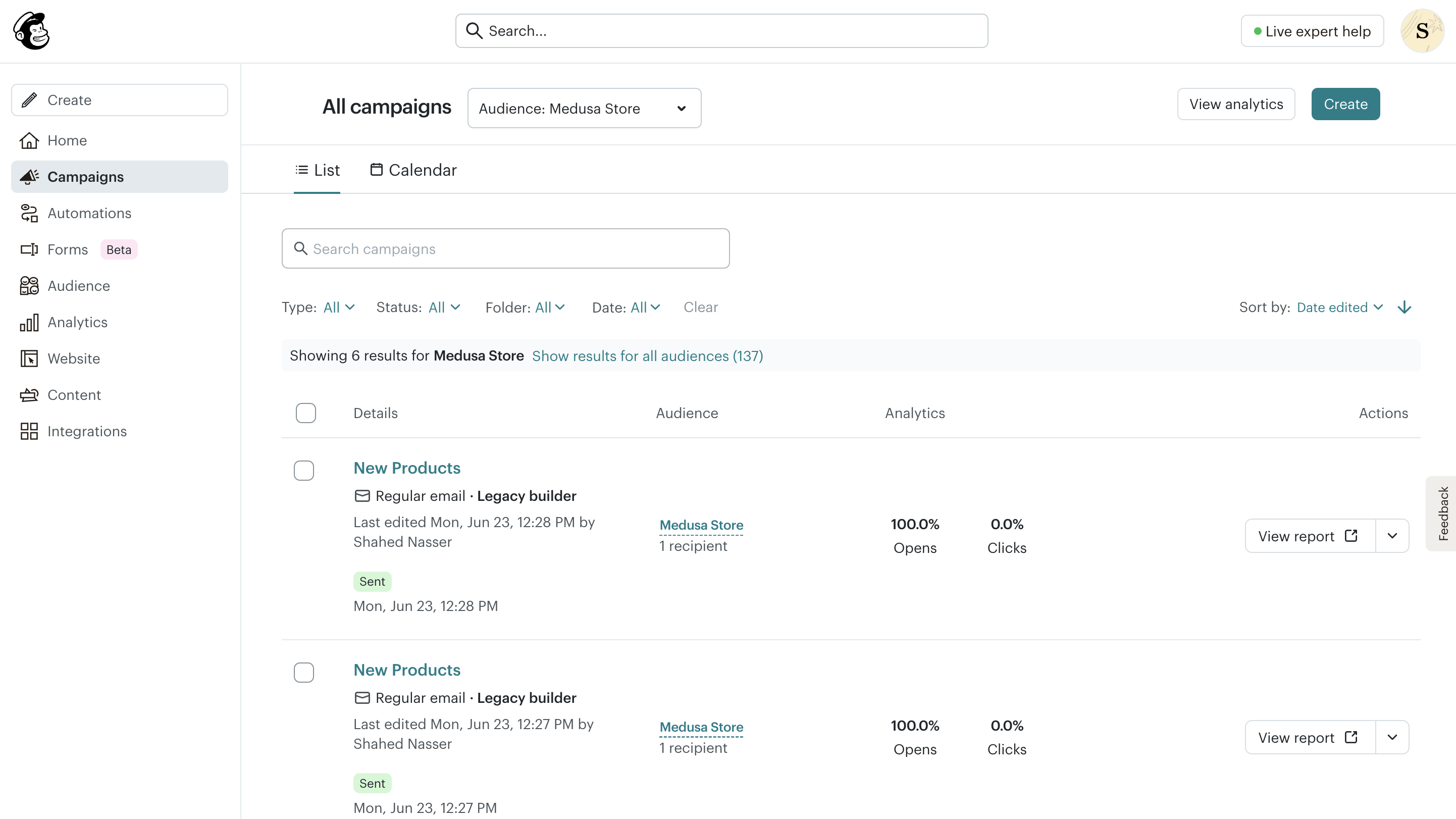
To confirm that the newsletter was sent, check the Mailchimp dashboard by going to the "Campaigns" page. You'll find a new campaign with the title "New Products" and the date it was sent.
|
||
|
||
|
||
|
||
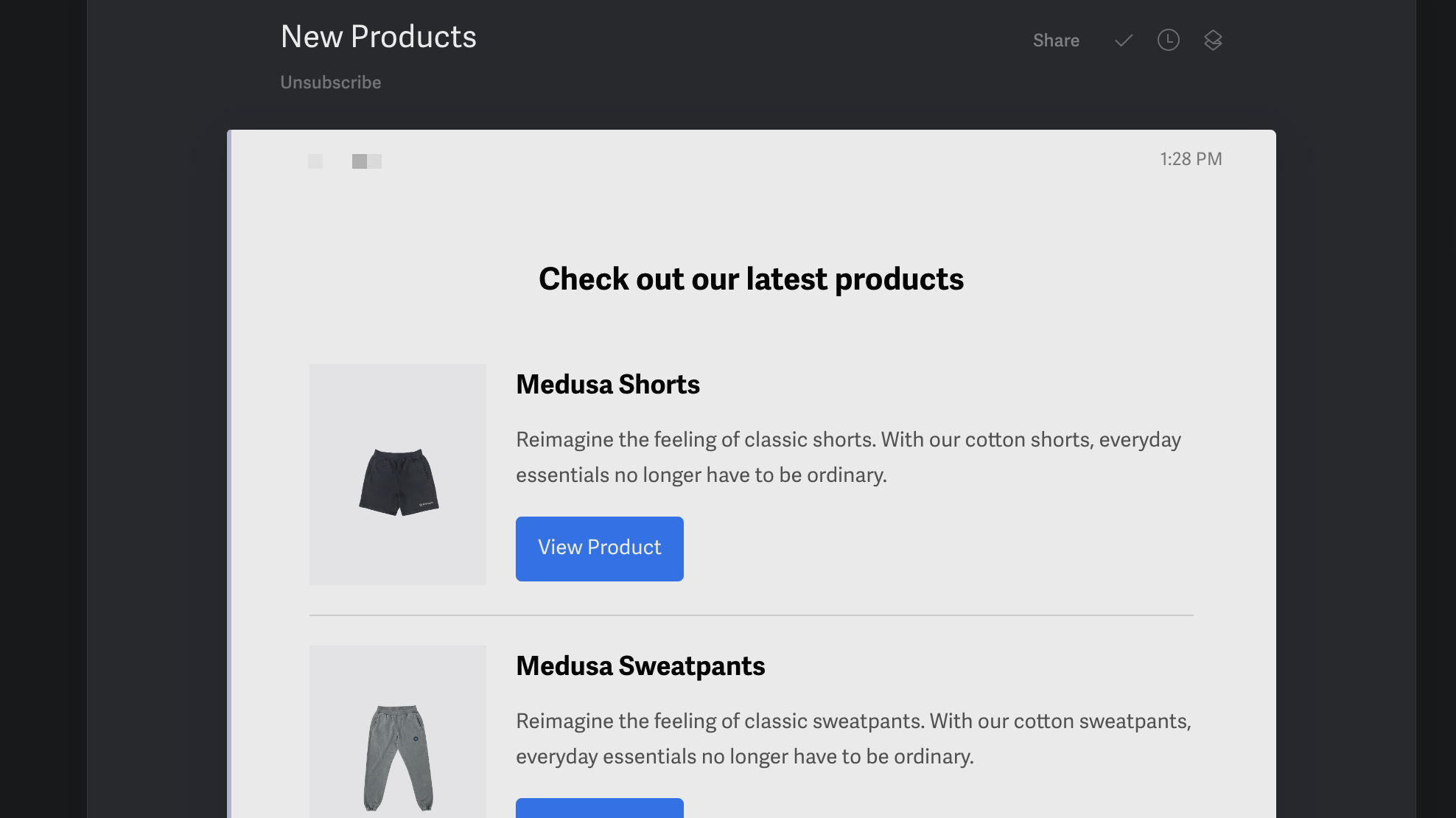
If you also subscribed to the newsletter, you should receive an email with the latest products added to your Medusa store.
|
||
|
||
|
||
|
||
Make sure to revert the job's schedule back to run every Sunday at midnight by changing the `schedule` property in the job's configuration:
|
||
|
||
```ts title="src/jobs/send-weekly-newsletter.ts"
|
||
export const config = {
|
||
name: "send-weekly-newsletter",
|
||
schedule: "0 0 * * 0", // Every Sunday at midnight
|
||
}
|
||
```
|
||
|
||
---
|
||
|
||
## Next Steps
|
||
|
||
You've now integrated Mailchimp with Medusa to allow customers to subscribe to a newsletter and to send automated newsletters about new products.
|
||
|
||
You can expand this feature and integration to:
|
||
|
||
- Send newsletters about other events, such as new collections or special offers. Refer to the [Events Reference](/references/events) for the list of events you can listen to.
|
||
- Customize the registration form in the storefront to add an "opt-in for newsletter" checkbox.
|
||
- Customize the notifications to match your business's brand, or use templates defined in Mailchimp instead.
|
||
|
||
If you're new to Medusa, check out the [main documentation](!docs!/learn), where you'll get a more in-depth understanding of all the concepts you've used in this guide and more.
|
||
|
||
To learn more about the commerce features that Medusa provides, check out Medusa's [Commerce Modules](../../../commerce-modules/page.mdx).
|
||
|
||
### Troubleshooting
|
||
|
||
If you encounter issues during your development, check out the [troubleshooting guides](../../../troubleshooting/page.mdx).
|
||
|
||
### Getting Help
|
||
|
||
If you encounter issues not covered in the troubleshooting guides:
|
||
|
||
1. Visit the [Medusa GitHub repository](https://github.com/medusajs/medusa) to report issues or ask questions.
|
||
2. Join the [Medusa Discord community](https://discord.gg/medusajs) for real-time support from community members.
|
||
3. Contact the [sales team](https://medusajs.com/contact/) to get help from the Medusa team.
|