
109 lines
5.3 KiB
Plaintext
109 lines
5.3 KiB
Plaintext
import { InlineIcon } from "docs-ui"
|
|
import { ArrowDownTray, ChevronUpDown, EllipsisHorizontal } from "@medusajs/icons"
|
|
|
|
export const metadata = {
|
|
title: `Billing`,
|
|
}
|
|
|
|
# {metadata.title}
|
|
|
|
In this guide, you'll learn how billing works in Cloud, and how to view and download invoices.
|
|
|
|
## How Billing Works
|
|
|
|
Medusa bills your organization monthly.
|
|
|
|
Your monthly invoice contains:
|
|
|
|
- An upfront charge for the plan you are currently on.
|
|
- An upfront charge for the add-ons you have.
|
|
- Pro-rated charges for the add-ons you added in the previous billing cycle.
|
|
- Charges for your [Flex Usage](../usage/page.mdx#what-is-flex-usage) in the previous billing cycle.
|
|
|
|
If your organization goes over its plan's usage limits within the current billing period, charges for your [Flex Usage](../usage/page.mdx#what-is-flex-usage) will be added to your next invoice.
|
|
|
|
Learn how to monitor your organization's usage in the [Usage](../usage/page.mdx) guide.
|
|
|
|
<Note title="Got questions?">
|
|
|
|
You can reach out to `billing@medusajs.com` for assistance.
|
|
|
|
</Note>
|
|
|
|
---
|
|
|
|
## View Billing History and Invoices
|
|
|
|
You can view your payment history in the organization's settings, and download invoices for each payment.
|
|
|
|
To view your organization's billing history and invoices:
|
|
|
|
1. Make sure you're viewing the [correct organization's dashboard in Cloud](../organizations/page.mdx#switch-organization).
|
|
2. Click on the <InlineIcon Icon={ChevronUpDown} alt="switch organization" /> icon in the [organization switcher](../organizations/page.mdx#switch-organization) at the top left of the Cloud dashboard.
|
|
3. Choose "Organization Settings" from the dropdown.
|
|
4. Change to the "Invoices" settings from the sidebar.
|
|
|
|
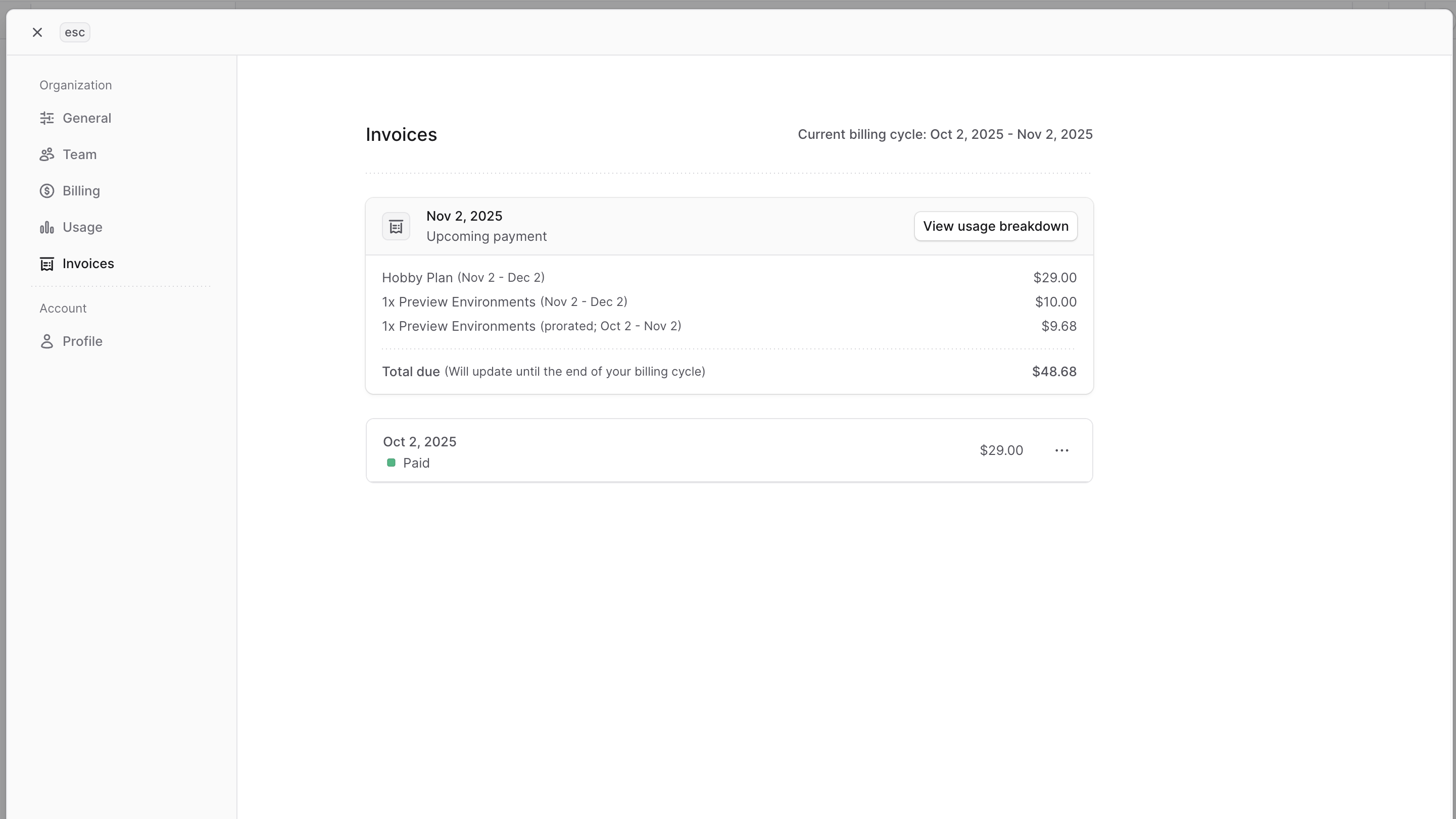
This will show a table of your upcoming payment, including your plan's amount and flex charges.
|
|
|
|
You can also see a table with all the payments made for your organization, including the date, status, and amount of each payment.
|
|
|
|
|
|
|
|
### Download Invoice
|
|
|
|
An invoice is generated for every successful payment made for your organization. You can download the invoice as a PDF for your records. An invoice shows a request to pay for your organization's plan and any add-ons or Flex Usage charges.
|
|
|
|
To download an invoice for a specific payment:
|
|
|
|
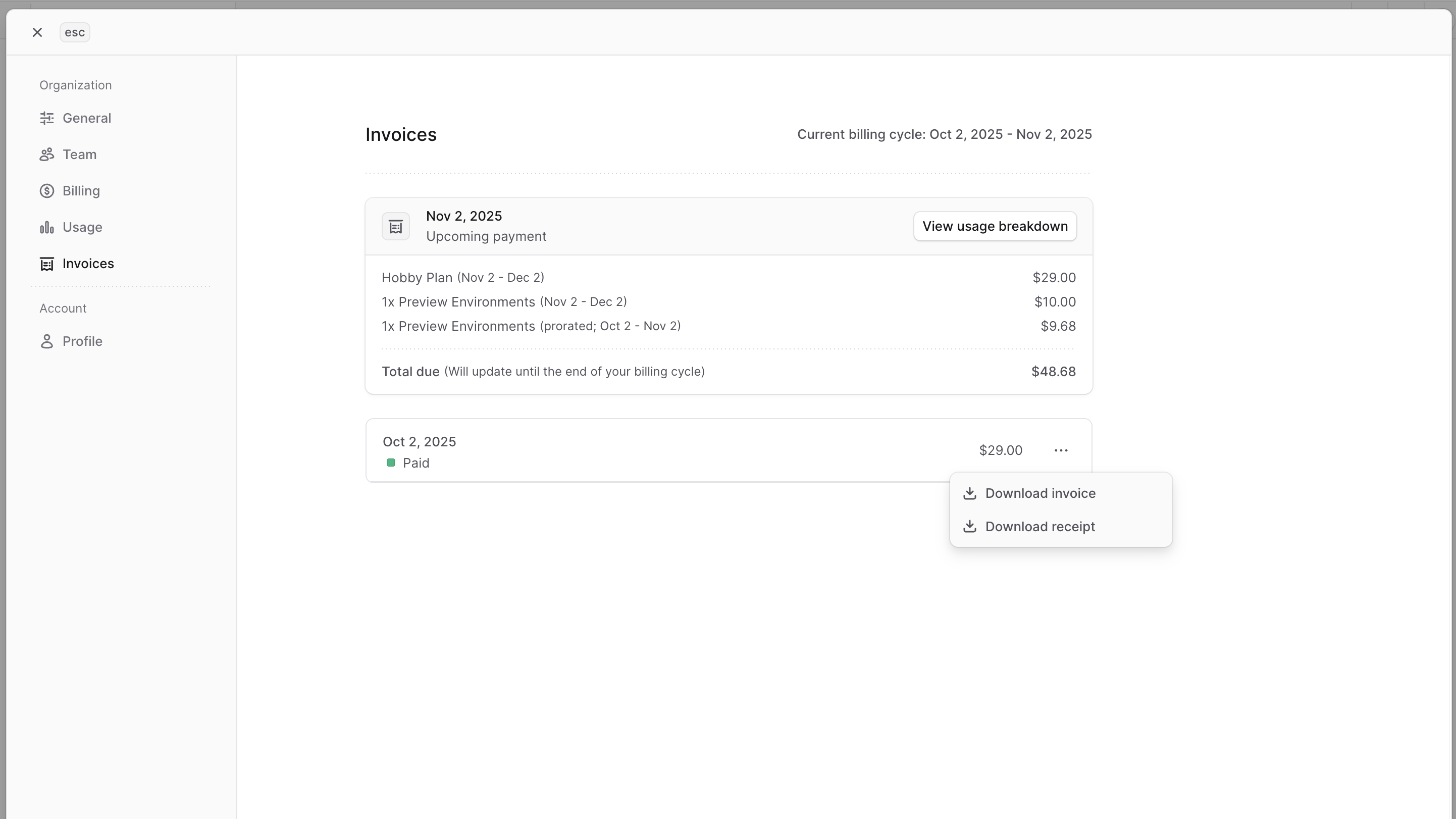
1. Click the <InlineIcon Icon={EllipsisHorizontal} alt="three-dots" /> icon at the end of the row for the payment you want to download the invoice for.
|
|
2. Choose "Download invoice" from the dropdown.
|
|
|
|
This will open the invoice in a new tab, where you can view and download it as a PDF.
|
|
|
|
|
|
|
|
### Download Receipt
|
|
|
|
A receipt is generated for every successful payment made for your organization. You can download the receipt as a PDF for your records. A receipt shows proof of payment for your organization's plan and any add-ons or Flex Usage charges.
|
|
|
|
To download a receipt for a specific payment:
|
|
|
|
1. Click the <InlineIcon Icon={EllipsisHorizontal} alt="three-dots" /> icon at the end of the row for the payment you want to download the receipt for.
|
|
2. Choose "Download receipt" from the dropdown.
|
|
|
|
This will open the receipt in a new tab, where you can view and download it as a PDF.
|
|
|
|

|
|
|
|
---
|
|
|
|
## Purchase Add-On Resources
|
|
|
|
Your organization can purchase additional resources beyond its plan's limits as add-ons. For example, you can purchase additional user seats or environments.
|
|
|
|
You can purchase an add-on resource as you're creating that resource. For example, if you're creating a new project and you've already reached your plan's limit for projects, you'll see a note indicating that this project will be billed as an add-on.
|
|
|
|
Add-ons are billed monthly in advance, and they are pro-rated based on the number of days remaining in the month when you purchase them.
|
|
|
|
For example, if you purchase a $10 Preview Environment halfway through the month, you'll be charged $5 (pro-rated) for usage in the previous billing cycle and $10 upfront for usage in the next.
|
|
|
|
### How can I know if I'm being charged for an add-on?
|
|
|
|
When you're creating a resource that exceeds your plan's limits, such as a project or user seat, look for a note indicating that you'll be charged an additional amount for that resource.
|
|
|
|
For example, you may see a note saying "Creating an additional project adds $X to your bill."
|
|
|
|
### Where can I view my add-ons?
|
|
|
|
You can view your add-on charges in the [Invoices](#view-billing-history-and-invoices) section of your organization's settings. The add-on charges will be included in the "Upcoming Payments" table.
|
|
|
|
---
|
|
|
|
## Handle Unsuccessful Payments
|
|
|
|
If a payment for your organization's subscription fails, you'll receive a [notification](../notifications/page.mdx) in the Cloud dashboard.
|
|
|
|
The payment may fail for various reasons, such as insufficient funds, an expired card, or other issues with the payment method. Make sure to [update your payment method](./manage/page.mdx#manage-payment-methods) if needed.
|
|
|
|
If there are no issues with your payment method and the payment still fails, contact support for assistance.
|