
179 lines
5.1 KiB
Plaintext
179 lines
5.1 KiB
Plaintext
---
|
||
description: 'Learn how to install the Medusa admin. The Medusa admin gives merchants an easy-to-use interface to manage their data such as orders, products, regions, and more.'
|
||
addHowToData: true
|
||
---
|
||
|
||
import Feedback from '@site/src/components/Feedback';
|
||
|
||
# Medusa Admin Quickstart
|
||
|
||
This document will guide you through setting up the Medusa admin in minutes, as well as some of its features.
|
||
|
||
## Prerequisites
|
||
|
||
### Medusa Backend
|
||
|
||
The Medusa admin is connected to the Medusa backend. So, make sure to install the Medusa backend first before proceeding with the admin. You can check out the [quickstart guide to install the Medusa backend](../development/backend/install.mdx).
|
||
|
||
:::tip
|
||
|
||
If you’re not very familiar with Medusa’s architecture, you can learn more about it in the [Architecture Overview](../development/fundamentals/architecture-overview.md).
|
||
|
||
:::
|
||
|
||
### Node.js
|
||
|
||
As Medusa Admin uses [Vite 3](https://vitejs.dev/guide/#scaffolding-your-first-vite-project), it requires versions 14.8+ or 16+. You can check which version of Node you have by running the following command:
|
||
|
||
```bash noReport
|
||
node -v
|
||
```
|
||
|
||
You can install Node from the [official website](https://nodejs.org/en/).
|
||
|
||
---
|
||
|
||
## Instant Deployment to Netlify
|
||
|
||
Instead of manually following this guide to install then later deploy the Medusa Admin, you can deploy the Medusa Admin to Netlify with this button:
|
||
|
||
<a href="https://app.netlify.com/start/deploy?repository=https://github.com/medusajs/admin" className="img-url">
|
||
<img src="https://www.netlify.com/img/deploy/button.svg" alt="Deploy to Netlify" className="no-zoom-img" />
|
||
</a>
|
||
|
||
---
|
||
|
||
## Install the Admin
|
||
|
||
:::tip
|
||
|
||
It is recommended to use [Yarn](https://yarnpkg.com/getting-started/install) for the installation process as it's much faster than using NPM.
|
||
|
||
:::
|
||
|
||
Start by cloning the [Admin GitHub repository](https://github.com/medusajs/admin) and changing to the cloned directory:
|
||
|
||
```bash
|
||
git clone https://github.com/medusajs/admin medusa-admin
|
||
cd medusa-admin
|
||
```
|
||
|
||
Then, install the dependencies:
|
||
|
||
```bash npm2yarn
|
||
npm install
|
||
```
|
||
|
||
<Feedback
|
||
event="survey_admin_quickstart"
|
||
question="Did you set up the admin successfully?"
|
||
positiveQuestion="Is there anything that should improved?"
|
||
negativeQuestion="Please describe the issue you faced."
|
||
/>
|
||
|
||
:::tip
|
||
|
||
If you run into errors during the installation, check out [this troubleshooting guide](../troubleshooting/common-installation-errors.mdx).
|
||
|
||
:::
|
||
|
||
---
|
||
|
||
## Test it Out
|
||
|
||
Before running your Medusa admin, make sure that your Medusa backend is running.
|
||
|
||
:::tip
|
||
|
||
To run your Medusa backend, go to the directory holding the backend and run:
|
||
|
||
```bash npm2yarn
|
||
npm run start
|
||
```
|
||
|
||
:::
|
||
|
||
Then, in the directory holding your Medusa admin, run the following to start the development server:
|
||
|
||
```bash npm2yarn
|
||
npm run start
|
||
```
|
||
|
||
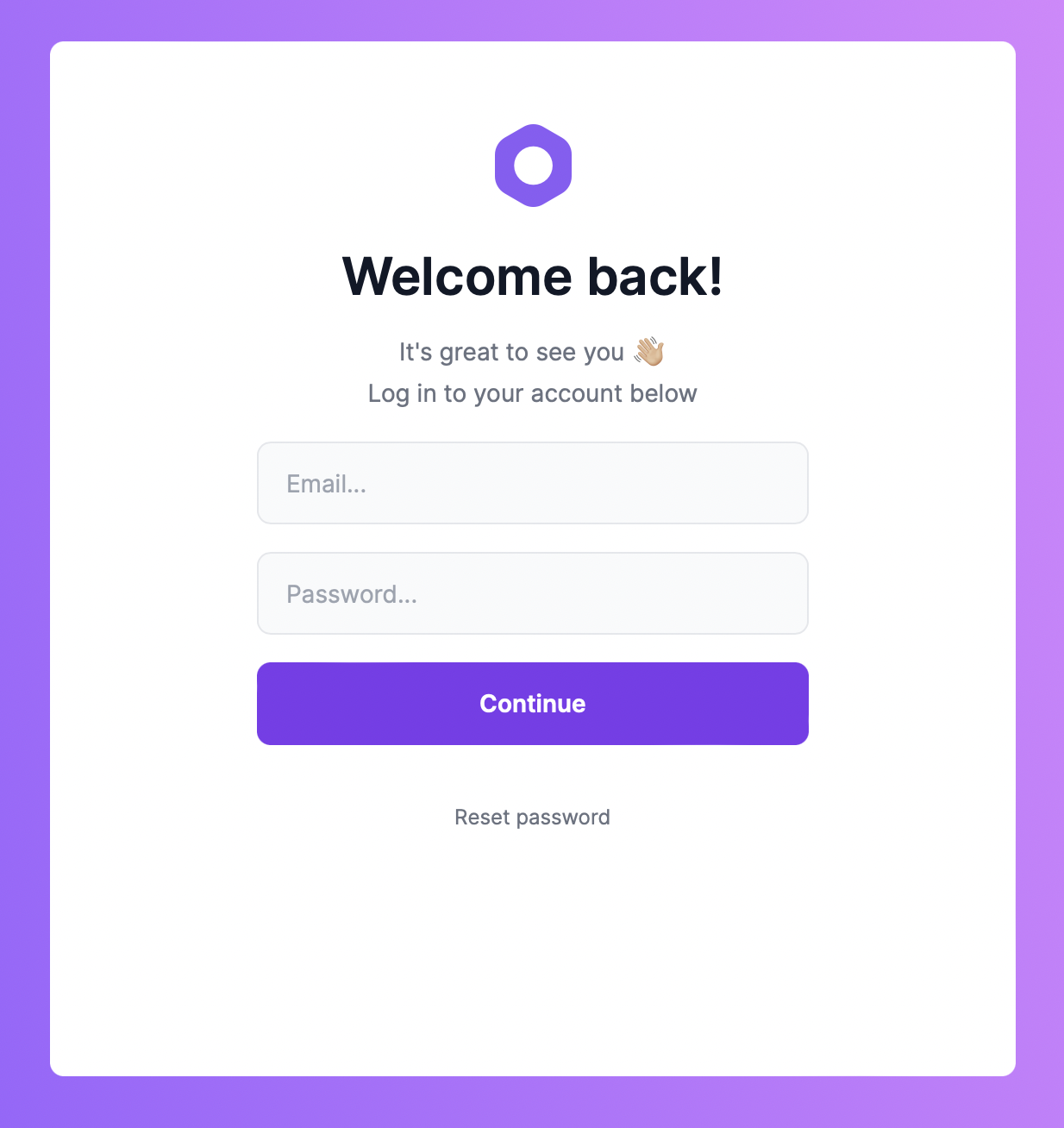
By default, the admin runs on port 7000. So, in your browser, go to `localhost:7000` to view your admin.
|
||
|
||
|
||
|
||
Use your Medusa admin’s user credentials to log in.
|
||
|
||
### Demo Credentials
|
||
|
||
If you installed the demo data when you installed the Medusa backend by using the `--seed` option or running:
|
||
|
||
```bash npm2yarn
|
||
npm run seed
|
||
```
|
||
|
||
You can use the email `admin@medusa-test.com` and password `supersecret` to log in.
|
||
|
||
:::info
|
||
|
||
Passwords in Medusa are hashed using the [scrypt-kdf](https://www.npmjs.com/package/scrypt-kdf). The password hash is then stored in the database.
|
||
|
||
:::
|
||
|
||
---
|
||
|
||
## Create a New Admin User
|
||
|
||
To create a new admin user from the command line, run the following command in the directory holding your Medusa backend:
|
||
|
||
```bash
|
||
medusa user -e some@email.com -p some-password
|
||
```
|
||
|
||
This will create a new user that you can use to log into your admin panel.
|
||
|
||
---
|
||
|
||
## Changing the Default Port
|
||
|
||
The default port is set in `package.json` in the `dev` script:
|
||
|
||
```json
|
||
"dev": "vite --port 7000",
|
||
```
|
||
|
||
If you wish to change the port you can simply change the `7000` to your desired port.
|
||
|
||
However, if you change your Medusa admin port, you need to change it in your Medusa backend. The Medusa backend has the Medusa admin and store URLs set in the configurations to avoid Cross-Origin Resource Sharing (CORS) issues.
|
||
|
||
To change the URL of the Medusa admin in the backend, add a new environment variable `ADMIN_CORS` or modify it if you already have it to your Admin URL:
|
||
|
||
```bash
|
||
ADMIN_CORS=<YOUR_ADMIN_URL>
|
||
```
|
||
|
||
Make sure to replace `<YOUR_ADMIN_URL>` with your URL.
|
||
|
||
:::info
|
||
|
||
For more details about the Admin CORS configuration, check out the [Configure your Backend documentation](../development/backend/configurations.md#admin-cors).
|
||
|
||
:::
|
||
|
||
---
|
||
|
||
## Admin User Guide
|
||
|
||
Medusa admin provides a lot of ecommerce features including managing Return Merchandise Authorization (RMA) flows, store settings, products, orders, and much more.
|
||
|
||
You can learn more about Medusa admin and its features in the [User Guide](../user-guide.mdx).
|
||
|
||
---
|
||
|
||
## See Also
|
||
|
||
- [Customize Medusa Admin](./development.md)
|
||
- Install the [Next.js](../starters/nextjs-medusa-starter.mdx) storefront starter.
|
||
- [Use `create-medusa-app` to install all of Medusa’s 3 components.](../create-medusa-app.mdx)
|