 914d773d3a
* initialized next.js project

* finished markdown sections

* added operation schema component

* change page metadata

* eslint fixes

* fixes related to deployment

* added response schema

* resolve max stack issue

* support for different property types

* added support for property types

* added loading for components

* added more loading

* type fixes

* added oneOf type

* removed console

* fix replace with push

* refactored everything

* use static content for description

* fixes and improvements

* added code examples section

* fix path name

* optimizations

* fixed tag navigation

* add support for admin and store references

* general enhancements

* optimizations and fixes

* fixes and enhancements

* added search bar

* loading enhancements

* added loading

* added code blocks

* added margin top

* add empty response text

* fixed oneOf parameters

* added path and query parameters

* general fixes

* added base path env variable

* small fix for arrays

* enhancements

* design enhancements

* general enhancements

* fix isRequired

* added enum values

* enhancements

* general fixes

* general fixes

* changed oas generation script

* additions to the introduction section

* added copy button for code + other enhancements

* fix response code block

* fix metadata

* formatted store introduction

* move sidebar logic to Tags component

* added test env variables

* fix code block bug

* added loading animation

* added expand param + loading

* enhance operation loading

* made responsive + improvements

* added loading provider

* fixed loading

* adjustments for small devices

* added sidebar label for endpoints

* added feedback component

* fixed analytics

* general fixes

* listen to scroll for other headings

* added sample env file

* update api ref files + support new fields

* fix for external docs link

* added new sections

* fix last item in sidebar not showing

* move docs content to www/docs

* change redirect url

* revert change

* resolve build errors

* configure rewrites

* changed to environment variable url

* revert changing environment variable name

* add environment variable for API path

* fix links

* fix tailwind settings

* remove vercel file

* reconfigured api route

* move api page under api

* fix page metadata

* fix external link in navigation bar

* update api spec

* updated api specs

* fixed google lint error

* add max-height on request samples

* add padding before loading

* fix for one of name

* fix undefined types

* general fixes

* remove response schema example

* redesigned navigation bar

* redesigned sidebar

* fixed up paddings

* added feedback component + report issue

* fixed up typography, padding, and general styling

* redesigned code blocks

* optimization

* added error timeout

* fixes

* added indexing with algolia + fixes

* fix errors with algolia script

* redesign operation sections

* fix heading scroll

* design fixes

* fix padding

* fix padding + scroll issues

* fix scroll issues

* improve scroll performance

* fixes for safari

* optimization and fixes

* fixes to docs + details animation

* padding fixes for code block

* added tab animation

* fixed incorrect link

* added selection styling

* fix lint errors

* redesigned details component

* added detailed feedback form

* api reference fixes

* fix tabs

* upgrade + fixes

* updated documentation links

* optimizations to sidebar items

* fix spacing in sidebar item

* optimizations and fixes

* fix endpoint path styling

* remove margin

* final fixes

* change margin on small devices

* generated OAS

* fixes for mobile

* added feedback modal

* optimize dark mode button

* fixed color mode useeffect

* minimize dom size

* use new style system

* radius and spacing design system

* design fixes

* fix eslint errors

* added meta files

* change cron schedule

* fix docusaurus configurations

* added operating system to feedback data

* change content directory name

* fixes to contribution guidelines

* revert renaming content

* added api-reference to documentation workflow

* fixes for search

* added dark mode + fixes

* oas fixes

* handle bugs

* added code examples for clients

* changed tooltip text

* change authentication to card

* change page title based on selected section

* redesigned mobile navbar

* fix icon colors

* fix key colors

* fix medusa-js installation command

* change external regex in algolia

* change changeset

* fix padding on mobile

* fix hydration error

* update depedencies
401 lines
16 KiB
Plaintext
401 lines
16 KiB
Plaintext
---
|
||
description: 'Learn how to integrate Stripe with the Medusa backend. Learn how to install the Stripe plugin on the Medusa backend and integrate it into a storefront.'
|
||
addHowToData: true
|
||
---
|
||
|
||
import Troubleshooting from '@site/src/components/Troubleshooting'
|
||
import MissingPaymentProvider from '../../troubleshooting/missing-payment-providers.md'
|
||
|
||
# Stripe
|
||
|
||
This document guides you through setting up Stripe payments in your Medusa backend, admin, and storefront using the [Stripe Plugin](https://github.com/medusajs/medusa/tree/master/packages/medusa-payment-stripe).
|
||
|
||
## Video Guide
|
||
|
||
You can also follow this video guide to learn how the setup works:
|
||
|
||
<div>
|
||
<video width="100%" height="100%" playsinline autoplay muted controls>
|
||
<source src="https://user-images.githubusercontent.com/59018053/154807206-6fbda0a6-bf3e-4e39-9fc2-f11710afe0b9.mp4" type="video/mp4" />
|
||
</video>
|
||
</div>
|
||
|
||
## Overview
|
||
|
||
[Stripe](https://stripe.com/) is a battle-tested and unified platform for transaction handling. Stripe supplies you with the technical components needed to handle transactions safely and all the analytical features necessary to gain insight into your sales. These features are also available in a safe test environment which allows for a concern-free development process.
|
||
|
||
Using the `medusa-payment-stripe` plugin, this guide shows you how to set up your Medusa project with Stripe as a payment processor.
|
||
|
||
---
|
||
|
||
## Prerequisites
|
||
|
||
Before you proceed with this guide, make sure you create a [Stripe account](https://stripe.com). You’ll later retrieve the API Keys and secrets from your account to connect Medusa to your Stripe account.
|
||
|
||
---
|
||
|
||
## Medusa Backend
|
||
|
||
This section guides you over the steps necessary to add Stripe as a payment processor to your Medusa backend.
|
||
|
||
If you don’t have a Medusa backend installed yet, you must follow the [quickstart guide](../../development/backend/install.mdx) first.
|
||
|
||
### Install the Stripe Plugin
|
||
|
||
In the root of your Medusa backend, run the following command to install the stripe plugin:
|
||
|
||
```bash npm2yarn
|
||
npm install medusa-payment-stripe
|
||
```
|
||
|
||
### Configure the Stripe Plugin
|
||
|
||
Next, you need to add configurations for your stripe plugin.
|
||
|
||
In `medusa-config.js` add the following at the end of the `plugins` array:
|
||
|
||
```jsx title=medusa-config.js
|
||
const plugins = [
|
||
// ...
|
||
{
|
||
resolve: `medusa-payment-stripe`,
|
||
options: {
|
||
api_key: process.env.STRIPE_API_KEY,
|
||
webhook_secret: process.env.STRIPE_WEBHOOK_SECRET,
|
||
},
|
||
},
|
||
]
|
||
```
|
||
|
||
The Stripe plugin uses two configuration options. The `api_key` is essential to both your development and production environments. As for the `webhook_secret`, it’s essential for your production environment. So, if you’re only using Stripe for development you can skip adding the value for this option at the moment.
|
||
|
||
:::note
|
||
|
||
You can learn more about the events that the plugin monitors in [this section](#handled-webhook-events).
|
||
|
||
:::
|
||
|
||
Other optional options include:
|
||
|
||
- `payment_description`: a string that is used as the default description of a payment if none is provided.
|
||
- `capture`: a boolean value that indicates whether payment should be captured manually or automatically. By default, it will be `false`, leading admins to capture the payment manually.
|
||
- `automatic_payment_methods`: a boolean value that enables Stripe's automatic payment methods. This is useful if you're integrating services like Apple pay or Google pay.
|
||
|
||
### Retrieve Stripe's Keys
|
||
|
||
On the [dashboard](https://dashboard.stripe.com) of your Stripe account click on the Developers link at the top right. This will take you to the developer dashboard.
|
||
|
||
You’ll first retrieve the API key. You can find it by choosing API Keys from the sidebar and copying the Secret key.
|
||
|
||
Next, you need to add the key to your environment variables. In your Medusa backend, create `.env` if it doesn’t already exist and add the Stripe key:
|
||
|
||
```bash
|
||
STRIPE_API_KEY=sk_...
|
||
```
|
||
|
||
:::note
|
||
|
||
If you store environment variables differently on your backend, for example, using the hosting processor’s UI, then you don’t need to add it in `.env`. Add the environment variables in a way relevant to your backend.
|
||
|
||
:::
|
||
|
||
Next, if you’re installing this plugin for production use, you need to retrieve the Webhook secret. Webhooks allows you to track different events on your Medusa backend, such as failed payments.
|
||
|
||
Go to Webhooks on Stripe’s developer dashboard. Then, choose the Add an Endpoint button.
|
||
|
||
The endpoint for Stripe’s webhook on your Medusa backend is `{BACKEND_URL}/stripe/hooks`. So, add that endpoint in its field. Make sure to replace `{BACKEND_URL}` with the URL to your backend.
|
||
|
||
Then, you can add a description. You must select at least one event to listen to. Once you’re done, click “Add endpoint”.
|
||
|
||
After the Webhook is created, you’ll see "Signing secret" in the Webhook details. Click on "Reveal" to reveal the secret key. Copy that key and in your Medusa backend add the Webhook secret environment variable:
|
||
|
||
```bash
|
||
STRIPE_WEBHOOK_SECRET=whsec_...
|
||
```
|
||
|
||
---
|
||
|
||
## Admin Setup
|
||
|
||
This section will guide you through adding Stripe as a payment processor in a region using your Medusa admin dashboard.
|
||
|
||
This step is required for you to be able to use Stripe as a payment processor in your storefront.
|
||
|
||
### Admin Prerequisites
|
||
|
||
If you don’t have a Medusa admin installed, make sure to follow along with [the guide on how to install it](https://github.com/medusajs/admin#-quickstart) before continuing with this section.
|
||
|
||
### Add Stripe to Regions
|
||
|
||
You can refer to [this documentation in the user guide](../../user-guide/regions/providers.mdx#manage-payment-providers) to learn how to add a payment processor like Stripe to a region.
|
||
|
||
---
|
||
|
||
## Storefront Setup
|
||
|
||
This guide will take you through how to set up Stripe payments in your Medusa storefront. It includes the steps necessary when using one of Medusa’s official storefronts as well as your own custom React-based storefront.
|
||
|
||
### Storefront Prerequisites
|
||
|
||
All storefronts require that you obtain your Stripe’s Publishable Key. You can retrieve it from your Stripe’s developer dashboard by choosing API Keys and then copying the Publishable Key.
|
||
|
||
### Add to Next.js Starter Template
|
||
|
||
Medusa has a Next.js Starter Template that you can easily use with your Medusa backend. If you don’t have the storefront installed, you can follow [this quickstart guide](../../starters/nextjs-medusa-starter).
|
||
|
||
In your `.env.local` file (or the file you’re using for your environment variables), add the following variable:
|
||
|
||
```bash title=.env.local
|
||
NEXT_PUBLIC_STRIPE_KEY=<YOUR_PUBLISHABLE_KEY>
|
||
```
|
||
|
||
Make sure to replace `<YOUR_PUBLISHABLE_KEY>` with your Stripe Publishable Key.
|
||
|
||
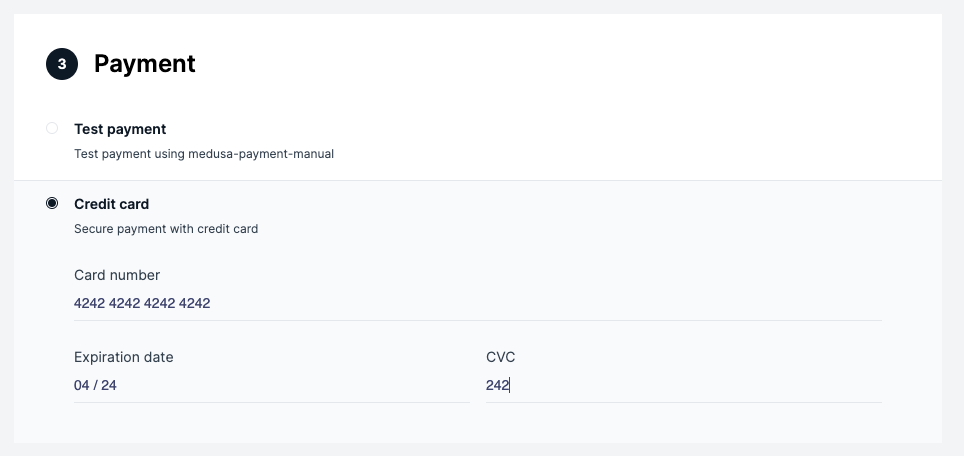
Now, if you run your Medusa backend and your storefront, on checkout you’ll be able to use Stripe.
|
||
|
||
|
||
|
||
### Add to Custom Storefront
|
||
|
||
This section will go over how to add Stripe into a React-based framework. The instructions are general instructions that you can use in your storefront.
|
||
|
||
#### Workflow Overview
|
||
|
||
The integration with stripe must have the following workflow:
|
||
|
||
1. During checkout when the user reaches the payment section, you should [create payment sessions](https://docs.medusajs.com/api/store#carts_postcartscartpaymentsessions). This will initialize the `payment_sessions` array in the `cart` object received. The `payment_sessions` is an array of available payment processors.
|
||
2. If Stripe is available as a payment processor, you should select Stripe as [the payment session](https://docs.medusajs.com/api/store#carts_postcartscartpaymentsession) for the current cart. This will initialize the `payment_session` object in the `cart` object to include data related to Stripe and the current payment session. This includes the payment intent and client secret.
|
||
3. After the user enters their card details and submits the form, confirm the payment with Stripe.
|
||
4. If the payment is confirmed successfully, [complete the cart](https://docs.medusajs.com/api/store#carts_postcartscartcomplete) in Medusa. Otherwise show an error.
|
||
|
||
#### Install Dependencies
|
||
|
||
Before you start the implementations you need to install the necessary dependencies. You’ll be using Stripe’s React libraries to show the UI and handle the payment confirmation:
|
||
|
||
```bash npm2yarn
|
||
npm install --save @stripe/react-stripe-js @stripe/stripe-js
|
||
```
|
||
|
||
You’ll also use Medusa’s JS Client to easily call Medusa’s REST APIs:
|
||
|
||
```bash npm2yarn
|
||
npm install @medusajs/medusa-js
|
||
```
|
||
|
||
#### Initialize Stripe
|
||
|
||
In this section, you’ll initialize Stripe without Medusa’s checkout workflow. Please note that this is one approach to add Stripe into your React project. You can check out [Stripe’s React documentation](https://stripe.com/docs/stripe-js/react) for other methods or components.
|
||
|
||
Create a container component that will hold the payment card component:
|
||
|
||
```jsx
|
||
import { useState } from "react"
|
||
|
||
import { Elements } from "@stripe/react-stripe-js"
|
||
import Form from "./Form"
|
||
import { loadStripe } from "@stripe/stripe-js"
|
||
|
||
const stripePromise = loadStripe("pk_...")
|
||
|
||
export default function Container() {
|
||
const [clientSecret, setClientSecret] = useState()
|
||
|
||
// TODO set clientSecret
|
||
|
||
return (
|
||
<div>
|
||
{clientSecret && (
|
||
<Elements stripe={stripePromise} options={{
|
||
clientSecret,
|
||
}}>
|
||
<Form clientSecret={clientSecret} cartId={cartId} />
|
||
</Elements>
|
||
)}
|
||
</div>
|
||
)
|
||
};
|
||
```
|
||
|
||
In this component, you need to use Stripe’s `loadStripe` function outside of the component’s implementation to ensure that Stripe doesn’t re-load with every change. The function accepts the Publishable Key.
|
||
|
||
:::note
|
||
|
||
You’ll probably store this Publishable Key in an environment variable depending on your framework. It’s hard-coded here for simplicity.
|
||
|
||
:::
|
||
|
||
Then, inside the component’s implementation, you add a state variable `clientSecret` which you’ll retrieve in the next section.
|
||
|
||
Once the clientSecret is set, the `Elements` Stripe component will wrap a `Form` component you’ll create next. This is necessary because the `Elements` component allows child elements to get access to the card’s inputs and their data using Stripe’s `useElements` hook.
|
||
|
||
Create a new file for the `Form` component with the following content:
|
||
|
||
```jsx
|
||
import {
|
||
CardElement,
|
||
useElements,
|
||
useStripe,
|
||
} from "@stripe/react-stripe-js"
|
||
|
||
export default function Form({ clientSecret, cartId }) {
|
||
const stripe = useStripe()
|
||
const elements = useElements()
|
||
|
||
async function handlePayment(e) {
|
||
e.preventDefault()
|
||
// TODO handle payment
|
||
}
|
||
|
||
return (
|
||
<form>
|
||
<CardElement />
|
||
<button onClick={handlePayment}>Submit</button>
|
||
</form>
|
||
)
|
||
};
|
||
```
|
||
|
||
This component shows a CardElement component from Stripe’s React library. You can use `stripe` to be able to confirm the payment later. The `elements` variable will be used to retrieve the entered card details safely.
|
||
|
||
#### Implement the Workflow
|
||
|
||
You’ll now implement the workflow explained earlier. You’ll use Medusa’s JS Client, so make sure to import it and initialize it in your `Container` component:
|
||
|
||
```jsx
|
||
import Medusa from "@medusajs/medusa-js"
|
||
|
||
export default function Container() {
|
||
const client = new Medusa()
|
||
// ...
|
||
}
|
||
```
|
||
|
||
:::note
|
||
|
||
In your storefront, you’ll probably be managing the Medusa client through a context for better performance.
|
||
|
||
:::
|
||
|
||
Then, in the place of the `//TODO` inside the `Container` element, initialize the payment sessions and create a payment session if Stripe is available:
|
||
|
||
```tsx
|
||
client.carts.createPaymentSessions(cart.id)
|
||
.then(({ cart }) => {
|
||
// check if stripe is selected
|
||
const isStripeAvailable = cart.payment_sessions?.some(
|
||
(session) => (
|
||
session.processor_id === "stripe"
|
||
)
|
||
)
|
||
if (!isStripeAvailable) {
|
||
return
|
||
}
|
||
|
||
// select stripe payment session
|
||
client.carts.setPaymentSession(cart.id, {
|
||
processor_id: "stripe",
|
||
}).then(({ cart }) => {
|
||
setClientSecret(cart.payment_session.data.client_secret)
|
||
})
|
||
})
|
||
```
|
||
|
||
:::note
|
||
|
||
Notice that here it’s assumed you have access to the `cart` object throughout your storefront. Ideally, the `cart` should be managed through a context. So, every time the cart is updated, for example, when the `createPaymentSessions` or `setPaymentSession` are called, the cart should be updated in the context to be accessed from other elements. In this case, you probably wouldn’t need a `clientSecret` state variable as you can use the client secret directly from the `cart` object.
|
||
|
||
:::
|
||
|
||
Once the client secret is set, the form will be shown to the user.
|
||
|
||
The last step in the workflow is confirming the payment with Stripe and if it’s done successfully, completing the user’s order. This part is done in the `Form` component.
|
||
|
||
As you’ll use Medusa’s client again make sure to import it and initialize it:
|
||
|
||
```jsx
|
||
import Medusa from "@medusajs/medusa-js"
|
||
|
||
export default function Form() {
|
||
const client = new Medusa()
|
||
// ...
|
||
}
|
||
```
|
||
|
||
Then, replace the `//TODO` in the `handlePayment` function with the following content:
|
||
|
||
```jsx
|
||
return stripe.confirmCardPayment(clientSecret, {
|
||
payment_method: {
|
||
card: elements.getElement(CardElement),
|
||
billing_details: {
|
||
name,
|
||
email,
|
||
phone,
|
||
address: {
|
||
city,
|
||
country,
|
||
line1,
|
||
line2,
|
||
postal_code,
|
||
},
|
||
},
|
||
},
|
||
}).then(({ error, paymentIntent }) => {
|
||
// TODO handle errors
|
||
client.carts.complete(cartId).then(
|
||
(resp) => console.log(resp)
|
||
)
|
||
})
|
||
```
|
||
|
||
You use the `confirmCardPayment` method in the `stripe` object. You’ll need to pass it the client secret, which you can have access to from the cart object if it’s available through the context.
|
||
|
||
This method also requires the customer’s information like `name`, `email`, and their address. Make sure to place the values for each based on your implementation.
|
||
|
||
Once the promise resolves you can handle the errors, if there are any. If not, you can complete the customer’s order using `complete` from Medusa’s client. This request expects the cart ID which you should have access to as well.
|
||
|
||
If you run your backend and storefront now, you’ll see the Stripe UI element and you’ll be able to make orders.
|
||
|
||

|
||
|
||
---
|
||
|
||
## Capture Payments
|
||
|
||
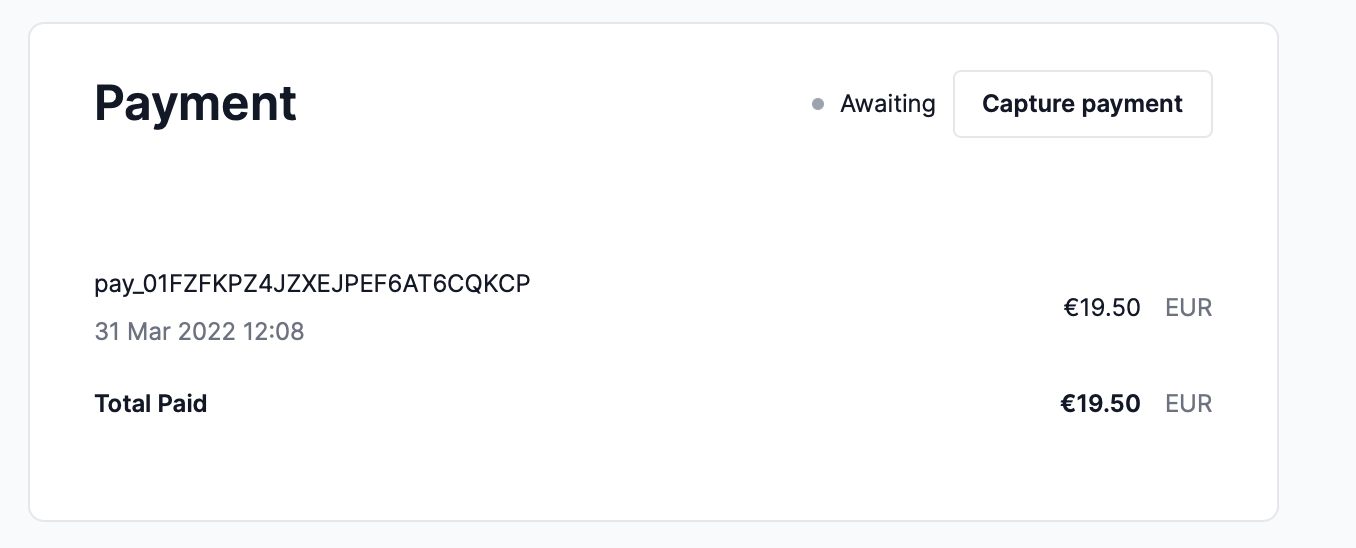
After the customer places an order, you’ll be able to see the order on the admin panel. In the payment information under the “Payment” section, you should see a “Capture” button.
|
||
|
||
|
||
|
||
Clicking this button allows you to capture the payment for an order. You can also refund payments if an order has captured payments.
|
||
|
||
Refunding or Capturing payments is reflected in your Stripe’s dashboard as well. This gives you access to all of Stripe’s analytical capabilities.
|
||
|
||
---
|
||
|
||
## Handled Webhook Events
|
||
|
||
This plugin handles the following Stripe webhook events:
|
||
|
||
- `payment_intent.succeeded`: If the payment is associated with a payment collection, the plugin will capture the payments within it. Otherwise, it checks first if an order is created and, if not, completes the cart which creates the order. It will also capture the payment of the order associated with the cart if it's not captured already.
|
||
- `payment_intent.amount_capturable_updated`: If no order is created for the cart associated with the payment, the cart is completed which creates the order.
|
||
- `payment_intent.payment_failed`: prints the error message received from Stripe into the logs.
|
||
|
||
---
|
||
|
||
## Troubleshooting
|
||
|
||
<Troubleshooting
|
||
sections={[
|
||
{
|
||
title: 'Stripe not showing in checkout',
|
||
content: <MissingPaymentProvider />
|
||
}
|
||
]}
|
||
/>
|
||
|
||
---
|
||
|
||
## See Also
|
||
|
||
- Check out [more plugins](../overview.mdx) you can add to your store.
|