
53 lines
1.8 KiB
Plaintext
53 lines
1.8 KiB
Plaintext
---
|
|
sidebar_label: "Reset Password"
|
|
tags:
|
|
- user guide
|
|
- user
|
|
- auth
|
|
---
|
|
|
|
export const metadata = {
|
|
title: `Reset Password in Medusa Admin`,
|
|
}
|
|
|
|
# {metadata.title}
|
|
|
|
In this guide, you'll learn how to reset your admin user password using the Medusa Admin dashboard.
|
|
|
|
## 1. Request to Reset Password
|
|
|
|
Before resetting your password, you must request the reset, which will send you an email with instructions to reset your password.
|
|
|
|
To reset your password:
|
|
|
|
1. Open the Medusa Admin dashboard.
|
|
2. Click on "Reset" below the login form.
|
|
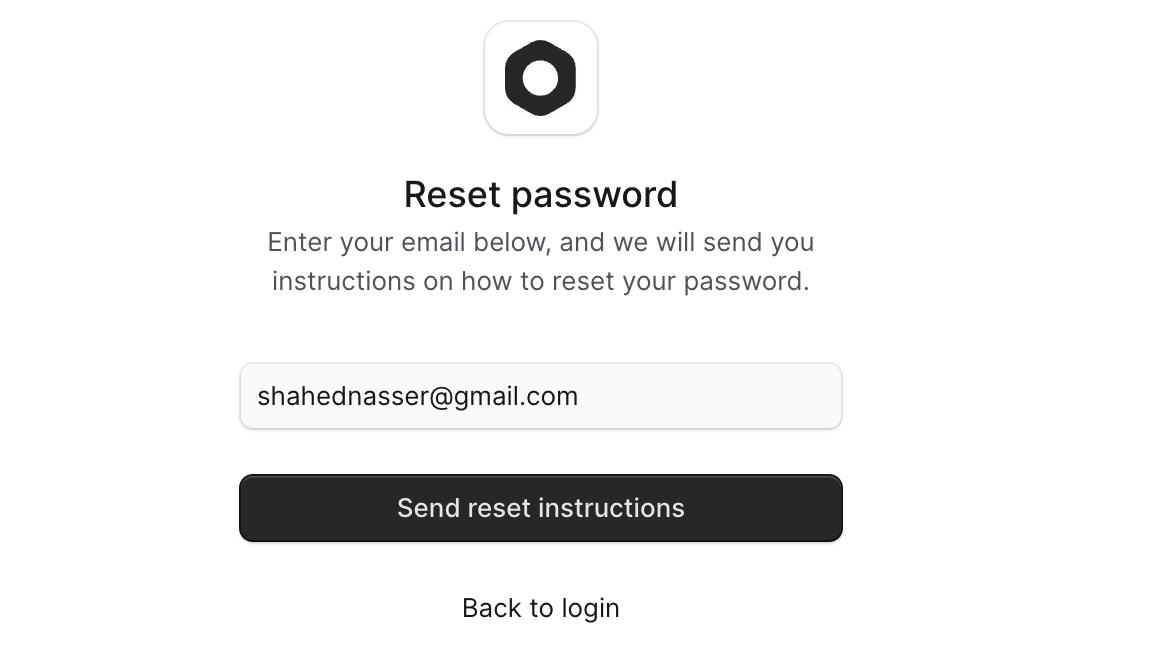
3. In the Reset Password form, enter your email address.
|
|
4. Click the "Send reset instructions" button.
|
|
|
|
You will receive an email with instructions to reset your password. The email will contain a link that will redirect you to the [password reset form](#2-reset-password).
|
|
|
|
<Note>
|
|
|
|
If you don't receive an email, check with your technical team to ensure they have installed a [Notification Module Provider](!resources!/architectural-modules/notification) and configured the [password reset notification](!resources!/commerce-modules/auth/reset-password).
|
|
|
|
</Note>
|
|
|
|
|
|
|
|
---
|
|
|
|
## 2. Reset Password
|
|
|
|
After you've [requested to reset the password](#1-request-to-reset-password), you can reset your password using the link in the email you received.
|
|
|
|
To reset your password:
|
|
|
|
1. Open the link in the email you received.
|
|
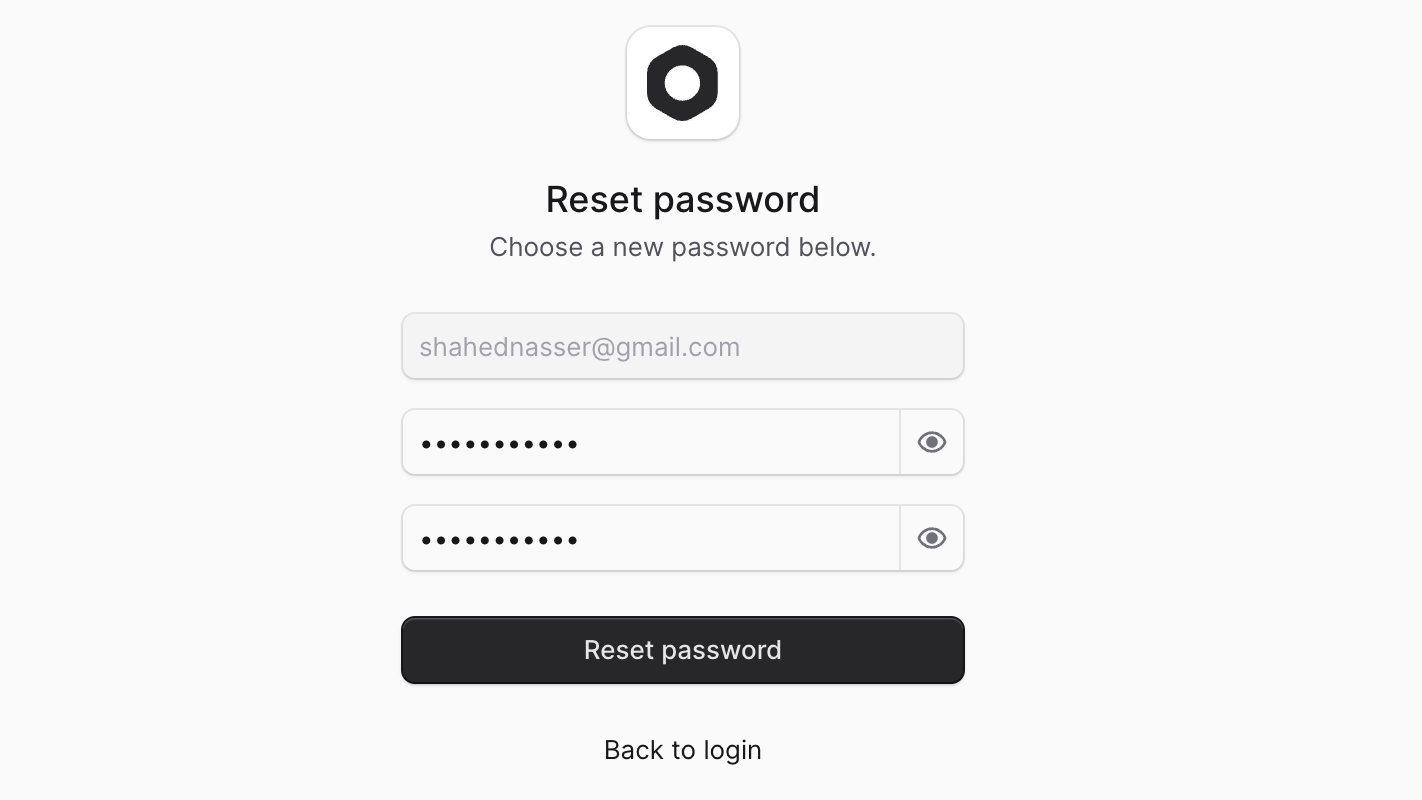
2. In the Reset Password form, enter your new password and confirm it.
|
|
3. Click the "Reset password" button.
|
|
|
|
Once you've reset your password, click the "Back to login" link to return to the login form.
|
|
|
|
|