
103 lines
4.4 KiB
Plaintext
103 lines
4.4 KiB
Plaintext
---
|
||
sidebar_position: 2
|
||
sidebar_label: "Manage Store"
|
||
tags:
|
||
- user guide
|
||
- store
|
||
- currency
|
||
---
|
||
|
||
import { EllipsisHorizontal, ArrowUpRightOnBox, EllipsisVertical } from "@medusajs/icons"
|
||
|
||
export const metadata = {
|
||
title: `Manage Store in Medusa Admin`,
|
||
}
|
||
|
||
# {metadata.title}
|
||
|
||
In this guide, you’ll learn how to edit the store’s details and available currencies.
|
||
|
||
## View Store Details
|
||
|
||
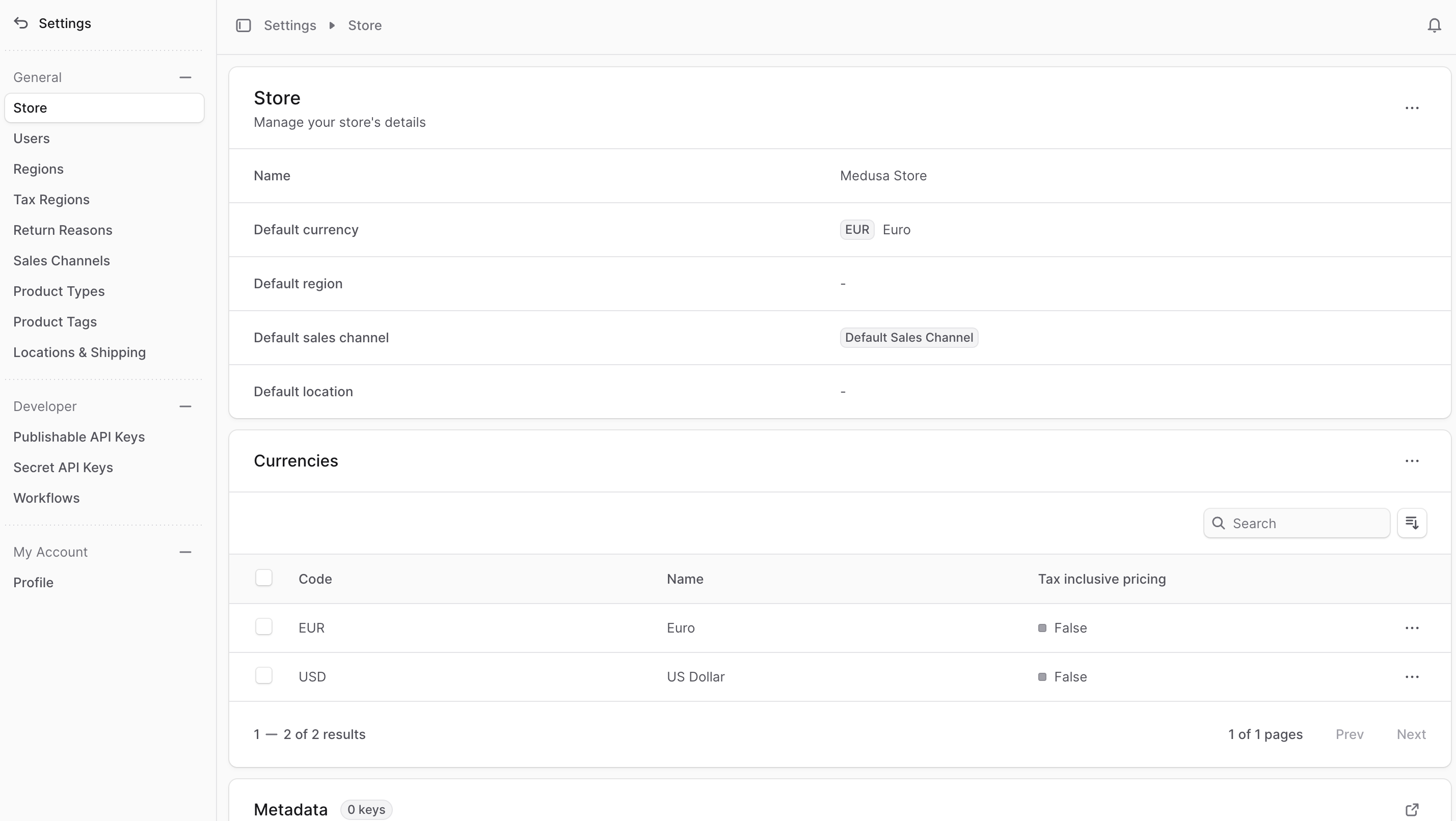
To view your store's details, go to Settings → Store. There, you can view and manage the store's details and its available currencies.
|
||
|
||
|
||
|
||
---
|
||
|
||
## Edit Store Details
|
||
|
||
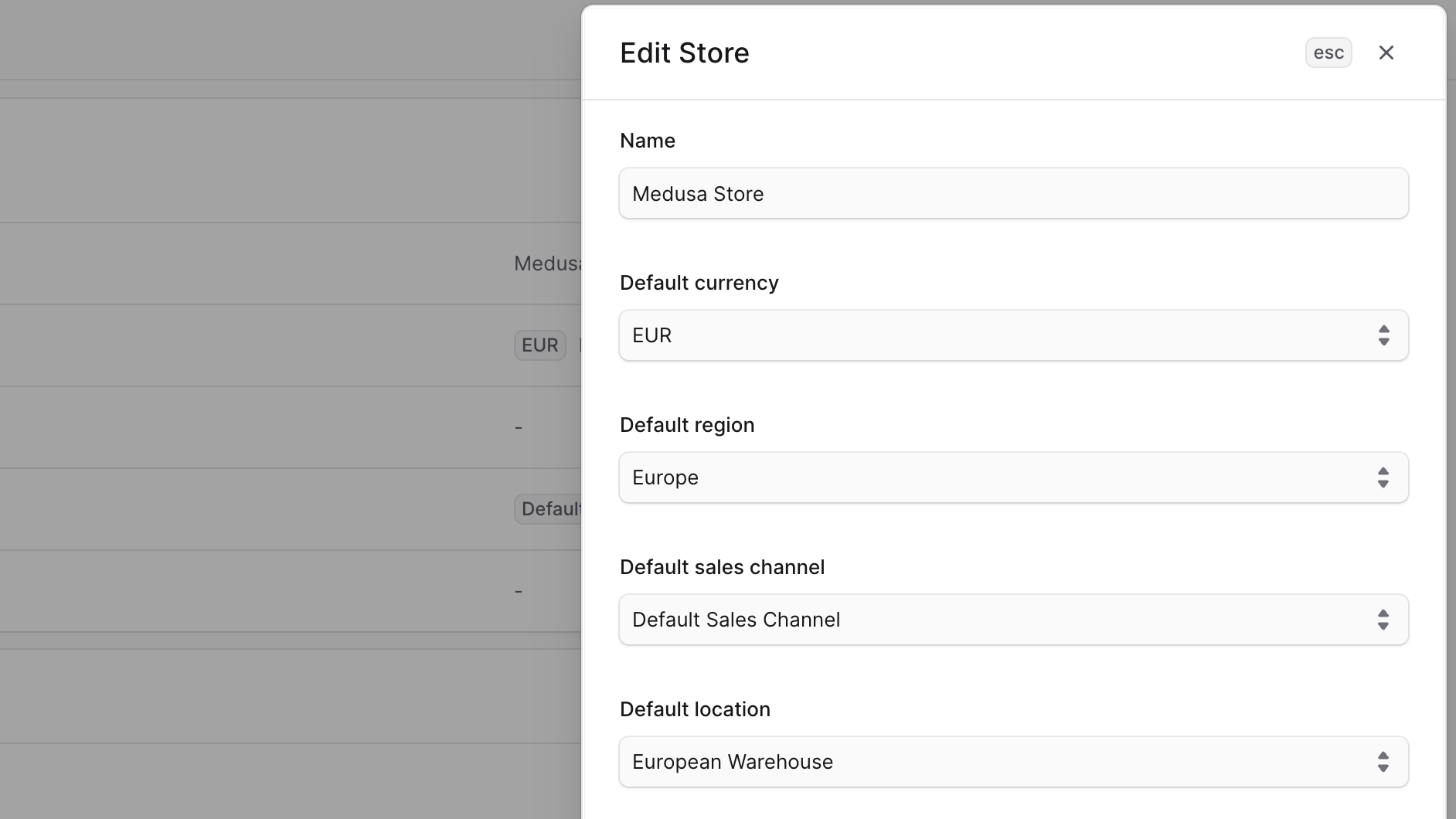
To edit the store’s details:
|
||
|
||
1. Go to Settings → Store.
|
||
2. Click the <InlineIcon Icon={EllipsisHorizontal} alt="three-dots" /> icon at the top right of the "Store" section.
|
||
3. Choose Edit from the dropdown.
|
||
4. In the side window that opens, you can edit the store's name, default currency, default region, default sales channel, and default location. These defaults are used in the storefront if no other values are provided.
|
||
5. Once you're done, click the Save button.
|
||
|
||
|
||
|
||
---
|
||
|
||
## Manage Currencies
|
||
|
||
Your store can support multiple currencies, allowing customers to view prices in their preferred currency. You can add or remove currencies in the store settings.
|
||
|
||
### Add Currencies
|
||
|
||
To add currencies to your store:
|
||
|
||
1. Go to Settings → Store.
|
||
2. Click the <InlineIcon Icon={EllipsisHorizontal} alt="three-dots" /> icon at the top right of the "Currencies" section.
|
||
3. Choose Add from the dropdown.
|
||
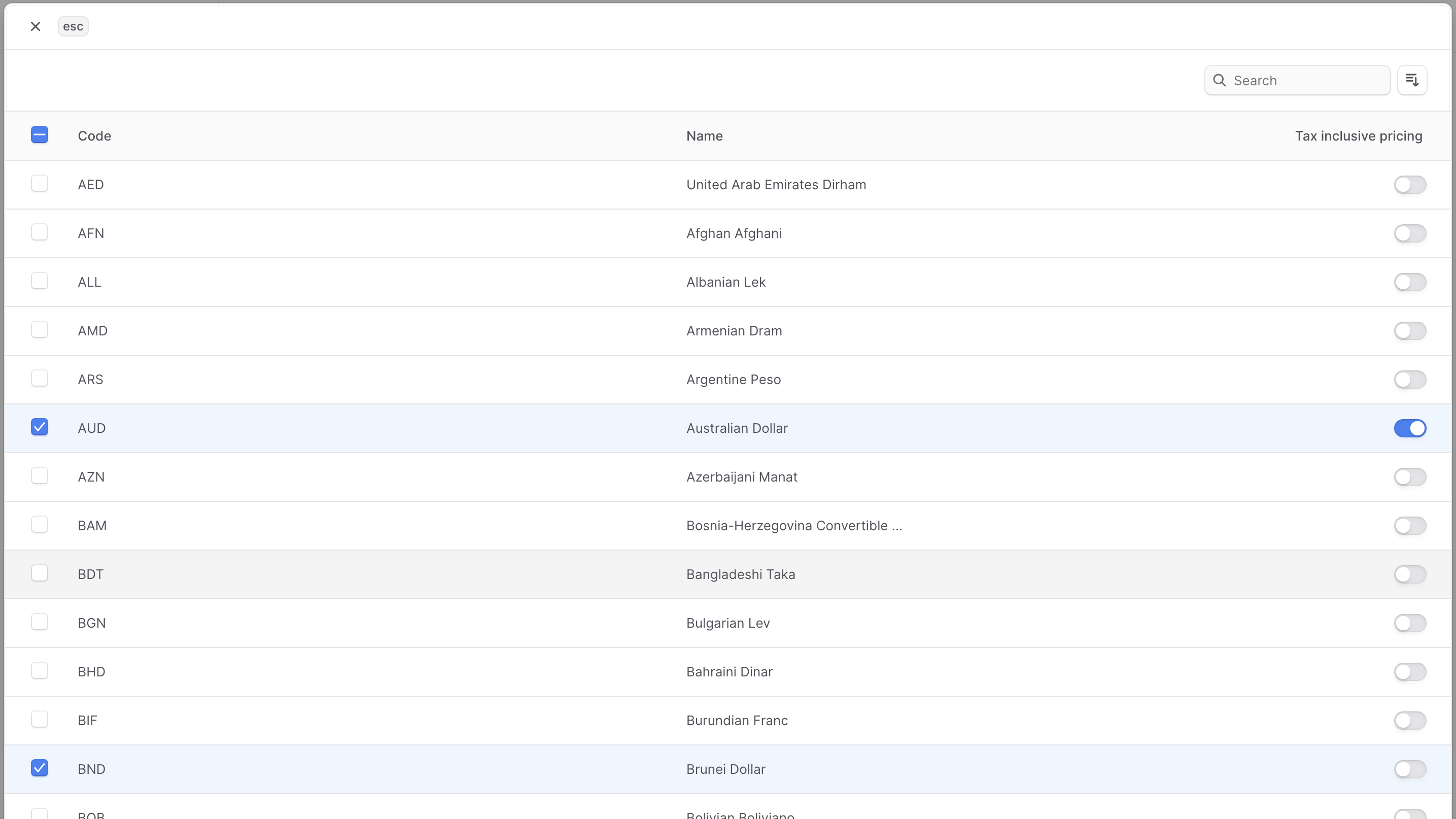
4. In the list that opens, check the currencies you want to add to the store.
|
||
- To enable [tax-inclusive pricing](#edit-tax-inclusive-setting-for-currency) for a currency, enable the toggle at the currency's right.
|
||
5. Once you're done, click the Save button.
|
||
|
||
|
||
|
||
### Edit Tax-Inclusive Setting for Currency
|
||
|
||
In the store's settings, you can also manage a currency's tax-inclusive price setting. During checkout, after Medusa calculates the tax of a product or shipping, it will either:
|
||
|
||
- Add the tax to the product's price (tax-exclusive pricing).
|
||
- Include the tax in the product's price (tax-inclusive pricing).
|
||
|
||
You can manage whether a currency uses tax-inclusive pricing when adding or editing it. To edit the tax-inclusive setting for a currency:
|
||
|
||
1. Go to Settings → Store.
|
||
2. Click the <InlineIcon Icon={EllipsisHorizontal} alt="three-dots" /> icon at the right of the currency you want to edit.
|
||
3. Choose "Enable tax-inclusive pricing" or "Disable tax-inclusive pricing" from the dropdown, depending on the current setting.
|
||
|
||
### Remove Currencies
|
||
|
||
You can remove any currency from your store that isn't the default currency. You can add the currency again later if needed.
|
||
|
||
To remove a currency:
|
||
|
||
1. Go to Settings → Store.
|
||
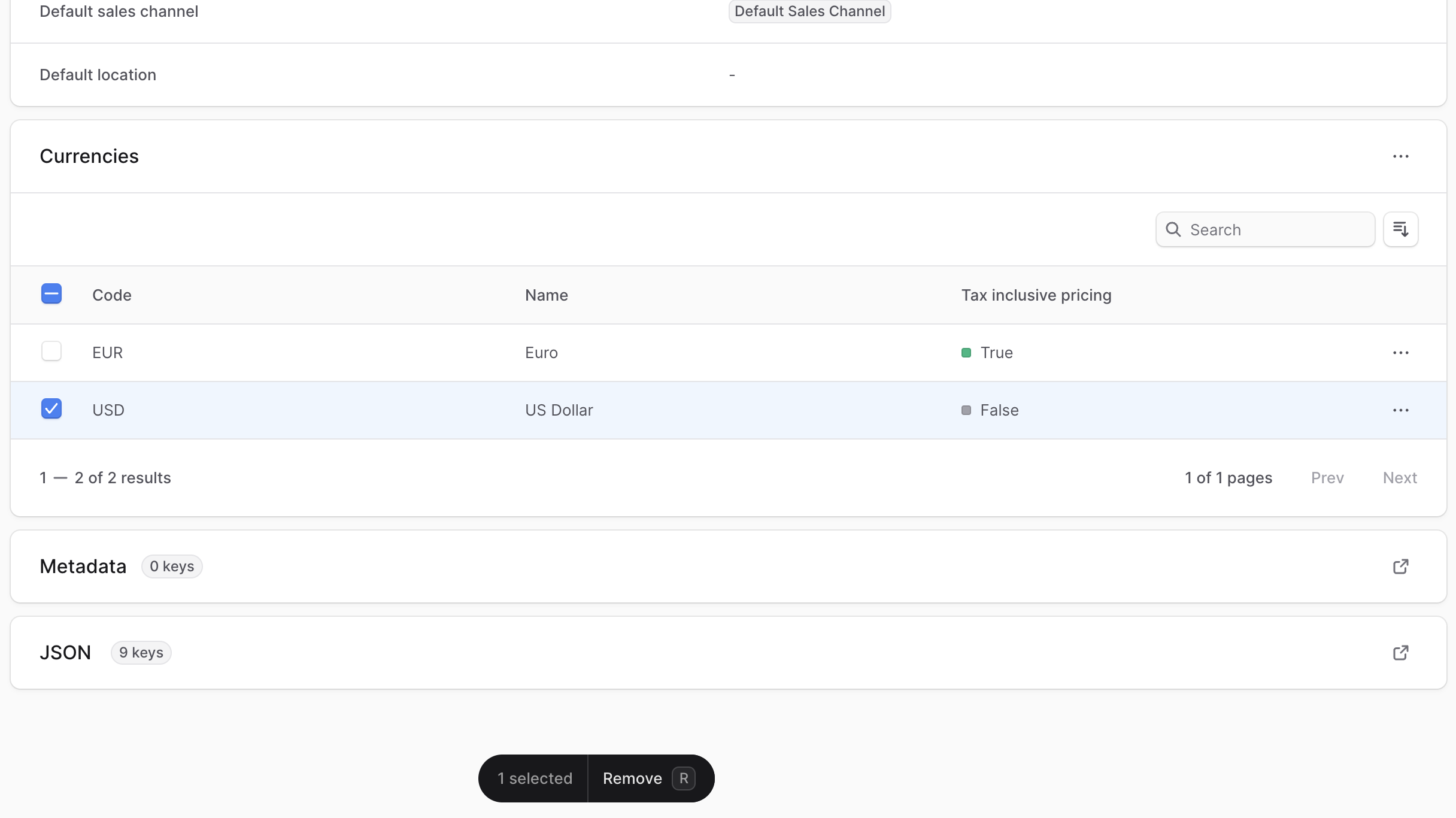
2. Under the Currencies section, check the checkbox next to the currencies you want to remove.
|
||
3. Press <Kbd>R</Kbd> or click the Remove button at the bottom center of the page.
|
||
4. Confirm removing the currencies by clicking the Remove button in the pop-up.
|
||
|
||
|
||
|
||
---
|
||
|
||
## Manage Store Metadata
|
||
|
||
Metadata is custom data that can be associated with the store in key-value pairs. This is usually used by developers for custom integrations or to store additional information about the store.
|
||
|
||
To edit the store's metadata:
|
||
|
||
1. Click the <InlineIcon Icon={ArrowUpRightOnBox} alt="arrow" /> icon at the right of the "Metadata" section.
|
||
2. In the side window that opens:
|
||
- Manage the key-value pairs in the table.
|
||
- To add a new row of key-value pairs before or after a row:
|
||
- Hover over the row and click the <InlineIcon Icon={EllipsisVertical} alt="three-dots" /> icon at its right.
|
||
- Choose "Insert row above" or "Insert row below" from the dropdown.
|
||
- To delete a row of key-value pairs:
|
||
- Hover over the row and click the <InlineIcon Icon={EllipsisVertical} alt="three-dots" /> icon at its right.
|
||
- Choose "Delete row" from the dropdown.
|
||
3. Once you're done, click the Save button.
|