
1173 lines
47 KiB
Plaintext
1173 lines
47 KiB
Plaintext
import { Card, Prerequisites, WorkflowDiagram } from "docs-ui"
|
|
import { Github } from "@medusajs/icons"
|
|
|
|
export const metadata = {
|
|
title: `How to Build Magento Data Migration Plugin`,
|
|
}
|
|
|
|
# {metadata.title}
|
|
|
|
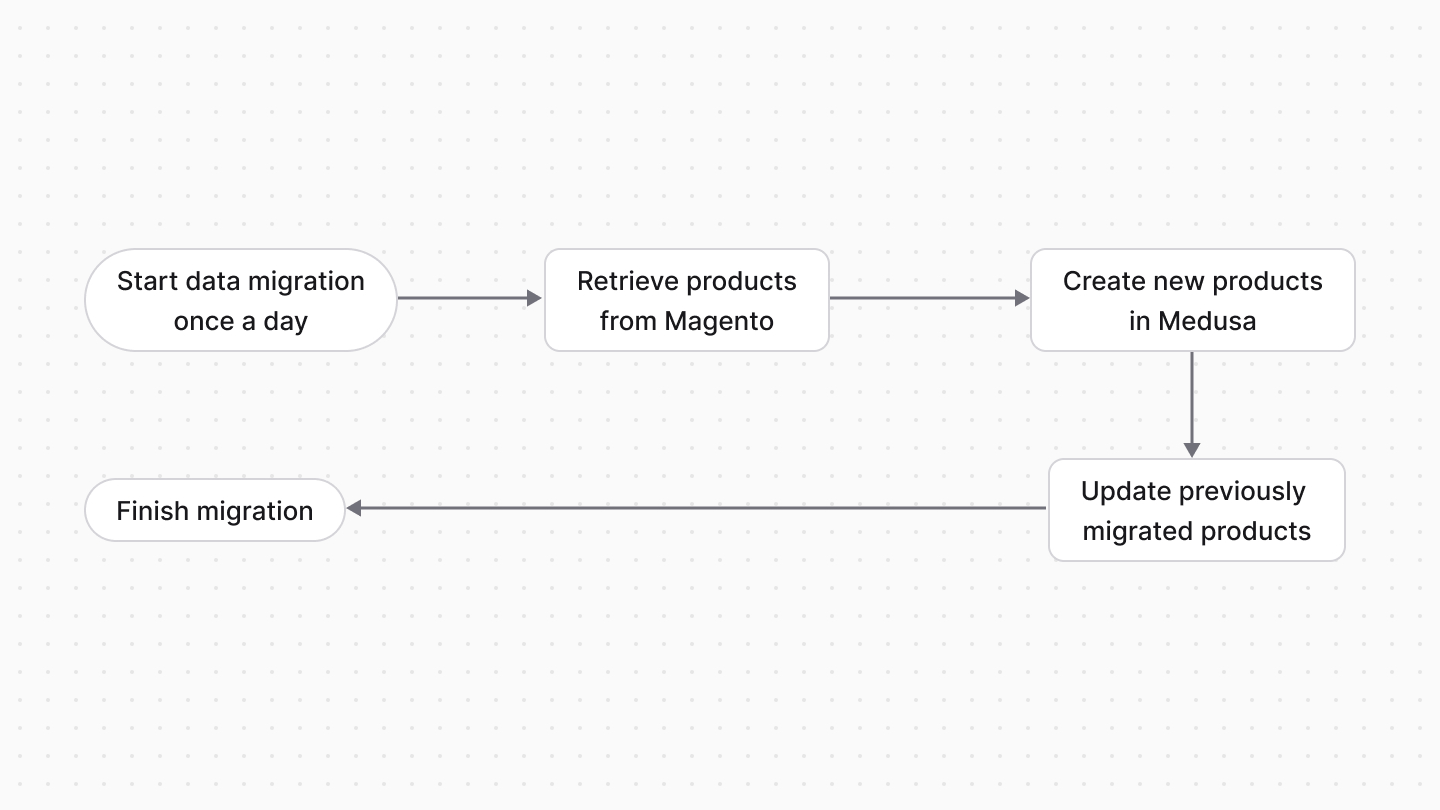
In this tutorial, you'll learn how to build a [plugin](!docs!/learn/fundamentals/plugins) that migrates data, such as products, from Magento to Medusa.
|
|
|
|
Magento is known for its customization capabilities. However, its monolithic architecture imposes limitations on business requirements, often forcing development teams to implement hacky workarounds. Over time, these customizations become challenging to maintain, especially as the business scales, leading to increased technical debt and slower feature delivery.
|
|
|
|
Medusa's modular architecture allows you to build a custom digital commerce platform that meets your business requirements without the limitations of a monolithic system. By migrating from Magento to Medusa, you can take advantage of Medusa's modern technology stack to build a scalable and flexible commerce platform that grows with your business.
|
|
|
|
By following this tutorial, you'll create a Medusa plugin that migrates data from a Magento server to a Medusa application in minimal time. You can re-use this plugin across multiple Medusa applications, allowing you to adopt Medusa across your projects.
|
|
|
|
## Summary
|
|
|
|
<Prerequisites
|
|
items={[
|
|
{
|
|
text: "Magento 2.x with admin credentials.",
|
|
}
|
|
]}
|
|
/>
|
|
|
|
This tutorial will teach you how to:
|
|
|
|
- Install and set up a Medusa application project.
|
|
- Install and set up a Medusa plugin.
|
|
- Implement a Magento Module in the plugin to connect to Magento's APIs and retrieve products.
|
|
- This guide will only focus on migrating product data from Magento to Medusa. You can extend the implementation to migrate other data, such as customers, orders, and more.
|
|
- Trigger data migration from Magento to Medusa in a scheduled job.
|
|
|
|
You can follow this tutorial whether you're new to Medusa or an advanced Medusa developer.
|
|
|
|
|
|
|
|
<Card
|
|
title="Example Repository"
|
|
text="Find the full code of the guide in this repository. The repository also includes additional features, such as triggering migrations from the Medusa Admin dashboard."
|
|
href="https://github.com/medusajs/examples/tree/main/migrate-from-magento"
|
|
icon={Github}
|
|
/>
|
|
|
|
---
|
|
|
|
## Step 1: Install a Medusa Application
|
|
|
|
You'll first install a Medusa application that exposes core commerce features through REST APIs. You'll later install the Magento plugin in this application to test it out.
|
|
|
|
<Prerequisites items={[
|
|
{
|
|
text: "Node.js v20+",
|
|
link: "https://nodejs.org/en/download"
|
|
},
|
|
{
|
|
text: "Git CLI tool",
|
|
link: "https://git-scm.com/downloads"
|
|
},
|
|
{
|
|
text: "PostgreSQL",
|
|
link: "https://www.postgresql.org/download/"
|
|
}
|
|
]} />
|
|
|
|
Start by installing the Medusa application on your machine with the following command:
|
|
|
|
```bash
|
|
npx create-medusa-app@latest
|
|
```
|
|
|
|
You'll be asked for the project's name. You can also optionally choose to install the [Next.js starter storefront](../../../nextjs-starter/page.mdx).
|
|
|
|
Afterward, the installation process will start, which will install the Medusa application in a directory with your project's name. If you chose to install the Next.js starter, it'll be installed in a separate directory with the `{project-name}-storefront` name.
|
|
|
|
<Note title="Why is the storefront installed separately?">
|
|
|
|
The Medusa application is composed of a headless Node.js server and an admin dashboard. The storefront is installed or custom-built separately and connects to the Medusa application through its REST endpoints, called [API routes](!docs!/learn/fundamentals/api-routes). Refer to the [Medusa Architecture](!docs!/learn/introduction/architecture) documentation to learn more.
|
|
|
|
</Note>
|
|
|
|
Once the installation finishes successfully, the Medusa Admin dashboard will open with a form to create a new user. Enter the user's credentials and submit the form. Afterward, you can log in with the new user and explore the dashboard.
|
|
|
|
<Note title="Ran into Errors?">
|
|
|
|
Check out the [troubleshooting guides](../../../troubleshooting/create-medusa-app-errors/page.mdx) for help.
|
|
|
|
</Note>
|
|
|
|
---
|
|
|
|
## Step 2: Install a Medusa Plugin Project
|
|
|
|
A plugin is a package of reusable Medusa customizations that you can install in any Medusa application. You can add in the plugin [API Routes](!docs!/learn/fundamentals/api-routes), [Workflows](!docs!/learn/fundamentals/workflows), and other customizations, as you'll see in this guide. Afterward, you can test it out locally in a Medusa application, then publish it to npm to install and use it in any Medusa application.
|
|
|
|
<Note>
|
|
|
|
Refer to the [Plugins](!docs!/learn/fundamentals/plugins) documentation to learn more about plugins.
|
|
|
|
</Note>
|
|
|
|
A Medusa plugin is set up in a different project, giving you the flexibility in building and publishing it, while providing you with the tools to test it out locally in a Medusa application.
|
|
|
|
To create a new Medusa plugin project, run the following command in a directory different than that of the Medusa application:
|
|
|
|
```bash npm2yarn
|
|
npx create-medusa-app@latest medusa-plugin-magento --plugin
|
|
```
|
|
|
|
Where `medusa-plugin-magento` is the name of the plugin's directory and the name set in the plugin's `package.json`. So, if you wish to publish it to NPM later under a different name, you can change it here in the command or later in `package.json`.
|
|
|
|
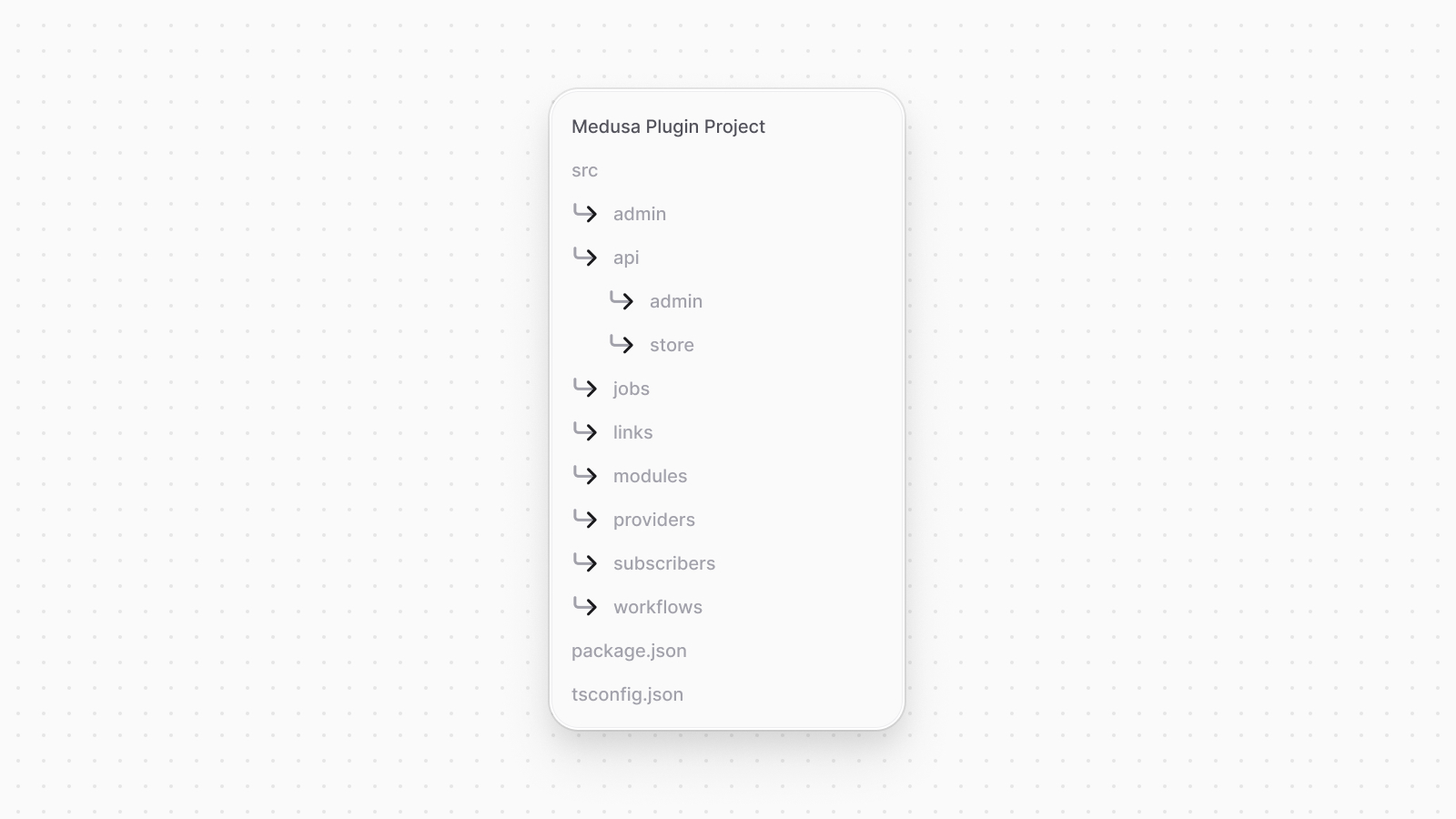
Once the installation process is done, a new directory named `medusa-plugin-magento` will be created with the plugin project files.
|
|
|
|
|
|
|
|
---
|
|
|
|
## Step 3: Set up Plugin in Medusa Application
|
|
|
|
Before you start your development, you'll set up the plugin in the Medusa application you installed in the first step. This will allow you to test the plugin during your development process.
|
|
|
|
In the plugin's directory, run the following command to publish the plugin to the local package registry:
|
|
|
|
```bash title="Plugin project"
|
|
npx medusa plugin:publish
|
|
```
|
|
|
|
This command uses [Yalc](https://github.com/wclr/yalc) under the hood to publish the plugin to a local package registry. The plugin is published locally under the name you specified in `package.json`.
|
|
|
|
Next, you'll install the plugin in the Medusa application from the local registry.
|
|
|
|
<Note>
|
|
|
|
If you've installed your Medusa project before v2.3.1, you must install [yalc](https://github.com/wclr/yalc) as a development dependency first.
|
|
|
|
</Note>
|
|
|
|
Run the following command in the Medusa application's directory to install the plugin:
|
|
|
|
```bash title="Medusa application"
|
|
npx medusa plugin:add medusa-plugin-magento
|
|
```
|
|
|
|
This command installs the plugin in the Medusa application from the local package registry.
|
|
|
|
Next, register the plugin in the `medusa-config.ts` file of the Medusa application:
|
|
|
|
```ts title="medusa-config.ts"
|
|
module.exports = defineConfig({
|
|
// ...
|
|
plugins: [
|
|
{
|
|
resolve: "medusa-plugin-magento",
|
|
options: {
|
|
// TODO add options
|
|
},
|
|
},
|
|
],
|
|
})
|
|
```
|
|
|
|
You add the plugin to the array of plugins. Later, you'll pass options useful to retrieve data from Magento.
|
|
|
|
Finally, to ensure your plugin's changes are constantly published to the local registry, simplifying your testing process, keep the following command running in the plugin project during development:
|
|
|
|
```bash title="Plugin project"
|
|
npx medusa plugin:develop
|
|
```
|
|
|
|
---
|
|
|
|
## Step 4: Implement Magento Module
|
|
|
|
To connect to external applications in Medusa, you create a custom module. A module is a reusable package with functionalities related to a single feature or domain. Medusa integrates the module into your application without implications or side effects on your setup.
|
|
|
|
In this step, you'll create a Magento Module in the Magento plugin that connects to a Magento server's REST APIs and retrieves data, such as products.
|
|
|
|
<Note>
|
|
|
|
Refer to the [Modules](!docs!/learn/fundamentals/modules) documentation to learn more about modules.
|
|
|
|
</Note>
|
|
|
|
### Create Module Directory
|
|
|
|
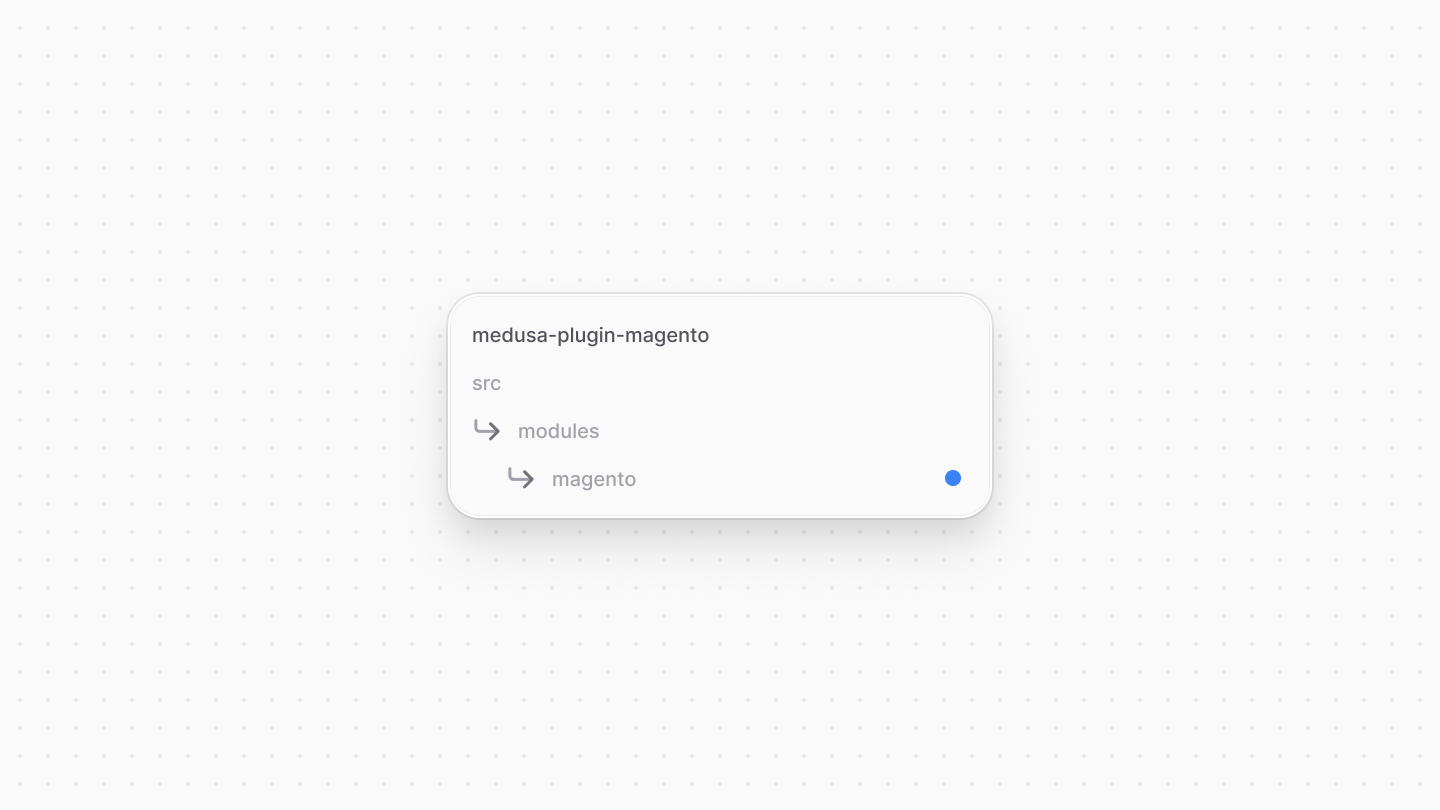
A module is created under the `src/modules` directory of your plugin. So, create the directory `src/modules/magento`.
|
|
|
|
|
|
|
|
### Create Module's Service
|
|
|
|
You define a module's functionalities in a service. A service is a TypeScript or JavaScript class that the module exports. In the service's methods, you can connect to external systems or the database, which is useful if your module defines tables in the database.
|
|
|
|
In this section, you'll create the Magento Module's service that connects to Magento's REST APIs and retrieves data.
|
|
|
|
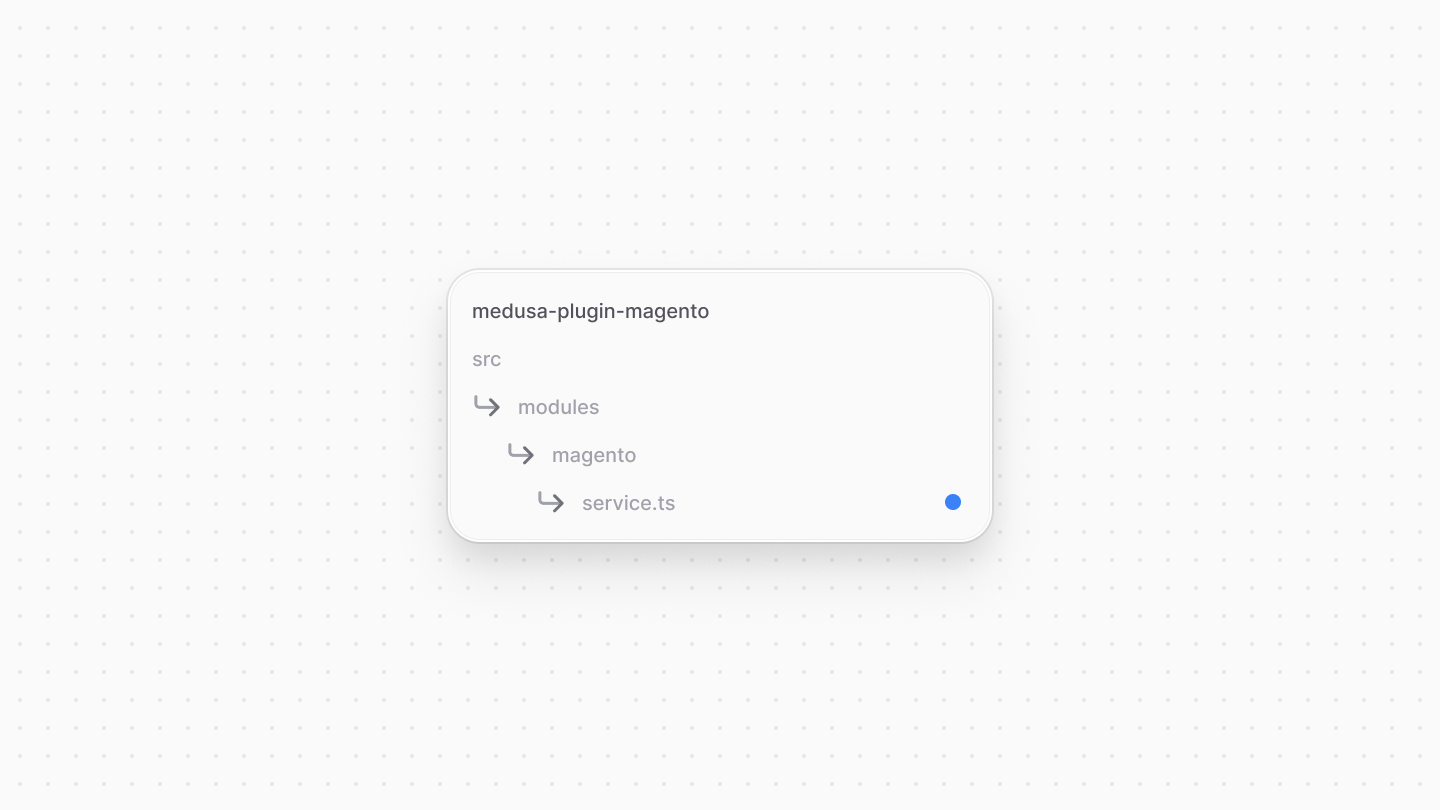
Start by creating the file `src/modules/magento/service.ts` in the plugin with the following content:
|
|
|
|
|
|
|
|
```ts title="src/modules/magento/service.ts"
|
|
type Options = {
|
|
baseUrl: string
|
|
storeCode?: string
|
|
username: string
|
|
password: string
|
|
migrationOptions?: {
|
|
imageBaseUrl?: string
|
|
}
|
|
}
|
|
|
|
export default class MagentoModuleService {
|
|
private options: Options
|
|
|
|
constructor({}, options: Options) {
|
|
this.options = {
|
|
...options,
|
|
storeCode: options.storeCode || "default",
|
|
}
|
|
}
|
|
}
|
|
```
|
|
|
|
You create a `MagentoModuleService` that has an `options` property to store the module's options. These options include:
|
|
|
|
- `baseUrl`: The base URL of the Magento server.
|
|
- `storeCode`: The store code of the Magento store, which is `default` by default.
|
|
- `username`: The username of a Magento admin user to authenticate with the Magento server.
|
|
- `password`: The password of the Magento admin user.
|
|
- `migrationOptions`: Additional options useful for migrating data, such as the base URL to use for product images.
|
|
|
|
The service's constructor accepts as a first parameter the [Module Container](!docs!/learn/fundamentals/modules/container), which allows you to access resources available for the module. As a second parameter, it accepts the module's options.
|
|
|
|
### Add Authentication Logic
|
|
|
|
To authenticate with the Magento server, you'll add a method to the service that retrieves an access token from Magento using the username and password in the options. This access token is used in subsequent requests to the Magento server.
|
|
|
|
First, add the following property to the `MagentoModuleService` class:
|
|
|
|
```ts title="src/modules/magento/service.ts"
|
|
export default class MagentoModuleService {
|
|
private accessToken: {
|
|
token: string
|
|
expiresAt: Date
|
|
}
|
|
// ...
|
|
}
|
|
```
|
|
|
|
You add an `accessToken` property to store the access token and its expiration date. The access token Magento returns expires after four hours, so you store the expiration date to know when to refresh the token.
|
|
|
|
Next, add the following `authenticate` method to the `MagentoModuleService` class:
|
|
|
|
```ts title="src/modules/magento/service.ts"
|
|
import { MedusaError } from "@medusajs/framework/utils"
|
|
|
|
export default class MagentoModuleService {
|
|
// ...
|
|
async authenticate() {
|
|
const response = await fetch(`${this.options.baseUrl}/rest/${this.options.storeCode}/V1/integration/admin/token`, {
|
|
method: "POST",
|
|
headers: {
|
|
"Content-Type": "application/json",
|
|
},
|
|
body: JSON.stringify({ username: this.options.username, password: this.options.password }),
|
|
})
|
|
|
|
const token = await response.text()
|
|
|
|
if (!response.ok) {
|
|
throw new MedusaError(MedusaError.Types.UNAUTHORIZED, `Failed to authenticate with Magento: ${token}`)
|
|
}
|
|
|
|
this.accessToken = {
|
|
token: token.replaceAll("\"", ""),
|
|
expiresAt: new Date(Date.now() + 4 * 60 * 60 * 1000), // 4 hours in milliseconds
|
|
}
|
|
}
|
|
}
|
|
```
|
|
|
|
You create an `authenticate` method that sends a POST request to the Magento server's `/rest/{storeCode}/V1/integration/admin/token` endpoint, passing the username and password in the request body.
|
|
|
|
If the request is successful, you store the access token and its expiration date in the `accessToken` property. If the request fails, you throw a `MedusaError` with the error message returned by Magento.
|
|
|
|
Lastly, add an `isAccessTokenExpired` method that checks if the access token has expired:
|
|
|
|
```ts title="src/modules/magento/service.ts"
|
|
export default class MagentoModuleService {
|
|
// ...
|
|
async isAccessTokenExpired(): Promise<boolean> {
|
|
return !this.accessToken || this.accessToken.expiresAt < new Date()
|
|
}
|
|
}
|
|
```
|
|
|
|
In the `isAccessTokenExpired` method, you return a boolean indicating whether the access token has expired. You'll use this in later methods to check if you need to refresh the access token.
|
|
|
|
### Retrieve Products from Magento
|
|
|
|
Next, you'll add a method that retrieves products from Magento. Due to limitations in Magento's API that makes it difficult to differentiate between simple products that don't belong to a configurable product and those that do, you'll only retrieve configurable products and their children. You'll also retrieve the configurable attributes of the product, such as color and size.
|
|
|
|
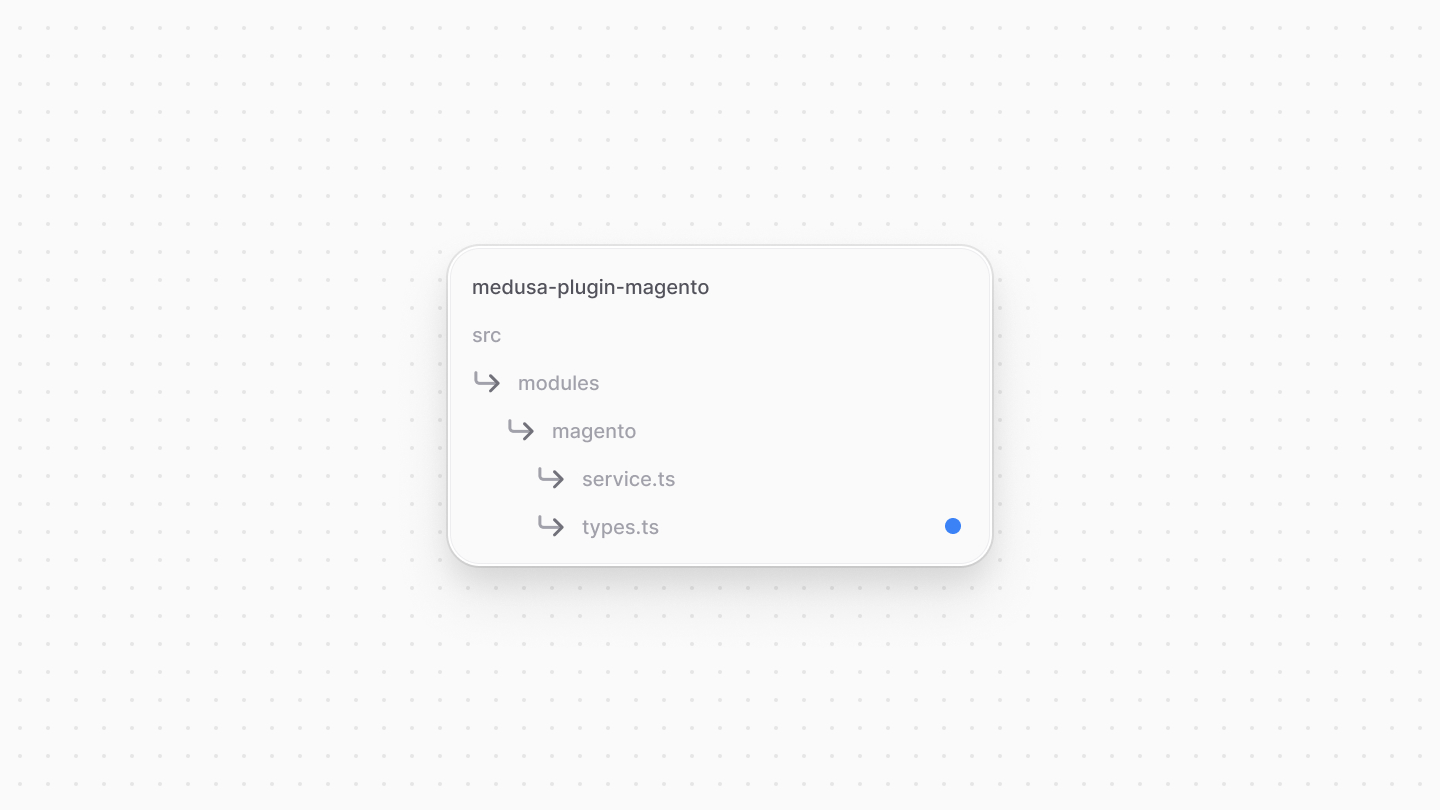
First, you'll add some types to represent a Magento product and its attributes. Create the file `src/modules/magento/types.ts` in the plugin with the following content:
|
|
|
|
|
|
|
|
```ts title="src/modules/magento/types.ts"
|
|
export type MagentoProduct = {
|
|
id: number
|
|
sku: string
|
|
name: string
|
|
price: number
|
|
status: number
|
|
// not handling other types
|
|
type_id: "simple" | "configurable"
|
|
created_at: string
|
|
updated_at: string
|
|
extension_attributes: {
|
|
category_links: {
|
|
category_id: string
|
|
}[]
|
|
configurable_product_links?: number[]
|
|
configurable_product_options?: {
|
|
id: number
|
|
attribute_id: string
|
|
label: string
|
|
position: number
|
|
values: {
|
|
value_index: number
|
|
}[]
|
|
}[]
|
|
}
|
|
media_gallery_entries: {
|
|
id: number
|
|
media_type: string
|
|
label: string
|
|
position: number
|
|
disabled: boolean
|
|
types: string[]
|
|
file: string
|
|
}[]
|
|
custom_attributes: {
|
|
attribute_code: string
|
|
value: string
|
|
}[]
|
|
// added by module
|
|
children?: MagentoProduct[]
|
|
}
|
|
|
|
export type MagentoAttribute = {
|
|
attribute_code: string
|
|
attribute_id: number
|
|
default_frontend_label: string
|
|
options: {
|
|
label: string
|
|
value: string
|
|
}[]
|
|
}
|
|
|
|
export type MagentoPagination = {
|
|
search_criteria: {
|
|
filter_groups: [],
|
|
page_size: number
|
|
current_page: number
|
|
}
|
|
total_count: number
|
|
}
|
|
|
|
export type MagentoPaginatedResponse<TData> = {
|
|
items: TData[]
|
|
} & MagentoPagination
|
|
```
|
|
|
|
You define the following types:
|
|
|
|
- `MagentoProduct`: Represents a product in Magento.
|
|
- `MagentoAttribute`: Represents an attribute in Magento.
|
|
- `MagentoPagination`: Represents the pagination information returned by Magento's API.
|
|
- `MagentoPaginatedResponse`: Represents a paginated response from Magento's API for a specific item type, such as products.
|
|
|
|
Next, add the `getProducts` method to the `MagentoModuleService` class:
|
|
|
|
```ts title="src/modules/magento/service.ts"
|
|
export default class MagentoModuleService {
|
|
// ...
|
|
async getProducts(options?: {
|
|
currentPage?: number
|
|
pageSize?: number
|
|
}): Promise<{
|
|
products: MagentoProduct[]
|
|
attributes: MagentoAttribute[]
|
|
pagination: MagentoPagination
|
|
}> {
|
|
const { currentPage = 1, pageSize = 100 } = options || {}
|
|
const getAccessToken = await this.isAccessTokenExpired()
|
|
if (getAccessToken) {
|
|
await this.authenticate()
|
|
}
|
|
|
|
// TODO prepare query params
|
|
}
|
|
}
|
|
```
|
|
|
|
The `getProducts` method receives an optional `options` object with the `currentPage` and `pageSize` properties. So far, you check if the access token has expired and, if so, retrieve a new one using the `authenticate` method.
|
|
|
|
Next, you'll prepare the query parameters to pass in the request that retrieves products. Replace the `TODO` with the following:
|
|
|
|
```ts title="src/modules/magento/service.ts"
|
|
const searchQuery = new URLSearchParams()
|
|
// pass pagination parameters
|
|
searchQuery.append(
|
|
"searchCriteria[currentPage]",
|
|
currentPage?.toString() || "1"
|
|
)
|
|
searchQuery.append(
|
|
"searchCriteria[pageSize]",
|
|
pageSize?.toString() || "100"
|
|
)
|
|
|
|
// retrieve only configurable products
|
|
searchQuery.append(
|
|
"searchCriteria[filter_groups][1][filters][0][field]",
|
|
"type_id"
|
|
)
|
|
searchQuery.append(
|
|
"searchCriteria[filter_groups][1][filters][0][value]",
|
|
"configurable"
|
|
)
|
|
searchQuery.append(
|
|
"searchCriteria[filter_groups][1][filters][0][condition_type]",
|
|
"in"
|
|
)
|
|
|
|
// TODO send request to retrieve products
|
|
```
|
|
|
|
You create a `searchQuery` object to store the query parameters to pass in the request. Then, you add the pagination parameters and the filter to retrieve only configurable products.
|
|
|
|
Next, you'll send the request to retrieve products from Magento. Replace the `TODO` with the following:
|
|
|
|
```ts title="src/modules/magento/service.ts"
|
|
const { items: products, ...pagination }: MagentoPaginatedResponse<MagentoProduct> = await fetch(
|
|
`${this.options.baseUrl}/rest/${this.options.storeCode}/V1/products?${searchQuery}`,
|
|
{
|
|
headers: {
|
|
"Authorization": `Bearer ${this.accessToken.token}`,
|
|
},
|
|
}
|
|
).then((res) => res.json())
|
|
.catch((err) => {
|
|
console.log(err)
|
|
throw new MedusaError(
|
|
MedusaError.Types.INVALID_DATA,
|
|
`Failed to get products from Magento: ${err.message}`
|
|
)
|
|
})
|
|
|
|
// TODO prepare products
|
|
```
|
|
|
|
You send a `GET` request to the Magento server's `/rest/{storeCode}/V1/products` endpoint, passing the query parameters in the URL. You also pass the access token in the `Authorization` header.
|
|
|
|
Next, you'll prepare the retrieved products by retrieving their children, configurable attributes, and modifying their image URLs. Replace the `TODO` with the following:
|
|
|
|
```ts title="src/modules/magento/service.ts"
|
|
const attributeIds: string[] = []
|
|
|
|
await promiseAll(
|
|
products.map(async (product) => {
|
|
// retrieve its children
|
|
product.children = await fetch(
|
|
`${this.options.baseUrl}/rest/${this.options.storeCode}/V1/configurable-products/${product.sku}/children`,
|
|
{
|
|
headers: {
|
|
"Authorization": `Bearer ${this.accessToken.token}`,
|
|
},
|
|
}
|
|
).then((res) => res.json())
|
|
.catch((err) => {
|
|
throw new MedusaError(
|
|
MedusaError.Types.INVALID_DATA,
|
|
`Failed to get product children from Magento: ${err.message}`
|
|
)
|
|
})
|
|
|
|
product.media_gallery_entries = product.media_gallery_entries.map(
|
|
(entry) => ({
|
|
...entry,
|
|
file: `${this.options.migrationOptions?.imageBaseUrl}${entry.file}`,
|
|
}
|
|
))
|
|
|
|
attributeIds.push(...(
|
|
product.extension_attributes.configurable_product_options?.map(
|
|
(option) => option.attribute_id) || []
|
|
)
|
|
)
|
|
})
|
|
)
|
|
|
|
// TODO retrieve attributes
|
|
```
|
|
|
|
You loop over the retrieved products and retrieve their children using the `/rest/{storeCode}/V1/configurable-products/{sku}/children` endpoint. You also modify the image URLs to use the base URL in the migration options, if provided.
|
|
|
|
In addition, you store the IDs of the configurable products' attributes in the `attributeIds` array. You'll add a method that retrieves these attributes.
|
|
|
|
Add the new method `getAttributes` to the `MagentoModuleService` class:
|
|
|
|
```ts title="src/modules/magento/service.ts"
|
|
export default class MagentoModuleService {
|
|
// ...
|
|
async getAttributes({
|
|
ids,
|
|
}: {
|
|
ids: string[]
|
|
}): Promise<MagentoAttribute[]> {
|
|
const getAccessToken = await this.isAccessTokenExpired()
|
|
if (getAccessToken) {
|
|
await this.authenticate()
|
|
}
|
|
|
|
// filter by attribute IDs
|
|
const searchQuery = new URLSearchParams()
|
|
searchQuery.append(
|
|
"searchCriteria[filter_groups][0][filters][0][field]",
|
|
"attribute_id"
|
|
)
|
|
searchQuery.append(
|
|
"searchCriteria[filter_groups][0][filters][0][value]",
|
|
ids.join(",")
|
|
)
|
|
searchQuery.append(
|
|
"searchCriteria[filter_groups][0][filters][0][condition_type]",
|
|
"in"
|
|
)
|
|
|
|
const {
|
|
items: attributes,
|
|
}: MagentoPaginatedResponse<MagentoAttribute> = await fetch(
|
|
`${this.options.baseUrl}/rest/${this.options.storeCode}/V1/products/attributes?${searchQuery}`,
|
|
{
|
|
headers: {
|
|
"Authorization": `Bearer ${this.accessToken.token}`,
|
|
},
|
|
}
|
|
).then((res) => res.json())
|
|
.catch((err) => {
|
|
throw new MedusaError(
|
|
MedusaError.Types.INVALID_DATA,
|
|
`Failed to get attributes from Magento: ${err.message}`
|
|
)
|
|
})
|
|
|
|
return attributes
|
|
}
|
|
}
|
|
```
|
|
|
|
The `getAttributes` method receives an object with the `ids` property, which is an array of attribute IDs. You check if the access token has expired and, if so, retrieve a new one using the `authenticate` method.
|
|
|
|
Next, you prepare the query parameters to pass in the request to retrieve attributes. You send a `GET` request to the Magento server's `/rest/{storeCode}/V1/products/attributes` endpoint, passing the query parameters in the URL. You also pass the access token in the `Authorization` header.
|
|
|
|
Finally, you return the retrieved attributes.
|
|
|
|
Now, go back to the `getProducts` method and replace the `TODO` with the following:
|
|
|
|
```ts title="src/modules/magento/service.ts"
|
|
const attributes = await this.getAttributes({ ids: attributeIds })
|
|
|
|
return { products, attributes, pagination }
|
|
```
|
|
|
|
You retrieve the configurable products' attributes using the `getAttributes` method and return the products, attributes, and pagination information.
|
|
|
|
You'll use this method in a later step to retrieve products from Magento.
|
|
|
|
### Export Module Definition
|
|
|
|
The final piece to a module is its definition, which you export in an `index.ts` file at its root directory. This definition tells Medusa the name of the module and its service.
|
|
|
|
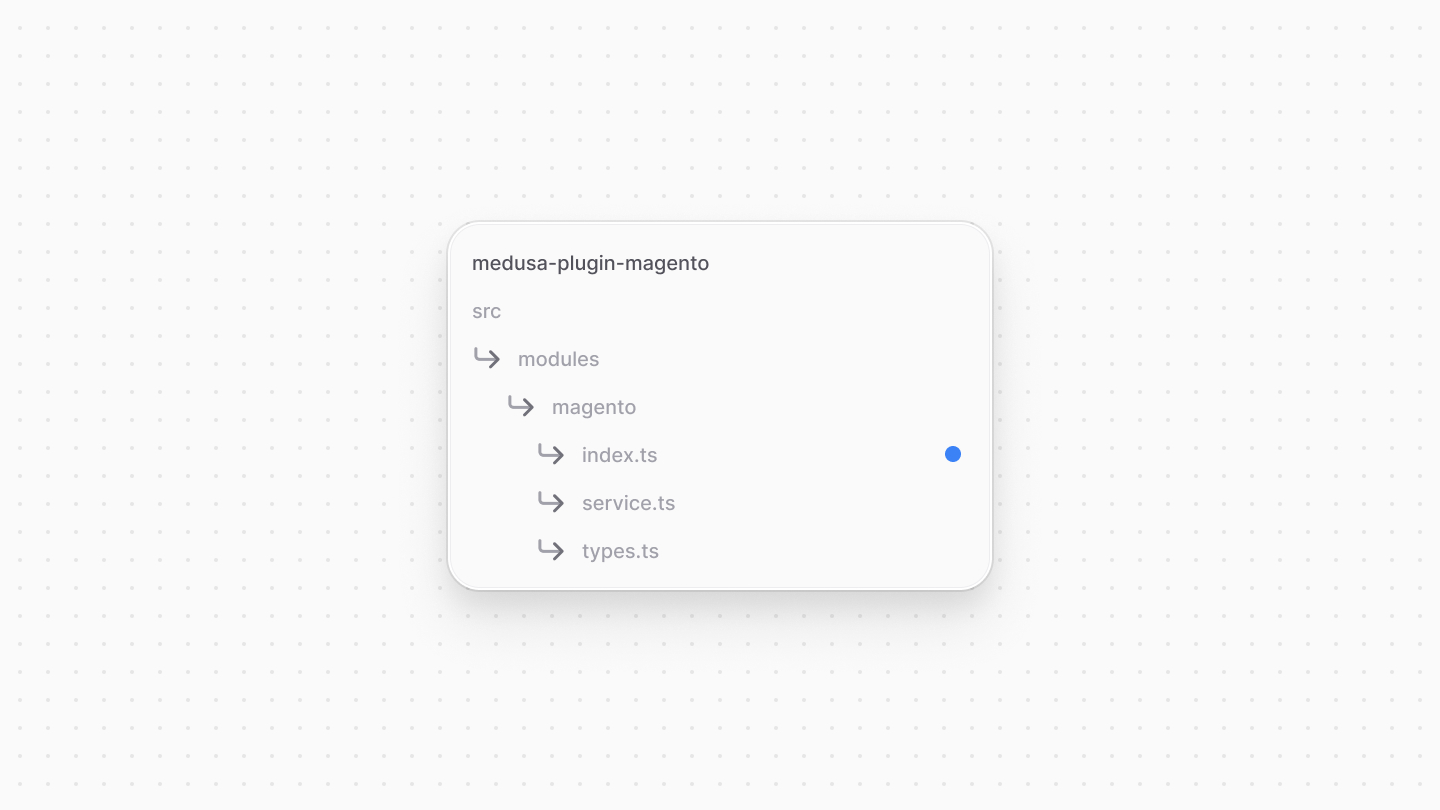
So, create the file `src/modules/magento/index.ts` with the following content:
|
|
|
|
|
|
|
|
```ts title="src/modules/magento/index.ts"
|
|
import { Module } from "@medusajs/framework/utils"
|
|
import MagentoModuleService from "./service"
|
|
|
|
export const MAGENTO_MODULE = "magento"
|
|
|
|
export default Module(MAGENTO_MODULE, {
|
|
service: MagentoModuleService,
|
|
})
|
|
```
|
|
|
|
You use the `Module` function from the Modules SDK to create the module's definition. It accepts two parameters:
|
|
|
|
1. The module's name, which is `magento`.
|
|
2. An object with a required property `service` indicating the module's service.
|
|
|
|
You'll later use the module's service to retrieve products from Magento.
|
|
|
|
### Pass Options to Plugin
|
|
|
|
As mentioned earlier when you registered the plugin in the Medusa Application's `medusa-config.ts` file, you can pass options to the plugin. These options are then passed to the modules in the plugin.
|
|
|
|
So, add the following options to the plugin's registration in the `medusa-config.ts` file of the Medusa application:
|
|
|
|
```ts title="medusa-config.ts"
|
|
module.exports = defineConfig({
|
|
// ...
|
|
plugins: [
|
|
{
|
|
resolve: "medusa-plugin-magento",
|
|
options: {
|
|
baseUrl: process.env.MAGENTO_BASE_URL,
|
|
username: process.env.MAGENTO_USERNAME,
|
|
password: process.env.MAGENTO_PASSWORD,
|
|
migrationOptions: {
|
|
imageBaseUrl: process.env.MAGENTO_IMAGE_BASE_URL,
|
|
},
|
|
},
|
|
},
|
|
],
|
|
})
|
|
```
|
|
|
|
You pass the options that you defined in the `MagentoModuleService`. Make sure to also set their environment variables in the `.env` file:
|
|
|
|
```bash
|
|
MAGENTO_BASE_URL=https://magento.example.com
|
|
MAGENTO_USERNAME=admin
|
|
MAGENTO_PASSWORD=password
|
|
MAGENTO_IMAGE_BASE_URL=https://magento.example.com/pub/media/catalog/product
|
|
```
|
|
|
|
Where:
|
|
|
|
- `MAGENTO_BASE_URL`: The base URL of the Magento server. It can also be a local URL, such as `http://localhost:8080`.
|
|
- `MAGENTO_USERNAME`: The username of a Magento admin user to authenticate with the Magento server.
|
|
- `MAGENTO_PASSWORD`: The password of the Magento admin user.
|
|
- `MAGENTO_IMAGE_BASE_URL`: The base URL to use for product images. Magento stores product images in the `pub/media/catalog/product` directory, so you can reference them directly or use a CDN URL. If the URLs of product images in the Medusa server already have a different base URL, you can omit this option.
|
|
|
|
<Note title="Tip">
|
|
|
|
Medusa supports integrating third-party services, such as [S3](../../../architectural-modules/file/s3/page.mdx), in a File Module Provider. Refer to the [File Module](../../../architectural-modules/file/page.mdx) documentation to find other module providers and how to create a custom provider.
|
|
|
|
</Note>
|
|
|
|
You can now use the Magento Module to migrate data, which you'll do in the next steps.
|
|
|
|
---
|
|
|
|
## Step 5: Build Product Migration Workflow
|
|
|
|
In this section, you'll add the feature to migrate products from Magento to Medusa. To implement this feature, you'll use a workflow.
|
|
|
|
A workflow is a series of queries and actions, called steps, that complete a task. You construct a workflow like you construct a function, but it's a special function that allows you to track its executions' progress, define roll-back logic, and configure other advanced features. Then, you execute the workflow from other customizations, such as in an API route or a scheduled job.
|
|
|
|
By implementing the migration feature in a workflow, you ensure that the data remains consistent and that the migration process can be rolled back if an error occurs.
|
|
|
|
<Note>
|
|
|
|
Refer to the [Workflows](!docs!/learn/fundamentals/workflows) documentation to learn more about workflows.
|
|
|
|
</Note>
|
|
|
|
### Workflow Steps
|
|
|
|
The workflow you'll create will have the following steps:
|
|
|
|
<WorkflowDiagram
|
|
workflow={{
|
|
name: "migrateProductsFromMagentoWorkflow",
|
|
steps: [
|
|
{
|
|
type: "step",
|
|
name: "getMagentoProductsStep",
|
|
description: "Retrieve products from Magento using the Magento Module.",
|
|
depth: 1,
|
|
},
|
|
{
|
|
type: "step",
|
|
name: "useQueryGraphStep",
|
|
description: "Retrieve Medusa store details, which you'll need when creating the products.",
|
|
depth: 1,
|
|
link: "/references/helper-steps/useQueryGraphStep"
|
|
},
|
|
{
|
|
type: "step",
|
|
name: "useQueryGraphStep",
|
|
description: "Retrieve a shipping profile, which you'll associate the created products with.",
|
|
depth: 1,
|
|
link: "/references/helper-steps/useQueryGraphStep"
|
|
},
|
|
{
|
|
type: "step",
|
|
name: "useQueryGraphStep",
|
|
description: "Retrieve Magento products that are already in Medusa to update them, instead of creating them.",
|
|
depth: 1,
|
|
link: "/references/helper-steps/useQueryGraphStep"
|
|
},
|
|
{
|
|
type: "workflow",
|
|
name: "createProductsWorkflow",
|
|
description: "Create products in the Medusa application.",
|
|
depth: 1,
|
|
link: "/references/medusa-workflows/createProductsWorkflow"
|
|
},
|
|
{
|
|
type: "workflow",
|
|
name: "updateProductsWorkflow",
|
|
description: "Update existing products in the Medusa application.",
|
|
depth: 1,
|
|
link: "/references/medusa-workflows/updateProductsWorkflow"
|
|
}
|
|
]
|
|
}}
|
|
hideLegend
|
|
/>
|
|
|
|
You only need to implement the `getMagentoProductsStep` step, which retrieves the products from Magento. The other steps and workflows are provided by Medusa's `@medusajs/medusa/core-flows` package.
|
|
|
|
### getMagentoProductsStep
|
|
|
|
The first step of the workflow retrieves and returns the products from Magento.
|
|
|
|
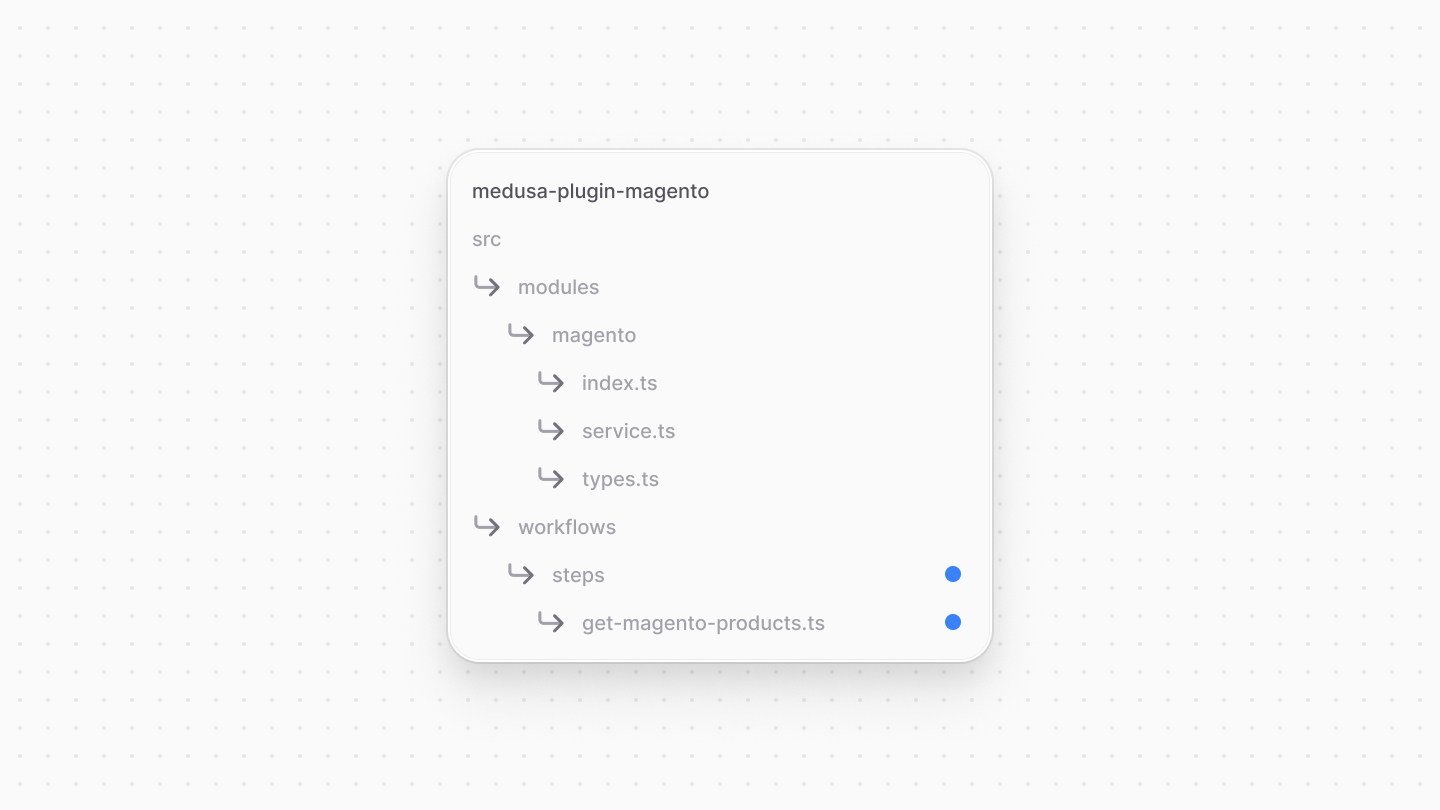
In your plugin, create the file `src/workflows/steps/get-magento-products.ts` with the following content:
|
|
|
|
|
|
|
|
```ts title="src/workflows/steps/get-magento-products.ts"
|
|
import { createStep, StepResponse } from "@medusajs/framework/workflows-sdk"
|
|
import { MAGENTO_MODULE } from "../../modules/magento"
|
|
import MagentoModuleService from "../../modules/magento/service"
|
|
|
|
type GetMagentoProductsInput = {
|
|
currentPage: number
|
|
pageSize: number
|
|
}
|
|
|
|
export const getMagentoProductsStep = createStep(
|
|
"get-magento-products",
|
|
async ({ currentPage, pageSize }: GetMagentoProductsInput, { container }) => {
|
|
const magentoModuleService: MagentoModuleService =
|
|
container.resolve(MAGENTO_MODULE)
|
|
|
|
const response = await magentoModuleService.getProducts({
|
|
currentPage,
|
|
pageSize,
|
|
})
|
|
|
|
return new StepResponse(response)
|
|
}
|
|
)
|
|
```
|
|
|
|
You create a step using `createStep` from the Workflows SDK. It accepts two parameters:
|
|
|
|
1. The step's name, which is `get-magento-products`.
|
|
1. An async function that executes the step's logic. The function receives two parameters:
|
|
- The input data for the step, which in this case is the pagination parameters.
|
|
- An object holding the workflow's context, including the [Medusa Container](!docs!learn/fundamentals/medusa-container) that allows you to resolve framework and commerce tools.
|
|
|
|
In the step function, you resolve the Magento Module's service from the container, then use its `getProducts` method to retrieve the products from Magento.
|
|
|
|
Steps that return data must return them in a `StepResponse` instance. The `StepResponse` constructor accepts as a parameter the data to return.
|
|
|
|
### Create migrateProductsFromMagentoWorkflow
|
|
|
|
You'll now create the workflow that migrates products from Magento using the step you created and steps from Medusa's `@medusajs/medusa/core-flows` package.
|
|
|
|
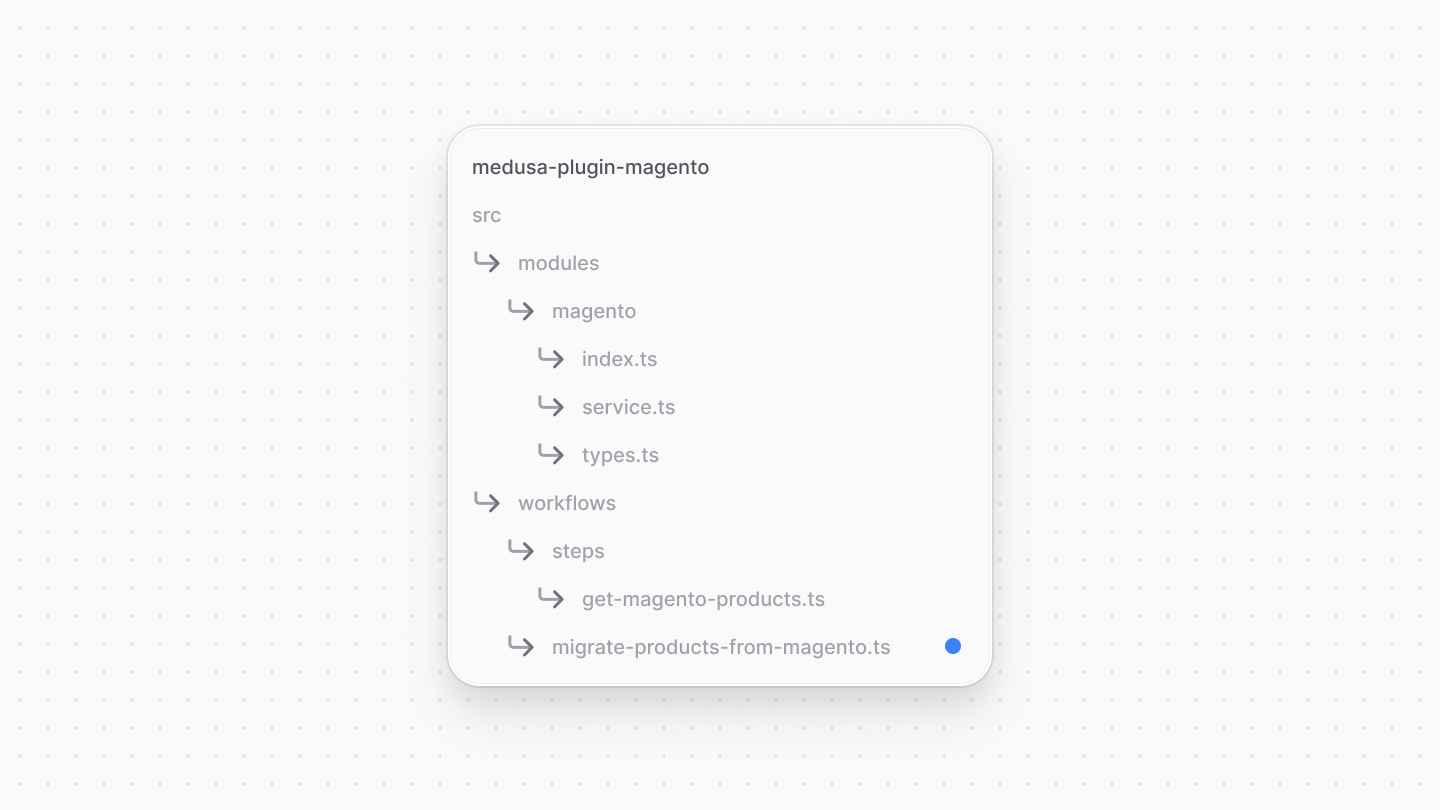
In your plugin, create the file `src/workflows/migrate-products-from-magento.ts` with the following content:
|
|
|
|
|
|
|
|
```ts title="src/workflows/migrate-products-from-magento.ts"
|
|
import {
|
|
createWorkflow, transform, WorkflowResponse,
|
|
} from "@medusajs/framework/workflows-sdk"
|
|
import {
|
|
CreateProductWorkflowInputDTO, UpsertProductDTO,
|
|
} from "@medusajs/framework/types"
|
|
import {
|
|
createProductsWorkflow,
|
|
updateProductsWorkflow,
|
|
useQueryGraphStep,
|
|
} from "@medusajs/medusa/core-flows"
|
|
import { getMagentoProductsStep } from "./steps/get-magento-products"
|
|
|
|
type MigrateProductsFromMagentoWorkflowInput = {
|
|
currentPage: number
|
|
pageSize: number
|
|
}
|
|
|
|
export const migrateProductsFromMagentoWorkflowId =
|
|
"migrate-products-from-magento"
|
|
|
|
export const migrateProductsFromMagentoWorkflow = createWorkflow(
|
|
{
|
|
name: migrateProductsFromMagentoWorkflowId,
|
|
retentionTime: 10000,
|
|
store: true,
|
|
},
|
|
(input: MigrateProductsFromMagentoWorkflowInput) => {
|
|
const { pagination, products, attributes } = getMagentoProductsStep(
|
|
input
|
|
)
|
|
// TODO prepare data to create and update products
|
|
}
|
|
)
|
|
```
|
|
|
|
You create a workflow using `createWorkflow` from the Workflows SDK. It accepts two parameters:
|
|
|
|
1. An object with the workflow's configuration, including the name and whether to store the workflow's executions. You enable storing the workflow execution so that you can view it later in the Medusa Admin dashboard.
|
|
2. A worflow constructor function, which holds the workflow's implementation. The function receives the input data for the workflow, which is the pagination parameters.
|
|
|
|
In the workflow constructor function, you use the `getMagentoProductsStep` step to retrieve the products from Magento, passing it the pagination parameters from the workflow's input.
|
|
|
|
Next, you'll retrieve the Medusa store details and shipping profiles. These are necessary to prepare the data of the products to create or update.
|
|
|
|
Replace the `TODO` in the workflow function with the following:
|
|
|
|
```ts title="src/workflows/migrate-products-from-magento.ts"
|
|
const { data: stores } = useQueryGraphStep({
|
|
entity: "store",
|
|
fields: ["supported_currencies.*", "default_sales_channel_id"],
|
|
pagination: {
|
|
take: 1,
|
|
skip: 0,
|
|
},
|
|
})
|
|
|
|
const { data: shippingProfiles } = useQueryGraphStep({
|
|
entity: "shipping_profile",
|
|
fields: ["id"],
|
|
pagination: {
|
|
take: 1,
|
|
skip: 0,
|
|
},
|
|
}).config({ name: "get-shipping-profiles" })
|
|
|
|
// TODO retrieve existing products
|
|
```
|
|
|
|
You use the `useQueryGraphStep` step to retrieve the store details and shipping profiles. `useQueryGraphStep` is a Medusa step that wraps [Query](!docs!/learn/fundamentals/module-links/query), allowing you to use it in a workflow. Query is a tool that retrieves data across modules.
|
|
|
|
Whe retrieving the store details, you specifically retrieve its supported currencies and default sales channel ID. You'll associate the products with the store's default sales channel, and set their variant prices in the supported currencies. You'll also associate the products with a shipping profile.
|
|
|
|
Next, you'll retrieve products that were previously migrated from Magento to determine which products to create or update. Replace the `TODO` with the following:
|
|
|
|
```ts title="src/workflows/migrate-products-from-magento.ts"
|
|
const externalIdFilters = transform({
|
|
products,
|
|
}, (data) => {
|
|
return data.products.map((product) => product.id.toString())
|
|
})
|
|
|
|
const { data: existingProducts } = useQueryGraphStep({
|
|
entity: "product",
|
|
fields: ["id", "external_id", "variants.id", "variants.metadata"],
|
|
filters: {
|
|
external_id: externalIdFilters,
|
|
},
|
|
}).config({ name: "get-existing-products" })
|
|
|
|
// TODO prepare products to create or update
|
|
```
|
|
|
|
Since the Medusa application creates an internal representation of the workflow's constructor function, you can't manipulate data directly, as variables have no value while creating the internal representation.
|
|
|
|
<Note>
|
|
|
|
Refer to the [Workflows](!docs!/learn/fundamentals/workflows/constructor-constraints) documentation to learn more about the workflow constructor function's constraints.
|
|
|
|
</Note>
|
|
|
|
Instead, you can manipulate data in a workflow's constructor function using `transform` from the Workflows SDK. `transform` is a function that accepts two parameters:
|
|
|
|
- The data to transform, which in this case is the Magento products.
|
|
- A function that transforms the data. The function receives the data passed in the first parameter and returns the transformed data.
|
|
|
|
In the transformation function, you return the IDs of the Magento products. Then, you use the `useQueryGraphStep` to retrieve products in the Medusa application that have an `external_id` property matching the IDs of the Magento products. You'll use this property to store the IDs of the products in Magento.
|
|
|
|
Next, you'll prepare the data to create and update the products. Replace the `TODO` in the workflow function with the following:
|
|
|
|
export const prepareHighlights = [
|
|
["2", "productsToCreate", "The products to create."],
|
|
["3", "productsToUpdate", "The products to update."],
|
|
["4", "transform", "Prepare the product data."],
|
|
["11", "productsToCreate", "Create a map to store the products to create."],
|
|
["12", "productsToUpdate", "Create a map to store the products to update."],
|
|
["17", "description", "Try to retrieve description from the Magento product's custom attributes."],
|
|
["21", "handle", "Try to retrieve the product's handle from the Magento product's custom attributes."],
|
|
["24", "external_id", "Set the Magento product's ID in the Medusa product's `external_id` property."],
|
|
["25", "thumbnail", "Try to retrieve the product's thumbnail from the Magento product's media gallery entries."],
|
|
["28", "sales_channels", "Associate the product with the default sales channel."],
|
|
["31", "shipping_profile_id", "Associate the product with a shipping profile."],
|
|
["33", "existingProduct", "Find the existing product in Medusa that matches the Magento product's ID."],
|
|
["39", "options", "Map the Magento product's configurable product options to Medusa product options."],
|
|
["49", "variants", "Map the Magento product's children to Medusa product variants."],
|
|
["62", "existingVariant", "Find the existing variant in the existing product, if set."],
|
|
["68", "prices", "Set the variant's prices based on the Magento child's price for every supported currency in the Medusa store."],
|
|
["77", "id", "Set the ID of the existing variant, if available."],
|
|
["81", "images", "Map the Magento product's media gallery entries to Medusa product images."],
|
|
["91", "set", "Add to the products to update."],
|
|
["93", "set", "Add to the products to create."],
|
|
]
|
|
|
|
```ts title="src/workflows/migrate-products-from-magento.ts" highlights={prepareHighlights}
|
|
const {
|
|
productsToCreate,
|
|
productsToUpdate,
|
|
} = transform({
|
|
products,
|
|
attributes,
|
|
stores,
|
|
shippingProfiles,
|
|
existingProducts,
|
|
}, (data) => {
|
|
const productsToCreate = new Map<string, CreateProductWorkflowInputDTO>()
|
|
const productsToUpdate = new Map<string, UpsertProductDTO>()
|
|
|
|
data.products.forEach((magentoProduct) => {
|
|
const productData: CreateProductWorkflowInputDTO | UpsertProductDTO = {
|
|
title: magentoProduct.name,
|
|
description: magentoProduct.custom_attributes.find(
|
|
(attr) => attr.attribute_code === "description"
|
|
)?.value,
|
|
status: magentoProduct.status === 1 ? "published" : "draft",
|
|
handle: magentoProduct.custom_attributes.find(
|
|
(attr) => attr.attribute_code === "url_key"
|
|
)?.value,
|
|
external_id: magentoProduct.id.toString(),
|
|
thumbnail: magentoProduct.media_gallery_entries.find(
|
|
(entry) => entry.types.includes("thumbnail")
|
|
)?.file,
|
|
sales_channels: [{
|
|
id: data.stores[0].default_sales_channel_id,
|
|
}],
|
|
shipping_profile_id: data.shippingProfiles[0].id,
|
|
}
|
|
const existingProduct = data.existingProducts.find((p) => p.external_id === productData.external_id)
|
|
|
|
if (existingProduct) {
|
|
productData.id = existingProduct.id
|
|
}
|
|
|
|
productData.options = magentoProduct.extension_attributes.configurable_product_options?.map((option) => {
|
|
const attribute = data.attributes.find((attr) => attr.attribute_id === parseInt(option.attribute_id))
|
|
return {
|
|
title: option.label,
|
|
values: attribute?.options.filter((opt) => {
|
|
return option.values.find((v) => v.value_index === parseInt(opt.value))
|
|
}).map((opt) => opt.label) || [],
|
|
}
|
|
}) || []
|
|
|
|
productData.variants = magentoProduct.children?.map((child) => {
|
|
const childOptions: Record<string, string> = {}
|
|
|
|
child.custom_attributes.forEach((attr) => {
|
|
const attrData = data.attributes.find((a) => a.attribute_code === attr.attribute_code)
|
|
if (!attrData) {
|
|
return
|
|
}
|
|
|
|
childOptions[attrData.default_frontend_label] = attrData.options.find((opt) => opt.value === attr.value)?.label || ""
|
|
})
|
|
|
|
const variantExternalId = child.id.toString()
|
|
const existingVariant = existingProduct.variants.find((v) => v.metadata.external_id === variantExternalId)
|
|
|
|
return {
|
|
title: child.name,
|
|
sku: child.sku,
|
|
options: childOptions,
|
|
prices: data.stores[0].supported_currencies.map(({ currency_code }) => {
|
|
return {
|
|
amount: child.price,
|
|
currency_code,
|
|
}
|
|
}),
|
|
metadata: {
|
|
external_id: variantExternalId,
|
|
},
|
|
id: existingVariant?.id,
|
|
}
|
|
})
|
|
|
|
productData.images = magentoProduct.media_gallery_entries.filter((entry) => !entry.types.includes("thumbnail")).map((entry) => {
|
|
return {
|
|
url: entry.file,
|
|
metadata: {
|
|
external_id: entry.id.toString(),
|
|
},
|
|
}
|
|
})
|
|
|
|
if (productData.id) {
|
|
productsToUpdate.set(existingProduct.id, productData)
|
|
} else {
|
|
productsToCreate.set(productData.external_id!, productData)
|
|
}
|
|
})
|
|
|
|
return {
|
|
productsToCreate: Array.from(productsToCreate.values()),
|
|
productsToUpdate: Array.from(productsToUpdate.values()),
|
|
}
|
|
})
|
|
|
|
// TODO create and update products
|
|
```
|
|
|
|
You use `transform` again to prepare the data to create and update the products in the Medusa application. For each Magento product, you map its equivalent Medusa product's data:
|
|
|
|
- You set the product's general details, such as the title, description, status, handle, external ID, and thumbnail using the Magento product's data and custom attributes.
|
|
- You associate the product with the default sales channel and shipping profile retrieved previously.
|
|
- You map the Magento product's configurable product options to Medusa product options. In Medusa, a product's option has a label, such as "Color", and values, such as "Red". To map the option values, you use the attributes retrieved from Magento.
|
|
- You map the Magento product's children to Medusa product variants. For the variant options, you pass an object whose keys is the option's label, such as "Color", and values is the option's value, such as "Red". For the prices, you set the variant's price based on the Magento child's price for every supported currency in the Medusa store. Also, you set the Magento child product's ID in the Medusa variant's `metadata.external_id` property.
|
|
- You map the Magento product's media gallery entries to Medusa product images. You filter out the thumbnail image and set the URL and the Magento image's ID in the Medusa image's `metadata.external_id` property.
|
|
|
|
In addition, you use the existing products retrieved in the previous step to determine whether a product should be created or updated. If there's an existing product whose `external_id` matches the ID of the magento product, you set the existing product's ID in the `id` property of the product to be updated. You also do the same for its variants.
|
|
|
|
Finally, you return the products to create and update.
|
|
|
|
The last steps of the workflow is to create and update the products. Replace the `TODO` in the workflow function with the following:
|
|
|
|
```ts title="src/workflows/migrate-products-from-magento.ts"
|
|
createProductsWorkflow.runAsStep({
|
|
input: {
|
|
products: productsToCreate,
|
|
},
|
|
})
|
|
|
|
updateProductsWorkflow.runAsStep({
|
|
input: {
|
|
products: productsToUpdate,
|
|
},
|
|
})
|
|
|
|
return new WorkflowResponse(pagination)
|
|
```
|
|
|
|
You use the `createProductsWorkflow` and `updateProductsWorkflow` workflows from Medusa's `@medusajs/medusa/core-flows` package to create and update the products in the Medusa application.
|
|
|
|
Workflows must return an instance of `WorkflowResponse`, passing as a parameter the data to return to the workflow's executor. This workflow returns the pagination parameters, allowing you to paginate the product migration process.
|
|
|
|
You can now use this workflow to migrate products from Magento to Medusa. You'll learn how to use it in the next steps.
|
|
|
|
---
|
|
|
|
## Step 6: Schedule Product Migration
|
|
|
|
There are many ways to execute tasks asynchronously in Medusa, such as [scheduling a job](!docs!/learn/fundamentals/scheduled-jobs) or [handling emitted events](!docs!/learn/fundamentals/events-and-subscribers).
|
|
|
|
In this guide, you'll learn how to schedule the product migration at a specified interval using a scheduled job. A scheduled job is an asynchronous function that the Medusa application runs at the interval you specify during the Medusa application's runtime.
|
|
|
|
<Note>
|
|
|
|
Refer to the [Scheduled Jobs](!docs!/learn/fundamentals/scheduled-jobs) documentation to learn more about scheduled jobs.
|
|
|
|
</Note>
|
|
|
|
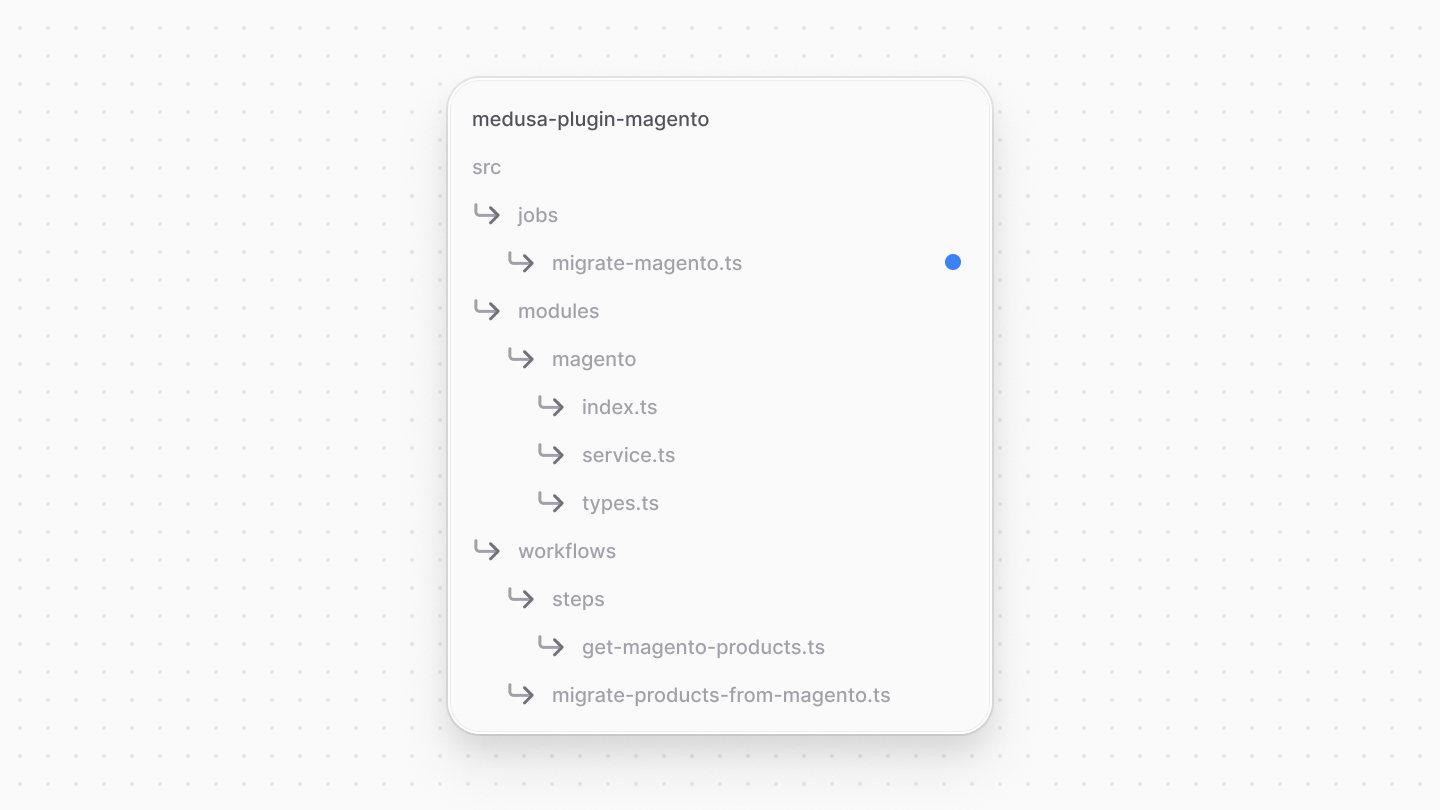
To create a scheduled job, in your plugin, create the file `src/jobs/migrate-magento.ts` with the following content:
|
|
|
|
|
|
|
|
```ts title="src/jobs/migrate-magento.ts"
|
|
import { MedusaContainer } from "@medusajs/framework/types"
|
|
import { migrateProductsFromMagentoWorkflow } from "../workflows"
|
|
|
|
export default async function migrateMagentoJob(
|
|
container: MedusaContainer
|
|
) {
|
|
const logger = container.resolve("logger")
|
|
logger.info("Migrating products from Magento...")
|
|
|
|
let currentPage = 0
|
|
const pageSize = 100
|
|
let totalCount = 0
|
|
|
|
do {
|
|
currentPage++
|
|
|
|
const {
|
|
result: pagination,
|
|
} = await migrateProductsFromMagentoWorkflow(container).run({
|
|
input: {
|
|
currentPage,
|
|
pageSize,
|
|
},
|
|
})
|
|
|
|
totalCount = pagination.total_count
|
|
} while (currentPage * pageSize < totalCount)
|
|
|
|
logger.info("Finished migrating products from Magento")
|
|
}
|
|
|
|
export const config = {
|
|
name: "migrate-magento-job",
|
|
schedule: "0 0 * * *",
|
|
}
|
|
```
|
|
|
|
A scheduled job file must export:
|
|
|
|
- An asynchronous function that executes the job's logic. The function receives the [Medusa container](!docs!/learn/fundamentals/medusa-container) as a parameter.
|
|
- An object with the job's configuration, including the name and the schedule. The schedule is a cron job pattern as a string.
|
|
|
|
In the job function, you resolve the [logger](!docs!/learn/debugging-and-testing/logging) from the container to log messages. Then, you paginate the product migration process by running the `migrateProductsFromMagentoWorkflow` workflow at each page until you've migrated all products. You use the pagination result returned by the workflow to determine whether there are more products to migrate.
|
|
|
|
Based on the job's configurations, the Medusa application will run the job at midnight every day.
|
|
|
|
### Test it Out
|
|
|
|
To test out this scheduled job, first, change the configuration to run the job every minute:
|
|
|
|
```ts title="src/jobs/migrate-magento.ts"
|
|
export const config = {
|
|
// ...
|
|
schedule: "* * * * *",
|
|
}
|
|
```
|
|
|
|
Then, make sure to run the `plugin:develop` command in the plugin if you haven't already:
|
|
|
|
```bash
|
|
npx medusa plugin:develop
|
|
```
|
|
|
|
This ensures that the plugin's latest changes are reflected in the Medusa application.
|
|
|
|
Finally, start the Medusa application that the plugin is installed in:
|
|
|
|
```bash npm2yarn
|
|
npm run dev
|
|
```
|
|
|
|
After a minute, you'll see a message in the terminal indicating that the migration started:
|
|
|
|
```plain title="Terminal"
|
|
info: Migrating products from Magento...
|
|
```
|
|
|
|
Once the migration is done, you'll see the following message:
|
|
|
|
```plain title="Terminal"
|
|
info: Finished migrating products from Magento
|
|
```
|
|
|
|
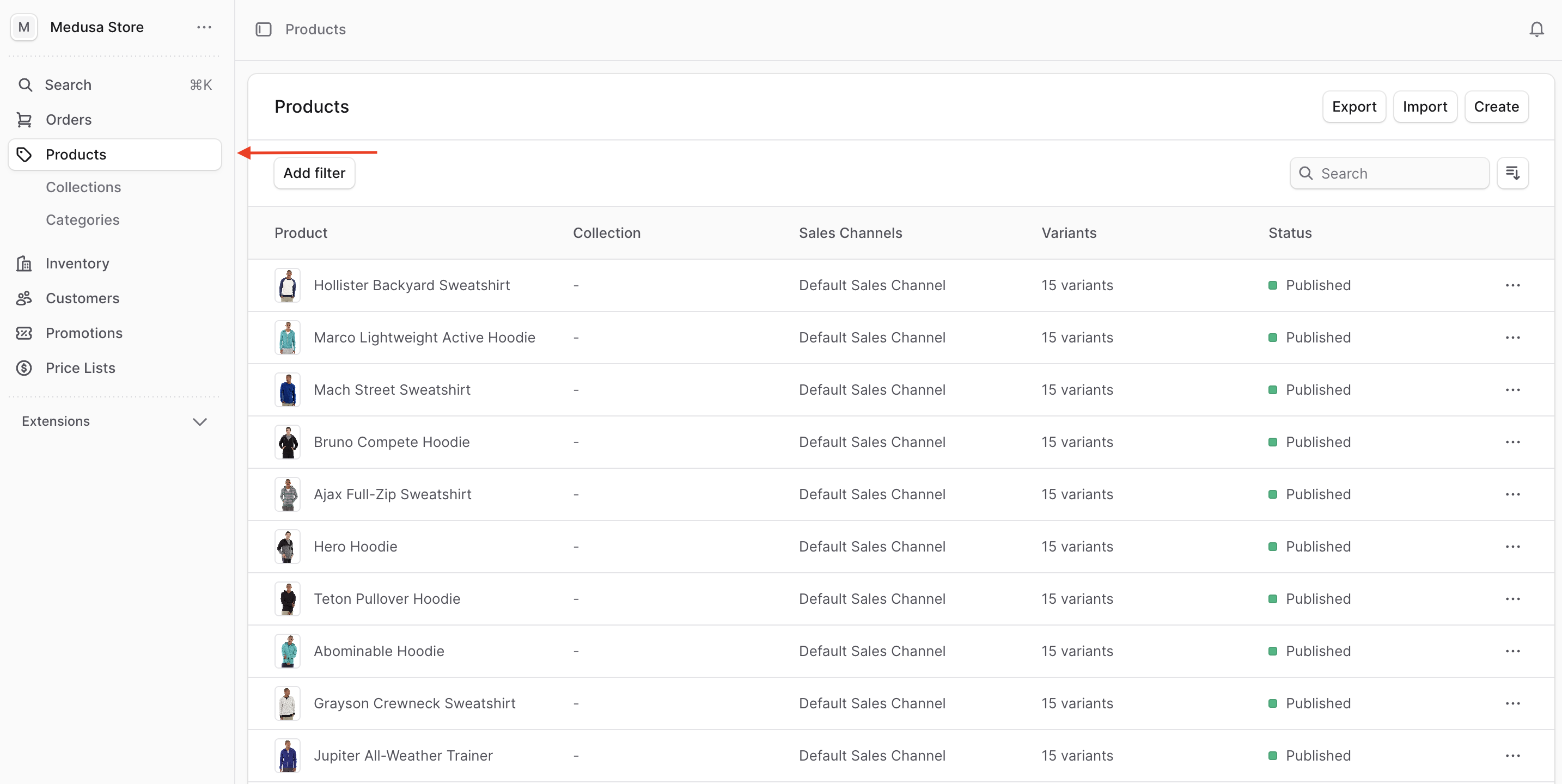
To confirm that the products were migrated, open the Medusa Admin dashboard at `http://localhost:9000/app` and log in. Then, click on Products in the sidebar. You'll see your magento products in the list of products.
|
|
|
|
|
|
|
|
---
|
|
|
|
## Next Steps
|
|
|
|
You've now implemented the logic to migrate products from Magento to Medusa. You can re-use the plugin across Medusa applications. You can also expand on the plugin to:
|
|
|
|
- Migrate other entities, such as orders, customers, and categories. Migrating other entities follows the same pattern as migrating products, using workflows and scheduled jobs. You only need to format the data to be migrated as needed.
|
|
- Allow triggering migrations from the Medusa Admin dashboard using [Admin Customizations](!docs!/learn/fundamentals/admin). This feature is available in the [Example Repository](https://github.com/medusajs/example-repository/tree/main/src/admin).
|
|
|
|
If you're new to Medusa, check out the [main documentation](!docs!/learn), where you'll get a more in-depth learning of all the concepts you've used in this guide and more.
|
|
|
|
To learn more about the commerce features that Medusa provides, check out Medusa's [Commerce Modules](../../../commerce-modules/page.mdx). |