 914d773d3a
* initialized next.js project

* finished markdown sections

* added operation schema component

* change page metadata

* eslint fixes

* fixes related to deployment

* added response schema

* resolve max stack issue

* support for different property types

* added support for property types

* added loading for components

* added more loading

* type fixes

* added oneOf type

* removed console

* fix replace with push

* refactored everything

* use static content for description

* fixes and improvements

* added code examples section

* fix path name

* optimizations

* fixed tag navigation

* add support for admin and store references

* general enhancements

* optimizations and fixes

* fixes and enhancements

* added search bar

* loading enhancements

* added loading

* added code blocks

* added margin top

* add empty response text

* fixed oneOf parameters

* added path and query parameters

* general fixes

* added base path env variable

* small fix for arrays

* enhancements

* design enhancements

* general enhancements

* fix isRequired

* added enum values

* enhancements

* general fixes

* general fixes

* changed oas generation script

* additions to the introduction section

* added copy button for code + other enhancements

* fix response code block

* fix metadata

* formatted store introduction

* move sidebar logic to Tags component

* added test env variables

* fix code block bug

* added loading animation

* added expand param + loading

* enhance operation loading

* made responsive + improvements

* added loading provider

* fixed loading

* adjustments for small devices

* added sidebar label for endpoints

* added feedback component

* fixed analytics

* general fixes

* listen to scroll for other headings

* added sample env file

* update api ref files + support new fields

* fix for external docs link

* added new sections

* fix last item in sidebar not showing

* move docs content to www/docs

* change redirect url

* revert change

* resolve build errors

* configure rewrites

* changed to environment variable url

* revert changing environment variable name

* add environment variable for API path

* fix links

* fix tailwind settings

* remove vercel file

* reconfigured api route

* move api page under api

* fix page metadata

* fix external link in navigation bar

* update api spec

* updated api specs

* fixed google lint error

* add max-height on request samples

* add padding before loading

* fix for one of name

* fix undefined types

* general fixes

* remove response schema example

* redesigned navigation bar

* redesigned sidebar

* fixed up paddings

* added feedback component + report issue

* fixed up typography, padding, and general styling

* redesigned code blocks

* optimization

* added error timeout

* fixes

* added indexing with algolia + fixes

* fix errors with algolia script

* redesign operation sections

* fix heading scroll

* design fixes

* fix padding

* fix padding + scroll issues

* fix scroll issues

* improve scroll performance

* fixes for safari

* optimization and fixes

* fixes to docs + details animation

* padding fixes for code block

* added tab animation

* fixed incorrect link

* added selection styling

* fix lint errors

* redesigned details component

* added detailed feedback form

* api reference fixes

* fix tabs

* upgrade + fixes

* updated documentation links

* optimizations to sidebar items

* fix spacing in sidebar item

* optimizations and fixes

* fix endpoint path styling

* remove margin

* final fixes

* change margin on small devices

* generated OAS

* fixes for mobile

* added feedback modal

* optimize dark mode button

* fixed color mode useeffect

* minimize dom size

* use new style system

* radius and spacing design system

* design fixes

* fix eslint errors

* added meta files

* change cron schedule

* fix docusaurus configurations

* added operating system to feedback data

* change content directory name

* fixes to contribution guidelines

* revert renaming content

* added api-reference to documentation workflow

* fixes for search

* added dark mode + fixes

* oas fixes

* handle bugs

* added code examples for clients

* changed tooltip text

* change authentication to card

* change page title based on selected section

* redesigned mobile navbar

* fix icon colors

* fix key colors

* fix medusa-js installation command

* change external regex in algolia

* change changeset

* fix padding on mobile

* fix hydration error

* update depedencies
90 lines
4.6 KiB
Plaintext
90 lines
4.6 KiB
Plaintext
---
|
||
sidebar_position: 2
|
||
description: 'Learn how to use utility features in the Medusa Admin including lists, quick and advanced filters, pagination, and search functionalities. You can also customize quick features.'
|
||
---
|
||
|
||
import UiIcon from '@site/src/components/UiIcon';
|
||
|
||
# Lists Overview
|
||
|
||
In this document, you’ll get an overview of lists in Medusa including filters, searching, and more!
|
||
|
||
## Filter Items
|
||
|
||
You can use filters to retrieve only items in a list matching specific criteria.
|
||
|
||
### Quick Filters
|
||
|
||
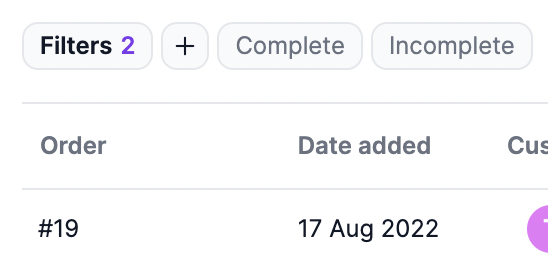
On a table with a list of items, you’ll find quick filters at the top of the list.
|
||
|
||
You can click on one of these filters to quickly apply it to the list of items.
|
||
|
||
|
||
|
||
### Advanced Filters
|
||
|
||
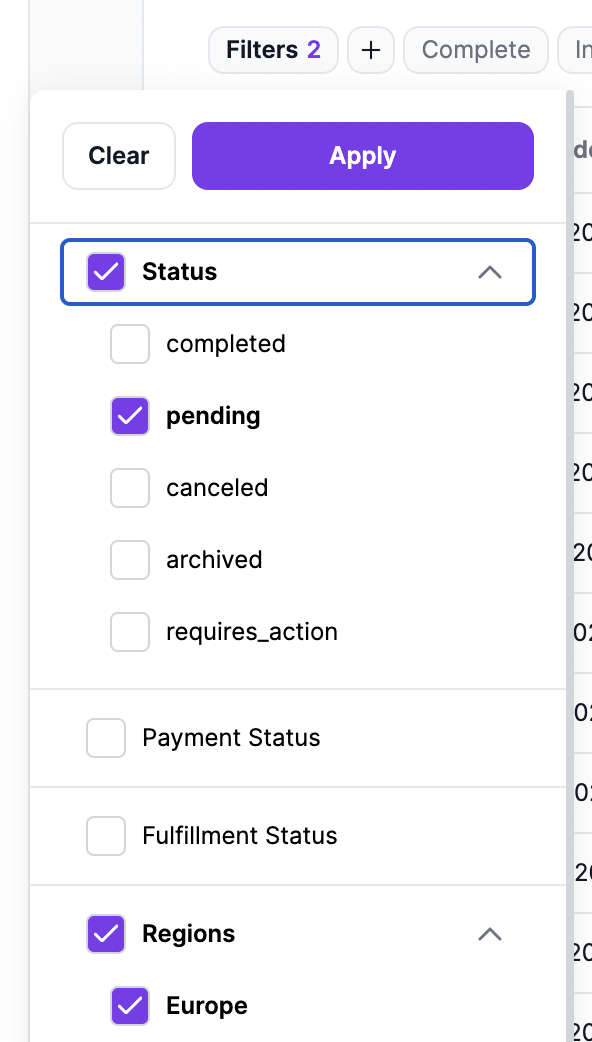
You can use advanced filters to furthermore limit the items shown based on specific criteria. For example, on the Orders list, you can filter orders to only show pending orders created in a specific region.
|
||
|
||
To use advanced filters:
|
||
|
||
1. Click on the <UiIcon lightIcon="https://res.cloudinary.com/dza7lstvk/image/upload/v1667999131/Medusa%20Docs/UI%20Icons/1hL8NiW_lqmjcq.png" darkIcon="https://res.cloudinary.com/dza7lstvk/image/upload/v1667999150/Medusa%20Docs/UI%20Icons/8LtkPqW_jyqz5i.png" alt="plus" /> icon next to Filters. This will toggle a dropdown with categories for different fields.
|
||
2. You can click on a field name to expand it and choose a filter for that field.
|
||
3. Click on the Apply button at the top of the dropdown.
|
||
|
||
This will retrieve the items based on the filters you’ve selected.
|
||
|
||
|
||
|
||
### Save Advanced Filters as Quick Filters
|
||
|
||
If there are filters that you need to use frequently, you can give the set of filters a name and save them to be used later. For example, you can save the filters used in the previous example as “European Orders”.
|
||
|
||
To save an advanced filter:
|
||
|
||
1. Click on the <UiIcon lightIcon="https://res.cloudinary.com/dza7lstvk/image/upload/v1667999131/Medusa%20Docs/UI%20Icons/1hL8NiW_lqmjcq.png" darkIcon="https://res.cloudinary.com/dza7lstvk/image/upload/v1667999150/Medusa%20Docs/UI%20Icons/8LtkPqW_jyqz5i.png" alt="plus" /> icon next to Filters.
|
||
2. Choose your filters from the dropdown.
|
||
3. Choose a name for the filters in the input at the end of the dropdown.
|
||
4. Click the Save button.
|
||
|
||

|
||
|
||
Once you click Save, you should see the new filter you added next to the Quick Filters at the top of the list.
|
||
|
||

|
||
|
||
To apply a saved quick filter, just click on it.
|
||
|
||
### Delete Saved Quick Filters
|
||
|
||
You can delete any saved filter you’ve created. To do that, simply click on the <UiIcon lightIcon="https://res.cloudinary.com/dza7lstvk/image/upload/v1667999180/Medusa%20Docs/UI%20Icons/kvGRHQR_s0ptsm.png" darkIcon="https://res.cloudinary.com/dza7lstvk/image/upload/v1667999200/Medusa%20Docs/UI%20Icons/RJ4SLIu_n30zqr.png" alt="X" /> icon next to the quick filter’s name, and it will be deleted.
|
||
|
||
### Clear Filters
|
||
|
||
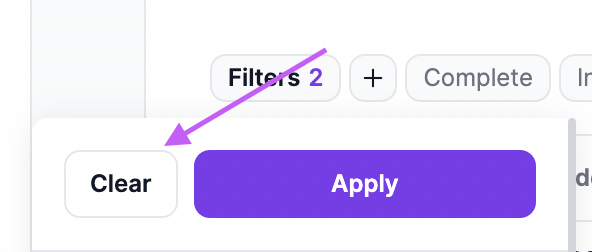
To clear all applied filters:
|
||
|
||
1. Click on the <UiIcon lightIcon="https://res.cloudinary.com/dza7lstvk/image/upload/v1667999131/Medusa%20Docs/UI%20Icons/1hL8NiW_lqmjcq.png" darkIcon="https://res.cloudinary.com/dza7lstvk/image/upload/v1667999150/Medusa%20Docs/UI%20Icons/8LtkPqW_jyqz5i.png" alt="plus" /> icon next to Filters.
|
||
2. Click on the Clear button.
|
||
|
||
|
||
|
||
:::info
|
||
|
||
Clearing filters does not delete saved quick filters. You can still apply them by clicking on them.
|
||
|
||
:::
|
||
|
||
---
|
||
|
||
## Search Items
|
||
|
||
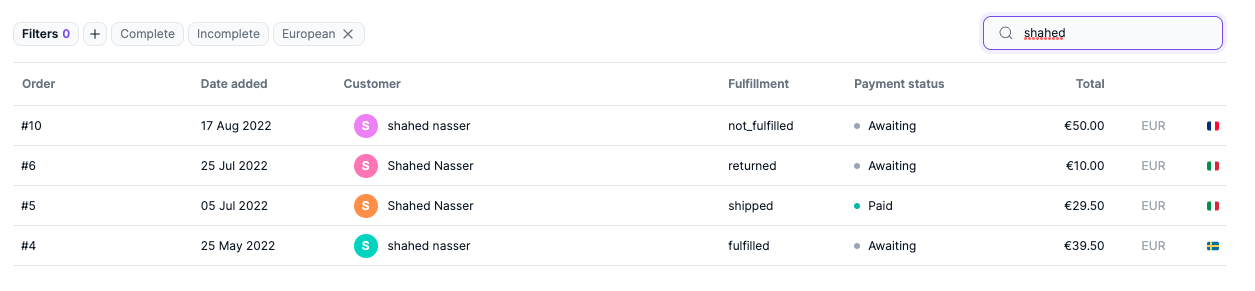
You can search for items in a list by clicking the <UiIcon lightIcon="https://res.cloudinary.com/dza7lstvk/image/upload/v1667999227/Medusa%20Docs/UI%20Icons/k0U0wpO_pizpfd.png" darkIcon="https://res.cloudinary.com/dza7lstvk/image/upload/v1667999249/Medusa%20Docs/UI%20Icons/IdKjFak_ultvmh.png" alt="magnifier" /> icon at the top right of the list.
|
||
|
||
|
||
|
||
---
|
||
|
||
## Multiple Pages
|
||
|
||
Lists in the Medusa admin can span across multiple pages if the number of items in that list are more than 15.
|
||
|
||
In that case, you can navigate between pages by clicking the arrows at the bottom of the list. |