
197 lines
6.0 KiB
Plaintext
197 lines
6.0 KiB
Plaintext
import { Table } from "docs-ui"
|
||
|
||
export const metadata = {
|
||
title: `Segment Plugin`,
|
||
}
|
||
|
||
# {metadata.title}
|
||
|
||
## Features
|
||
|
||
[Segment](https://github.com/medusajs/medusa/tree/master/packages/medusa-plugin-segment) is a powerful Customer Data Platform that allows users to collect, transform, send and archive their customer data.
|
||
|
||
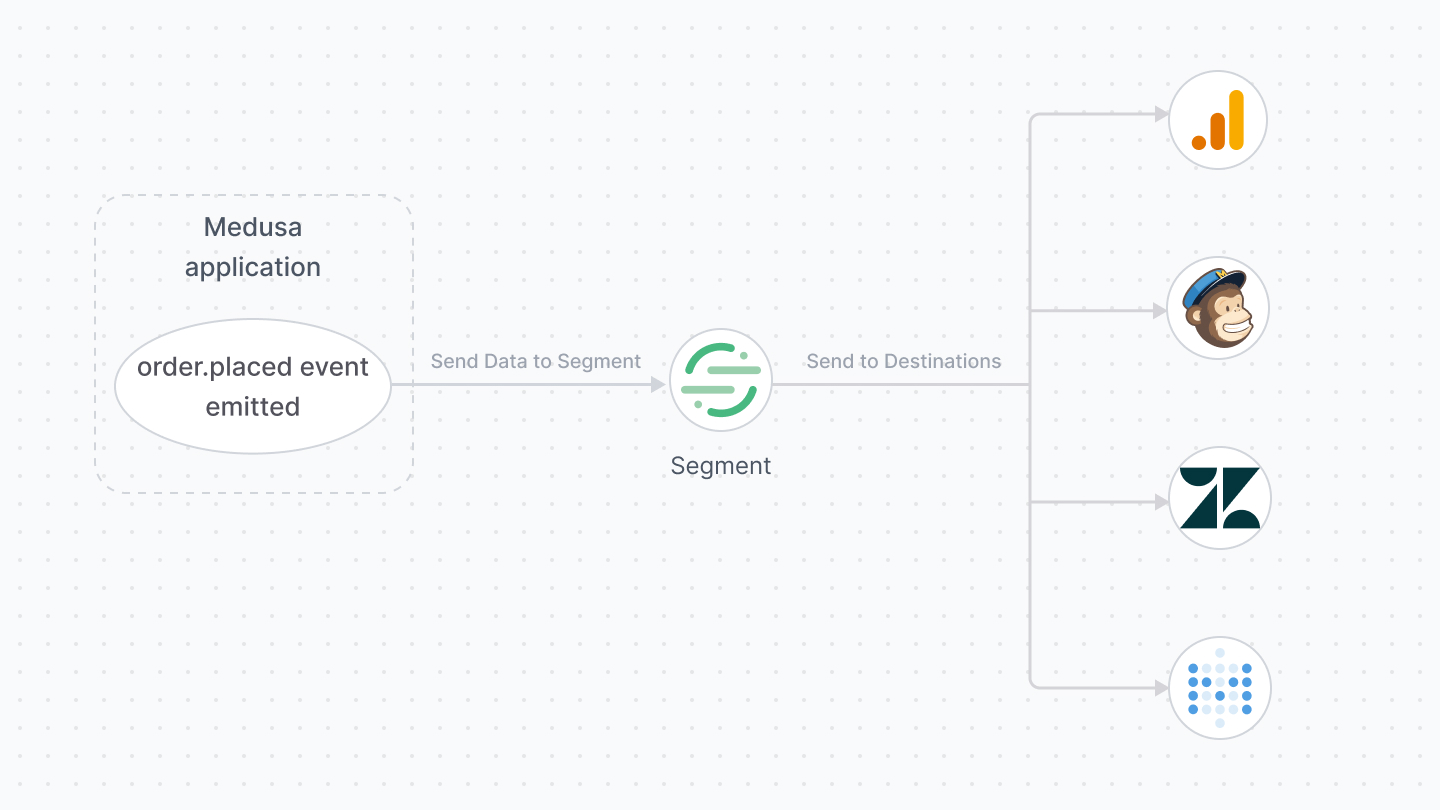
Through Segment, you can integrate other third-party services such as:
|
||
|
||
- Google Analytics
|
||
- Mailchimp
|
||
- Zendesk
|
||
- Data warehousing for advanced data analytics and segmentation through services like Metabase
|
||
|
||
|
||
|
||
The Segment plugin in Medusa allows you to track ecommerce events and record them in Segment. Then, you can push these events to other destinations using Segment.
|
||
|
||
---
|
||
|
||
## Events That the Segment Plugin Tracks
|
||
|
||
The Segment plugin tracks the following events:
|
||
|
||
1. `order.placed`: Triggered when an order is placed.
|
||
2. `order.shipment_created`: Triggered when a shipment is created for an order.
|
||
3. `claim.created`: Triggered when a new claim is created.
|
||
4. `order.items_returned`: Triggered when an item in an order is returned.
|
||
5. `order.canceled`: Triggered when an order is canceled.
|
||
6. `swap.created`: Triggered when a swap is created.
|
||
7. `swap.shipment_created`: Triggered when a shipment is created for a swap.
|
||
8. `swap.payment_completed`: Triggered when payment for a swap is completed.
|
||
|
||
<Note title="Tip">
|
||
|
||
Check out the [Event Reference](../../../events-reference/page.mdx) to learn more about these events and their data payloads.
|
||
|
||
</Note>
|
||
|
||
---
|
||
|
||
## Preparations
|
||
|
||
<Note type="check">
|
||
|
||
- [Segment Account](https://app.segment.com/signup/)
|
||
|
||
</Note>
|
||
|
||
### Create a Segment Source
|
||
|
||
On your Segment dashboard:
|
||
|
||
1. Choose Catalog from the sidebar under Connections.
|
||
2. Search for "Node.js" or find "Node.js" under the Sources directory.
|
||
3. In the Node.js details page, click on Add Source.
|
||
4. This opens a new page to create a Node.js source. Enter the name of the source then click Add Source.
|
||
5. On the new source's dashboard, find a "Write Key". You’ll use this key in the next section after you install the Segment plugin in your Medusa application.
|
||
|
||
### Optional: Add Destination
|
||
|
||
After you create the Segment source, you can add destinations. This is where the data is sent when you send them to Segment. You can add more than one destination.
|
||
|
||
To add a destination:
|
||
|
||
1. Choose Destinations from the sidebar under Connections.
|
||
2. Click on the "Add destination" button.
|
||
3. Choose the desired destination, such as Google Universal Analytics or Facebook Pixel.
|
||
|
||
The process of integrating each destination is different, so you must follow the steps detailed in Segment for each destination you choose.
|
||
|
||
---
|
||
|
||
## Install the Segment Plugin
|
||
|
||
To install the Segment plugin, run the following command in the directory of your Medusa application:
|
||
|
||
```bash npm2yarn
|
||
npm install medusa-plugin-segment
|
||
```
|
||
|
||
Next, add the plugin into the `plugins` array in `medusa-config.js`:
|
||
|
||
export const highlights = [
|
||
["6", "write_key", "The Segment source's write key."]
|
||
]
|
||
|
||
```js title="medusa-config.js" highlights={highlights}
|
||
const plugins = [
|
||
// ...
|
||
{
|
||
resolve: `medusa-plugin-segment`,
|
||
options: {
|
||
write_key: process.env.SEGMENT_WRITE_KEY,
|
||
},
|
||
},
|
||
]
|
||
```
|
||
|
||
### Segment Plugin Options
|
||
|
||
<Table>
|
||
<Table.Header>
|
||
<Table.Row>
|
||
<Table.HeaderCell>Option</Table.HeaderCell>
|
||
<Table.HeaderCell>Description</Table.HeaderCell>
|
||
</Table.Row>
|
||
</Table.Header>
|
||
<Table.Body>
|
||
<Table.Row>
|
||
<Table.Cell>
|
||
|
||
`write_key`
|
||
|
||
</Table.Cell>
|
||
<Table.Cell>
|
||
|
||
The Segment source's write key.
|
||
|
||
</Table.Cell>
|
||
</Table.Row>
|
||
</Table.Body>
|
||
</Table>
|
||
|
||
### Environment Variables
|
||
|
||
Make sure to add the following environment variables:
|
||
|
||
```bash
|
||
SEGMENT_WRITE_KEY=<YOUR_SEGMENT_WRITE_KEY>
|
||
```
|
||
|
||
---
|
||
|
||
## Test the Plugin
|
||
|
||
To test the plugin, start the Medusa application:
|
||
|
||
```bash npm2yarn
|
||
npm run dev
|
||
```
|
||
|
||
Then, try triggering one of the [mentioned events earlier in this document](#events-that-the-segment-plugin-tracks). For example, you can place an order either using the [REST APIs](https://docs.medusajs.com/api/store) or using the [Next.js Starter](../../../nextjs-starter/page.mdx).
|
||
|
||
After you place an order, on the Segment source that you created, click on the Debugger tab. You should see at least one event triggered for each order you place. If you click on the event, you can see the order details are passed to the event.
|
||
|
||
If you added a destination, you can also check your destination to make sure the data is reflected there.
|
||
|
||
---
|
||
|
||
## Add Custom Tracking
|
||
|
||
The `SegmentService` allows you to track other Medusa events or custom events.
|
||
|
||
For example, create the file `src/subscribers/customer.ts` with the following content:
|
||
|
||
```ts title="src/subscribers/customer.ts"
|
||
import {
|
||
type SubscriberConfig,
|
||
type SubscriberArgs,
|
||
CustomerService,
|
||
} from "@medusajs/medusa"
|
||
|
||
export default async function handleCustomerCreated({
|
||
data,
|
||
container,
|
||
}: SubscriberArgs<Record<string, string>>) {
|
||
const segmentService = container.resolve("segmentService")
|
||
|
||
const customerData = data
|
||
delete customerData["password_hash"]
|
||
|
||
segmentService.track({
|
||
event: "Customer Created",
|
||
userId: data.id,
|
||
properties: customerData,
|
||
})
|
||
}
|
||
|
||
export const config: SubscriberConfig = {
|
||
event: CustomerService.Events.CREATED,
|
||
}
|
||
```
|
||
|
||
This creates a subscriber that listens to the `CustomerService.Events.CREATED` (`customer.created`) event and sends tracking information to Segment for every customer created.
|
||
|
||
The `SegmentService` has a `track` method used to send tracking data to Segment. It accepts an object of data, where the keys `event` and `userId` are required. Instead of `userId`, you can use `anonymousId` to pass an anonymous user ID.
|
||
|
||
To pass additional data to Segment, pass them under the `properties` object key.
|
||
|
||
The `SegmentService` also has the method `identify` to tie a user to their actions or specific traits.
|