 bb87db8342
This PR includes documentation that preps for v2 docs (but doesn't introduce new docs).

_Note: The number of file changes in the PR is due to find-and-replace within the `references` which is unavoidable. Let me know if I should move it to another PR._

## Changes

- Change Medusa version in base OAS used for v2.
- Fix to docblock generator related to not catching all path parameters.
- Added typedoc plugin that generates ER Diagrams, which will be used specifically for data model references in commerce modules.
- Changed OAS tool to output references in `www/apps/api-reference/specs-v2` directory when the `--v2` option is used.
- Added a version switcher to the API reference to switch between V1 and V2. This switcher is enabled by an environment variable, so it won't be visible/usable at the moment.
- Upgraded docusaurus to v3.0.1
- Added new Vale rules to ensure correct spelling of Medusa Admin and module names.
- Added new components to the `docs-ui` package that will be used in future documentation changes.
74 lines
4.2 KiB
Plaintext
74 lines
4.2 KiB
Plaintext
---
|
||
sidebar_position: 1
|
||
description: 'The user guide explains how to use the Medusa Admin for non technical users. Learn through easy steps how to use the Medusa Admin to perform different operations and ecommerce tasks.'
|
||
---
|
||
|
||
import UiIcon from '@site/src/components/UiIcon';
|
||
|
||
# Welcome to Medusa’s User Guide
|
||
|
||
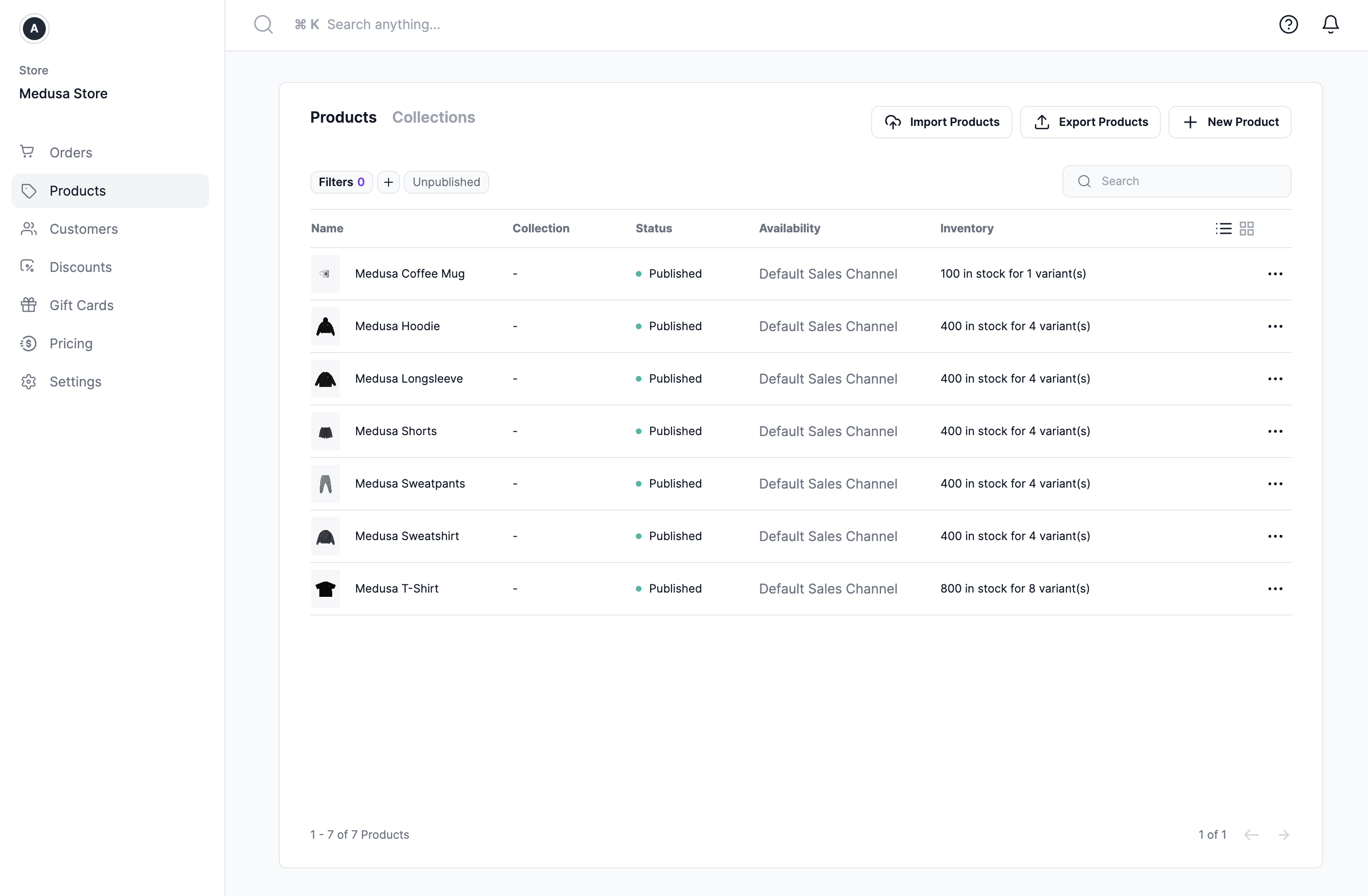
This user guide is intended to help users learn how they can use the Medusa Admin to perform different operational and ecommerce tasks.
|
||
|
||
|
||
|
||
## Accessing the Medusa Admin
|
||
|
||
To access the admin panel of your ecommerce store, you must have a URL to the deployed website.
|
||
|
||
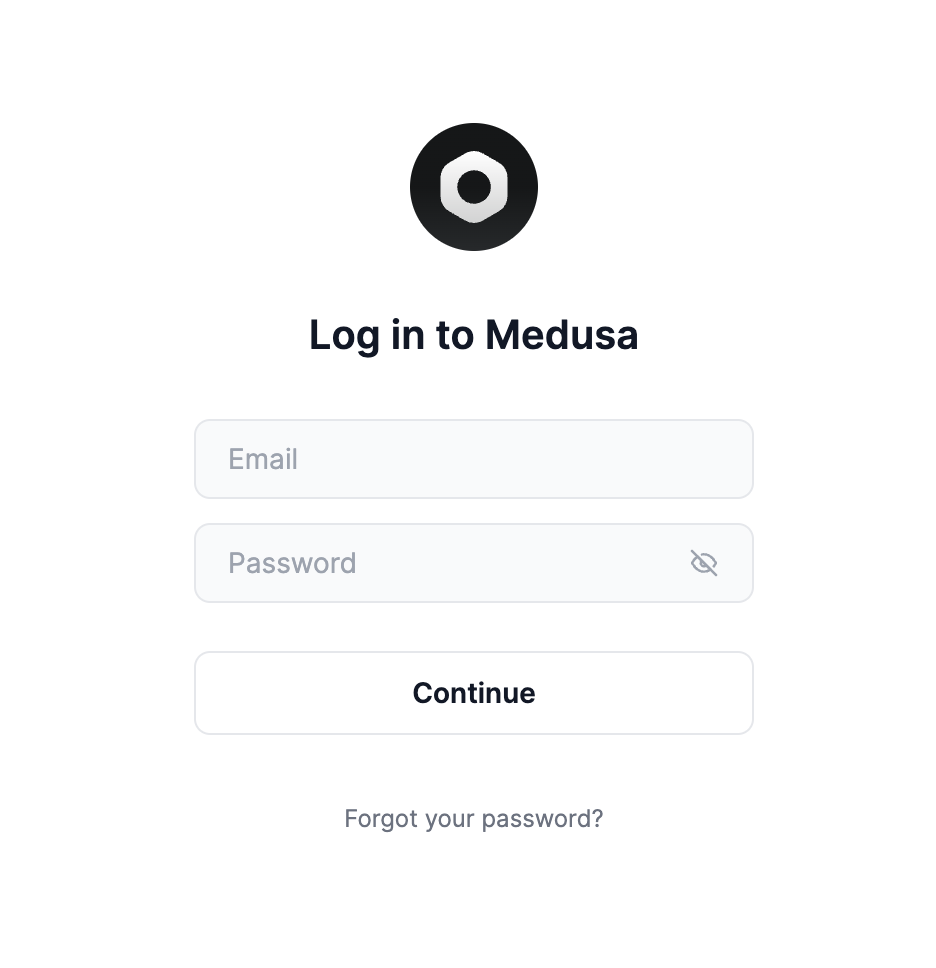
Once you open the URL, you’ll be asked to log in.
|
||
|
||
|
||
|
||
You must use your user’s email and password to log in. If you’re unsure what your email and password are, please contact the technical personnel that deployed your Medusa backend and admin.
|
||
|
||
## Tour of Medusa Admin
|
||
|
||
After you log into your Medusa Admin, you can see a sidebar menu, a search bar at the top, some icons at the top right, and in the middle the content of the page you’re currently on.
|
||
|
||
### Sidebar Menu
|
||
|
||
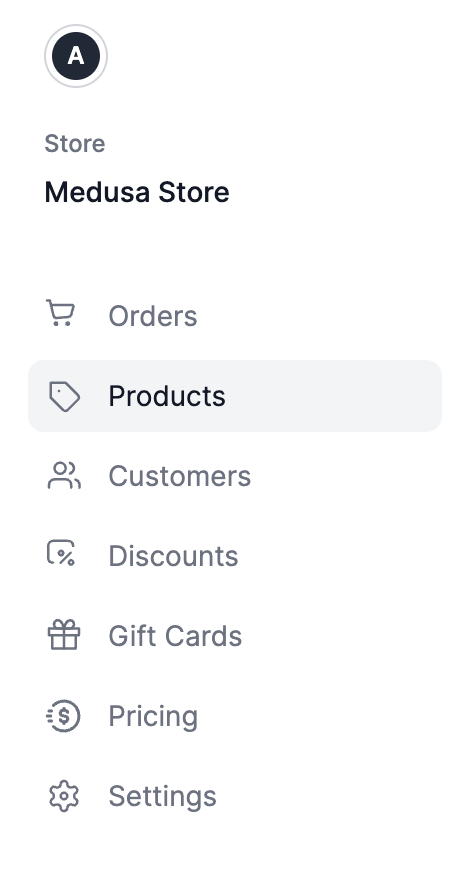
The sidebar menu includes the main navigation of your Medusa Admin. You can use it to navigate between different pages, such as Products or Orders pages.
|
||
|
||
|
||
|
||
### Search Bar
|
||
|
||
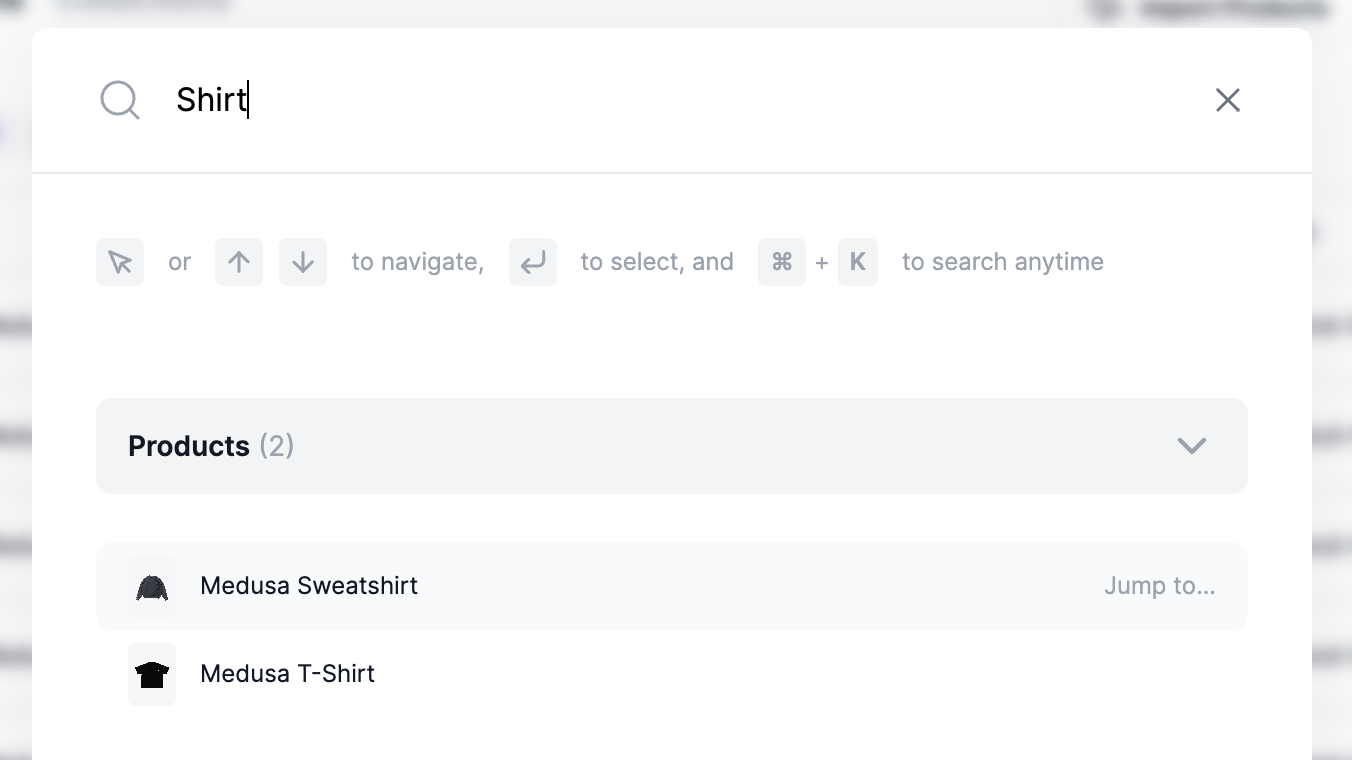
You’ll find at the top of the page a search bar. You can use this search bar to search orders, products, customers, and more information available in your Medusa Admin.
|
||
|
||
:::info
|
||
|
||
You can open the search window using the shortcuts:
|
||
|
||
Windows and Linux: <kbd>CTRL</kbd> + <kbd>K</kbd>
|
||
|
||
Mac OS: <kbd>⌘</kbd> + <kbd>K</kbd>
|
||
|
||
:::
|
||
|
||
|
||
|
||
You can select a result with your mouse. Alternatively, use the up and down arrows on your keyboard to navigate between the results, then choosing a result by hitting the Enter key.
|
||
|
||
### Check Notifications
|
||
|
||
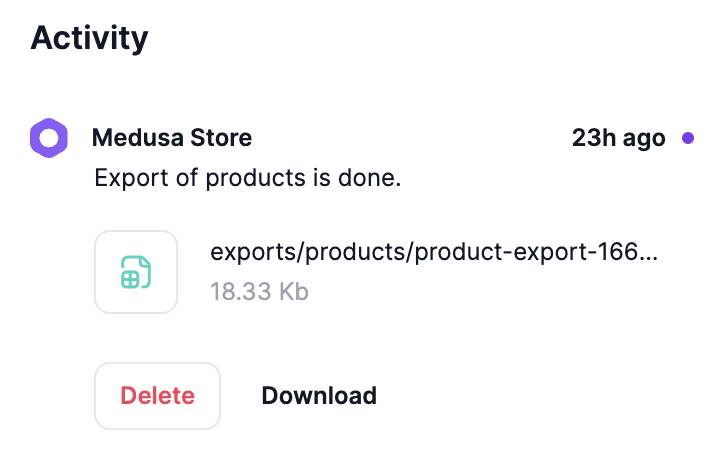
At the top right you’ll find a <UiIcon lightIcon="https://res.cloudinary.com/dza7lstvk/image/upload/v1667999016/Medusa%20Docs/UI%20Icons/mWhpxNX_xteuos.png" darkIcon="https://res.cloudinary.com/dza7lstvk/image/upload/v1667999044/Medusa%20Docs/UI%20Icons/tE8LOXk_puyrib.png" alt="bell" /> icon. Clicking this icon opens a side window to view any notifications you might have. You can use this to view notifications such as completed product exports.
|
||
|
||
|
||
|
||
### Change Language
|
||
|
||
The Medusa Admin supports multiple-languages, with English being the default one. Check out available languages [here](./user-guide/tips/languages.md).
|
||
|
||
Learn how to change the language in [this guide](./user-guide/users/profile.md#change-admin-language).
|
||
|
||
### Quick Actions
|
||
|
||
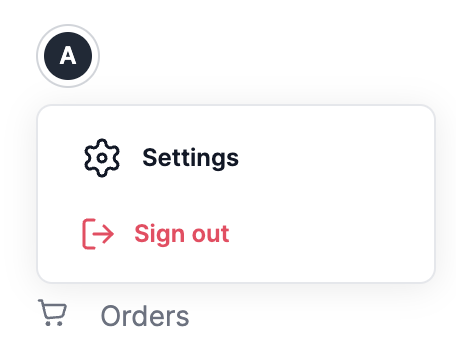
At the top left in the sidebar, you’ll find an avatar icon. By clicking this icon, you’ll see a dropdown. You can use this dropdown to access settings or sign out.
|
||
|
||
|
||
|
||
### Need Help
|
||
|
||
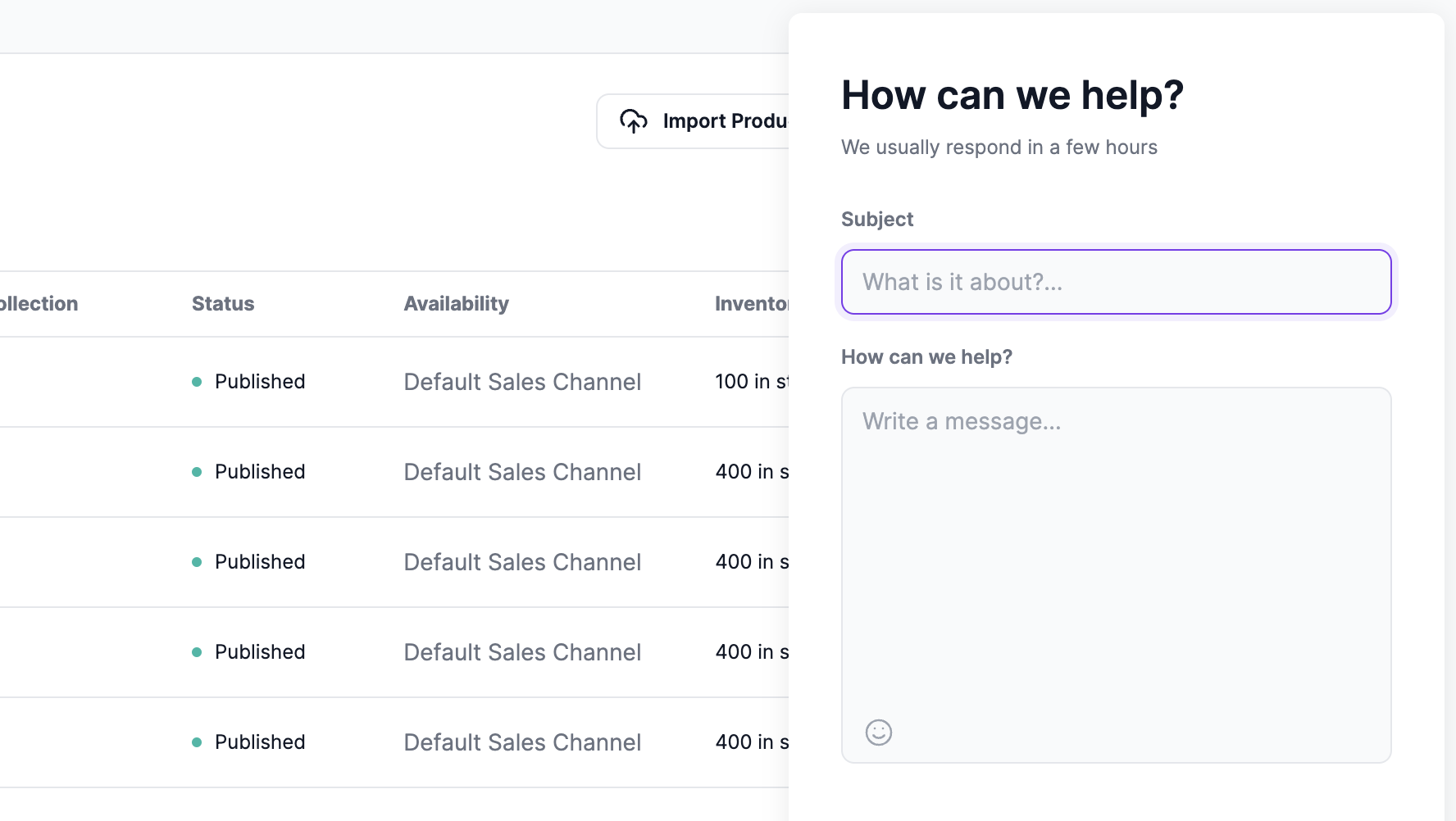
At the top right, you’ll find a <UiIcon lightIcon="https://res.cloudinary.com/dza7lstvk/image/upload/v1667999071/Medusa%20Docs/UI%20Icons/CrABja9_lwomxs.png" darkIcon="https://res.cloudinary.com/dza7lstvk/image/upload/v1667999095/Medusa%20Docs/UI%20Icons/cgeX2hP_b1vkwy.png" alt="question mark" /> icon. When you click on this icon, a form will pop up. You can use this form to send the Medusa team a message asking for help. The Medusa team usually responds in a few hours on business days.
|
||
|
||
 |