 Shahed Nasser
cdfa21cfb0
Shahed Nasser
cdfa21cfb0
* add tags

* docs: add tags for user guide + links in commerce modules sidebar

* generate sidebar
37 lines
1.5 KiB
Plaintext
37 lines
1.5 KiB
Plaintext
---
|
|
sidebar_label: "Locations & Shipping Overview"
|
|
tags:
|
|
- user guide
|
|
- stock location
|
|
- fulfillment
|
|
---
|
|
|
|
import { EllipsisHorizontal } from "@medusajs/icons"
|
|
|
|
export const metadata = {
|
|
title: `Locations & Shipping Overview in Medusa Admin`,
|
|
}
|
|
|
|
# {metadata.title}
|
|
|
|
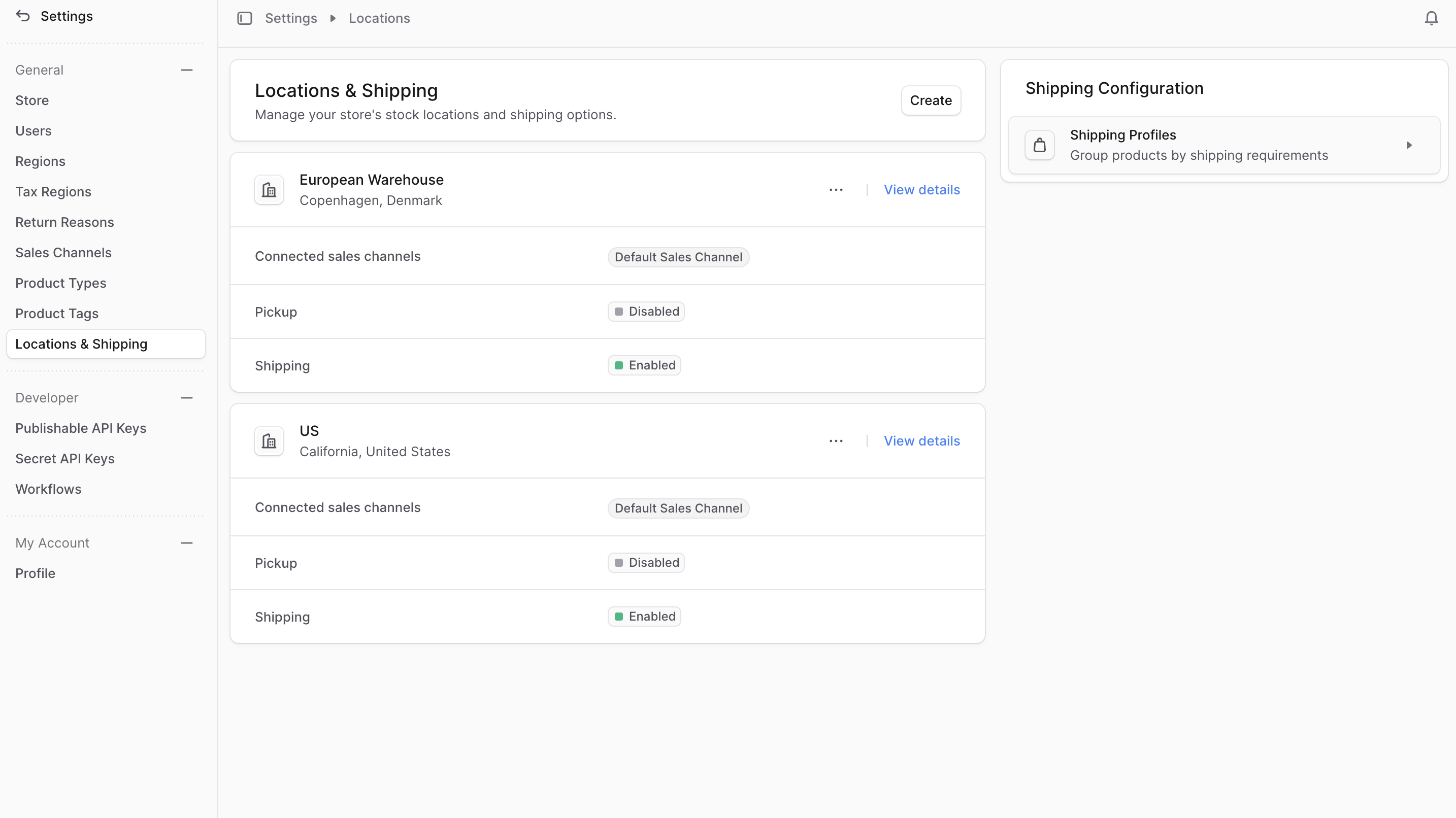
In the Locations & Shipping settings, you can manage stock locations and their shipping options, and other shipping-related configurations, such as shipping profiles.
|
|
|
|
A stock location:
|
|
|
|
- Is associated with sales channels. This is useful to fulfill orders from the location associated with the sales channel that the order was placed on.
|
|
- Has fulfillment providers that can be used in that location. For example, you can use UPS in the United States and DHL in Europe.
|
|
- Has shipping and pick up modes that you can add shipping options to. These are the shipping options used to fulfill items from this stock location.
|
|
|
|
A shipping profile groups similar products that require a different way of fulfillment. For example, fragile products are fulfilled differently than normal products. You can then provide shipping options specific for products that belong to the Fragile shipping profile.
|
|
|
|
To view location and shipping settings, go to Settings → Locations & Shipping.
|
|
|
|
|
|
|
|
---
|
|
|
|
## Manage Location & Shipping Settings
|
|
|
|
- [Manage Locations](./locations/page.mdx)
|
|
- [Manage Shipping Profiles](./shipping-profiles/page.mdx)
|