 cdfa21cfb0
* add tags

* docs: add tags for user guide + links in commerce modules sidebar

* generate sidebar
182 lines
6.9 KiB
Plaintext
182 lines
6.9 KiB
Plaintext
---
|
|
sidebar_label: "Manage Campaigns"
|
|
tags:
|
|
- user guide
|
|
- promotion
|
|
---
|
|
|
|
import { EllipsisHorizontal } from "@medusajs/icons"
|
|
import { Table } from "docs-ui"
|
|
|
|
export const metadata = {
|
|
title: `Manage Campaigns in Medusa Admin`,
|
|
}
|
|
|
|
# {metadata.title}
|
|
|
|
In this guide, you'll learn how to view and manage campaigns.
|
|
|
|
## What is a Campaign?
|
|
|
|
A campaign is a collection of promotions related to specific marketing or sales goals. A campaign also gives you granular control over promotion usages, allowing you to set up start and end dates, and budget usages that once exceeded, the promotions of the campaign can't be used anymore.
|
|
|
|
---
|
|
|
|
## View Campaigns
|
|
|
|
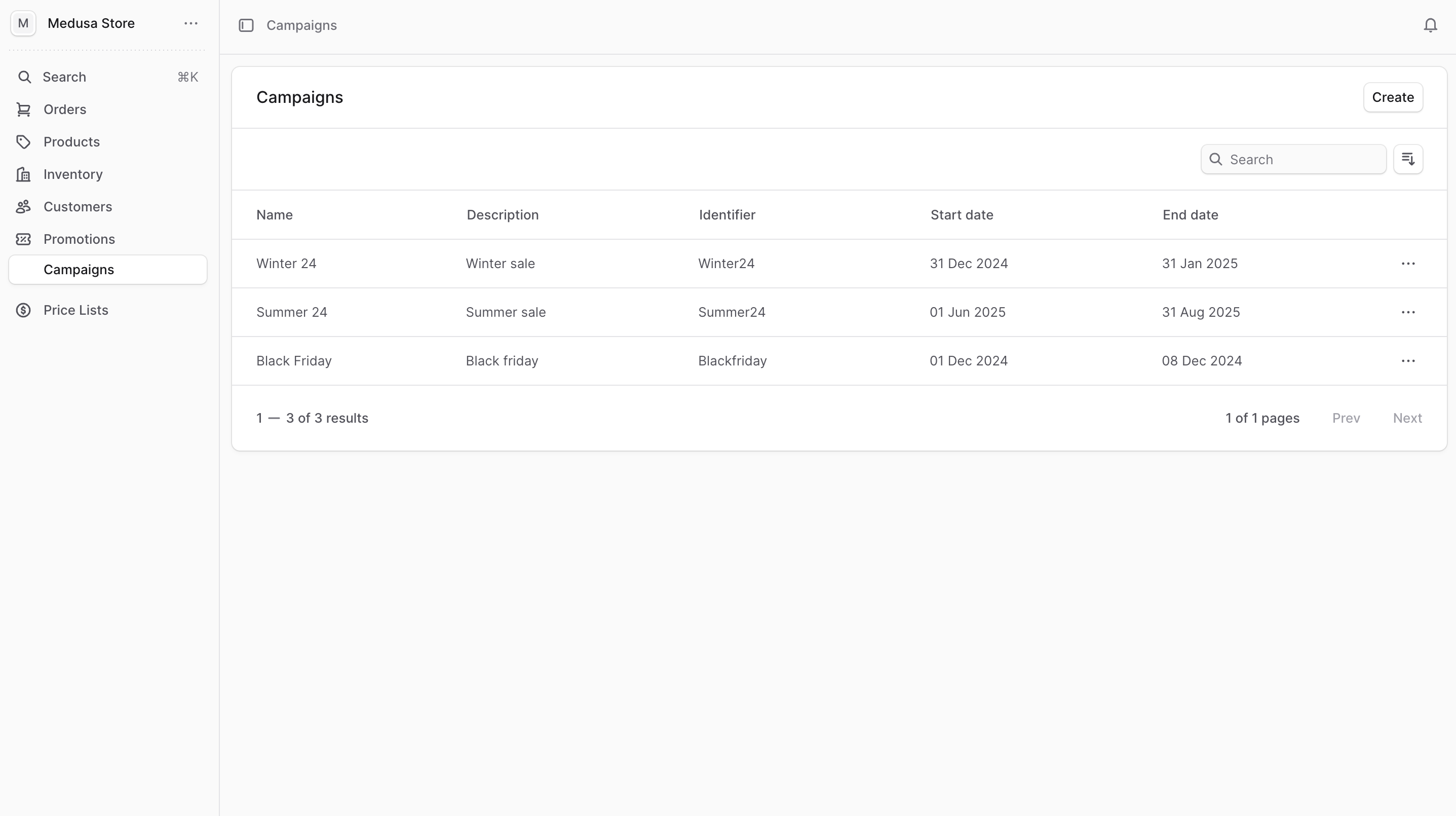
To view the campaigns in your store, go to Promotions -> Campaigns from the sidebar.
|
|
|
|
In the list, you can see campaign details such as the name, description, and identifier. You can also search, filter, and sort the campaigns to find the specific item you are looking for.
|
|
|
|
<Note title="Tip">
|
|
|
|
Find tips to use lists effectively in [this guide](../../tips/lists/page.mdx).
|
|
|
|
</Note>
|
|
|
|
|
|
|
|
---
|
|
|
|
## Create Campaign
|
|
|
|
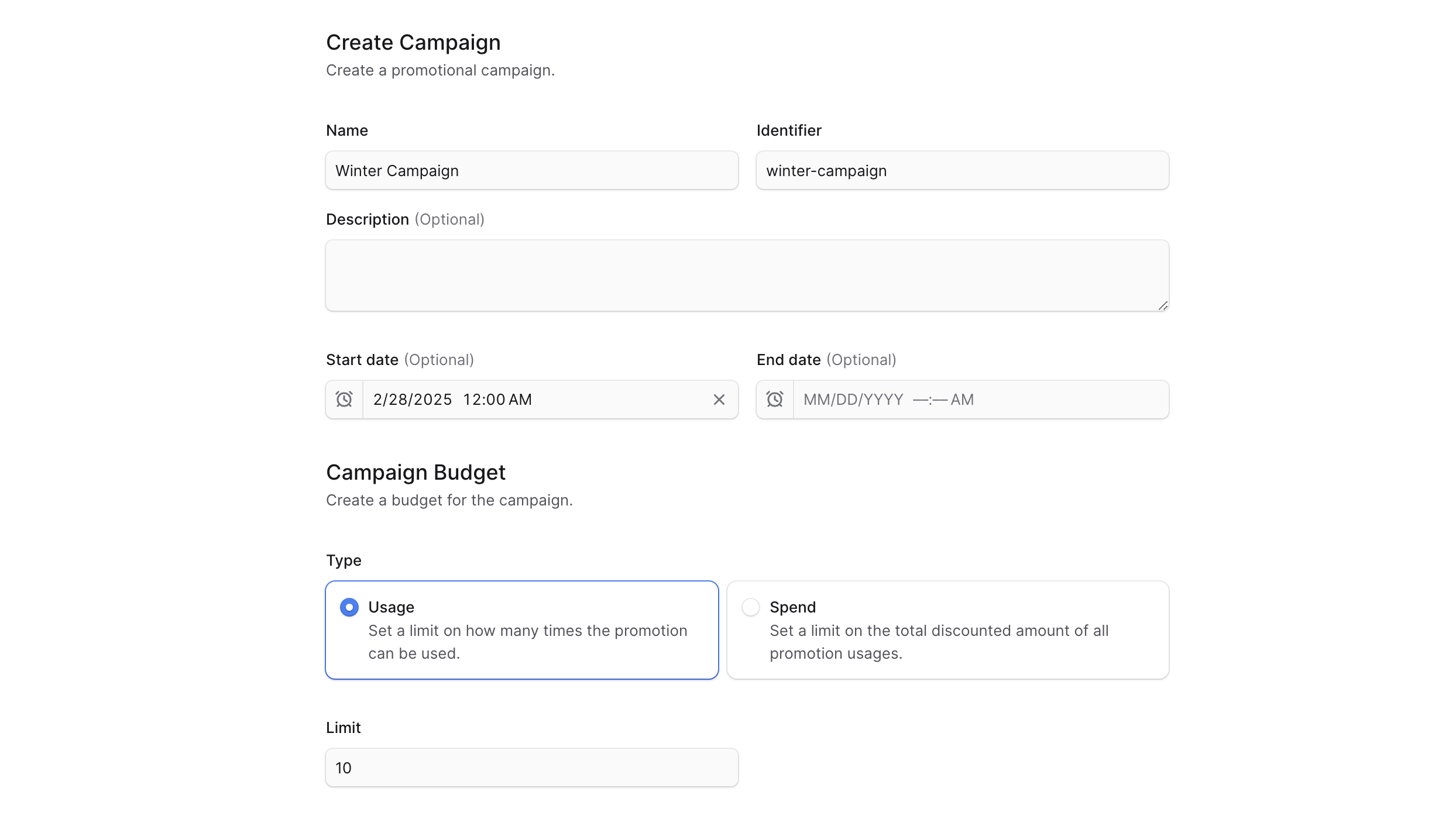
To create a campaign:
|
|
|
|
1. Go to Promotions -> Campaigns from the sidebar.
|
|
2. Click on the Create button at the top right.
|
|
3. In the form that opens:
|
|
- Enter the campaign's name and identifier in their respective fields.
|
|
- Optionally add a description in the Description field.
|
|
- Optionally set a start date in the "Start date" field. Promotions in this campaign can only be used after this date.
|
|
- Optionally set an end date in the "End date" field. Promotions in this campaign are expired after this date.
|
|
- You can set a campaign budget of the following types:
|
|
- **Usage**: How many times the promotions in the campaign can be used. Once the number of times exceed the limit, the campaign and its promotions expire.
|
|
- **Spend**: The total amount that can be discounted by the promotions in the campaign. Once the total amount discounted exceeds the limit, the campaign and its promotions expire. This is not applicable to "Buy X Get Y" promotions.
|
|
- If you chose the **Spend** type, select the currency of the limit in the "Currency" field.
|
|
- When adding promotions to the campaign later, promotions that discount a fixed amount can only be added if the currency matches the campaign budget's currency.
|
|
- In the Limit field, you can set a campaign budget limit based on the type you chose.
|
|
- If you chose **Usage**, enter the number of times the promotions in the campaign can be used.
|
|
- If you chose **Spend**, enter the total amount that can be discounted by the promotions in the campaign.
|
|
4. Once you're done, click the Create button.
|
|
|
|
|
|
|
|
---
|
|
|
|
## View Campaign Details
|
|
|
|
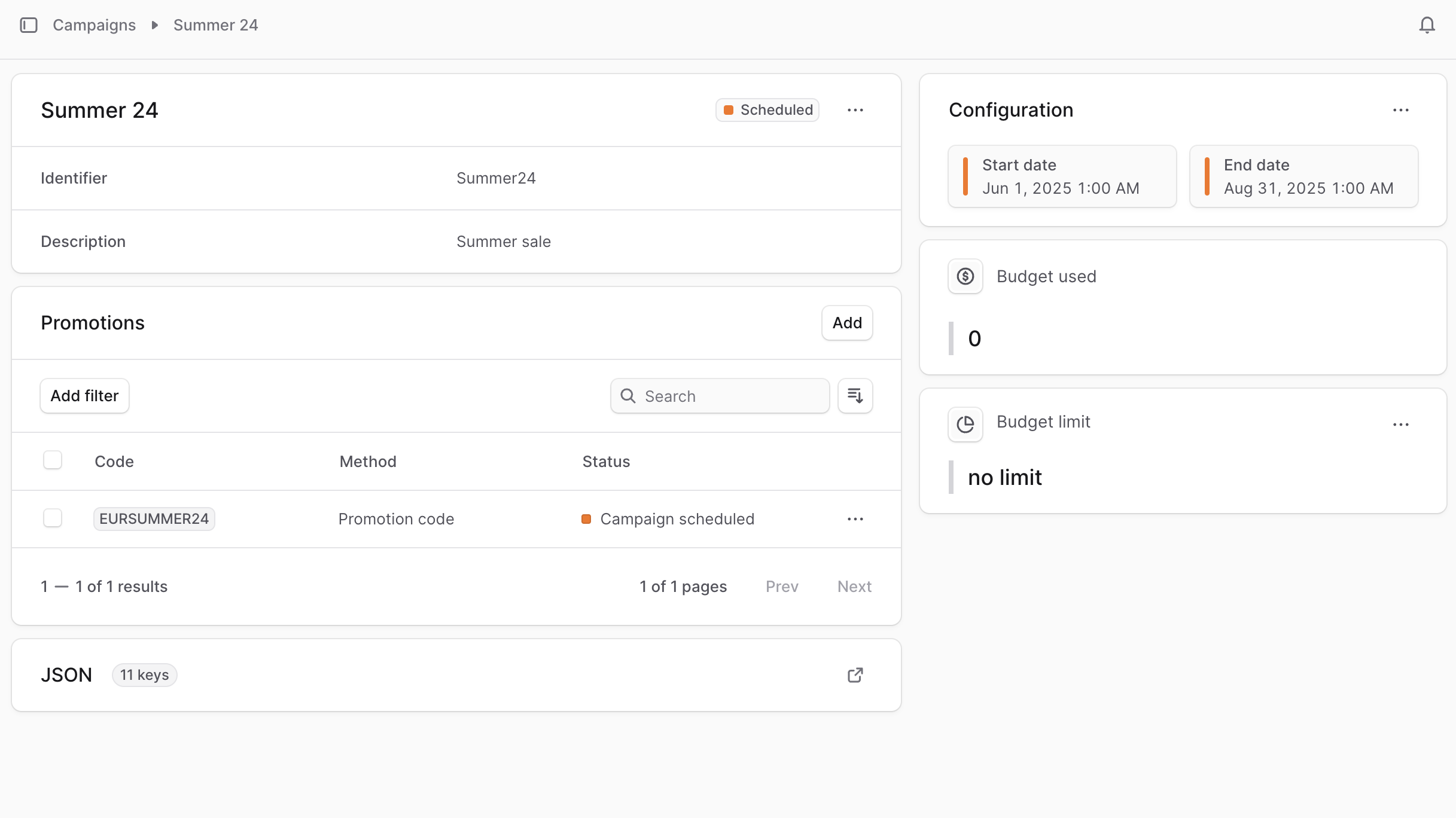
To view the details of a campaign:
|
|
|
|
1. Go to Promotions -> Campaigns from the sidebar.
|
|
2. Click on the campaign you want to view.
|
|
|
|
This opens the campaign's details page.
|
|
|
|
|
|
|
|
### Campaign Statuses
|
|
|
|
At the top right of the first section, you can see the campaign's status. The status can be one of the following:
|
|
|
|
<Table>
|
|
<Table.Header>
|
|
<Table.Row>
|
|
<Table.HeaderCell>Status</Table.HeaderCell>
|
|
<Table.HeaderCell>Description</Table.HeaderCell>
|
|
</Table.Row>
|
|
</Table.Header>
|
|
<Table.Body>
|
|
<Table.Row>
|
|
<Table.Cell>Scheduled</Table.Cell>
|
|
<Table.Cell>The campaign has a start date in the future. Once the start date is reached, the campaign becomes active.</Table.Cell>
|
|
</Table.Row>
|
|
<Table.Row>
|
|
<Table.Cell>Active</Table.Cell>
|
|
<Table.Cell>The campaign is active and its promotions can be used.</Table.Cell>
|
|
</Table.Row>
|
|
<Table.Row>
|
|
<Table.Cell>Expired</Table.Cell>
|
|
<Table.Cell>The campaign has an end date that has passed. The campaign and its promotions are expired and can't be used anymore.</Table.Cell>
|
|
</Table.Row>
|
|
</Table.Body>
|
|
</Table>
|
|
|
|
---
|
|
|
|
## Edit Campaign Details
|
|
|
|
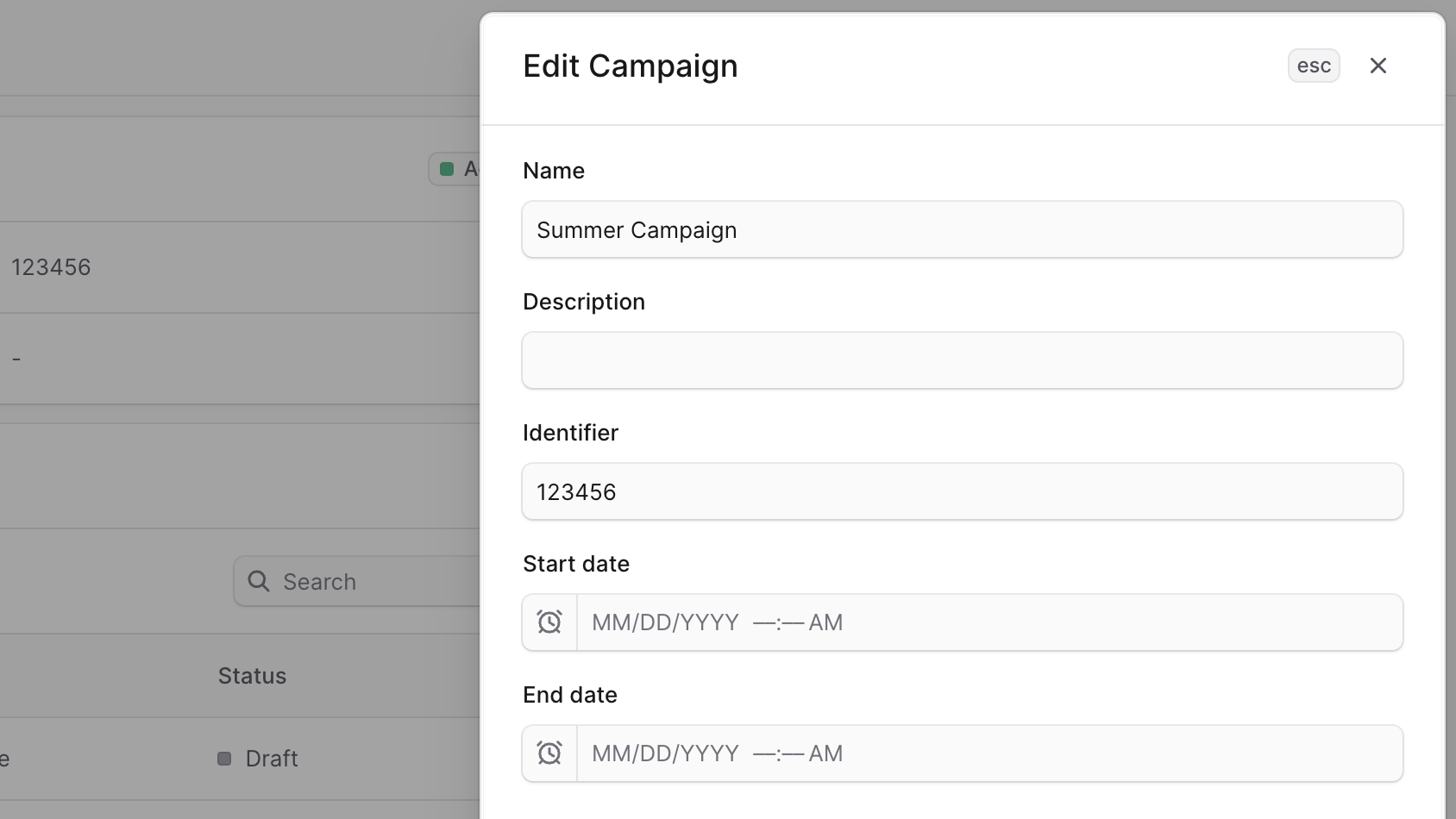
To edit the details of a campaign:
|
|
|
|
1. Go to the campaign's details page.
|
|
2. Click the <InlineIcon Icon={EllipsisHorizontal} alt="three-dots" /> icon at the top right of the first section.
|
|
3. Choose Edit from the dropdown.
|
|
4. In the side window that opens, you can edit the campaign's name, description, identifier, and start and end dates.
|
|
5. Once you're done, click the Save button.
|
|
|
|
|
|
|
|
---
|
|
|
|
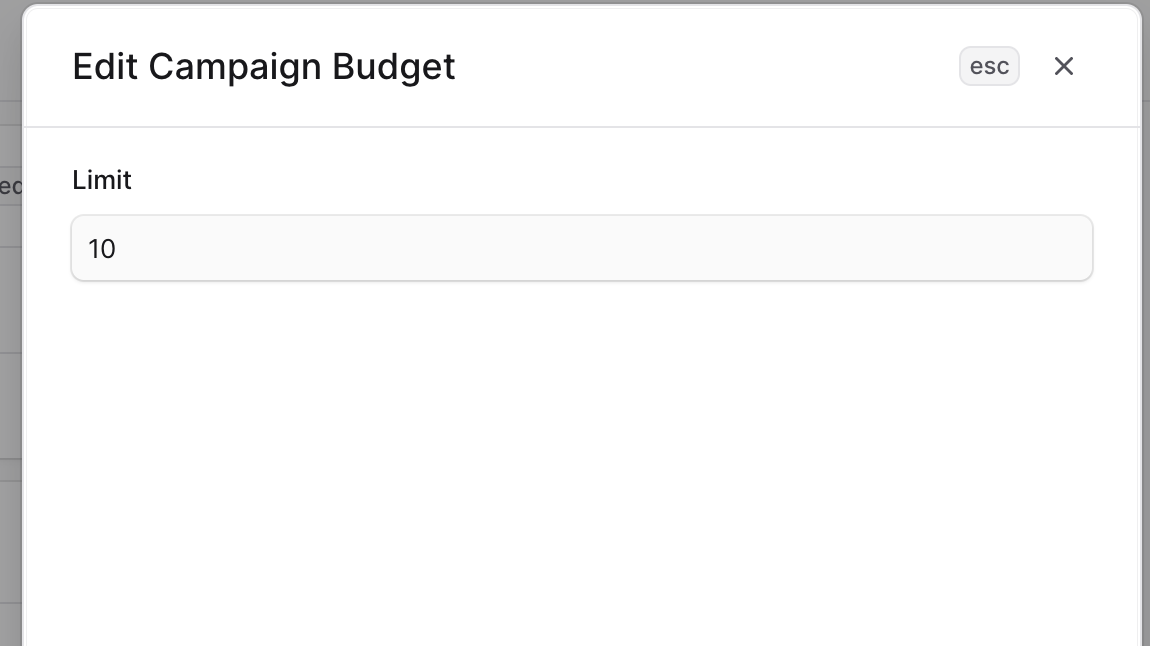
## Edit Campaign Budget Limit
|
|
|
|
To edit a campaign's budget usage or spending limit:
|
|
|
|
1. Go to the campaign's details page.
|
|
2. Click the <InlineIcon Icon={EllipsisHorizontal} alt="three-dots" /> icon at the top right of the "Budget Limit" section.
|
|
3. Choose Edit from the dropdown.
|
|
4. In the side window that opens, you can edit the budget limit.
|
|
5. Once you're done, click the Save button.
|
|
|
|
|
|
|
|
---
|
|
|
|
## Manage Promotions of Campaign
|
|
|
|
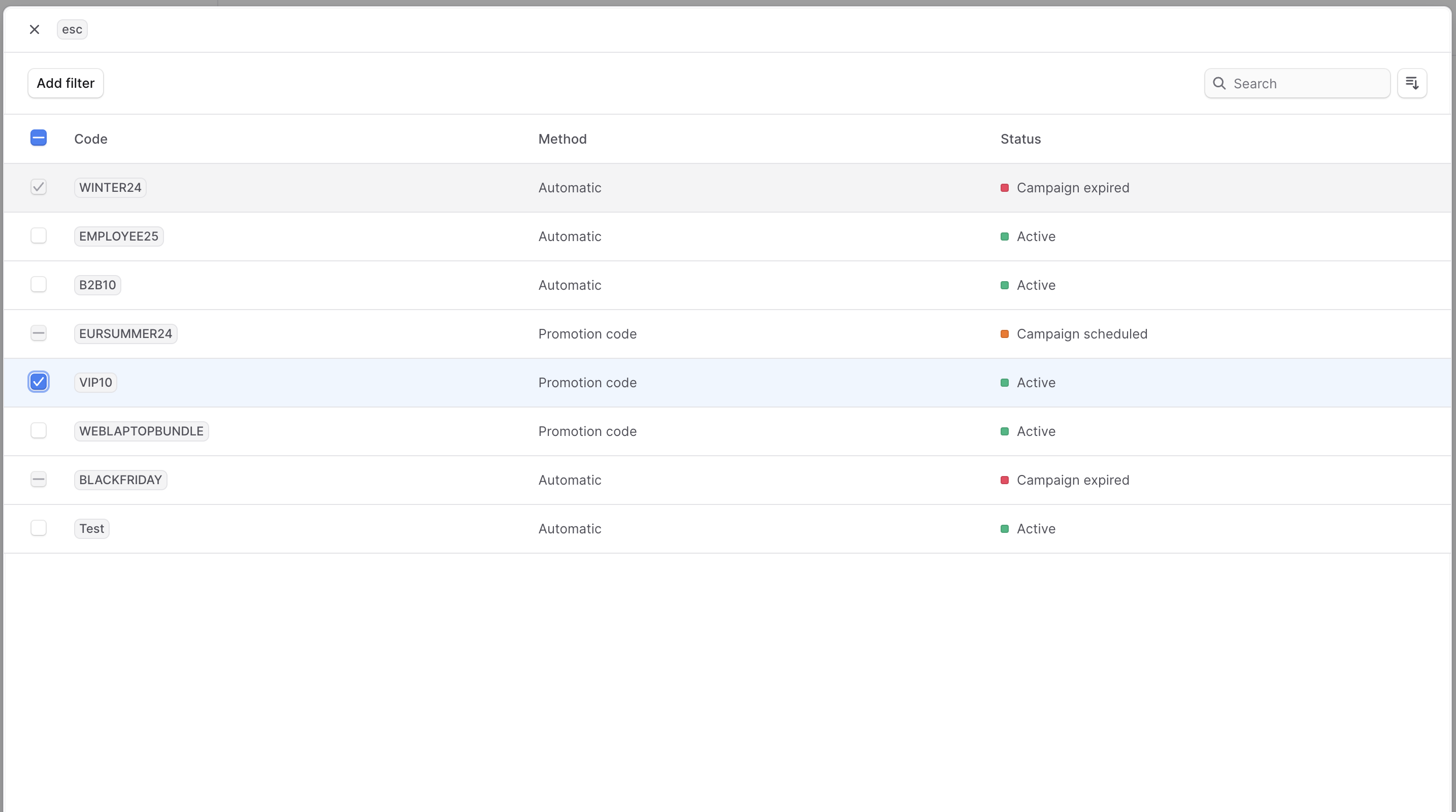
From the campaign's details page, you can manage which promotions belong to the campaign.
|
|
|
|
### Add Promotions to Campaign
|
|
|
|
To add promotions to a campaign:
|
|
|
|
<Note title="Tip">
|
|
|
|
You can only add promotions that don't belong to another campaign.
|
|
|
|
</Note>
|
|
|
|
1. Go to the campaign's details page.
|
|
2. Click on the Add button at the top right of the "Promotions" section.
|
|
3. In the list that opens, check the promotions you want to add to the campaign.
|
|
4. Once you're done, click the Save button.
|
|
|
|
|
|
|
|
### Remove Promotions from Campaign
|
|
|
|
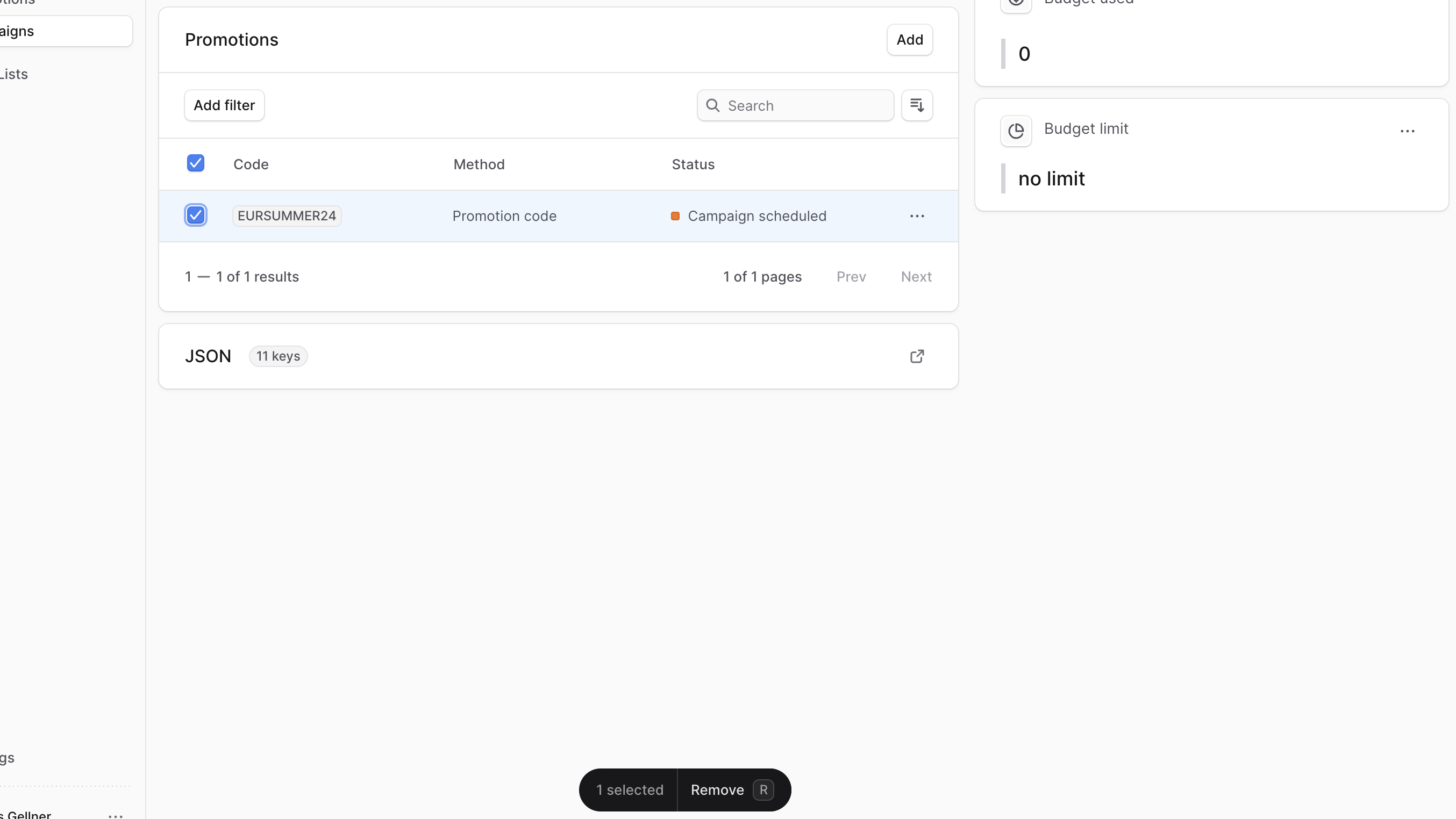
To remove promotions from a campaign:
|
|
|
|
1. Go to the campaign's details page.
|
|
2. In the "Promotions" section, check the promotions you want to remove from the campaign.
|
|
3. Once you're done, either press <Kbd>R</Kbd> or click the Remove button at the bottom center of the page.
|
|
4. Confirm removing the promotion from the campaign by clicking the "Continue" button in the pop-up.
|
|
|
|
|
|
|
|
---
|
|
|
|
## Delete Campaign
|
|
|
|
<Note type="warning">
|
|
|
|
Deleting a campaign is irreversible. Deleting a campaign doesn't delete its promotions.
|
|
|
|
</Note>
|
|
|
|
To delete a campaign:
|
|
|
|
1. Go to the campaign's details page.
|
|
2. Click the <InlineIcon Icon={EllipsisHorizontal} alt="three-dots" /> icon at the top right of the first section.
|
|
3. Choose Delete from the dropdown.
|
|
4. Confirm deleting the campaign by clicking the "Delete" button in the pop-up.
|