 Shahed Nasser
95eef899f7
Shahed Nasser
95eef899f7
* docs: add notes + missing links for user guide

* fix build errors

* fixes
174 lines
7.7 KiB
Plaintext
174 lines
7.7 KiB
Plaintext
---
|
|
sidebar_position: 6
|
|
sidebar_label: "Manage Tax Regions"
|
|
tags:
|
|
- user guide
|
|
- tax
|
|
---
|
|
|
|
import { EllipsisHorizontal } from "@medusajs/icons"
|
|
|
|
export const metadata = {
|
|
title: `Manage Tax Regions in Medusa Admin`,
|
|
}
|
|
|
|
# {metadata.title}
|
|
|
|
In this guide, you'll learn what tax regions are and how to manage them.
|
|
|
|
## What is a Tax Region?
|
|
|
|
A Tax Region represents a geographical area where you have to apply specific tax rates. For example, if you operate in the United States and Canada, you might have different tax rates for each country, and even in different states or provinces of each country.
|
|
|
|
In this case, you can create a tax region for each country you operate in and set up [sublevel tax regions](#sublevel-tax-regions) for each state or province in the country.
|
|
|
|
Each tax region has its own tax rate, and you can override the default tax rate in a region for specific products or product types.
|
|
|
|
---
|
|
|
|
## View Tax Regions
|
|
|
|
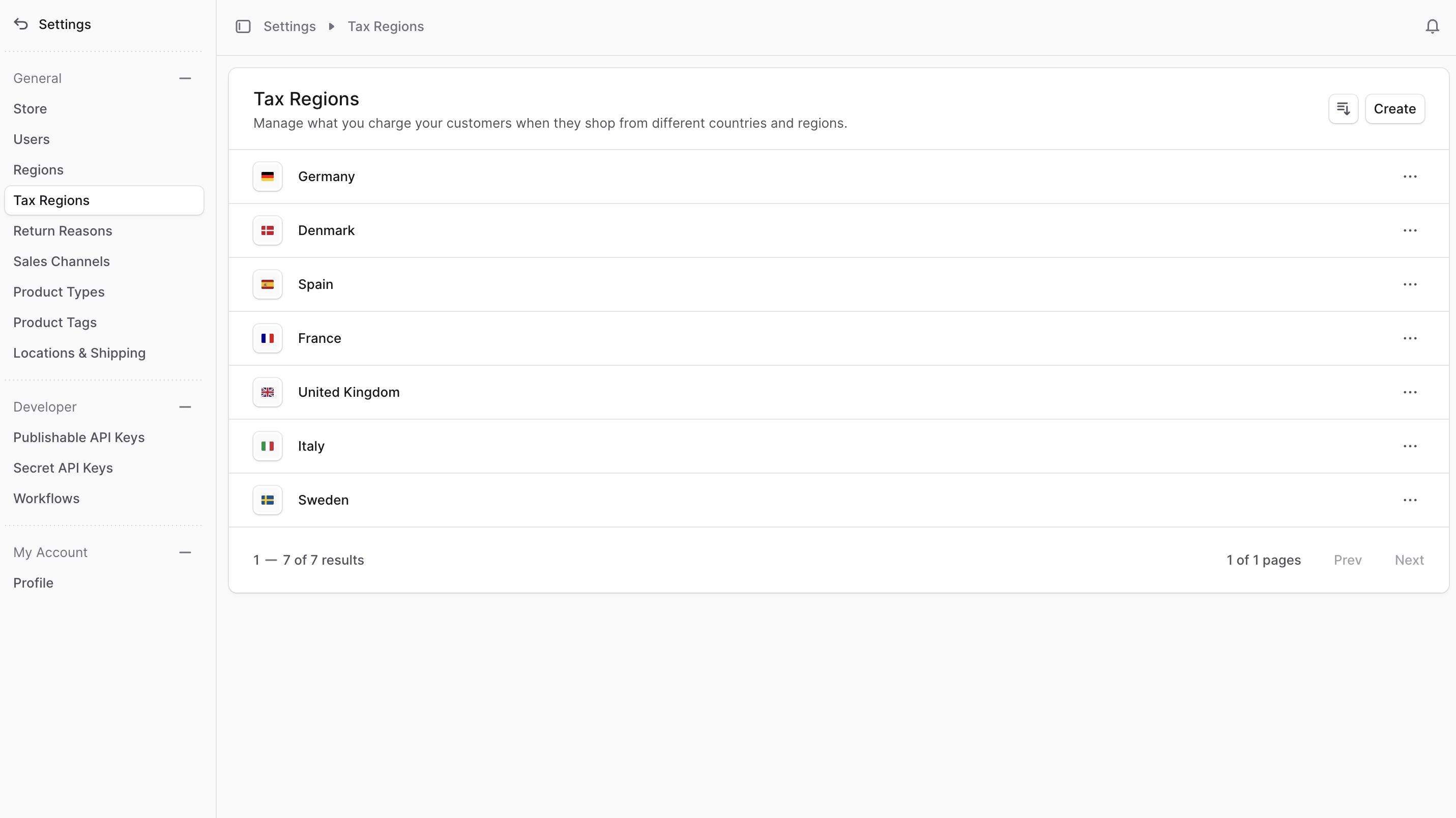
To view tax regions in your store, go to Settings → Tax Regions. Here, you can see a list of all the tax regions you have set up in your store. You can also search, filter, and sort the tax regions to find the one you are looking for.
|
|
|
|
|
|
|
|
---
|
|
|
|
## Create Tax Region
|
|
|
|
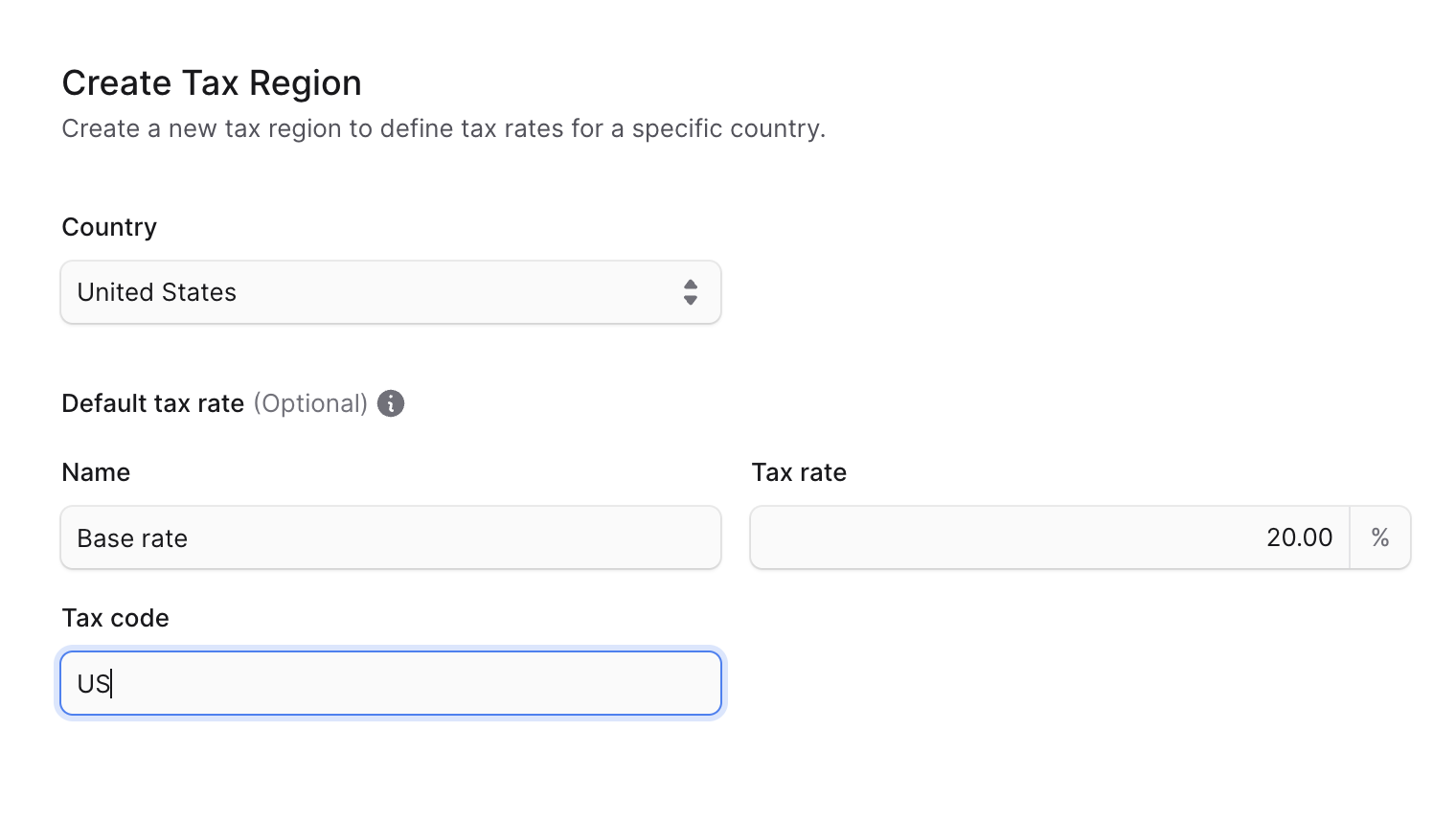
To create a tax region:
|
|
|
|
1. Go to Settings → Tax Regions.
|
|
2. Click the Create button at the top right.
|
|
3. In the form that opens:
|
|
- In the Country field, select the country that this tax region applies to.
|
|
- Under the "Default tax rate" section, you can optionally enter a name, tax rate, and tax code in their respective fields.
|
|
4. Once you're done, click the Save button.
|
|
|
|
|
|
|
|
---
|
|
|
|
## View Tax Region Details
|
|
|
|
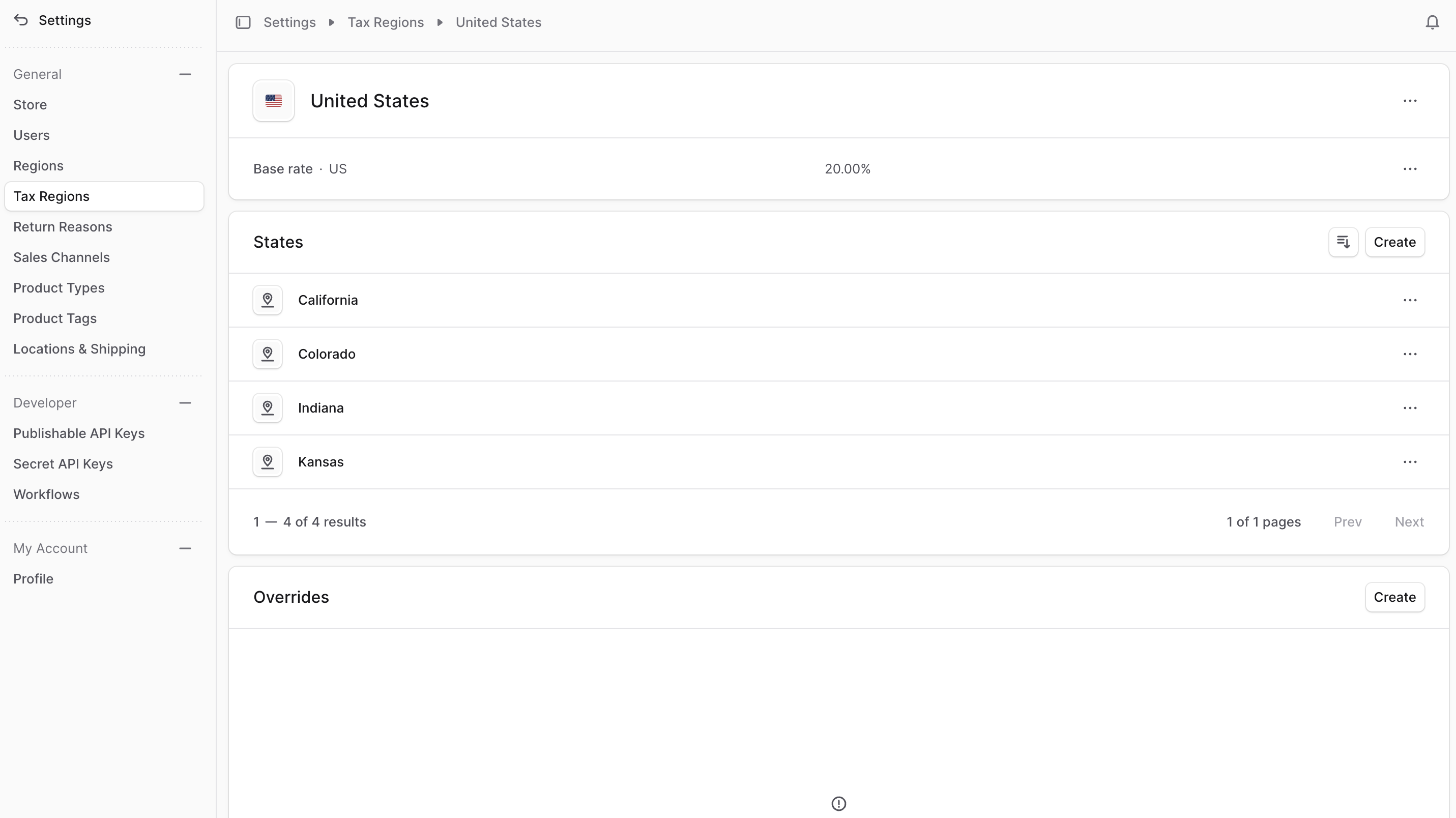
To view the details of a tax region:
|
|
|
|
1. Go to Settings → Tax Regions.
|
|
2. Click on a tax region from the list.
|
|
|
|
This opens the tax region's details page where you can also manage the tax region.
|
|
|
|
|
|
|
|
---
|
|
|
|
## Edit Default Tax Rate
|
|
|
|
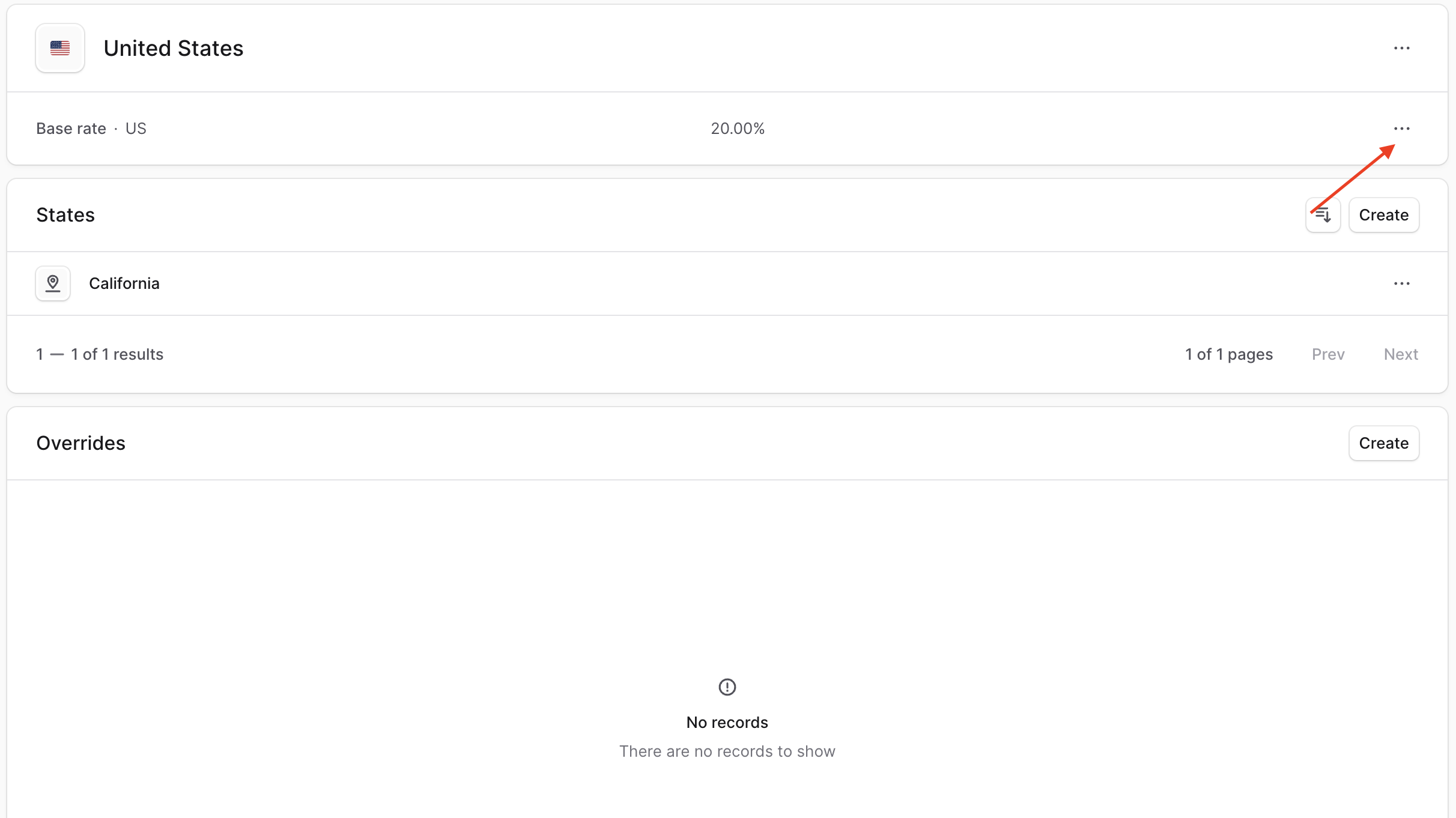
To edit the default tax rate of the region:
|
|
|
|
1. Go to the region's details page.
|
|
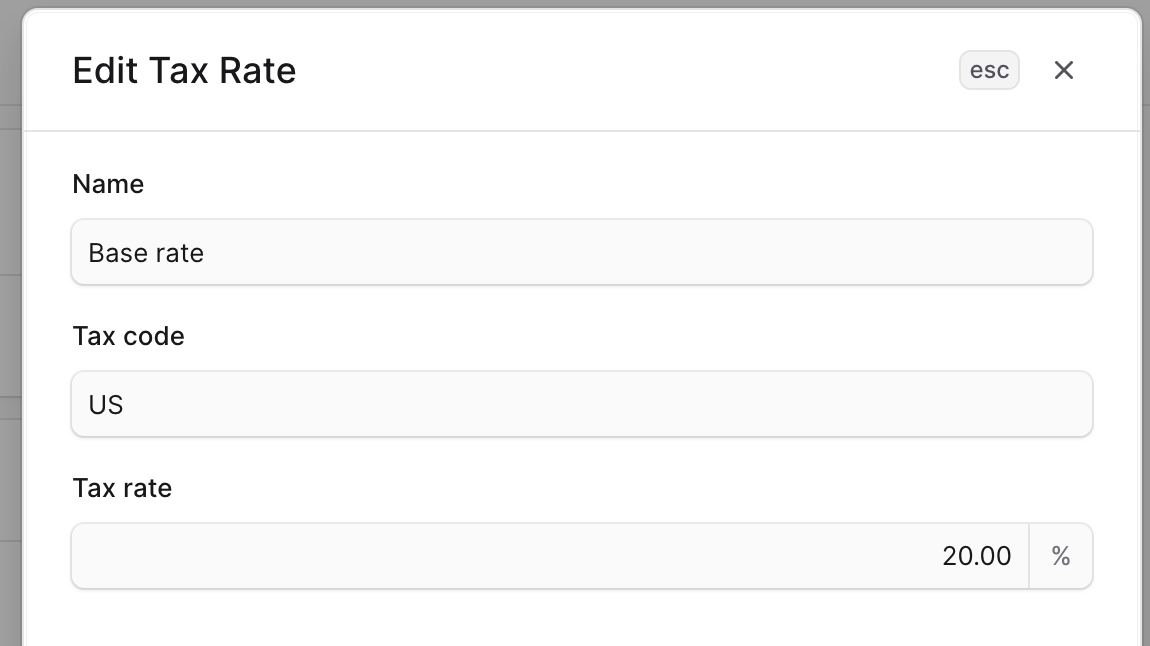
2. In the first section, you'll find details of the default tax rate, including its tax rate and code. Click on the <InlineIcon Icon={EllipsisHorizontal} alt="three-dots" /> icon at its right.
|
|
|
|
|
|
|
|
3. Choose Edit from the dropdown.
|
|
4. In the side window that opens, you can edit the tax rate's name, code, and rate to charge.
|
|
5. Once you're done, click the Save button.
|
|
|
|
|
|
|
|
---
|
|
|
|
## Manage Tax Rate Overrides
|
|
|
|
You can override the default tax rate of a region for specific products or product types. This is useful when you have different tax rates for certain products or product types in a region.
|
|
|
|
You can override tax rates for tax regions and [sublevel tax regions](#sublevel-tax-regions).
|
|
|
|
### Create Tax Rate Override
|
|
|
|
To create a tax rate override for a product or product type in a tax region:
|
|
|
|
1. Go to the region's details page.
|
|
2. In the "Overrides" section, click the Create button.
|
|
3. In the form that opens:
|
|
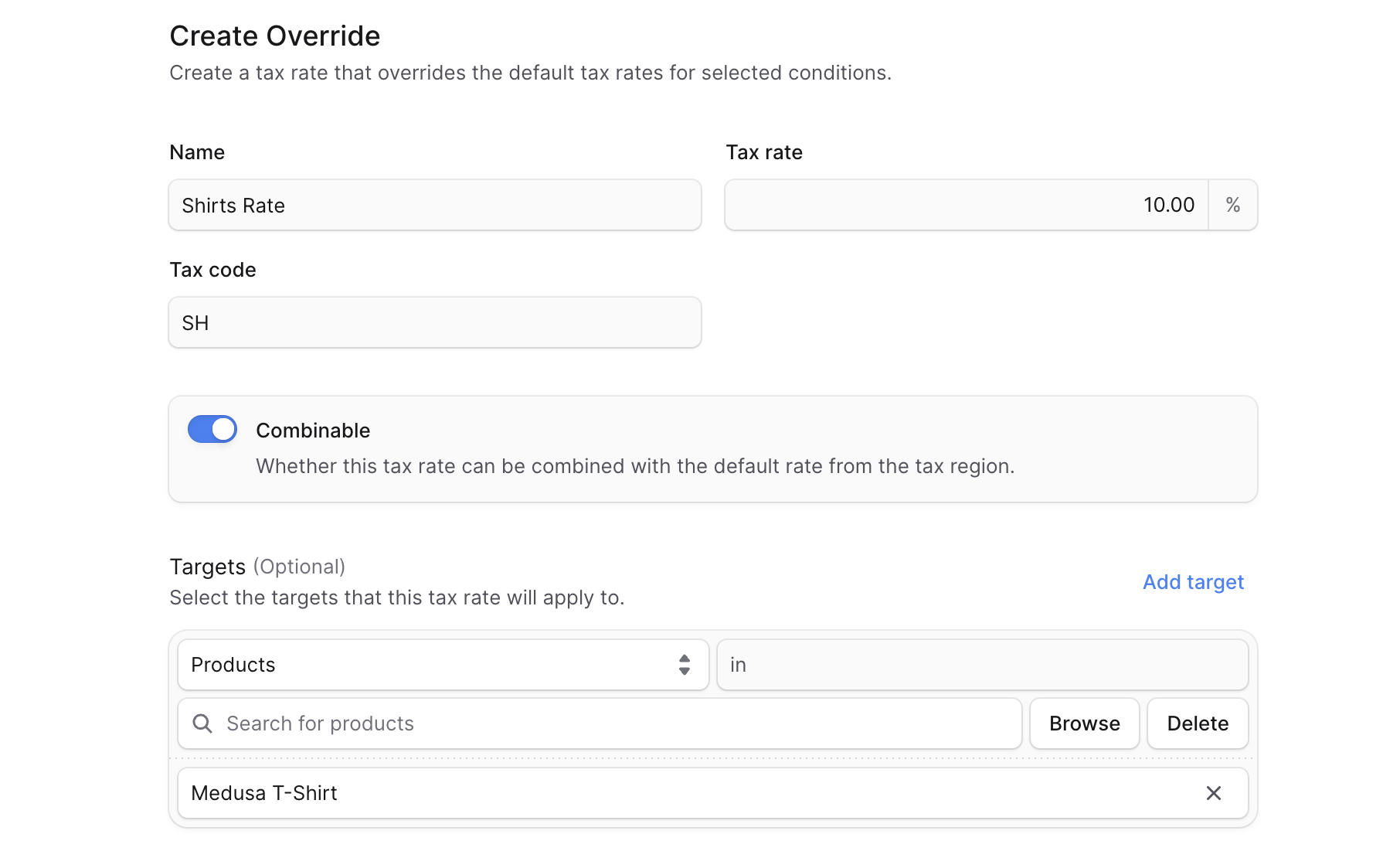
- Enter the tax override's name, rate, and code in their respective fields.
|
|
- If the override should be combined with the default tax rate, enable the "Combinable" toggle.
|
|
- Under the "Targets" section, you can select which products or product types this override applies to. You can add a target by clicking "Add target". For each target:
|
|
- Choose the target type (Product or Product Type).
|
|
- Choose the product or product types that the override applies to, based on the target type you chose.
|
|
4. Once you're done, click the Save button.
|
|
|
|
|
|
|
|
### Edit Tax Rate Override
|
|
|
|
To edit a tax rate override:
|
|
|
|
1. Go to the region's details page.
|
|
2. In the "Overrides" section, click the <InlineIcon Icon={EllipsisHorizontal} alt="three-dots" /> icon at the right of the override you want to edit.
|
|
3. Choose Edit from the dropdown.
|
|
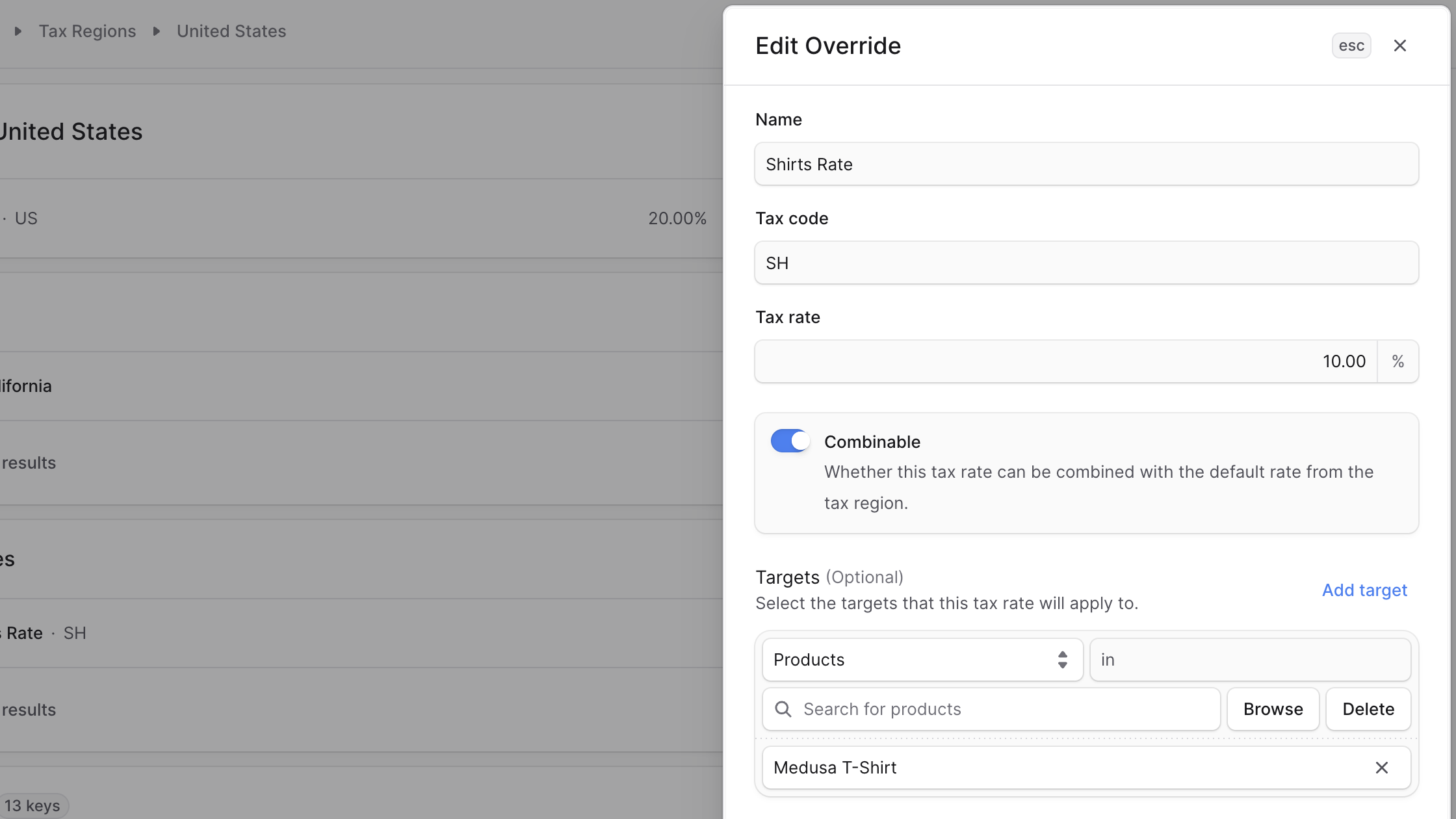
4. In the side window that opens, you can edit the override's name, rate, code, and whether the tax rate should be combined with the default rate. You can also edit the targets of the override.
|
|
5. Once you're done, click the Save button.
|
|
|
|
|
|
|
|
### Delete Tax Rate Override
|
|
|
|
<Note type="warning">
|
|
|
|
Deleting a tax rate override is irreversible.
|
|
|
|
</Note>
|
|
|
|
To delete a tax rate override:
|
|
|
|
1. Go to the region's details page.
|
|
2. In the "Overrides" section, click the <InlineIcon Icon={EllipsisHorizontal} alt="three-dots" /> icon at the right of the override you want to delete.
|
|
3. Choose Delete from the dropdown.
|
|
4. Confirm deleting the override by clicking the Delete button in the pop-up.
|
|
|
|
---
|
|
|
|
## Sublevel Tax Regions
|
|
|
|
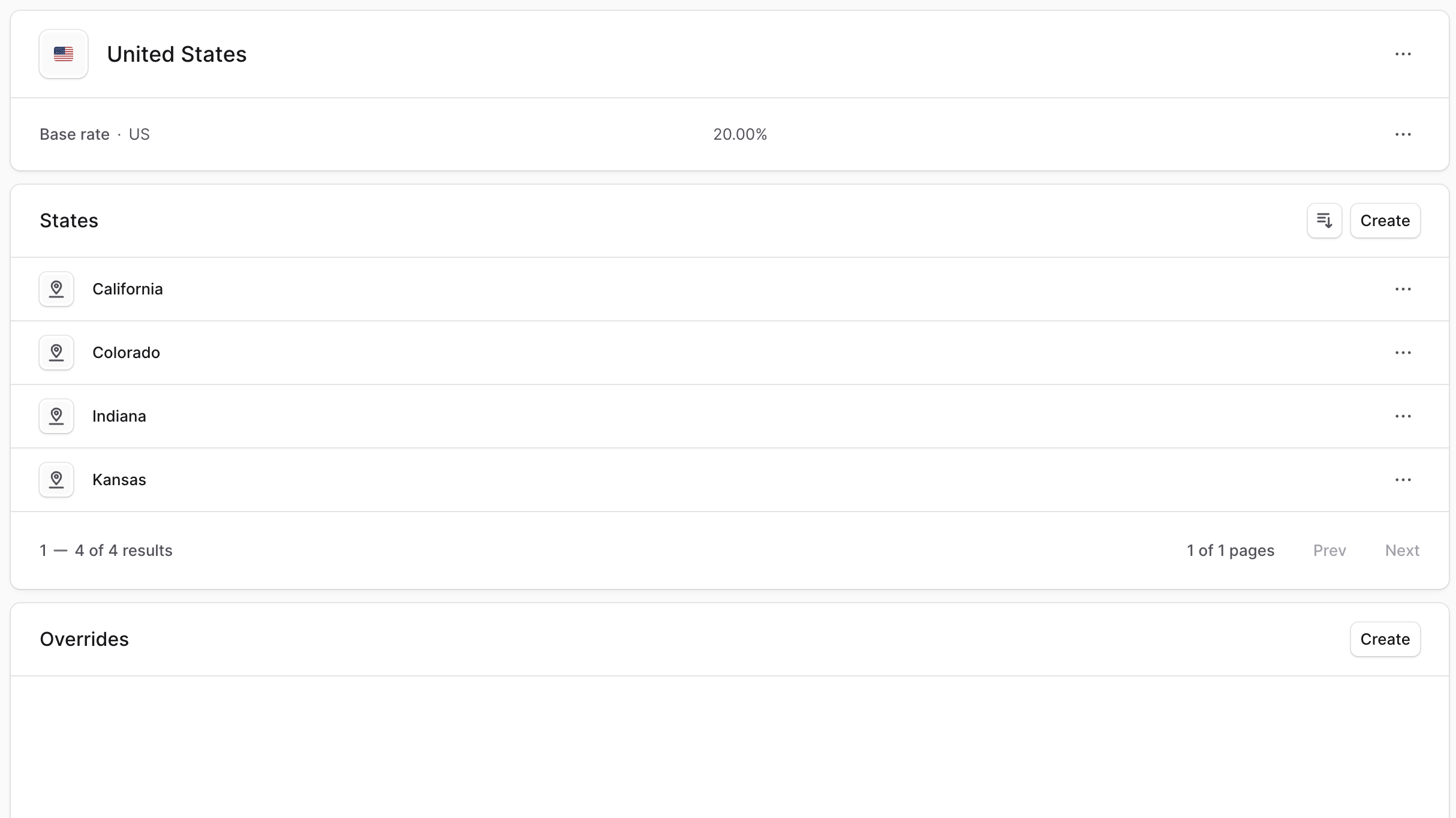
Tax regions for some countries like the United States have a States, Province, or Cantons section in the tax region details page. Here, you can add sublevel regions for the country.
|
|
|
|
|
|
|
|
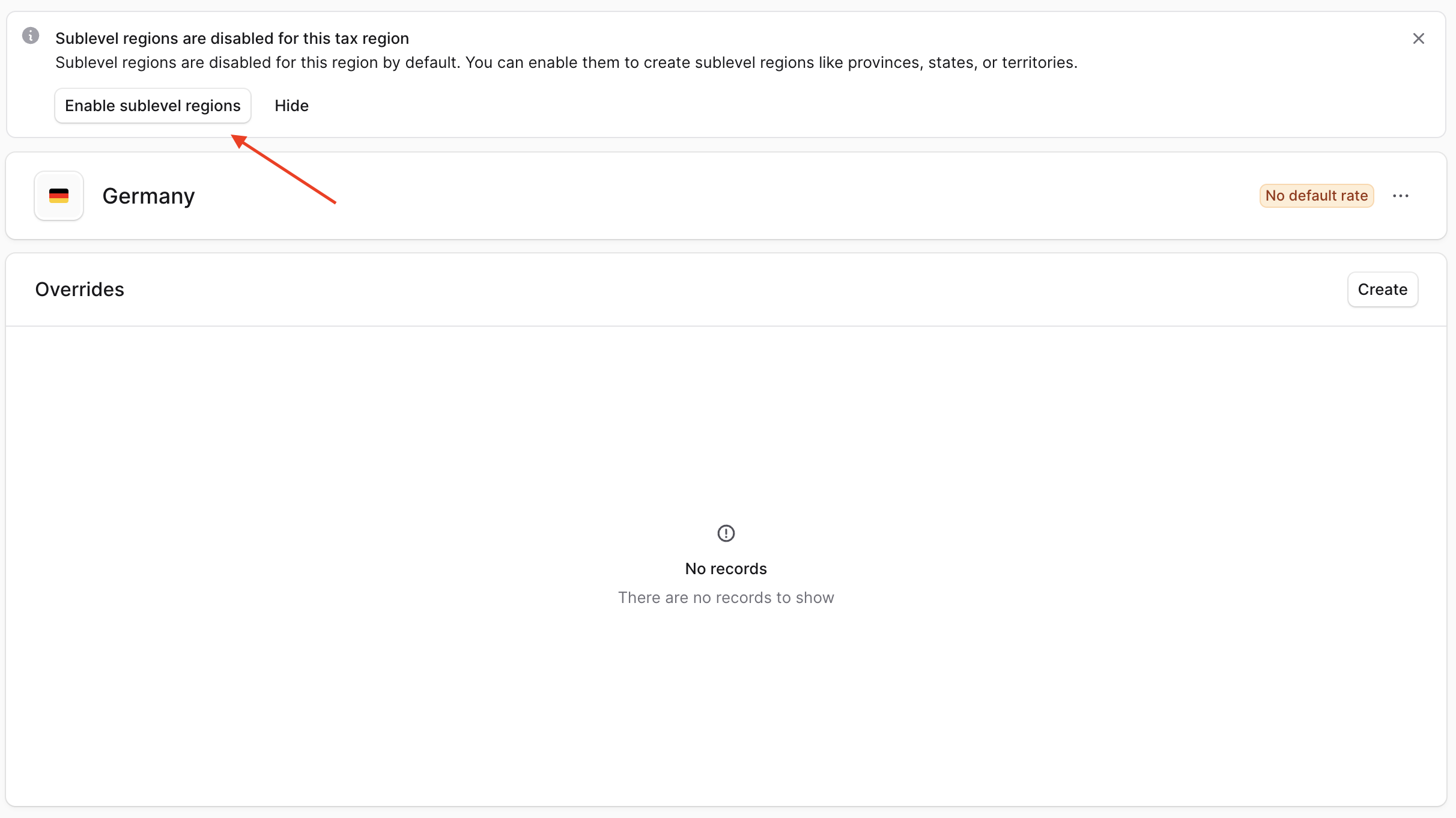
You can also enable it for other countries that don't show this section by default. For those countries, you'll find a note at the top of the page where you can enable the sublevel regions.
|
|
|
|
|
|
|
|
After enabling this setting, you'll find a "Sublevels" section in the tax region details page where you can add sublevel regions.
|
|
|
|
### Create Sublevel Tax Region
|
|
|
|
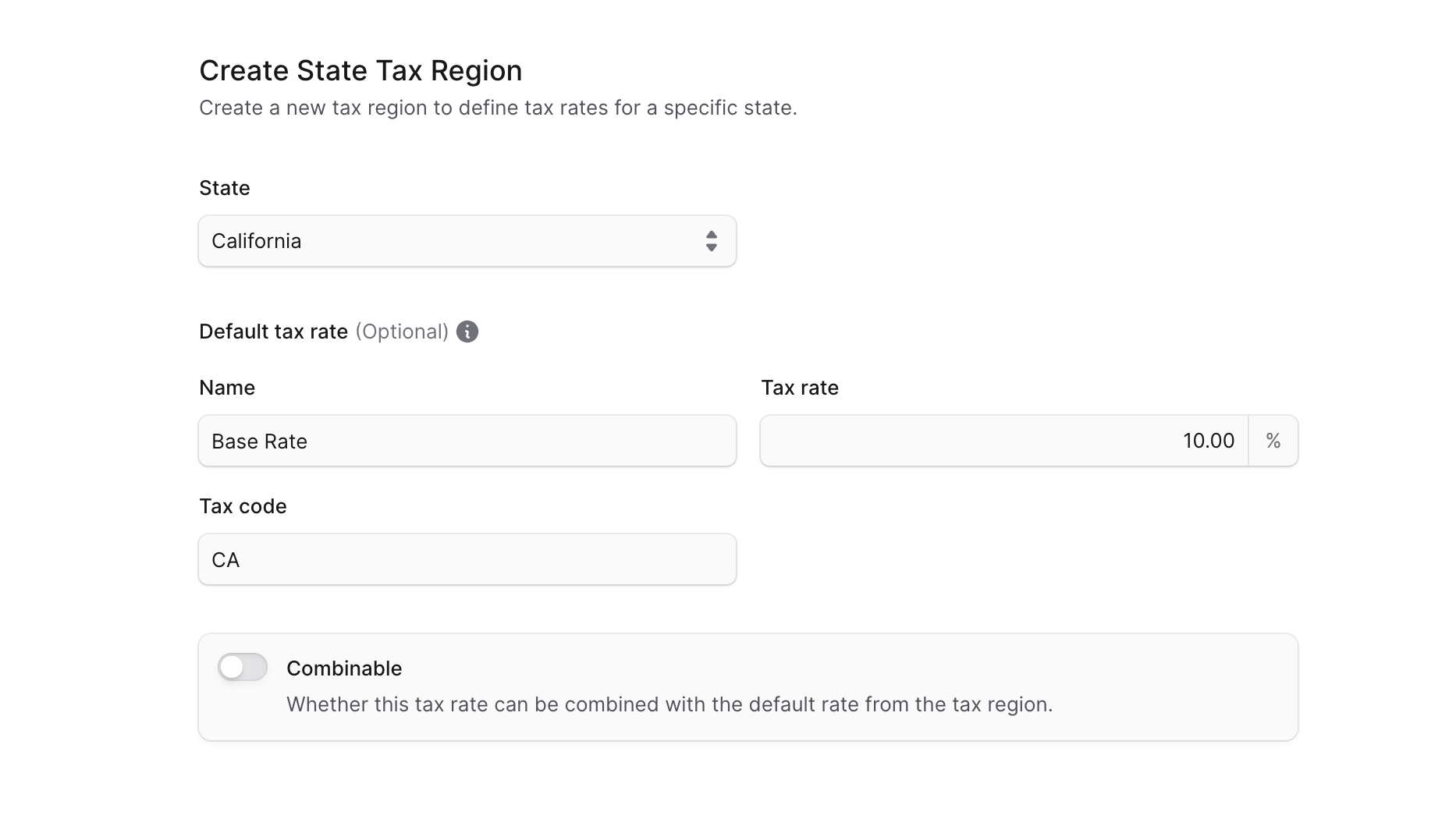
To create a sublevel tax region in a tax region:
|
|
|
|
1. Go to the tax region's details page.
|
|
2. In the "Sublevels" section or its equivalent (such as States, Province, or Cantons), click the "Create" button.
|
|
3. In the form that opens:
|
|
- If the country supports a sublevel by default, you'll find an input to select a state, province, or canton.
|
|
- If the country doesn't support a sublevel by default, you'll find an input to enter the ISO 3166-2 code of the sublevel.
|
|
- Under the "Default tax rate" section, you can optionally enter a name, tax rate, and tax code in their respective fields.
|
|
- If the tax region's rates should be combined with the parent's rates, enable the "Combinable" toggle.
|
|
4. Once you're done, click the Save button.
|
|
|
|
|
|
|
|
### View Sublevel Tax Region Details
|
|
|
|
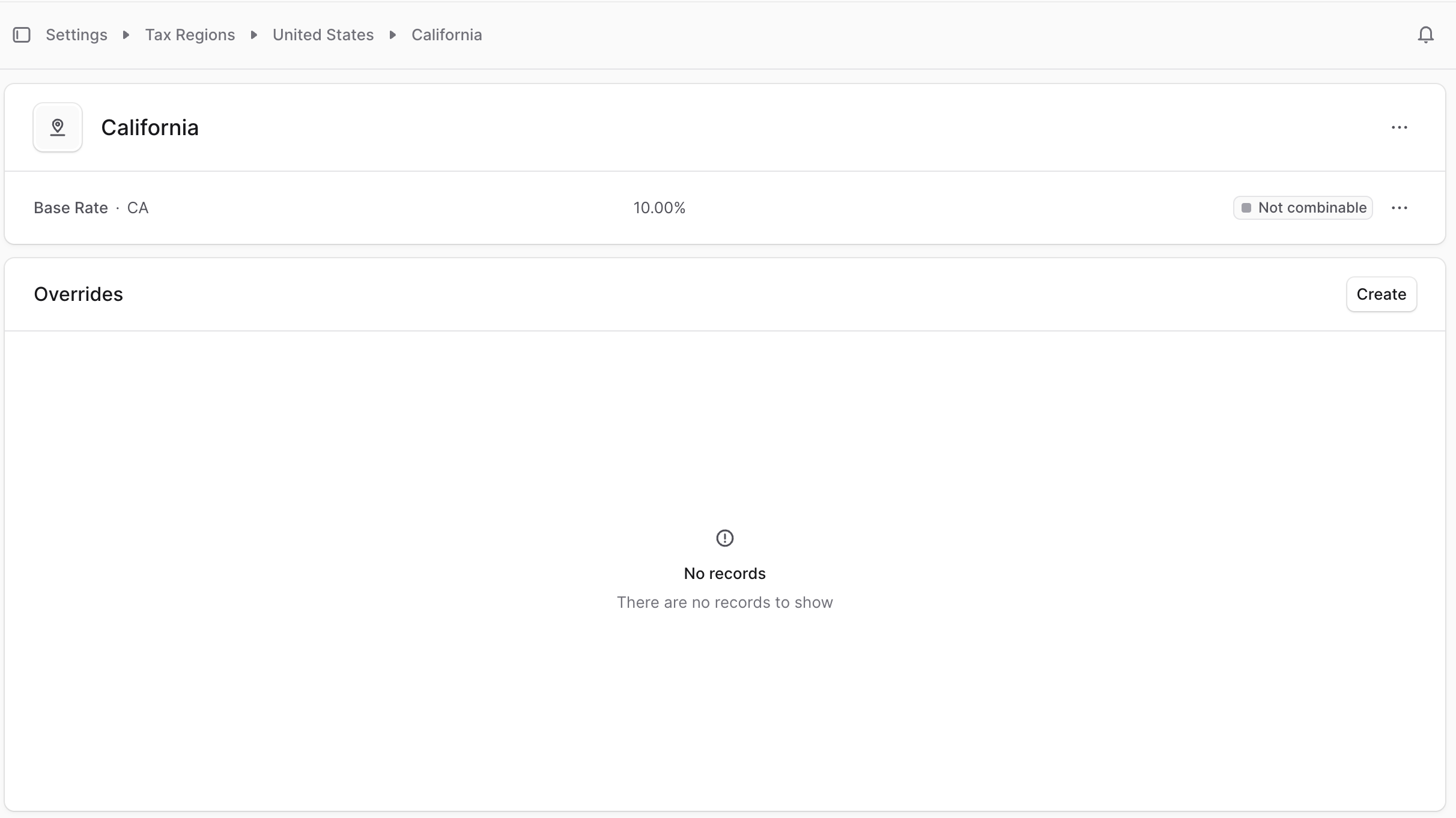
To view the details of a sublevel tax region:
|
|
|
|
1. Go to the tax region's details page.
|
|
2. Under the "Sublevels" section or its equivalent, click on a sublevel tax region.
|
|
|
|
This opens the sublevel tax region's details page where you can also manage the sublevel tax region.
|
|
|
|
|
|
|
|
### Manage Sublevel Tax Region's Rates
|
|
|
|
You can manage the sublevel tax region's [default](#edit-default-tax-rate) and [override](#manage-tax-rate-overrides) rates the same way you manage the parent tax region's rates.
|