 6f1b49af03
* Fix issue on fixed total amount discount when using includes tax (#3472)

The calculation of the fixed discount amount breaks when having includes_tax setting active, due to the line item totals are incorrect and returning everything as 0, thus the totalItemPercentage will be Infinitiy due to the division by a subtotal of 0

* chore: Add missing changeset for @medusajs/medusa

* feat(medusa): Improve performance of Products domain (#3417)

* feat(medusa): Improve product update performances

* fix tests and update

* update mock repo

* improve repo

* cleanup

* fix

* cleanup + bulk emit + unit test fix

* improvements

* improve

* fix unit tests

* fix export

* fix product update handler

* enhance mock repo

* fix import integration

* fix end point tests

* revert mock repo product variant

* fix unit

* cleanup

* cleanup

* address feedback

* fix quotes in tests

* address feedback

* Create new-tips-mate.md

* use types

* chore: Remove integration-tests from changeset

* chore(release): v1.7.14

* chore(docs): Generated Docs Announcement Bar (automated) (#3489)

Co-authored-by: olivermrbl <olivermrbl@users.noreply.github.com>

* fix(medusa): EventBusService.emit using Redis mock (#3491)

* Fix eventBusService.emit using redis mock

* revert gitignore

* enqueuer

* unit test add redis_url

* fix test

* chore(docs): Generated Services Reference (automated) (#3490)

Co-authored-by: olivermrbl <olivermrbl@users.noreply.github.com>

* docs: publish restructure (#3496)

* docs: added features and guides overview page

* added image

* added version 2

* added version 3

* added version 4

* docs: implemented new color scheme

* docs: redesigned sidebar (#3193)

* docs: redesigned navbar for restructure (#3199)

* docs: redesigned footer (#3209)

* docs: redesigned cards (#3230)

* docs: redesigned admonitions (#3231)

* docs: redesign announcement bar (#3236)

* docs: redesigned large cards (#3239)

* docs: redesigned code blocks (#3253)

* docs: redesigned search modal and page (#3264)

* docs: redesigned doc footer (#3268)

* docs: added new sidebars + refactored css and assets (#3279)

* docs: redesigned api reference sidebar

* docs: refactored css

* docs: added code tabs transition

* docs: added new sidebars

* removed unused assets

* remove unusued assets

* Fix deploy errors

* fix incorrect link

* docs: fixed code responsivity + missing icons (#3283)

* docs: changed icons (#3296)

* docs: design fixes to the sidebar (#3297)

* redesign fixes

* docs: small design fixes

* docs: several design fixes after restructure (#3299)

* docs: bordered icon fixes

* docs: desgin fixes

* fixes to code blocks and sidebar scroll

* design adjustments

* docs: restructured homepage (#3305)

* docs: restructured homepage

* design fixes

* fixed core concepts icon

* docs: added core concepts page (#3318)

* docs: restructured homepage

* design fixes

* docs: added core concepts page

* changed text of different components

* docs: added architecture link

* added missing prop for user guide

* docs: added regions overview page (#3327)

* docs: added regions overview

* moved region pages to new structure

* docs: fixed description of regions architecture page

* small changes

* small fix

* docs: added customers overview page (#3331)

* docs: added regions overview

* moved region pages to new structure

* docs: fixed description of regions architecture page

* small changes

* small fix

* docs: added customers overview page

* fix link

* resolve link issues

* docs: updated regions architecture image

* docs: second-iteration fixes (#3347)

* docs: redesigned document

* design fixes

* docs: added products overview page (#3354)

* docs: added carts overview page (#3363)

* docs: added orders overview (#3364)

* docs: added orders overview

* added links in overview

* docs: added vercel redirects

* docs: added soon badge for cards (#3389)

* docs: resolved feedback changes + organized troubleshooting pages (#3409)

* docs: resolved feedback changes

* added extra line

* docs: changed icons for restructure (#3421)

* docs: added taxes overview page (#3422)

* docs: added taxes overview page

* docs: fix sidebar label

* added link to taxes overview page

* fixed link

* docs: fixed sidebar scroll (#3429)

* docs: added discounts overview (#3432)

* docs: added discounts overview

* fixed links

* docs: added gift cards overview (#3433)

* docs: added price lists overview page (#3440)

* docs: added price lists overview page

* fixed links

* docs: added sales channels overview page (#3441)

* docs: added sales overview page

* fixed links

* docs: added users overview (#3443)

* docs: fixed sidebar border height (#3444)

* docs: fixed sidebar border height

* fixed svg markup

* docs: added possible solutions to feedback component (#3449)

* docs: added several overview pages + restructured files (#3463)

* docs: added several overview pages

* fixed links

* docs: added feature flags + PAK overview pages (#3464)

* docs: added feature flags + PAK overview pages

* fixed links

* fix link

* fix link

* fixed links colors

* docs: added strategies overview page (#3468)

* docs: automated upgrade guide (#3470)

* docs: automated upgrade guide

* fixed vercel redirect

* docs: restructured files in docs codebase (#3475)

* docs: restructured files

* docs: fixed eslint exception

* docs: finished restructure loose-ends (#3493)

* fixed uses of backend

* docs: finished loose ends

* eslint fixes

* fixed links

* merged master

* added update instructions for v1.7.12

* docs: fixed discount details (#3499)

* docs: fix trailing slash causing 404 (#3508)

* docs: fix error during navigation (#3509)

* docs: removed the gatsby storefront guide (#3527)

* docs: removed the gatsby storefront guide

* docs: fixed query value

* chore(docs): Removed Docs Announcement Bar (automated) (#3536)

Co-authored-by: shahednasser <shahednasser@users.noreply.github.com>

* fix(medusa): Variant update should include the id for the listeners to be able to identify the entity (#3539)

* fix(medusa): Variant update should include the id for the listeners to be able to identify the entity

* fix unit tests

* Create brave-seahorses-film.md

* docs: fix admin redirects (#3548)

* chore(release): v1.7.15

* chore(docs): Generated Docs Announcement Bar (automated) (#3550)

Co-authored-by: olivermrbl <olivermrbl@users.noreply.github.com>

* chore(docs): Generated Services Reference (automated) (#3551)

Automated changes by [create-pull-request](https://github.com/peter-evans/create-pull-request) GitHub action

Co-authored-by: Oliver Windall Juhl <59018053+olivermrbl@users.noreply.github.com>

* chore: updated READMEs of plugins (#3546)

* chore: updated READMEs of plugins

* added notice to plugins

* docs: added a deploy guide for next.js storefront (#3558)

* docs: added a deploy next.js guide

* docs: fix image zoom

* docs: fixes to next.js deployment guide to vercel (#3562)

* chore(workflows): Enable manual workflow in pre-release mode (#3566)

* chore(docs): Removed Docs Announcement Bar (automated) (#3598)

Co-authored-by: shahednasser <shahednasser@users.noreply.github.com>

* fix(medusa): Rounding issues on line item adjustments (#3446)

* chores(medusa): Attempt to fix discount rounding issues

* add migration

* update entities

* apply multipler factor properly

* fix discount service

* WIP

* fix rounding issues in discounts

* fix some tests

* Exclude raw_discount_total from responses

* fix adjustments

* cleanup response

* fix

* fix draft order integration

* fix order integration

* fix order integration

* address feedback

* fix test

* Create .changeset/polite-llamas-sit.md

* remove comment

---------

Co-authored-by: Oliver Windall Juhl <59018053+olivermrbl@users.noreply.github.com>

* chore(workflows): Add release notification (#3629)

---------

Co-authored-by: pepijn-vanvlaanderen <pepijn@webbers.com>
Co-authored-by: olivermrbl <oliver@mrbltech.com>
Co-authored-by: Adrien de Peretti <adrien.deperetti@gmail.com>
Co-authored-by: github-actions[bot] <41898282+github-actions[bot]@users.noreply.github.com>
Co-authored-by: olivermrbl <olivermrbl@users.noreply.github.com>
Co-authored-by: Carlos R. L. Rodrigues <37986729+carlos-r-l-rodrigues@users.noreply.github.com>
Co-authored-by: shahednasser <shahednasser@users.noreply.github.com>
Co-authored-by: Oliver Windall Juhl <59018053+olivermrbl@users.noreply.github.com>
15 KiB
description, addHowToData
| description | addHowToData |
|---|---|
| Learn how to integrate Stripe with the Medusa backend. Learn how to install the Stripe plugin on the Medusa backend and integrate it into a storefront. | true |
Stripe
This document guides you through setting up Stripe payments in your Medusa backend, admin, and storefront using the Stripe Plugin.
Video Guide
You can also follow this video guide to learn how the setup works:
Overview
Stripe is a battle-tested and unified platform for transaction handling. Stripe supplies you with the technical components needed to handle transactions safely and all the analytical features necessary to gain insight into your sales. These features are also available in a safe test environment which allows for a concern-free development process.
Using the medusa-payment-stripe plugin, this guide shows you how to set up your Medusa project with Stripe as a payment provider.
Prerequisites
Before you proceed with this guide, make sure you create a Stripe account. You’ll later retrieve the API Keys and secrets from your account to connect Medusa to your Stripe account.
Medusa Backend
This section guides you over the steps necessary to add Stripe as a payment provider to your Medusa backend.
If you don’t have a Medusa backend installed yet, you must follow the quickstart guide first.
Install the Stripe Plugin
In the root of your Medusa backend, run the following command to install the stripe plugin:
npm install medusa-payment-stripe
Configure the Stripe Plugin
Next, you need to add configurations for your stripe plugin.
In medusa-config.js add the following at the end of the plugins array:
const plugins = [
  // ...
  {
    resolve: `medusa-payment-stripe`,
    options: {
      api_key: process.env.STRIPE_API_KEY,
      webhook_secret: process.env.STRIPE_WEBHOOK_SECRET,
    },
  },
]
:::note
You might find that this code is already available but commented out. You can proceed with removing the comments instead of adding the code again, but make sure to replace STRIPE_API_KEY and STRIPE_WEBHOOK_SECRET with process.env.STRIPE_API_KEY and process.env.STRIPE_WEBHOOK_SECRET respectively.
:::
The Stripe plugin uses two configuration options. The api_key is essential to both your development and production environments. As for the webhook_secret, it’s essential for your production environment. So, if you’re only using Stripe for development you can skip adding the value for this option at the moment.
Retrieve Stripe's Keys
On the dashboard of your Stripe account click on the Developers link at the top right. This will take you to the developer dashboard.
You’ll first retrieve the API key. You can find it by choosing API Keys from the sidebar and copying the Secret key.
Next, you need to add the key to your environment variables. In your Medusa backend, create .env if it doesn’t already exist and add the Stripe key:
STRIPE_API_KEY=sk_...
:::note
If you store environment variables differently on your backend, for example, using the hosting provider’s UI, then you don’t need to add it in .env. Add the environment variables in a way relevant to your backend.
:::
Next, if you’re installing this plugin for production use, you need to retrieve the Webhook secret. Webhooks allows you to track different events on your Medusa backend, such as failed payments.
Go to Webhooks on Stripe’s developer dashboard. Then, choose the Add an Endpoint button.
The endpoint for Stripe’s webhook on your Medusa backend is {BACKEND_URL}/stripe/hooks. So, add that endpoint in its field. Make sure to replace {BACKEND_URL} with the URL to your backend.
Then, you can add a description. You must select at least one event to listen to. Once you’re done, click “Add endpoint”.
After the Webhook is created, you’ll see "Signing secret" in the Webhook details. Click on "Reveal" to reveal the secret key. Copy that key and in your Medusa backend add the Webhook secret environment variable:
STRIPE_WEBHOOK_SECRET=whsec_...
Admin Setup
This section will guide you through adding Stripe as a payment provider in a region using your Medusa admin dashboard.
This step is required for you to be able to use Stripe as a payment provider in your storefront.
Admin Prerequisites
If you don’t have a Medusa admin installed, make sure to follow along with the guide on how to install it before continuing with this section.
Add Stripe to Regions
You can refer to this documentation in the user guide to learn how to add a payment provider like Stripe to a region.
Storefront Setup
This guide will take you through how to set up Stripe payments in your Medusa storefront. It includes the steps necessary when using one of Medusa’s official storefronts as well as your own custom React-based storefront.
Storefront Prerequisites
All storefronts require that you obtain your Stripe’s Publishable Key. You can retrieve it from your Stripe’s developer dashboard by choosing API Keys and then copying the Publishable Key.
Add to Next.js Storefront
Medusa has a Next.js storefront that you can easily use with your Medusa backend. If you don’t have the storefront installed, you can follow this quickstart guide.
In your .env.local file (or the file you’re using for your environment variables), add the following variable:
NEXT_PUBLIC_STRIPE_KEY=<YOUR_PUBLISHABLE_KEY>
Make sure to replace <YOUR_PUBLISHABLE_KEY> with your Stripe Publishable Key.
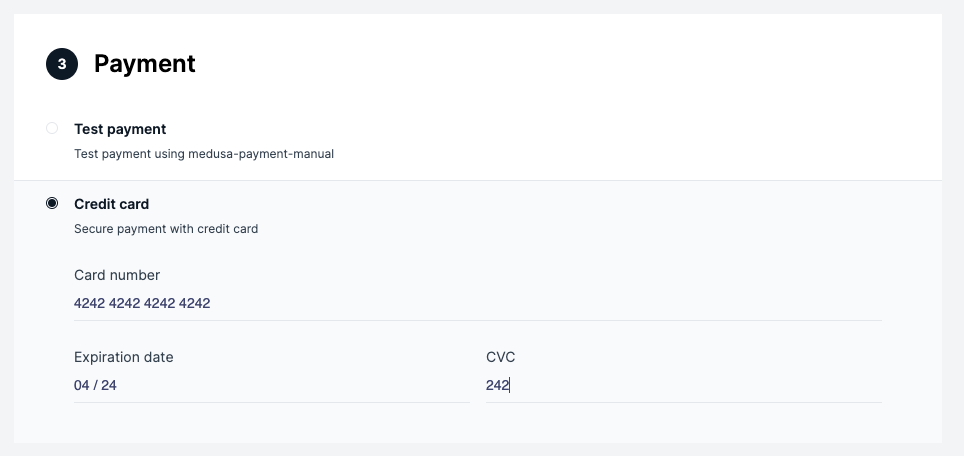
Now, if you run your Medusa backend and your storefront, on checkout you’ll be able to use Stripe.
Add to Gatsby Storefront
:::note
Medusa's Gatsby storefront is deprecated and it is recommended to use the Next.js storefront or build your own storefront instead.
:::
In your .env.development file (or the file you’re using for your environment variables) add the following variable with the value set to the Publishable Key:
GATSBY_STRIPE_KEY=pk_
:::note
You might find this environment variable already available so you can just replace its value with your Publishable Key.
:::
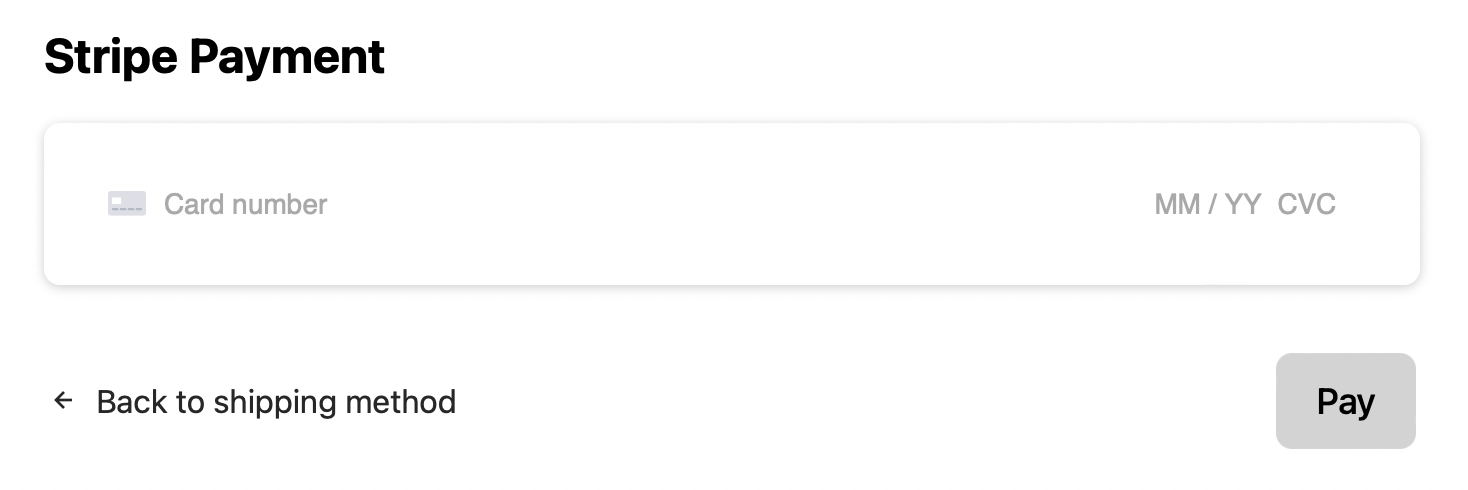
Now, if you run your Medusa backend and your storefront, on checkout you’ll be able to use Stripe.
Add to Custom Storefront
This section will go over how to add Stripe into a React-based framework. The instructions are general instructions that you can use in your storefront.
Workflow Overview
The integration with stripe must have the following workflow:
- During checkout when the user reaches the payment section, you should create payment sessions. This will initialize the
payment_sessionsarray in thecartobject received. Thepayment_sessionsis an array of available payment providers. - If Stripe is available as a payment provider, you should select Stripe as the payment session for the current cart. This will initialize the
payment_sessionobject in thecartobject to include data related to Stripe and the current payment session. This includes the payment intent and client secret. - After the user enters their card details and submits the form, confirm the payment with Stripe.
- If the payment is confirmed successfully, complete the order in Medusa. Otherwise show an error.
Install Dependencies
Before you start the implementations you need to install the necessary dependencies. You’ll be using Stripe’s React libraries to show the UI and handle the payment confirmation:
npm install --save @stripe/react-stripe-js @stripe/stripe-js
You’ll also use Medusa’s JS Client to easily call Medusa’s REST APIs:
npm install @medusajs/medusa-js
Initialize Stripe
In this section, you’ll initialize Stripe without Medusa’s checkout workflow. Please note that this is one approach to add Stripe into your React project. You can check out Stripe’s React documentation for other methods or components.
Create a container component that will hold the payment card component:
import { useState } from "react"

import { Elements } from "@stripe/react-stripe-js"
import Form from "./Form"
import { loadStripe } from "@stripe/stripe-js"

const stripePromise = loadStripe("pk_...")

export default function Container() {
  const [clientSecret, setClientSecret] = useState()

  // TODO set clientSecret

  return (
    <div>
      {clientSecret && (
        <Elements stripe={stripePromise} options={{
          clientSecret,
        }}>
        <Form clientSecret={clientSecret} cartId={cartId} />
      </Elements>
      )}
    </div>
  )
};
In this component, you need to use Stripe’s loadStripe function outside of the component’s implementation to ensure that Stripe doesn’t re-load with every change. The function accepts the Publishable Key.
:::note
You’ll probably store this Publishable Key in an environment variable depending on your framework. It’s hard-coded here for simplicity.
:::
Then, inside the component’s implementation, you add a state variable clientSecret which you’ll retrieve in the next section.
Once the clientSecret is set, the Elements Stripe component will wrap a Form component you’ll create next. This is necessary because the Elements component allows child elements to get access to the card’s inputs and their data using Stripe’s useElements hook.
Create a new file for the Form component with the following content:
import {
  CardElement,
  useElements,
  useStripe,
} from "@stripe/react-stripe-js"

export default function Form({ clientSecret, cartId }) {
  const stripe = useStripe()
  const elements = useElements()

  async function handlePayment(e) {
    e.preventDefault()
    // TODO handle payment
  }

  return (
    <form>
      <CardElement />
      <button onClick={handlePayment}>Submit</button>
  </form>
  )
};
This component shows a CardElement component from Stripe’s React library. You can use stripe to be able to confirm the payment later. The elements variable will be used to retrieve the entered card details safely.
Implement the Workflow
You’ll now implement the workflow explained earlier. You’ll use Medusa’s JS Client, so make sure to import it and initialize it in your Container component:
import Medusa from "@medusajs/medusa-js"

export default function Container() {
  const client = new Medusa()
  // ...
}
:::note
In your storefront, you’ll probably be managing the Medusa client through a context for better performance.
:::
Then, in the place of the //TODO inside the Container element, initialize the payment sessions and create a payment session if Stripe is available:
client.carts.createPaymentSessions(cart.id)
  .then(({ cart }) => {
    // check if stripe is selected
    const isStripeAvailable = cart.payment_sessions?.some(
      (session) => (
        session.provider_id === "stripe"
      )
    )
    if (!isStripeAvailable) {
      return
    }

    // select stripe payment session
    client.carts.setPaymentSession(cart.id, {
      provider_id: "stripe",
    }).then(({ cart }) => {
      setClientSecret(cart.payment_session.data.client_secret)
    })
  })
:::note
Notice that here it’s assumed you have access to the cart object throughout your storefront. Ideally, the cart should be managed through a context. So, every time the cart is updated, for example, when the createPaymentSessions or setPaymentSession are called, the cart should be updated in the context to be accessed from other elements. In this case, you probably wouldn’t need a clientSecret state variable as you can use the client secret directly from the cart object.
:::
Once the client secret is set, the form will be shown to the user.
The last step in the workflow is confirming the payment with Stripe and if it’s done successfully, completing the user’s order. This part is done in the Form component.
As you’ll use Medusa’s client again make sure to import it and initialize it:
import Medusa from "@medusajs/medusa-js"

export default function Form() {
  const client = new Medusa()
  // ...
}
Then, replace the //TODO in the handlePayment function with the following content:
return stripe.confirmCardPayment(clientSecret, {
  payment_method: {
    card: elements.getElement(CardElement),
    billing_details: {
      name,
      email,
      phone,
      address: {
        city,
        country,
        line1,
        line2,
        postal_code,
      },
    },
  },
}).then(({ error, paymentIntent }) => {
  // TODO handle errors
  client.carts.complete(cartId).then(
    (resp) => console.log(resp)
  )
})
You use the confirmCardPayment method in the stripe object. You’ll need to pass it the client secret, which you can have access to from the cart object if it’s available through the context.
This method also requires the customer’s information like name, email, and their address. Make sure to place the values for each based on your implementation.
Once the promise resolves you can handle the errors, if there are any. If not, you can complete the customer’s order using complete from Medusa’s client. This request expects the cart ID which you should have access to as well.
If you run your backend and storefront now, you’ll see the Stripe UI element and you’ll be able to make orders.

Capture Payments
After the customer places an order, you’ll be able to see the order on the admin panel. In the payment information under the “Payment” section, you should see a “Capture” button.
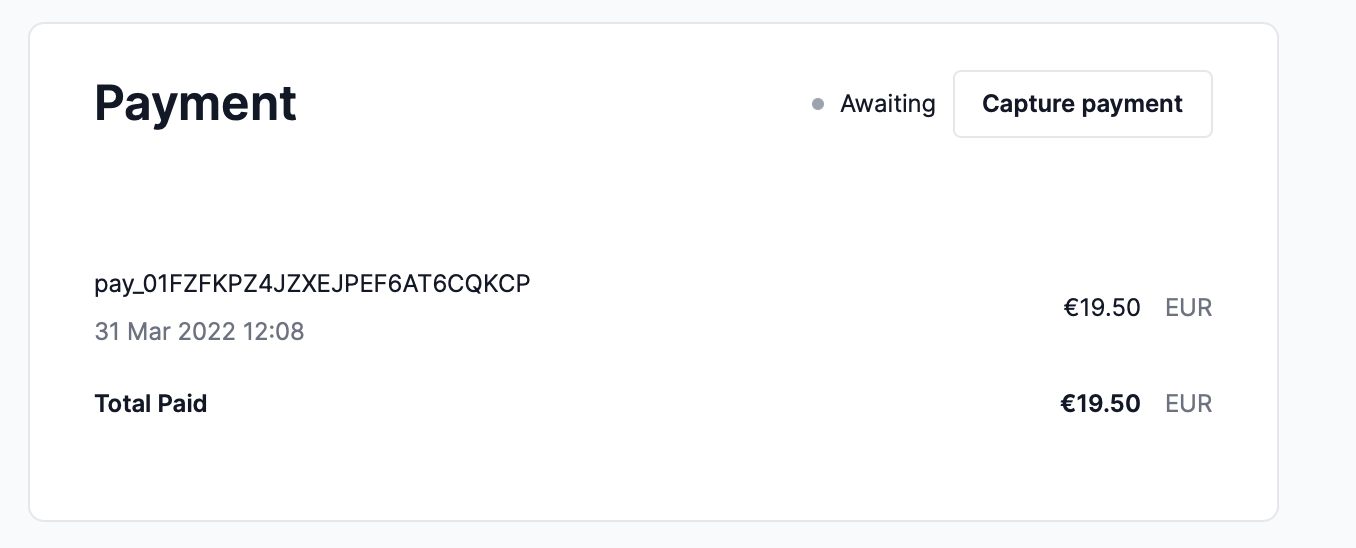
Clicking this button allows you to capture the payment for an order. You can also refund payments if an order has captured payments.
Refunding or Capturing payments is reflected in your Stripe’s dashboard as well. This gives you access to all of Stripe’s analytical capabilities.
See Also
- Check out more plugins you can add to your store.