
102 lines
5.1 KiB
Markdown
102 lines
5.1 KiB
Markdown
# Slack
|
||
|
||
In this documentation, you'll learn how to add the [Slack plugin](https://github.com/medusajs/medusa/tree/master/packages/medusa-plugin-slack-notification) to your Medusa server to start receiving order notifications.
|
||
|
||
## Overview
|
||
|
||
When you add this plugin, the store owner can receive order notifications into their Slack workspace.
|
||
|
||
The notification contains details about the order including:
|
||
|
||
- Customer's details and address
|
||
- Items ordered, their quantity, and the price
|
||
- Order totals including Tax amount.
|
||
- Promotion details if there are any (this is optional and can be turned off).
|
||
|
||
The plugin registers a subscriber to the `order.placed` event. When an order is placed, the subscriber handler method uses the ID of the order to retrieve order details mentioned above.
|
||
|
||
Then, the order notificaiton is sent to Slack using Webhooks. So, you'll need to create a Slack App, add it into your workspace, and activate Incoming Webhooks.
|
||
|
||
## Prerequisites
|
||
|
||
### Slack Account
|
||
|
||
To follow along with this guide, you need to have a Slack account with a connected workspace. If you don’t have one, you can [create a free account on Slack](https://slack.com/).
|
||
|
||
### Medusa Server
|
||
|
||
This tutorial assumes you already have a Medusa server installed. If you don’t, please follow along with the [quickstart guide](../quickstart/quick-start.md).
|
||
|
||
### Redis
|
||
|
||
Medusa's event system works by pushing data into a queue that is based on [Redis](https://redis.io/). This queue then notifies handlers of different events of this data that is pushed into the queue. The handlers then use this data to perform a certain action.
|
||
|
||
As the Slack plugin will listen to the `order.placed` event to know when to send notifications, you'll need to have Redis installed and configured with your Medusa server.
|
||
|
||
You can read the [Set up your development enviornment guideline](../tutorial/0-set-up-your-development-environment.mdx#redis) to learn more about how you can install and setup Redis.
|
||
|
||
## Create Slack App
|
||
|
||
The first step is to create a Slack app. This app will be connected to your workspace and will have Incoming Webhooks activated to receive notifications from the Medusa server using a Webhook URL.
|
||
|
||
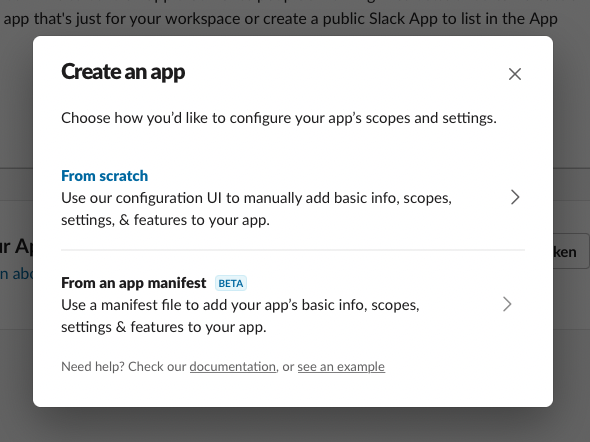
Go to [Slack API](https://api.slack.com/) and click Create app. This will take you to a new page with a pop-up. In the pop-up, choose From scratch.
|
||
|
||
|
||
|
||
You’ll then need to enter some info like the App name and the workspace it will be connected to. Once you’re done, the app will be created.
|
||
|
||
### Activate Incoming Webhooks
|
||
|
||
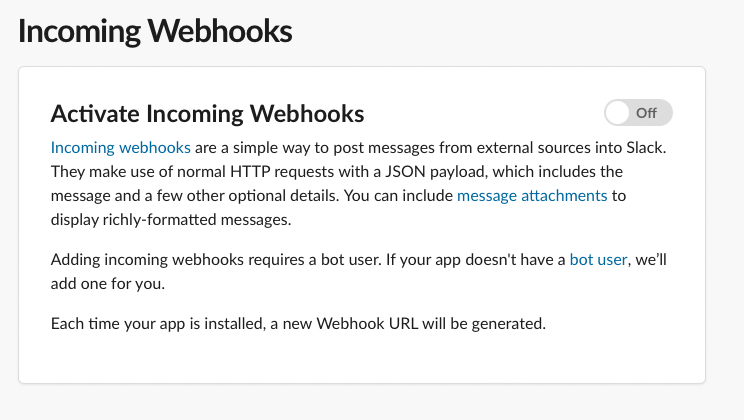
To activate Incoming Webhooks, choose Features > Incoming Webhooks from the sidebar. At first, it will be disabled so make sure to enable it by switching the toggle.
|
||
|
||
|
||
|
||
### Add New Webhook
|
||
|
||
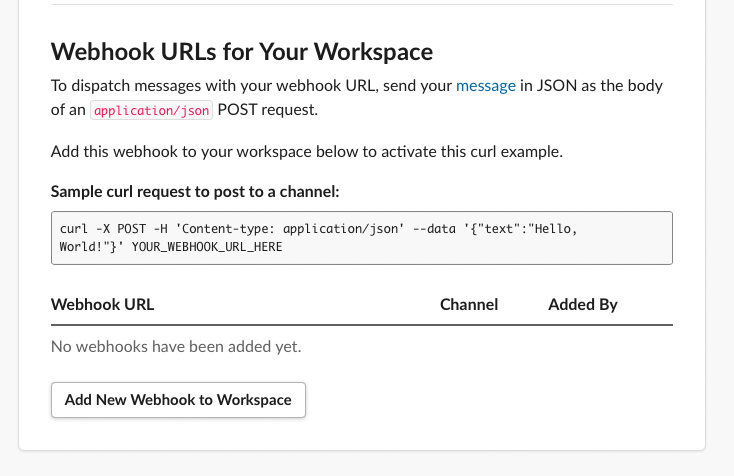
After activating Incoming Webhooks, on the same page scroll down and click on the Add New Webhook to Workspace button.
|
||
|
||
|
||
|
||
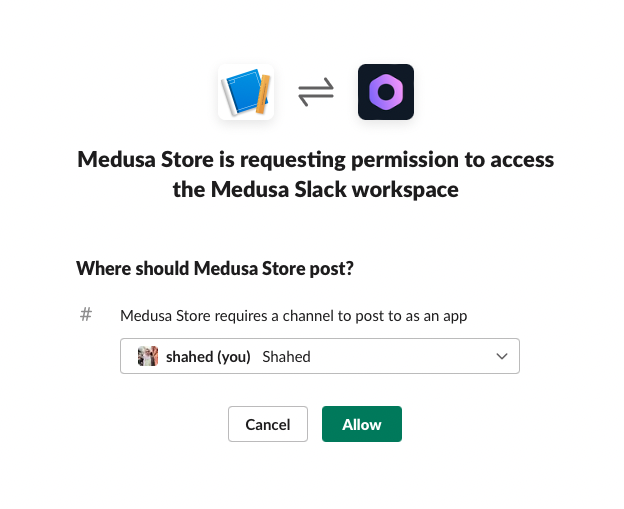
After that, choose the channel to send the notifications to. You can also choose a DM to send the notifications to. Once you’re done click Allow.
|
||
|
||
|
||
|
||
This will create a new Webhook with a URL which you can see in the table at the end of the Incoming Webhooks page. Copy the URL as you’ll use it in the next section.
|
||
|
||
## Install Slack Plugin
|
||
|
||
The next step is to install Medusa’s [Slack plugin](https://github.com/medusajs/medusa/tree/master/packages/medusa-plugin-slack-notification) into your Medusa server.
|
||
|
||
Open the terminal in the Medusa server’s directory and run the following command:
|
||
|
||
```bash npm2yarn
|
||
npm install medusa-plugin-slack-notification
|
||
```
|
||
|
||
After that, open `medusa-config.js` and add the new plugin with its configurations in the `plugins` array:
|
||
|
||
```jsx title=medusa-config.js
|
||
const plugins = [
|
||
...,
|
||
{
|
||
resolve: `medusa-plugin-slack-notification`,
|
||
options: {
|
||
show_discount_code: false,
|
||
slack_url: `<WEBHOOK_URL>`,
|
||
admin_orders_url: `http://localhost:7001/a/orders`
|
||
}
|
||
}
|
||
];
|
||
```
|
||
|
||
- Make sure to change `<WEBHOOK_URL>` with the Webhook URL you copied after creating the Slack app.
|
||
- The `show_discount_code` option enables or disables showing the discount code in the notification sent to Slack.
|
||
- The `admin_orders_url` is the prefix of the URL of the order detail pages on your admin panel. If you’re using Medusa’s Admin locally, it should be `http://localhost:7001/a/orders`. This will result in a URL like `http://localhost:7001/a/orders/order_01FYP7DM7PS43H9VQ1PK59ZR5G`.
|
||
|
||
That’s all you need to do to integrate Slack into Medusa!
|
||
|
||
## What's Next
|
||
|
||
- Install [Medusa's Admin](https://github.com/medusajs/admin) for the full order-management experience.
|
||
- Add a Storefront to your Medusa server using [the Next.js starter](https://docs.medusajs.com/starters/nextjs-medusa-starter) or [the Gatsby starter](https://docs.medusajs.com/starters/gatsby-medusa-starter).
|