
335 lines
12 KiB
Markdown
335 lines
12 KiB
Markdown
---
|
||
description: 'Learn step-by-step.'
|
||
addHowToData: true
|
||
---
|
||
|
||
# Deploy Gatsby Storefront on Netlify
|
||
|
||
:::note
|
||
|
||
The Gatsby storefront has been deprecated and it's not recommended to use it moving forward. You can use the [Next.js storefront](../../starters/nextjs-medusa-starter.mdx) instead or build your own.
|
||
|
||
:::
|
||
|
||
In this document, you’ll learn how to deploy the Gatsby Storefront on [Netlify](https://www.netlify.com/).
|
||
|
||
Alternatively, you can use this button to deploy the Gatsby Storefront to Netlify directly:
|
||
|
||
<a href="https://app.netlify.com/start/deploy?repository=https://github.com/medusajs/gatsby-starter-medusa" class="img-url no-zoom-img">
|
||
<img src="https://www.netlify.com/img/deploy/button.svg" alt="Deploy to Netlify" class="no-zoom-img" />
|
||
</a>
|
||
|
||
---
|
||
|
||
## Prerequisites
|
||
|
||
### Medusa Components
|
||
|
||
Before proceeding with this documentation, it is assumed you already have the Gatsby storefront installed locally.
|
||
|
||
Additionally, this documentation does not cover how to deploy the Medusa backend. If you want to deploy the Medusa backend, [check out one of the deployment documentation related to the Medusa backend](../server/index.mdx).
|
||
|
||
### Needed Accounts
|
||
|
||
- A [Netlify](https://app.netlify.com/signup) account to deploy the Gatsby storefront.
|
||
- A [GitHub](https://github.com/signup) account where you will host the repository for the Gatsby storefront.
|
||
|
||
:::tip
|
||
|
||
If you want to use another Git Provider, it’s possible to follow along with this guide but you’ll have to perform the equivalent steps in your Git Provider.
|
||
|
||
:::
|
||
|
||
### Required Tools
|
||
|
||
- Git’s CLI tool. You can follow [this documentation to learn how to install it for your operating system](../../development/backend/prepare-environment.mdx#git).
|
||
|
||
---
|
||
|
||
## Create GitHub Repository
|
||
|
||
Before you can deploy your Gatsby storefront you need to create a GitHub repository and push the code base to it.
|
||
|
||
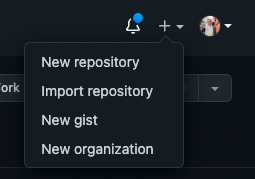
On GitHub, click the plus icon at the top right, then click New Repository.
|
||
|
||
|
||
|
||
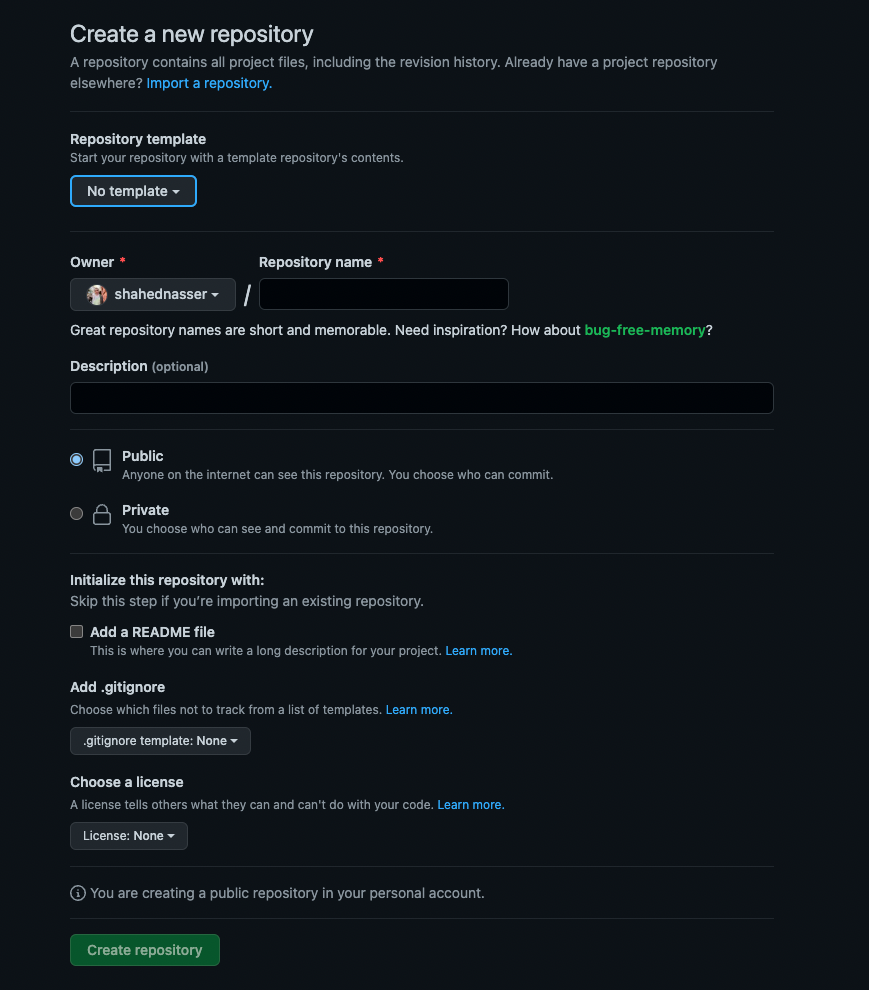
You’ll then be redirected to a new page with a form. In the form, enter the Repository Name then scroll down and click Create repository.
|
||
|
||
|
||
|
||
### Push Code to GitHub Repository
|
||
|
||
The next step is to push the code to the GitHub repository you just created.
|
||
|
||
After creating the repository, you’ll be redirected to the repository’s page. On that page, you should see a URL that you can copy to connect your repository to a local directory.
|
||
|
||

|
||
|
||
Copy the link. Then, open your terminal in the directory that holds your Gatsby storefront codebase and run the following commands:
|
||
|
||
```bash
|
||
git init
|
||
git remote add origin <GITHUB_URL>
|
||
```
|
||
|
||
Where `<GITHUB_URL>` is the URL you just copied.
|
||
|
||
Then, add, commit, and push the changes into the repository:
|
||
|
||
```bash
|
||
git add .
|
||
git commit -m "initial commit"
|
||
git push origin master
|
||
```
|
||
|
||
After pushing the changes, you can find the files in your GitHub repository.
|
||
|
||
---
|
||
|
||
## Deploy to Netlify
|
||
|
||
This section covers how to deploy Netlify either through the Netlify website or using Netlify’s CLI tool.
|
||
|
||
### Option 1: Using Netlify’s Website
|
||
|
||
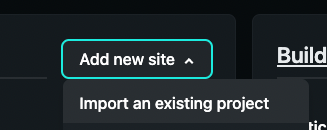
After logging in with Netlify, go to the [dashboard](https://app.netlify.com/). Then, at the top right of the “Sites” section, click on “Add new site”, then click on “Import an existing project” from the dropdown.
|
||
|
||
:::note
|
||
|
||
Alternatively, if you don’t have any other websites, you’ll see a big button that says “Import an existing project”.
|
||
|
||
:::
|
||
|
||
|
||
|
||
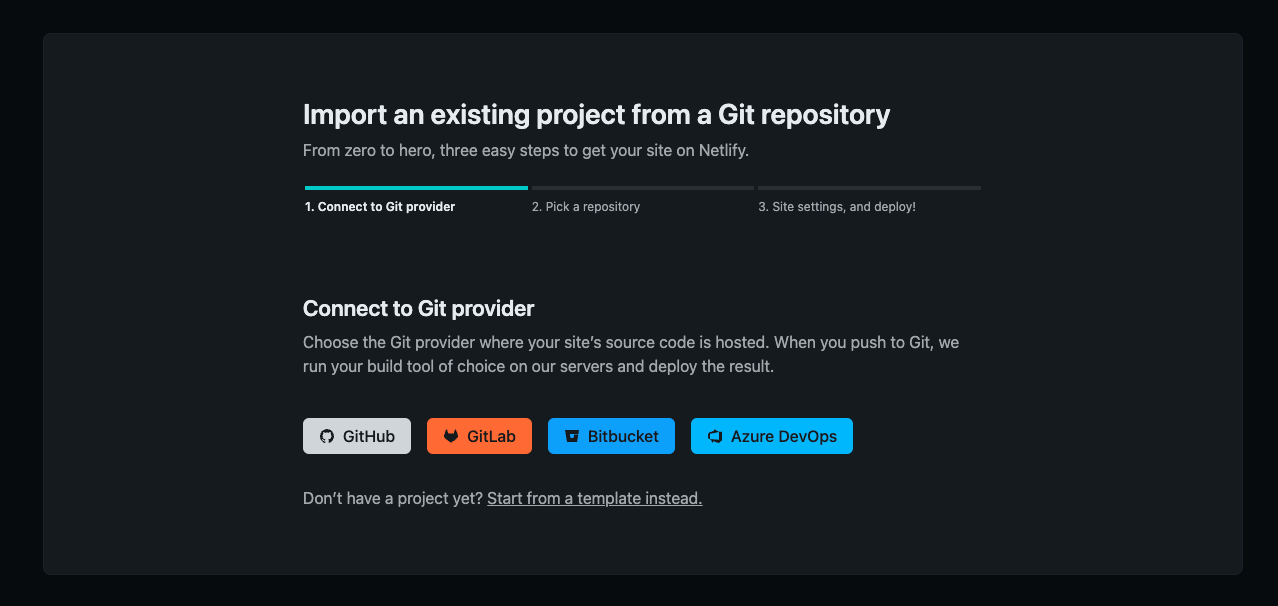
You’ll then be asked to connect to a Git provider.
|
||
|
||
|
||
|
||
Choose GitHub. You’ll then be redirected to GitHub’s website to give Netlify permissions if you haven’t done that before.
|
||
|
||
After you authorize Netlify to use GitHub, you’ll be asked to pick the repository you want to deploy. Pick the repository you just created.
|
||
|
||

|
||
|
||
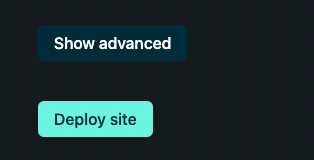
In the form that shows, keep all fields the same and click on the “Show advanced” button before the “Deploy site” button.
|
||
|
||
|
||
|
||
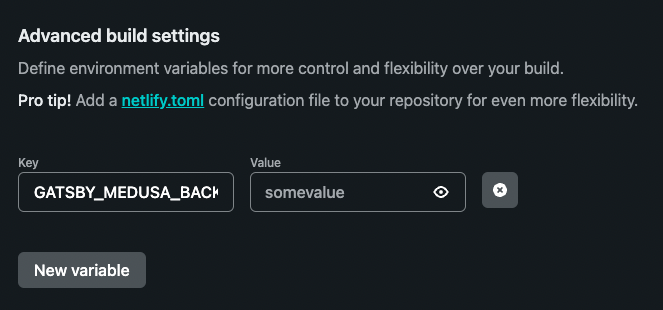
Under the “Advanced build settings” section click on the “New variable” button. This will show two inputs for the key and value of the environment variable.
|
||
|
||
For the first field enter the key `GATSBY_MEDUSA_BACKEND_URL` and for the value enter the URL of your Medusa backend.
|
||
|
||
:::caution
|
||
|
||
If you haven’t deployed your Medusa backend yet, you can leave the value blank for now and add it later. However, the build process for the Gatsby storefront will fail.
|
||
|
||
:::
|
||
|
||
|
||
|
||
:::note
|
||
|
||
If you use more environment variables in your storefront be sure to add them here.
|
||
|
||
:::
|
||
|
||
Once you’re done, scroll down and click on Deploy site.
|
||
|
||
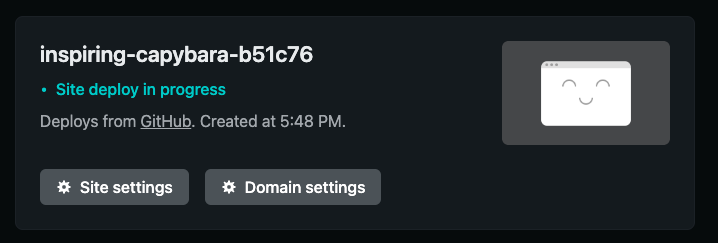
You’ll be then redirected to the dashboard of the new website. Netlify will build your website in the background. You should see “Site deploy in progress” on the top card.
|
||
|
||
|
||
|
||
The deployment can take a few minutes.
|
||
|
||
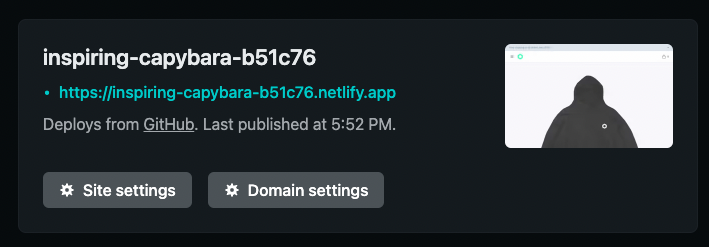
Once the deployment is done, you’ll find the URL in the place of the “Site deploy in progress” message you saw earlier.
|
||
|
||
:::tip
|
||
|
||
If you haven’t added any products to your Medusa backend, the build process might fail. It’s recommended to add some products to the backend first in that case.
|
||
|
||
Alternatively, you can seed the backend with demo data by running this command in the root directory of the backend:
|
||
|
||
```bash noReport
|
||
npx @medusajs/medusa-cli seed -f data/seed.json
|
||
```
|
||
|
||
:::
|
||
|
||
|
||
|
||
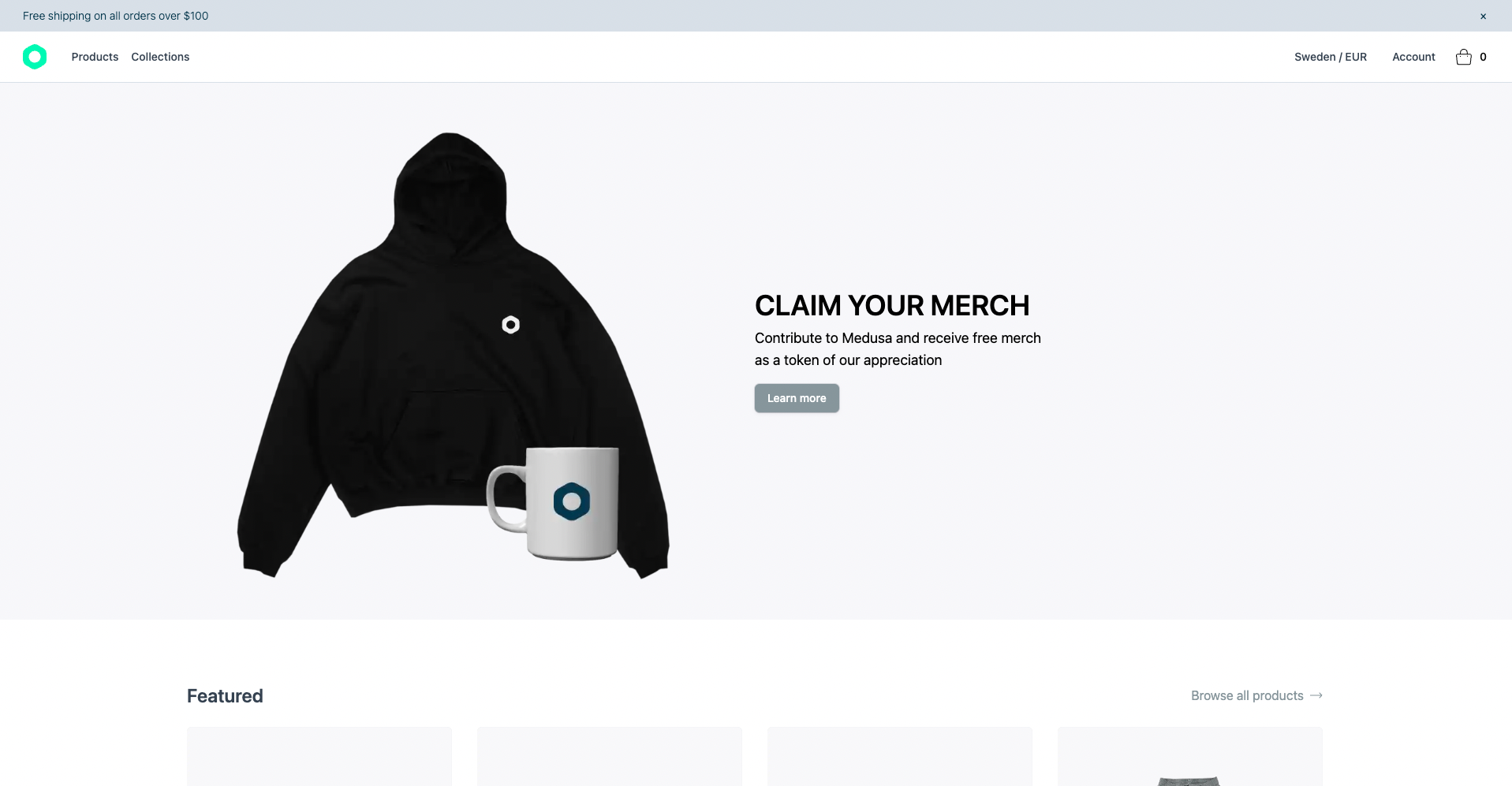
If you click on it, you’ll be redirected to the deployed storefront website.
|
||
|
||
|
||
|
||
:::caution
|
||
|
||
At this point, you will face errors related to Cross-Origin Resource Sharing (CORS) while using the storefront. Before you start using the storefront, follow along the [Configure CORS on the Medusa Backend section](#configure-cors-variable-on-the-medusa-backend).
|
||
|
||
:::
|
||
|
||
### Option 2: Using Netlify’s CLI Tool
|
||
|
||
In this section, you’ll deploy the Gatsby storefront using Netlify’s CLI tool.
|
||
|
||
#### Install the Netlify CLI tool
|
||
|
||
If you don’t have the tool installed, run the following command to install it:
|
||
|
||
```bash
|
||
npm install netlify-cli -g
|
||
```
|
||
|
||
#### Login to Netlify
|
||
|
||
Then, run the following command to log in to Netlify in your terminal:
|
||
|
||
```bash
|
||
netlify login
|
||
```
|
||
|
||
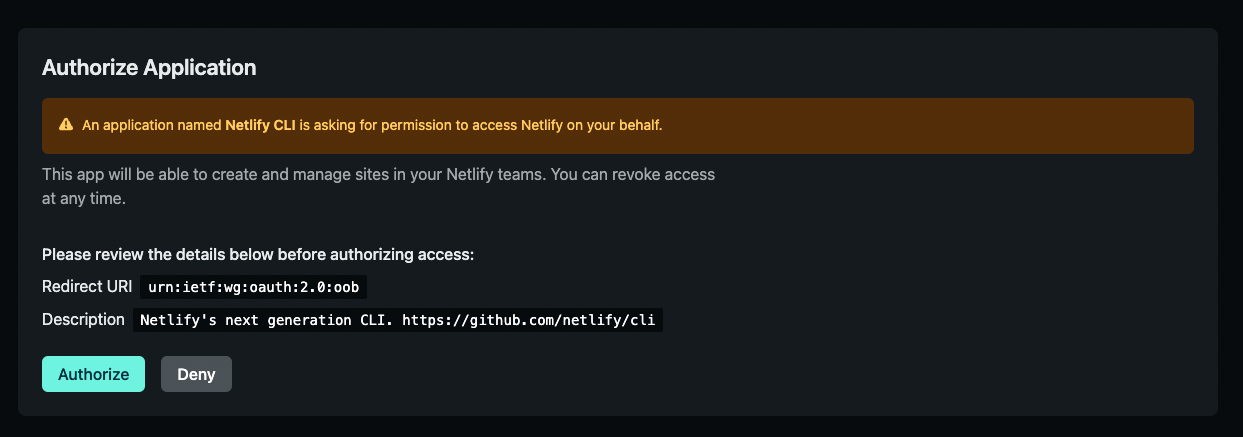
This opens a page to log in on your browser. You’ll be asked to authorize the Netlify CLI tool.
|
||
|
||
|
||
|
||
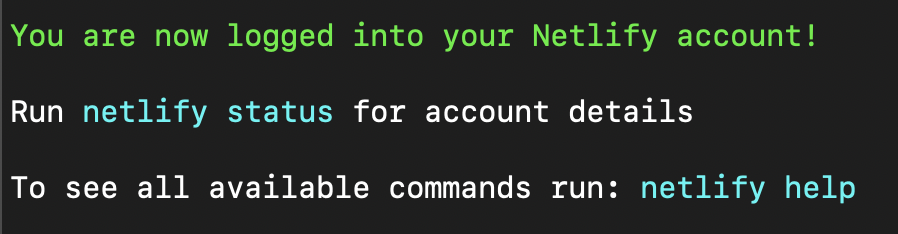
Click on Authorize. Then, you can go back to your terminal and see that you’ve successfully logged in.
|
||
|
||
|
||
|
||
#### Initialize Netlify Website
|
||
|
||
In your terminal, run the following command:
|
||
|
||
```bash
|
||
netlify init
|
||
```
|
||
|
||
You’ll have to follow five steps for the initialization:
|
||
|
||
##### Step 1: Create Netlify Website
|
||
|
||
You’ll be asked to either connect to an existing Netlify website or create a new one. Choose the second option to create a new site:
|
||
|
||
```bash noReport
|
||
? What would you like to do?
|
||
⇄ Connect this directory to an existing Netlify site
|
||
❯ + Create & configure a new site
|
||
```
|
||
|
||
##### Step 2: Choose Netlify Team
|
||
|
||
Choose the team you want to create the website in if you have multiple teams.
|
||
|
||
##### Step 3: Enter Site Name
|
||
|
||
You’ll be asked to optionally enter a site name.
|
||
|
||
##### Step 4: Configure Webhooks and Deployment Keys
|
||
|
||
At this point, the website is created on Netlify. However, Netlify needs to configure Webhooks and deployment keys. You’ll be asked to either authorize GitHub through Netlify’s website or through a personal access token. You’re free to choose either:
|
||
|
||
```bash noReport
|
||
? Netlify CLI needs access to your GitHub account to configure Webhooks and Depl
|
||
oy Keys. What would you like to do? (Use arrow keys)
|
||
❯ Authorize with GitHub through app.netlify.com
|
||
Authorize with a GitHub personal access token
|
||
```
|
||
|
||
If you pick the first option, a page in your browser will open where you have to grant authorization to your Git provider.
|
||
|
||
If you pick the second option, you’ll need to create a personal access token on GitHub. You can follow [this guide in GitHub’s documentation](https://docs.github.com/en/authentication/keeping-your-account-and-data-secure/creating-a-personal-access-token) to learn how to do it.
|
||
|
||
##### Last Step: Steps with Default Values
|
||
|
||
For the rest of the steps, you can keep the default values provided by Netlify and press the “Enter” key on your keyboard for each.
|
||
|
||
#### Set Environment Variables
|
||
|
||
After the previous command has finished running, your Netlify website will be created. The next step is to add an environment variable that points to your Medusa backend.
|
||
|
||
:::caution
|
||
|
||
If you haven’t deployed your Medusa backend yet, you can leave the value blank for now and add it later. However, the build process for the Gatsby storefront will fail.
|
||
|
||
:::
|
||
|
||
Run the following command to add the environment variable:
|
||
|
||
```bash
|
||
netlify env:set GATSBY_MEDUSA_BACKEND_URL "<YOUR_BACKKEND_URL>"
|
||
```
|
||
|
||
Where `<YOUR_BACKKEND_URL>` is the URL of your Medusa backend.
|
||
|
||
:::note
|
||
|
||
If you use more environment variables in your storefront be sure to add them here.
|
||
|
||
:::
|
||
|
||
#### Check deployment status
|
||
|
||
You can check the deployment status of your website by running the following command:
|
||
|
||
```bash
|
||
netlify watch
|
||
```
|
||
|
||
After the deployment has been completed, you should see a message saying “Deploy complete” with URLs to your website.
|
||
|
||
:::tip
|
||
|
||
If you haven’t added any products to your Medusa backend, the build process might fail. It’s recommended to add some products to the backend first in that case.
|
||
|
||
Alternatively, you can seed the backend with demo data by running this command in the root directory of the backend:
|
||
|
||
```bash noReport
|
||
npx @medusajs/medusa-cli seed -f data/seed.json
|
||
```
|
||
|
||
:::
|
||
|
||
#### Open the Gatsby storefront Website
|
||
|
||
To open the Gatsby storefront website, either use the URL shown to you or run the following command:
|
||
|
||
```bash
|
||
netlify open:site
|
||
```
|
||
|
||
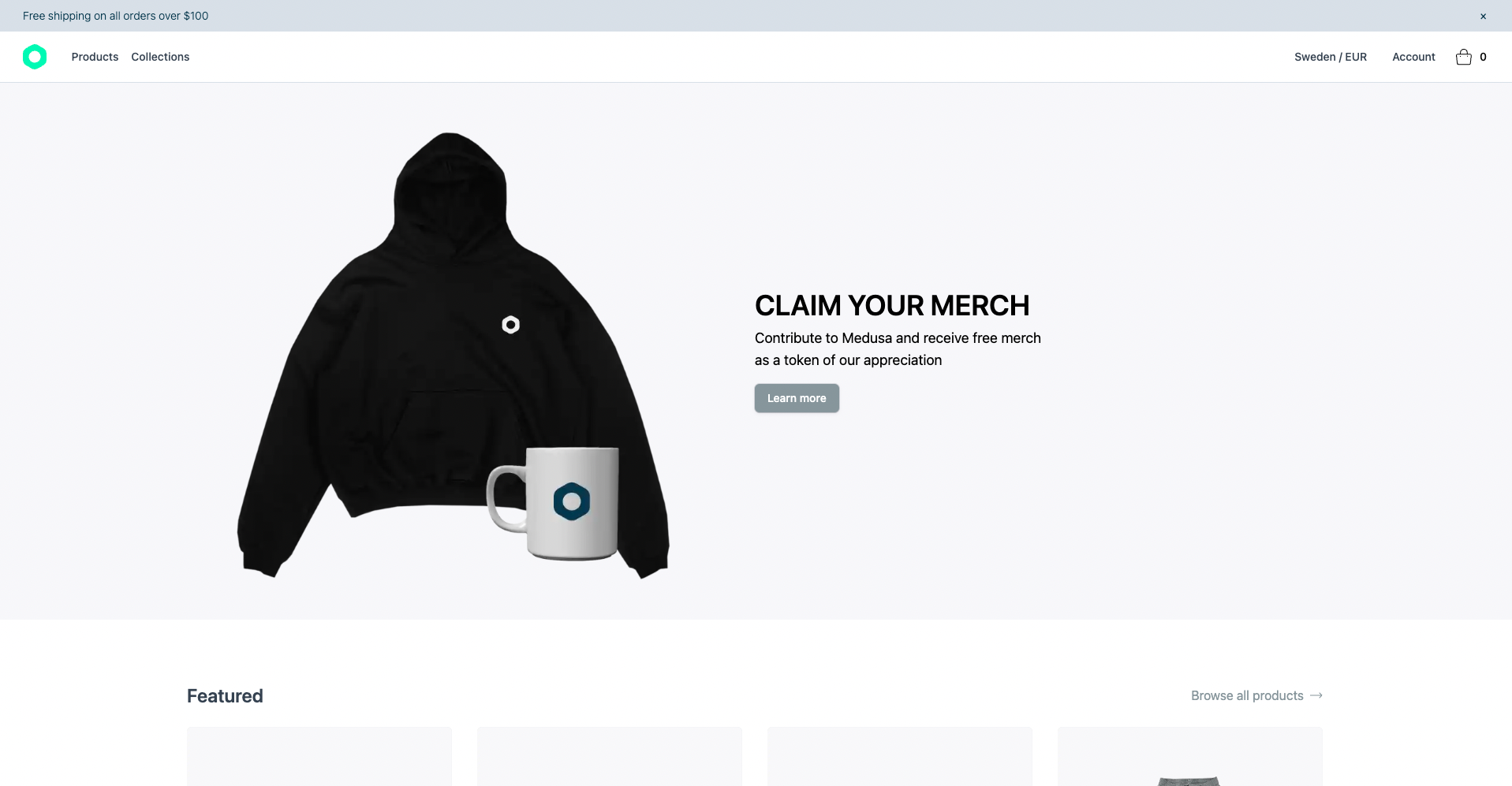
The Gatsby storefront will then open in your browser.
|
||
|
||
|
||
|
||
Before you can use the Gatsby storefront, you must add the URL as an environment variable on your deployed Medusa backend.
|
||
|
||
---
|
||
|
||
## Configure CORS Variable on the Medusa Backend
|
||
|
||
To send requests to the Medusa backend from the Gatsby storefront, you must set the `STORE_CORS` environment variable on your backend to the Gatsby storefront’s URL.
|
||
|
||
:::caution
|
||
|
||
If you want to set a custom domain to your Gatsby storefront website on Netlify, make sure to do it before this step. You can refer to this guide on [Netlify’s documentation to learn how to add a custom domain](https://docs.netlify.com/domains-https/custom-domains/#assign-a-domain-to-a-site).
|
||
|
||
:::
|
||
|
||
On your Medusa backend, add the following environment variable:
|
||
|
||
```bash
|
||
STORE_CORS=<STOREFRONT_URL>
|
||
```
|
||
|
||
Where `<STOREFRONT_URL>` is the URL of your Gatsby storefront that you just deployed.
|
||
|
||
Then, restart your Medusa backend. Once the backend is running again, you can use your Gatsby storefront.
|
||
|
||
---
|
||
|
||
## See Also
|
||
|
||
- [Deploy the Medusa Admin](../admin/index.mdx)
|
||
- [Configure your Medusa backend](../../development/backend/configurations.md)
|