 d1b4b11ff6
* docs: added rule for code length

* chore: fixes based on vale errors

* changed to use eslint

* fixes using eslint

* added github action for documentation eslint

* changed allowed max-length

* fixed incorrect heading level

* removed comment
299 lines
12 KiB
Markdown
299 lines
12 KiB
Markdown
# Contentful
|
||
|
||
In this document, you’ll learn how to integrate a Medusa server with Contentful to add rich Content Management System (CMS) functionalities
|
||
|
||
## Overview
|
||
|
||
[Contentful](https://www.contentful.com/) is a headless CMS service that allows developers to integrate rich CMS functionalities into any platform.
|
||
|
||
By integrating Contentful to Medusa, you can benefit from powerful features in your ecommerce store including detailed product CMS details, easy-to-use interface to use for static content and pages, localization, and much more.
|
||
|
||
---
|
||
|
||
## Prerequisites
|
||
|
||
### Needed Accounts
|
||
|
||
- [Contentful](https://www.contentful.com/sign-up/) account with a space created. A space is created by default when you create a new account.
|
||
|
||
### Required Tools
|
||
|
||
- PostgreSQL with an empty database created. You can follow [this documentation to learn how to install it for your operating system](../../tutorial/0-set-up-your-development-environment.mdx#postgres).
|
||
- Redis. You can follow [this documentation to learn how to install it for your operating system](../../tutorial/0-set-up-your-development-environment.mdx#redis).
|
||
- Git’s CLI tool. You can follow [this documentation to learn how to install it for your operating system](../../tutorial/0-set-up-your-development-environment.mdx#git).
|
||
- Gatsby’s CLI tool. You can follow [this documentation to install it](https://www.gatsbyjs.com/docs/reference/gatsby-cli/#how-to-use-gatsby-cli).
|
||
- Medusa’s CLI tool. You can follow [this documentation to install it](../../cli/reference.md#how-to-install-cli-tool).
|
||
|
||
---
|
||
|
||
## Install Medusa Server Using Contentful Starter
|
||
|
||
Instead of using the default Medusa Server starter, you must use the [Contentful starter](https://github.com/medusajs/medusa-starter-contentful) to install a server that is ready to be used with Contentful. This server contains all the necessary files to make the integration work.
|
||
|
||
In your terminal, run the following command to install the server:
|
||
|
||
```bash
|
||
medusa new medusa-contentful https://github.com/medusajs/medusa-starter-contentful
|
||
```
|
||
|
||
This installs a new Medusa server in the directory `medusa-contentful`.
|
||
|
||
### Add Contentful Environment Variables
|
||
|
||
Change to the `medusa-contentful` directory. In `.env` you’ll find three variables:
|
||
|
||
```bash title=.env
|
||
CONTENTFUL_SPACE_ID=
|
||
CONTENTFUL_ACCESS_TOKEN=
|
||
CONTENTFUL_ENV=
|
||
```
|
||
|
||
#### Value of CONTENTFUL_ENV
|
||
|
||
Set the value for `CONTENTFUL_ENV` to `master`.
|
||
|
||
#### Value of CONTENTFUL_SPACE_ID
|
||
|
||
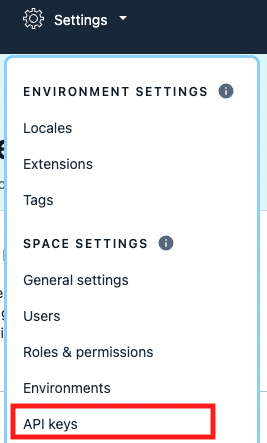
To retrieve the value of `CONTENTFUL_SPACE_ID`, go to your [Contentful Space dashboard](https://app.contentful.com/). Then, choose Settings in the navigation bar and select API keys from the dropdown.
|
||
|
||
|
||
|
||
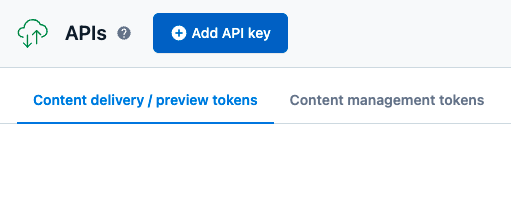
On the APIs page, click Add API Key.
|
||
|
||
|
||
|
||
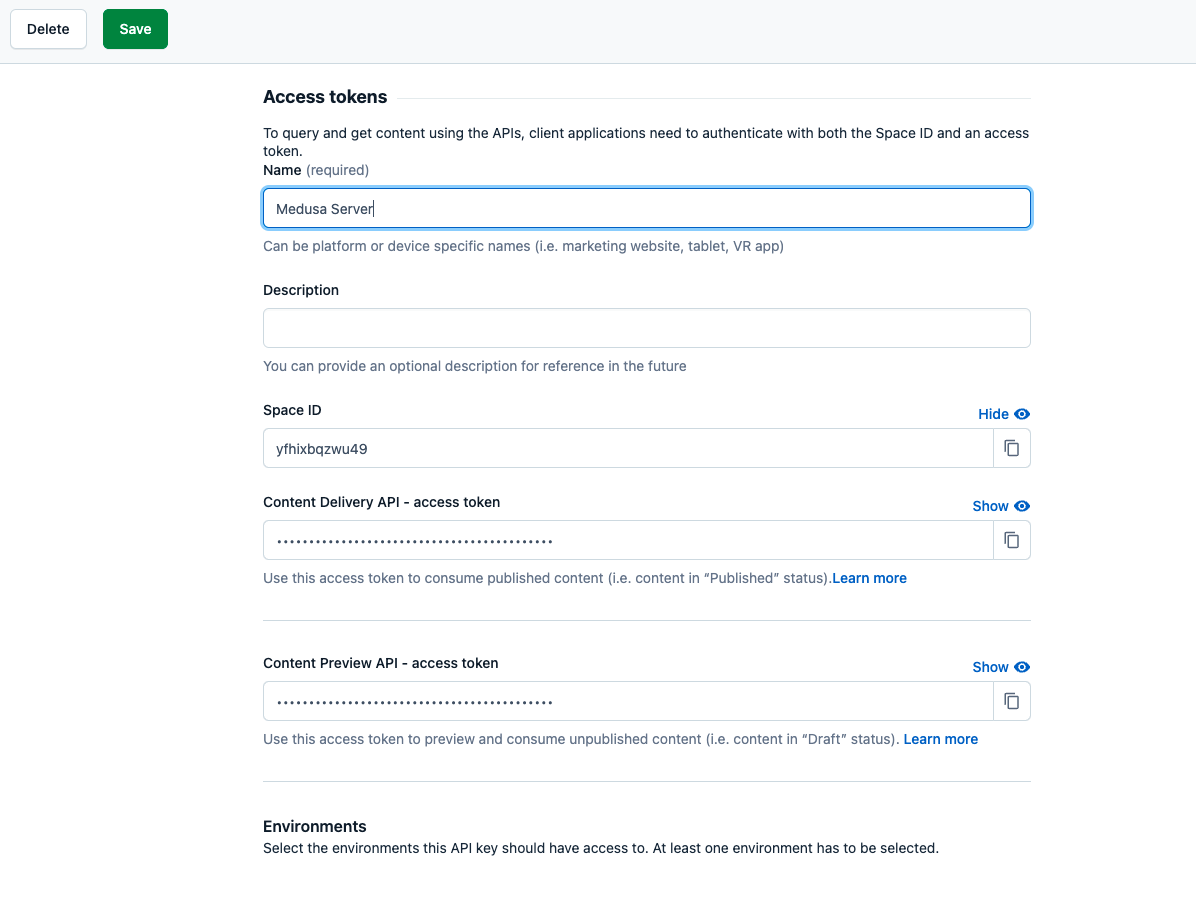
In the form, enter a name for the API key and click Save.
|
||
|
||
|
||
|
||
Then, copy the value of Space ID and set it as the value of `CONTENTFUL_SPACE_ID`.
|
||
|
||
#### Value of CONTENTFUL_ACCESS_TOKEN
|
||
|
||
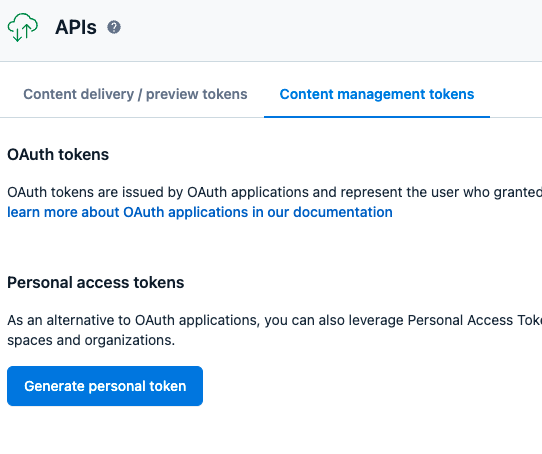
Go back to the API Keys page and click on the Content management tokens tab.
|
||
|
||
|
||
|
||
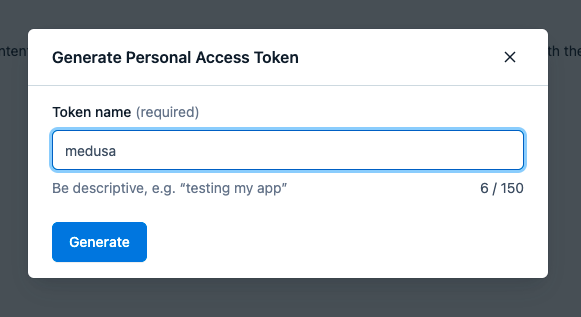
Click on Generate personal token. A pop-up will open where you have to enter a name for the token.
|
||
|
||
|
||
|
||
Once you click Generate, a personal access token will be generated. Use it to set the value of `CONTENTFUL_ACCESS_TOKEN`.
|
||
|
||
:::warning
|
||
|
||
Once you close the pop-up, you won’t be able to get the value of the personal access token again. Make sure to copy it first.
|
||
|
||
:::
|
||
|
||
### Configure Redis
|
||
|
||
In `.env` set the value of your Redis URL:
|
||
|
||
```bash
|
||
REDIS_URL=<YOUR_REDIS_URL>
|
||
```
|
||
|
||
Where `<YOUR_REDIS_URL>` is the URL of your Redis service.
|
||
|
||
:::tip
|
||
|
||
The default Redis URL is `redis://localhost:6379`.
|
||
|
||
:::
|
||
|
||
### Configure PostgreSQL
|
||
|
||
In `.env` set the value of your PostgreSQL URL:
|
||
|
||
```bash
|
||
DATABASE_URL=<YOUR_DB_URL>
|
||
```
|
||
|
||
Where `<YOUR_DB_URL>` is the URL of your PostgreSQL database.
|
||
|
||
:::tip
|
||
|
||
You can find the format of the PostgreSQL database URL in [PostgreSQL’s documentation](https://www.postgresql.org/docs/current/libpq-connect.html).
|
||
|
||
:::
|
||
|
||
Then, in `medusa-config.js` in the exported object, comment out or remove the SQLite database configurations and add the PostgreSQL database configurations:
|
||
|
||
```jsx title=medusa-config.js
|
||
module.exports = {
|
||
projectConfig: {
|
||
// ...
|
||
database_url: DATABASE_URL,
|
||
database_type: "postgres",
|
||
// REMOVE OR COMMENT OUT THE BELOW:
|
||
// database_database: "./medusa-db.sql",
|
||
// database_type: "sqlite",
|
||
},
|
||
}
|
||
```
|
||
|
||
### Migrate Content Types to Contentful
|
||
|
||
The Contentful starter provides the necessary scripts to create content types in your Contentful space.
|
||
|
||
Run the following commands to migrate the content types into Contentful:
|
||
|
||
```bash
|
||
npm run migrate:contentful
|
||
```
|
||
|
||
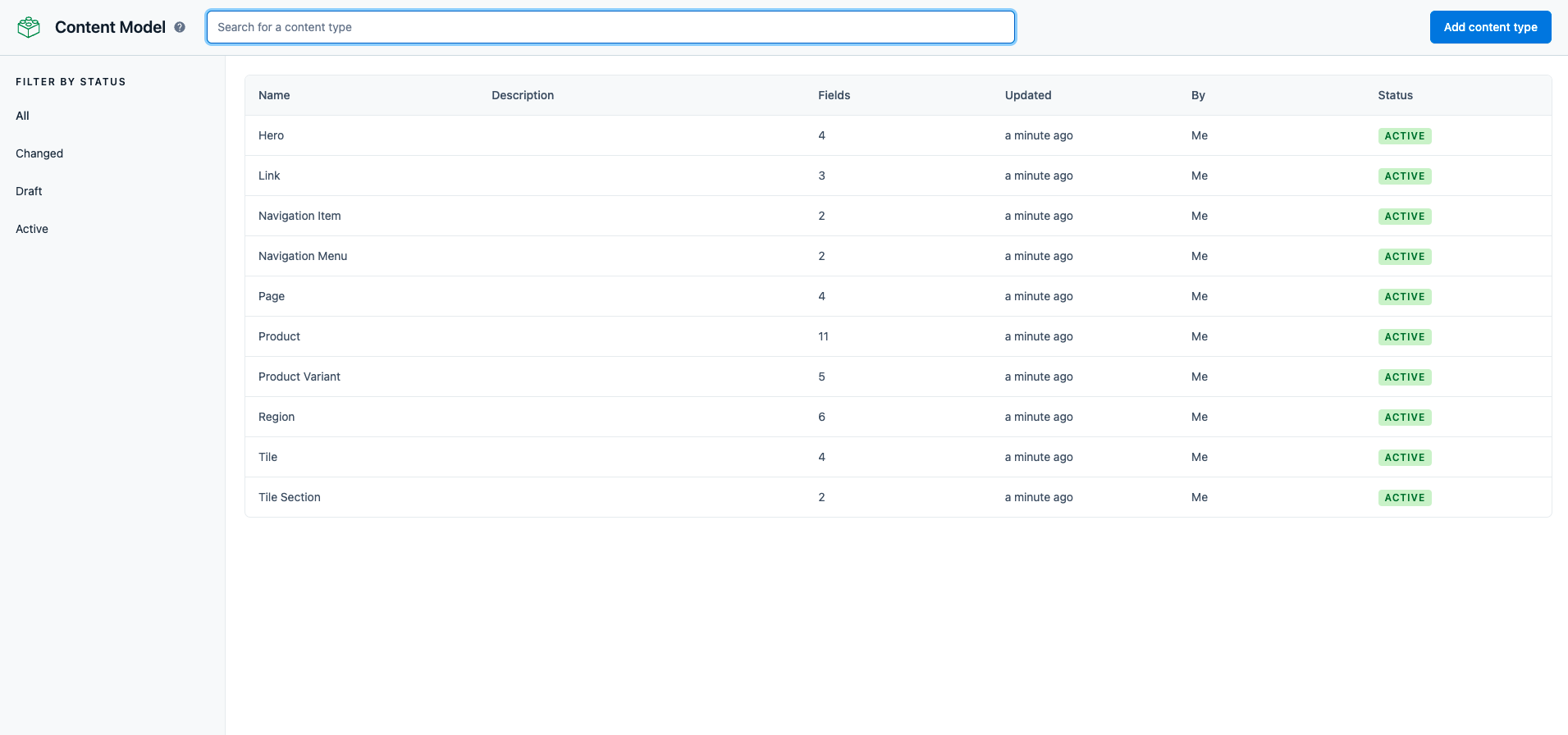
Once this command finishes executing, in your Contentful Space dashboard click on Content Model in the navigation bar. You should see a list of new content models added.
|
||
|
||
|
||
|
||
### Seed Content to Contentful
|
||
|
||
The next step is to seed the Contentful Space with some content data.
|
||
|
||
Run the following command to seed some data into it:
|
||
|
||
```bash
|
||
npm run seed:contentful
|
||
```
|
||
|
||
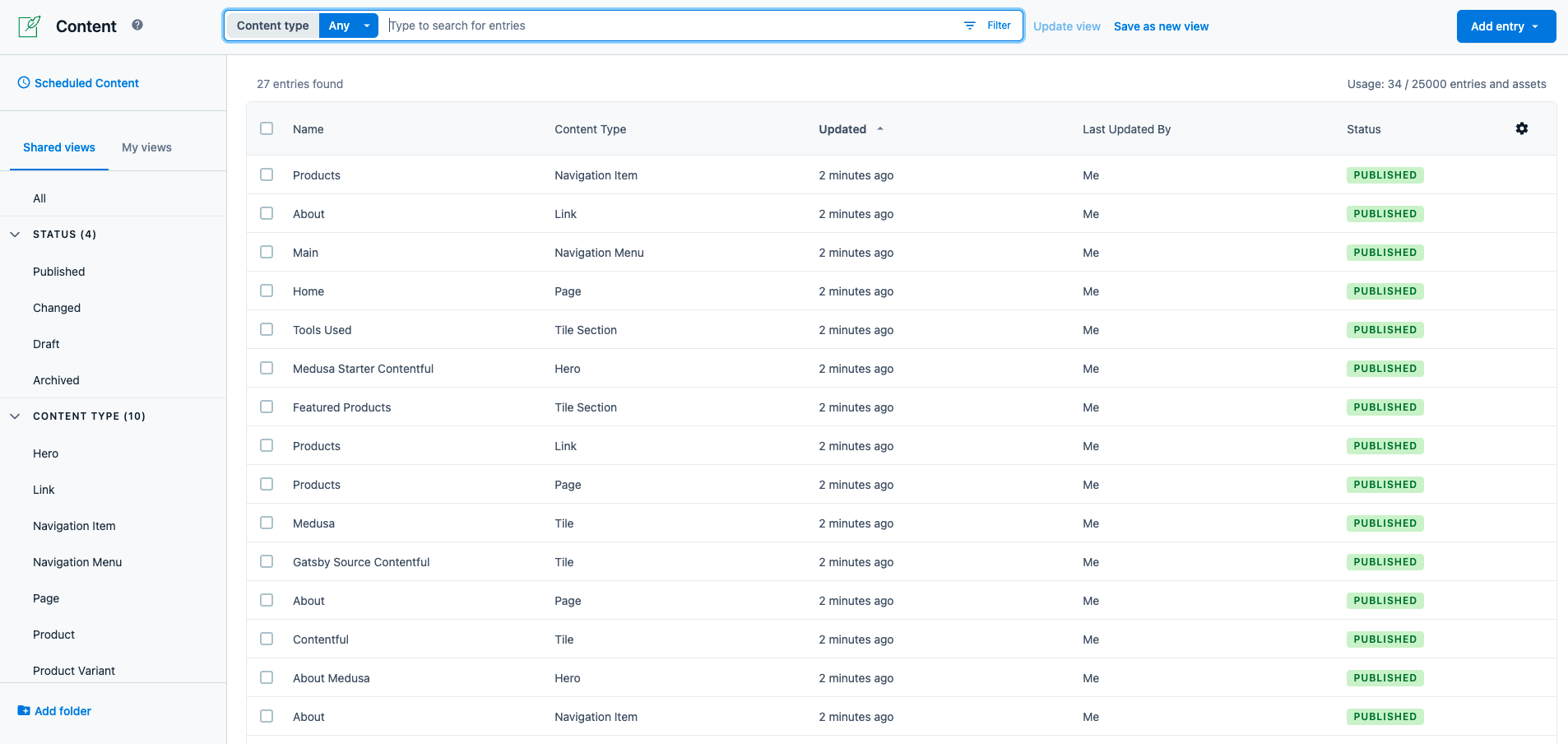
After this command finishes running, in your Contentful Space dashboard click on Content in the navigation bar. You should see a list of new content added.
|
||
|
||
|
||
|
||
### (Optional) Seed Medusa Database
|
||
|
||
This step seeds your Medusa database with demo data to easily add products as well as other data to your Medusa server.
|
||
|
||
Run the following command to seed the Medusa database:
|
||
|
||
```bash
|
||
npm run seed
|
||
```
|
||
|
||
### Start the Server
|
||
|
||
To start the server run the following command:
|
||
|
||
```bash
|
||
npm run start
|
||
```
|
||
|
||
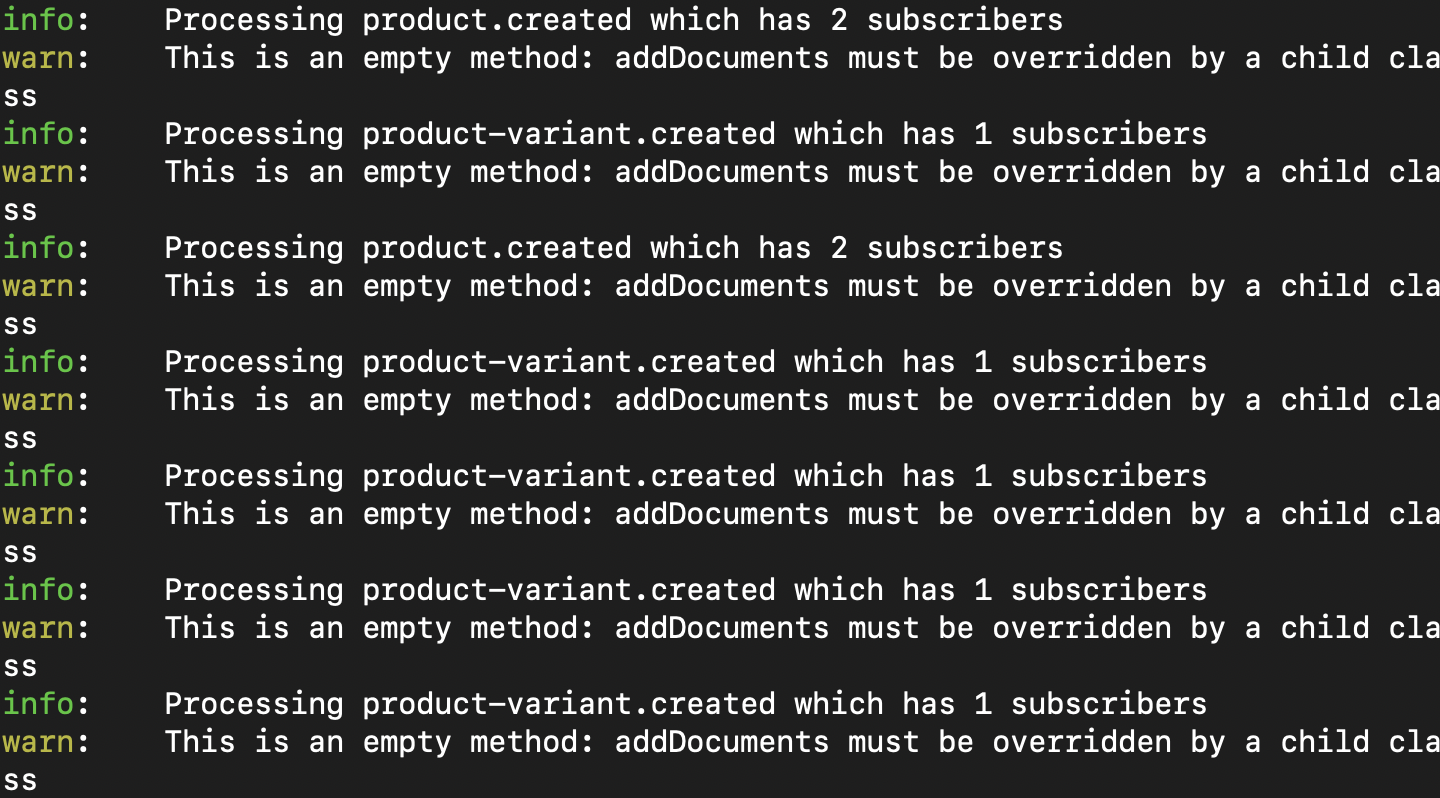
If you seeded the database with demo data, you should see that events related to the products are triggered.
|
||
|
||
|
||
|
||
The Contentful integration ensures a two-way sync between the Medusa server and Contentful. So, when new products are added to Medusa, these products will be added to your Contentful Space as well.
|
||
|
||
---
|
||
|
||
## (Optional) Add Products with the Medusa Admin
|
||
|
||
Using the Medusa admin, you can add products to your Medusa server. This will trigger product events that subsequently add these products to Contentful.
|
||
|
||
---
|
||
|
||
## Manage Contentful Data
|
||
|
||
### Publish Products
|
||
|
||
Products added through the integration with the Medusa server are by default saved as drafts. To show them on the storefront, you must set them as published.
|
||
|
||
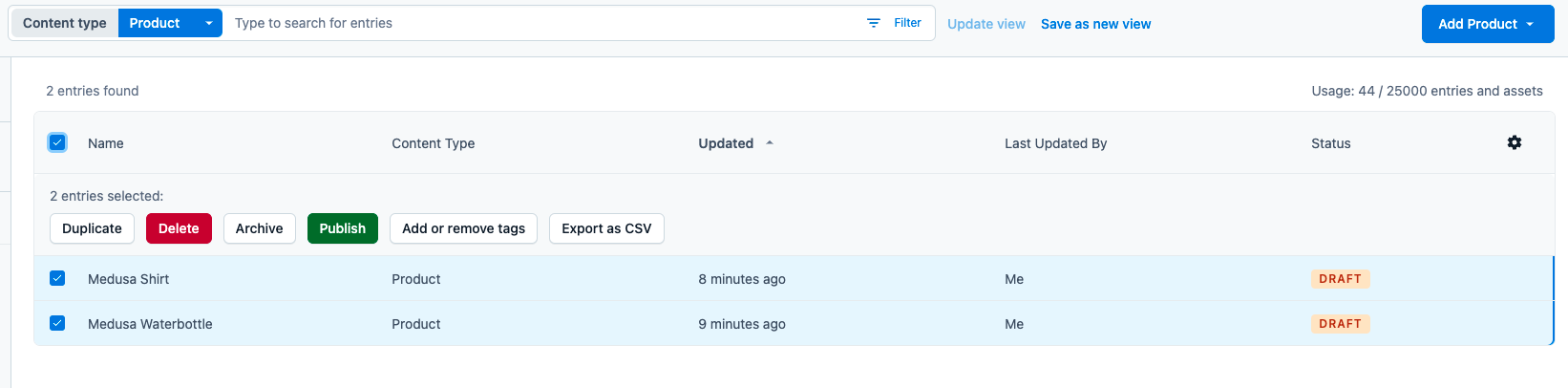
To do that, open your Contentful Space Dashboard and click on Content in the Navigation bar. Then, change Any to Product in the select field next to the search bar. This shows only the content of the type Product, rather than all content.
|
||
|
||
Click on the checkbox at the top of the table to select all products then click Publish to publish these products.
|
||
|
||
|
||
|
||
### Added Featured Products
|
||
|
||
On the homepage of the storefront, there’s a featured products tile that shows a set of products. Before running the storefront, you must add at least one product to the list.
|
||
|
||
To do that, open your Contentful Space Dashboard and click on Content in the Navigation bar. Make sure the select field next to the search bar is set to Any and search for Featured Products. You should find one content of the type Tile Section.
|
||
|
||

|
||
|
||
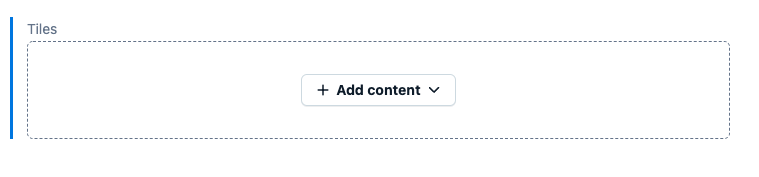
Click on it. You should find on the page an empty Tiles section where you can add tiles and products.
|
||
|
||
|
||
|
||
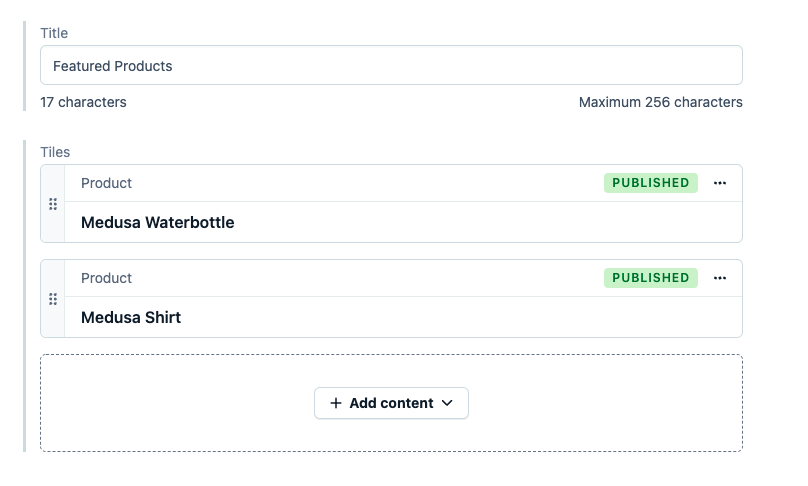
Click on Add content then on Add existing content and pick some of the products you want to show on the homepage.
|
||
|
||
|
||
|
||
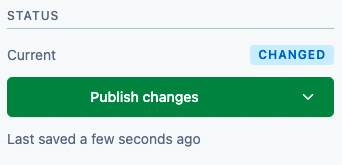
Once you’re done adding products, click on Publish changes in the right sidebar.
|
||
|
||
|
||
|
||
---
|
||
|
||
## Setup Gatsby Storefront
|
||
|
||
In this section, you’ll set up the Gatsby storefront of your Medusa server.
|
||
|
||
In your terminal in a different directory of the Medusa server, run the following command:
|
||
|
||
```bash
|
||
gatsby new medusa-contentful-storefront https://github.com/medusajs/medusa-contentful-storefront
|
||
```
|
||
|
||
This will install the storefront in the directory `medusa-contentful-storefront`.
|
||
|
||
### Set Contentful Environment Variables
|
||
|
||
Change to the newly created directory and rename `.env.template`:
|
||
|
||
```bash
|
||
mv .env.template .env
|
||
```
|
||
|
||
Then, open `.env`. You should find the following environment variables:
|
||
|
||
```bash title=.env
|
||
CONTENTFUL_SPACE_ID=
|
||
CONTENTFUL_ACCESS_TOKEN=
|
||
```
|
||
|
||
The value of `CONTENTFUL_SPACE_ID` is the same value you [retrieved while setting up the Medusa server](#value-of-contentful_space_id).
|
||
|
||
To retrieve the value of `CONTENTFUL_ACCESS_TOKEN`, on your Contentful Space dashboard click on Settings then API keys. Then, choose the API key you created in the previous section.
|
||
|
||
You should find the field "Content Delivery API - access token”. Copy its value and set it as the value of `CONTENTFUL_ACCESS_TOKEN`.
|
||
|
||

|
||
|
||
### Start Storefront
|
||
|
||
Make sure the Medusa server is still running. Then, start the storefront:
|
||
|
||
```bash
|
||
npm run start
|
||
```
|
||
|
||
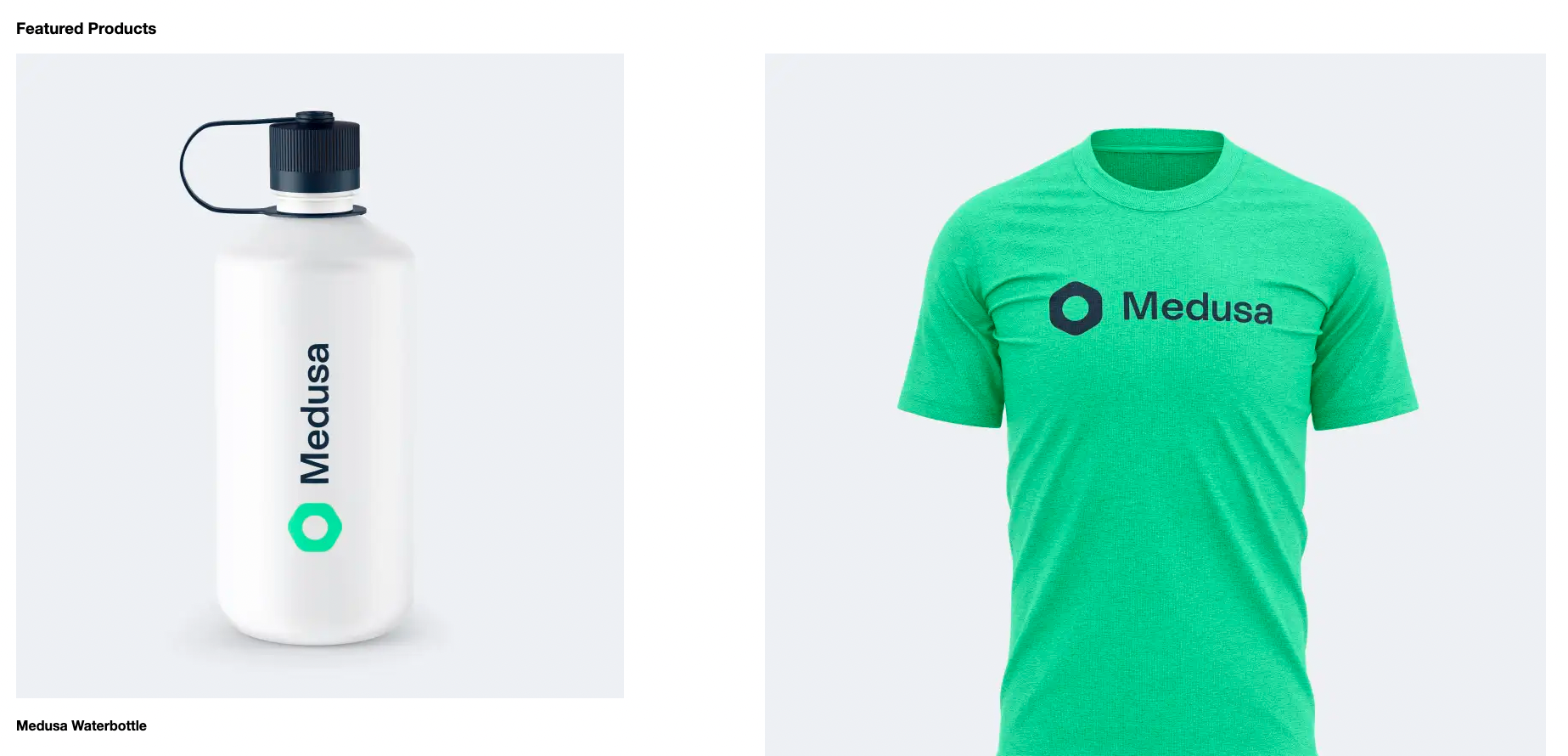
This starts the storefront at `localhost:8000`. Open it in your browser and you should see on the homepage the Featured Product section with the products you chose on Contentful.
|
||
|
||
|
||
|
||
---
|
||
|
||
## Make Changes to Content
|
||
|
||
You can update the CMS content of your storefront in your Contentful Space. This includes the CMS pages or product details.
|
||
|
||
:::note
|
||
|
||
If you make changes to the data while your Gatsby storefront is running, the changes are not reflected instantly. That’s because the data is fetched from Contentful during build time. Instead, you must restart your Gatsby storefront to see the changes you make.
|
||
|
||
:::
|
||
|
||
---
|
||
|
||
## What’s Next
|
||
|
||
Learn [How to customize your Contentful server and storefront](./customize-contentful.md).
|
||
|
||
## See Also
|
||
|
||
- How to deploy your Medusa server to [Heroku](../../deployments/server/deploying-on-heroku.mdx), [Qovery](../../deployments/server/deploying-on-qovery.md), or [DigitalOcean](../../deployments/server/deploying-on-digital-ocean.md).
|
||
- [How to deploy your Gatsby storefront to Netlify](../../deployments/storefront/deploying-gatsby-on-netlify.md).
|